---
title: Delete your account
description: Permanently delete your Metis Suite account and what Metis Suite stores for you.
---
Deleting your account removes you from Metis Suite for good. Read this page to the end before you start.
:::warning[This cannot be undone]
Once your account is deleted, you cannot get it back.
:::
## What gets deleted
Metis Suite permanently deletes your account and everything it stores for you:
- the workspaces that only you belong to
- the mailboxes, calendars and drives you connected
- your labels
- your workflows
- your scheduled sends
Your mail itself stays with your email providers, such as Gmail or Outlook. Metis Suite does not delete anything from your accounts there.
Where the provider supports it, Metis Suite also takes back the access you gave it to your connected accounts.
## Before you start
- **If you connected Outlook**, also remove Metis Suite from your Microsoft account. The **Delete account** card has links for a personal Microsoft account and for a work or school account.
- **If you own a workspace that other people use**, make someone else its owner first. Click the workspace tile at the top of the left rail and choose **General**. In the members list, click **Transfer** next to the new owner, then enter your code. See [Workspaces](/guide/workspaces). If you skip this, you see "You're the owner of" followed by the number of workspaces, and you are asked to transfer ownership first.
- **Have your authenticator app ready**, or a backup code. The last step asks for a code.
## Delete your account
1. Open your user menu (the round button with your initials at the bottom of the left rail) and click **Settings**.
2. Click **Security**, then scroll down to the red **Delete account** card.
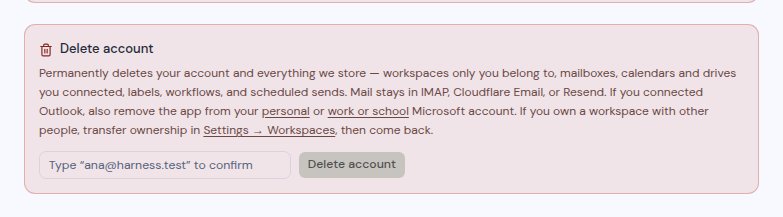
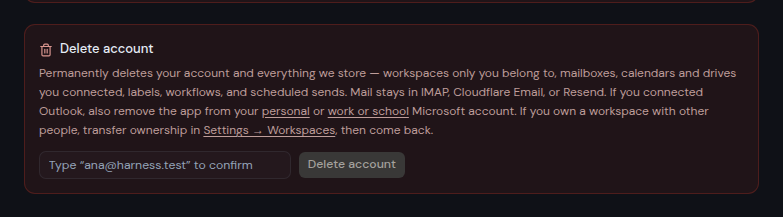 3. Type your email address exactly as shown in the field, to confirm.
4. Click **Delete account**.
5. The box **Delete your account?** asks you to confirm. Click **Continue**.
6. The box **Enter your authenticator code** opens. Enter the code from your authenticator app, or a backup code.
7. Click **Delete account**.
Metis Suite deletes your account and signs you out.
If you see "Too many attempts. Please slow down.", wait a little and try again.
3. Type your email address exactly as shown in the field, to confirm.
4. Click **Delete account**.
5. The box **Delete your account?** asks you to confirm. Click **Continue**.
6. The box **Enter your authenticator code** opens. Enter the code from your authenticator app, or a backup code.
7. Click **Delete account**.
Metis Suite deletes your account and signs you out.
If you see "Too many attempts. Please slow down.", wait a little and try again.