---
title: Sign in
description: Sign in with your password or a magic link, enter your two-factor code, create an account when your instance allows it, and sign out.
---
Every sign-in to Metis Suite has two parts. First you prove who you are with your password or a magic link. Then you enter a code from your authenticator app. This page covers both, plus creating an account and signing out.
New here? Start with [Sign in for the first time](/guide/get-started/sign-in-for-the-first-time) instead.
## Sign in with your password
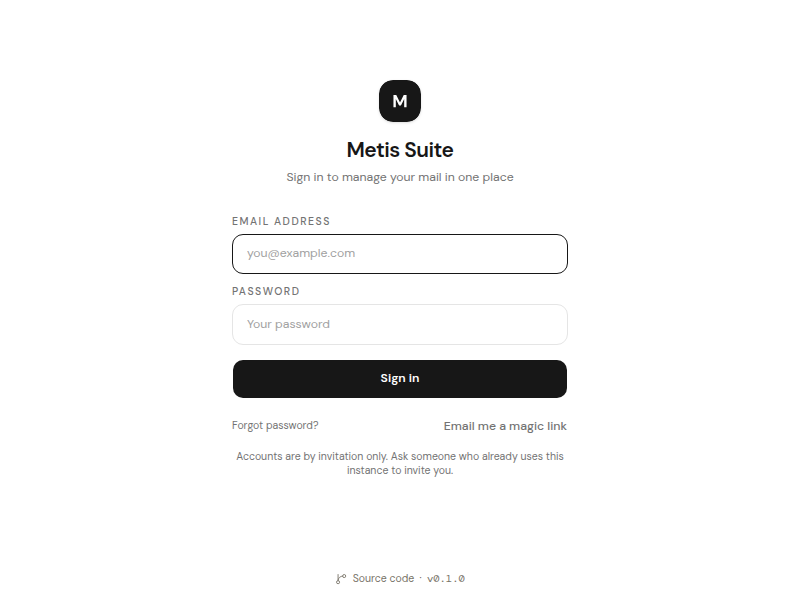
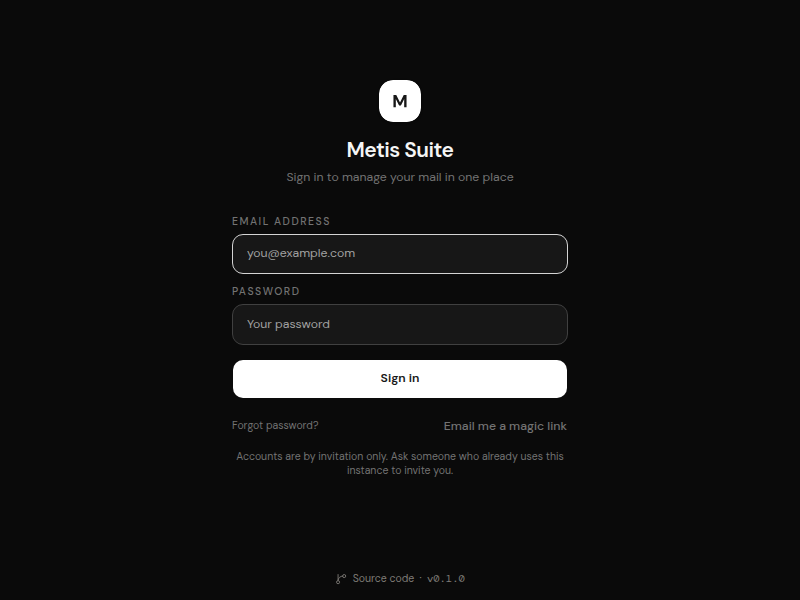
1. Go to your instance's web address. The sign-in page says "Sign in to manage your mail in one place".
2. Enter your **Email address** and **Password**.
3. Click **Sign in**.
 4. Enter your two-factor code, as described below.
Metis Suite then opens your default workspace. To pick which workspace that is, see [Choose where signing in takes you](#choose-where-signing-in-takes-you).
## Enter your two-factor code
After your password or magic link, the page **Two-factor authentication** asks you to "Enter the code from your authenticator app."
1. Open your authenticator app and find Metis Suite.
2. Type the six-digit code into the boxes.
4. Enter your two-factor code, as described below.
Metis Suite then opens your default workspace. To pick which workspace that is, see [Choose where signing in takes you](#choose-where-signing-in-takes-you).
## Enter your two-factor code
After your password or magic link, the page **Two-factor authentication** asks you to "Enter the code from your authenticator app."
1. Open your authenticator app and find Metis Suite.
2. Type the six-digit code into the boxes.
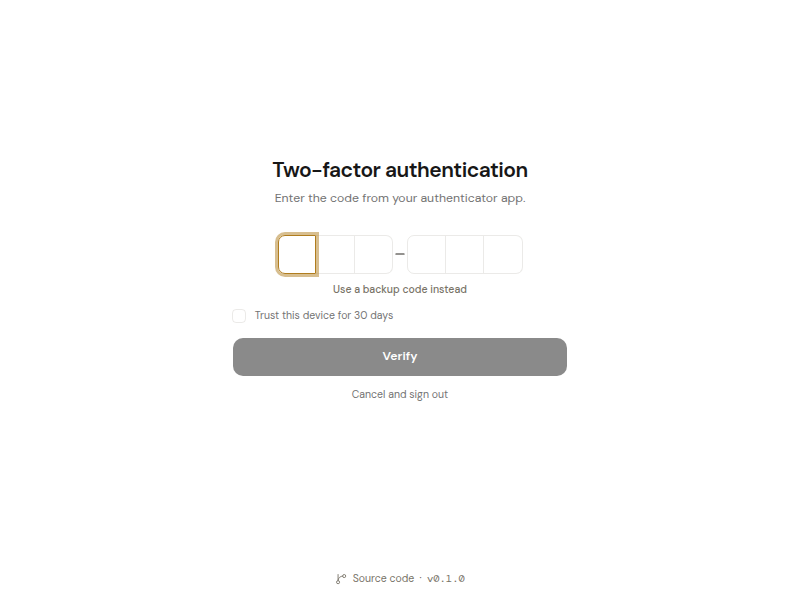
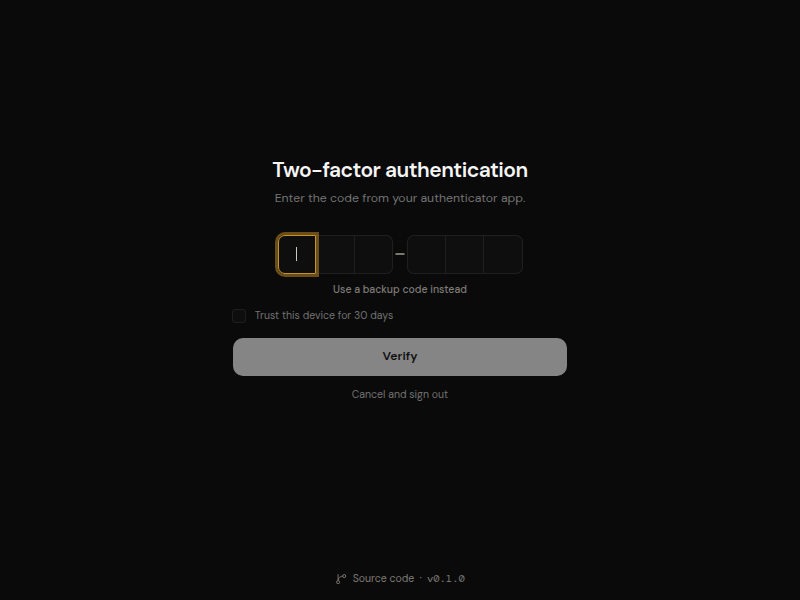 3. To skip this step on this browser for a while, tick **Trust this device for 30 days**. Do this only on your own computer.
4. Click **Verify**.
If you see "Invalid code", wait for your app to show a new code and try again.
### Use a backup code
If you do not have your phone, click **Use a backup code instead**. The boxes change to a single field. Type one of the backup codes you saved when you set up two-factor authentication, then click **Verify**. Each backup code works only once.
To go back to the six boxes, click **Use your authenticator instead**.
Once you are in, set up your new phone or make fresh backup codes. See [If you lose your phone](/guide/account/two-factor-authentication#if-you-lose-your-phone).
### Cancel
To stop without signing in, click **Cancel and sign out**. You go back to the sign-in page.
## Sign in with a magic link
A magic link lets you sign in from your email instead of typing your password.
1. On the sign-in page, type your **Email address**.
2. Click **Email me a magic link**.
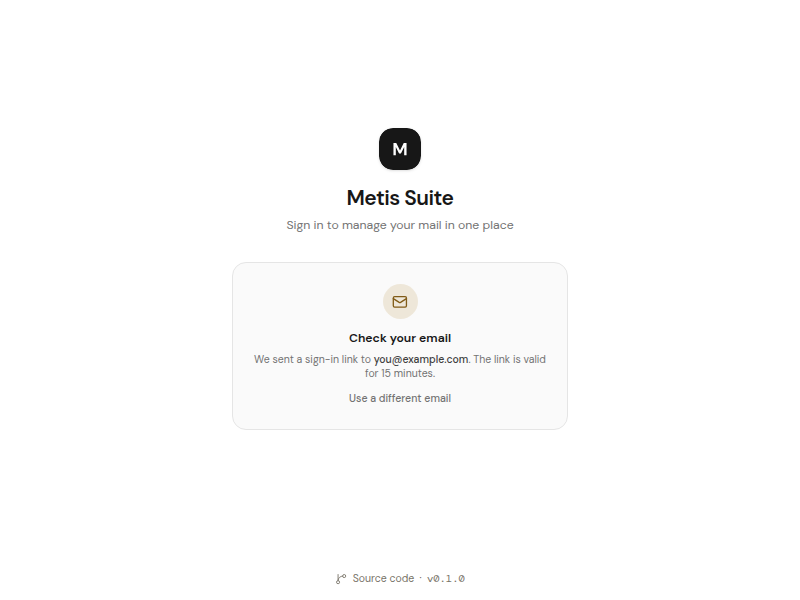
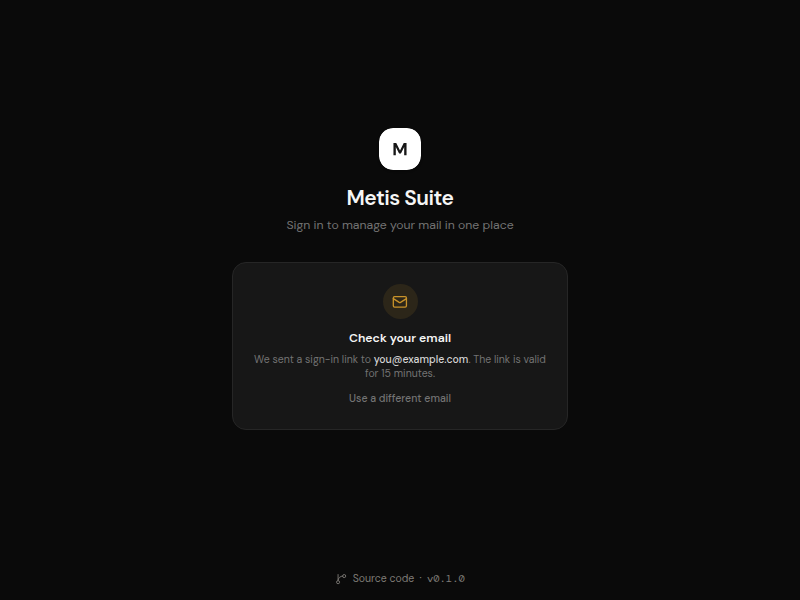
3. The page shows **Check your email** and tells you where the link was sent. The link is valid for 15 minutes.
3. To skip this step on this browser for a while, tick **Trust this device for 30 days**. Do this only on your own computer.
4. Click **Verify**.
If you see "Invalid code", wait for your app to show a new code and try again.
### Use a backup code
If you do not have your phone, click **Use a backup code instead**. The boxes change to a single field. Type one of the backup codes you saved when you set up two-factor authentication, then click **Verify**. Each backup code works only once.
To go back to the six boxes, click **Use your authenticator instead**.
Once you are in, set up your new phone or make fresh backup codes. See [If you lose your phone](/guide/account/two-factor-authentication#if-you-lose-your-phone).
### Cancel
To stop without signing in, click **Cancel and sign out**. You go back to the sign-in page.
## Sign in with a magic link
A magic link lets you sign in from your email instead of typing your password.
1. On the sign-in page, type your **Email address**.
2. Click **Email me a magic link**.
3. The page shows **Check your email** and tells you where the link was sent. The link is valid for 15 minutes.
 4. Open the email with the subject "Sign in to Metis Suite" and click the link.
5. Enter your two-factor code.
Each magic link works only once. A magic link signs in to an account that already exists. It never creates a new account. For your privacy, the page looks the same whether or not an account exists for the address you typed.
Typed the wrong address? Click **Use a different email**.
## Create an account
:::note[Most instances are invite-only]
By default, a Metis Suite instance does not let people create their own accounts. The sign-in page then says "Accounts are by invitation only. Ask someone who already uses this instance to invite you." See [Invite people to Metis Suite](/guide/account/invite-people).
:::
If the owner of your instance allows anyone to sign up, the sign-in page has two tabs: **Sign in** and **Create account**.
1. Click the **Create account** tab.
2. Enter your **Name**, **Email address** and a **Password** (at least 8 characters).
3. If your instance has terms, tick the box to agree to them.
4. Click **Create account**.
5. The page shows **Verify your email**. Open the email Metis Suite sent you and click the verification link. The link expires after 1 hour.
6. Sign in with your email and password.
7. Set up two-factor authentication. The steps are the same as in [Sign in for the first time](/guide/get-started/sign-in-for-the-first-time).
### If your email is not verified
If you try to sign in before you verify your email, you see "Verify your email before signing in." Click **Resend verification email** to get a new link. When you see "Verification email sent. Check your inbox.", open the email and click the link.
## Choose where signing in takes you
Signing in always opens your default workspace. At first, that is your personal workspace. You can pick another one.
1. Open your user menu and click **Settings**.
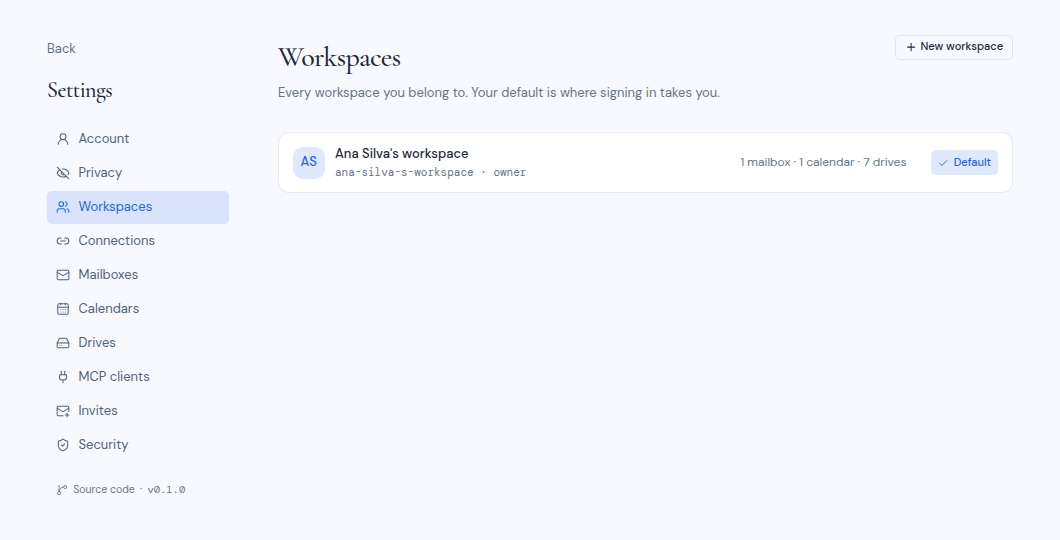
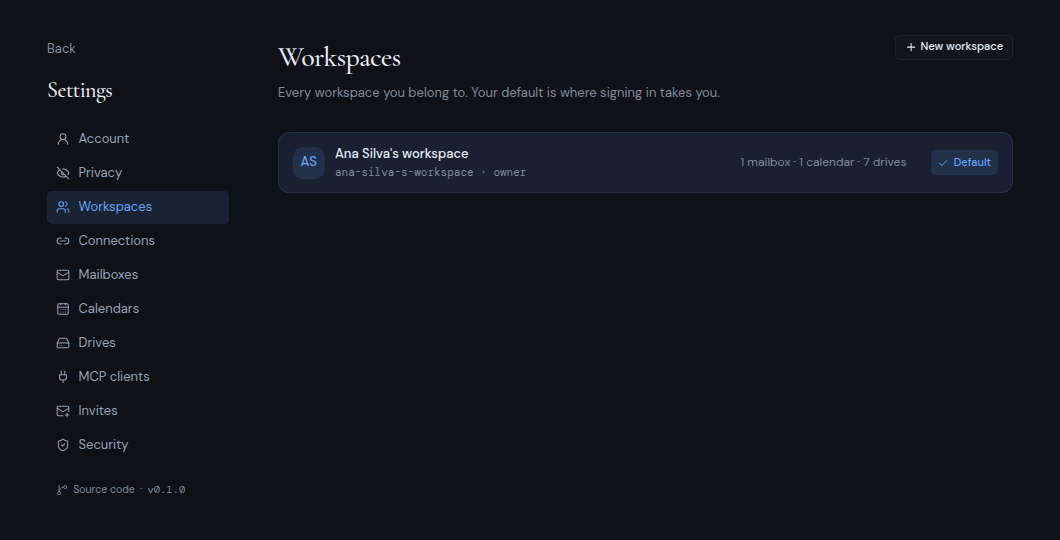
2. Click **Workspaces**. Your default workspace has a **Default** badge.
3. Next to the workspace you want, click **Make default**.
4. Open the email with the subject "Sign in to Metis Suite" and click the link.
5. Enter your two-factor code.
Each magic link works only once. A magic link signs in to an account that already exists. It never creates a new account. For your privacy, the page looks the same whether or not an account exists for the address you typed.
Typed the wrong address? Click **Use a different email**.
## Create an account
:::note[Most instances are invite-only]
By default, a Metis Suite instance does not let people create their own accounts. The sign-in page then says "Accounts are by invitation only. Ask someone who already uses this instance to invite you." See [Invite people to Metis Suite](/guide/account/invite-people).
:::
If the owner of your instance allows anyone to sign up, the sign-in page has two tabs: **Sign in** and **Create account**.
1. Click the **Create account** tab.
2. Enter your **Name**, **Email address** and a **Password** (at least 8 characters).
3. If your instance has terms, tick the box to agree to them.
4. Click **Create account**.
5. The page shows **Verify your email**. Open the email Metis Suite sent you and click the verification link. The link expires after 1 hour.
6. Sign in with your email and password.
7. Set up two-factor authentication. The steps are the same as in [Sign in for the first time](/guide/get-started/sign-in-for-the-first-time).
### If your email is not verified
If you try to sign in before you verify your email, you see "Verify your email before signing in." Click **Resend verification email** to get a new link. When you see "Verification email sent. Check your inbox.", open the email and click the link.
## Choose where signing in takes you
Signing in always opens your default workspace. At first, that is your personal workspace. You can pick another one.
1. Open your user menu and click **Settings**.
2. Click **Workspaces**. Your default workspace has a **Default** badge.
3. Next to the workspace you want, click **Make default**.
 To learn more about workspaces, see [Workspaces](/guide/workspaces).
## Sign out
Open your user menu (the round button with your initials at the bottom of the left rail) and click **Sign out**. This ends your session in this browser only. It also clears the file previews Metis Suite saved in this browser.
To sign out of other browsers too, see [Manage signed-in devices](/guide/account/signed-in-devices).
To learn more about workspaces, see [Workspaces](/guide/workspaces).
## Sign out
Open your user menu (the round button with your initials at the bottom of the left rail) and click **Sign out**. This ends your session in this browser only. It also clears the file previews Metis Suite saved in this browser.
To sign out of other browsers too, see [Manage signed-in devices](/guide/account/signed-in-devices).