---
title: Manage signed-in devices
description: See every browser signed in to your account and sign out the ones you do not recognize.
---
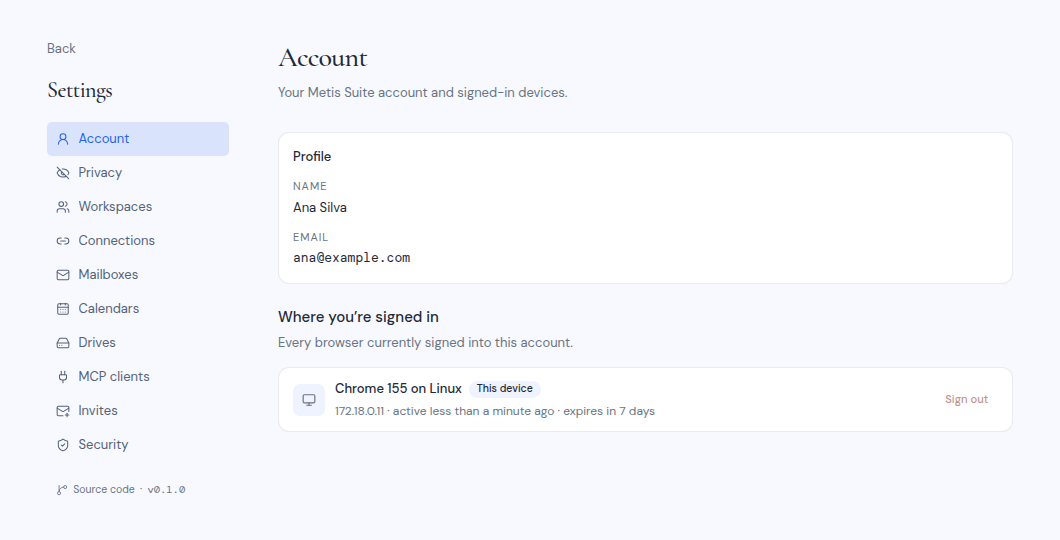
The **Account** settings page shows your profile and every browser that is signed in to your account right now. Check it if you signed in on a shared computer, lost a device, or see something you do not recognize.
## Open the Account page
1. Open your user menu (the round button with your initials at the bottom of the left rail).
2. Click **Settings**. The **Account** page opens.
 ## Your profile
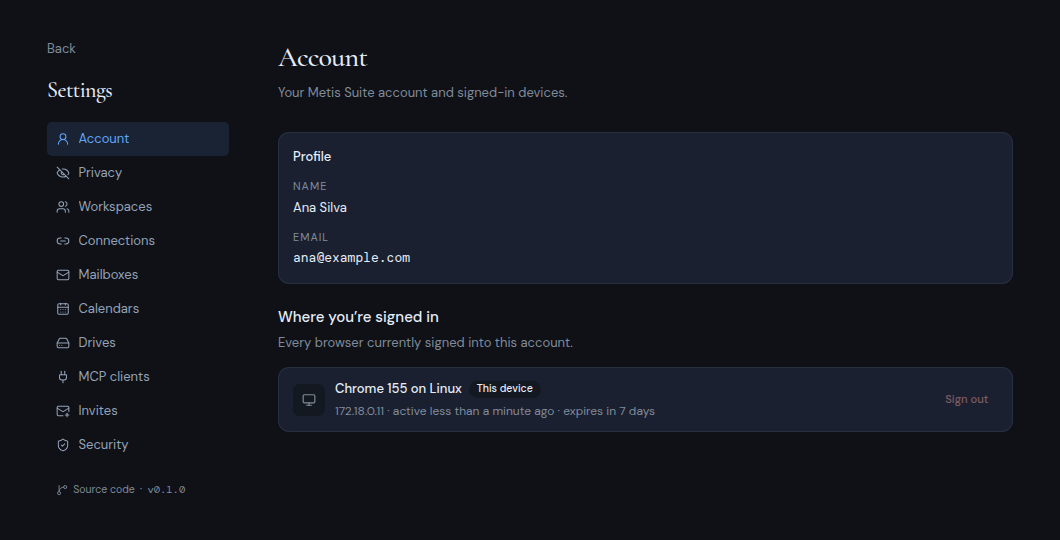
The **Profile** card shows your **Name** and **Email**. You cannot change them in Metis Suite.
## See where you are signed in
The section **Where you're signed in** lists "Every browser currently signed into this account." Each row shows:
- The browser and system, for example "Chrome 130 on Windows".
- A **This device** badge on the browser you are using now.
- The network address it signed in from, when it was last active, and when the session expires.
## Sign out one browser
Click **Sign out** on that browser's row. It is signed out right away. You do not need a code for this.
You cannot sign out the browser you are using from this list. To do that, use **Sign out** in your user menu.
## Sign out every other browser
The **Sign out all** button appears when you are signed in somewhere else too.
1. Click **Sign out all**.
2. The box **Sign out other browsers?** tells you how many other sessions will end.
3. To sign out this browser as well, tick **Also sign out this device**. You then go back to the sign-in page.
4. Enter a code from your authenticator app or a backup code.
5. Click **Sign out others**. If you ticked the box, the button says **Sign out everywhere** instead.
The other sessions end immediately.
Changing your password also signs out every other browser. See [Change or reset your password](/guide/account/change-or-reset-your-password).
## Your profile
The **Profile** card shows your **Name** and **Email**. You cannot change them in Metis Suite.
## See where you are signed in
The section **Where you're signed in** lists "Every browser currently signed into this account." Each row shows:
- The browser and system, for example "Chrome 130 on Windows".
- A **This device** badge on the browser you are using now.
- The network address it signed in from, when it was last active, and when the session expires.
## Sign out one browser
Click **Sign out** on that browser's row. It is signed out right away. You do not need a code for this.
You cannot sign out the browser you are using from this list. To do that, use **Sign out** in your user menu.
## Sign out every other browser
The **Sign out all** button appears when you are signed in somewhere else too.
1. Click **Sign out all**.
2. The box **Sign out other browsers?** tells you how many other sessions will end.
3. To sign out this browser as well, tick **Also sign out this device**. You then go back to the sign-in page.
4. Enter a code from your authenticator app or a backup code.
5. Click **Sign out others**. If you ticked the box, the button says **Sign out everywhere** instead.
The other sessions end immediately.
Changing your password also signs out every other browser. See [Change or reset your password](/guide/account/change-or-reset-your-password).