---
title: Two-factor authentication
description: Use sign-in codes and backup codes, make new backup codes, add another device, turn two-factor off and on again, and recover if you lose your phone.
---
Two-factor authentication protects your account with a second step after your password. You enter a six-digit code from an authenticator app on your phone, such as Google Authenticator, 1Password or Authy. Someone who learns your password still cannot get in without that code.
Every Metis Suite account must use two-factor authentication. You set it up the first time you sign in, as shown in [Sign in for the first time](/guide/get-started/sign-in-for-the-first-time).
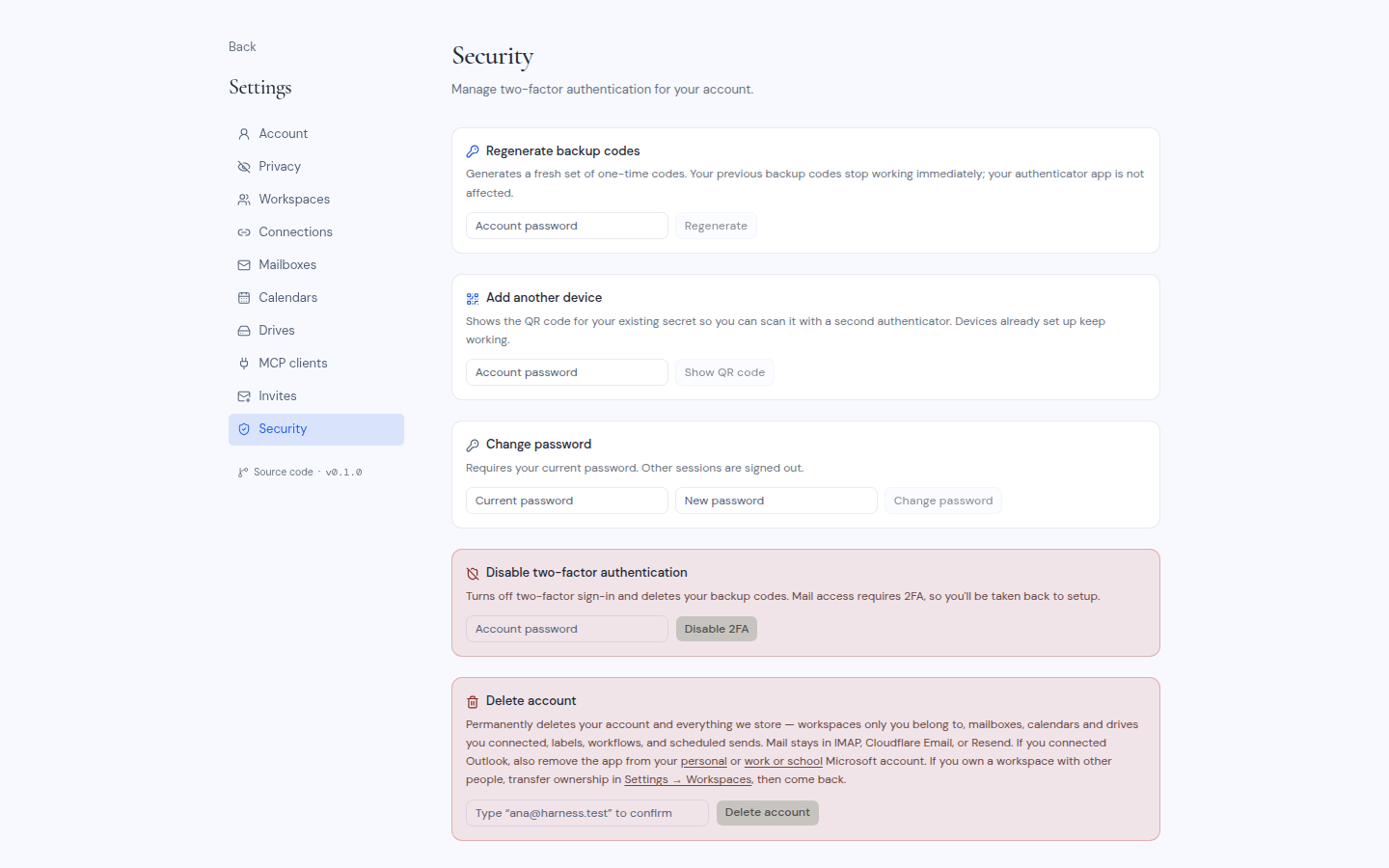
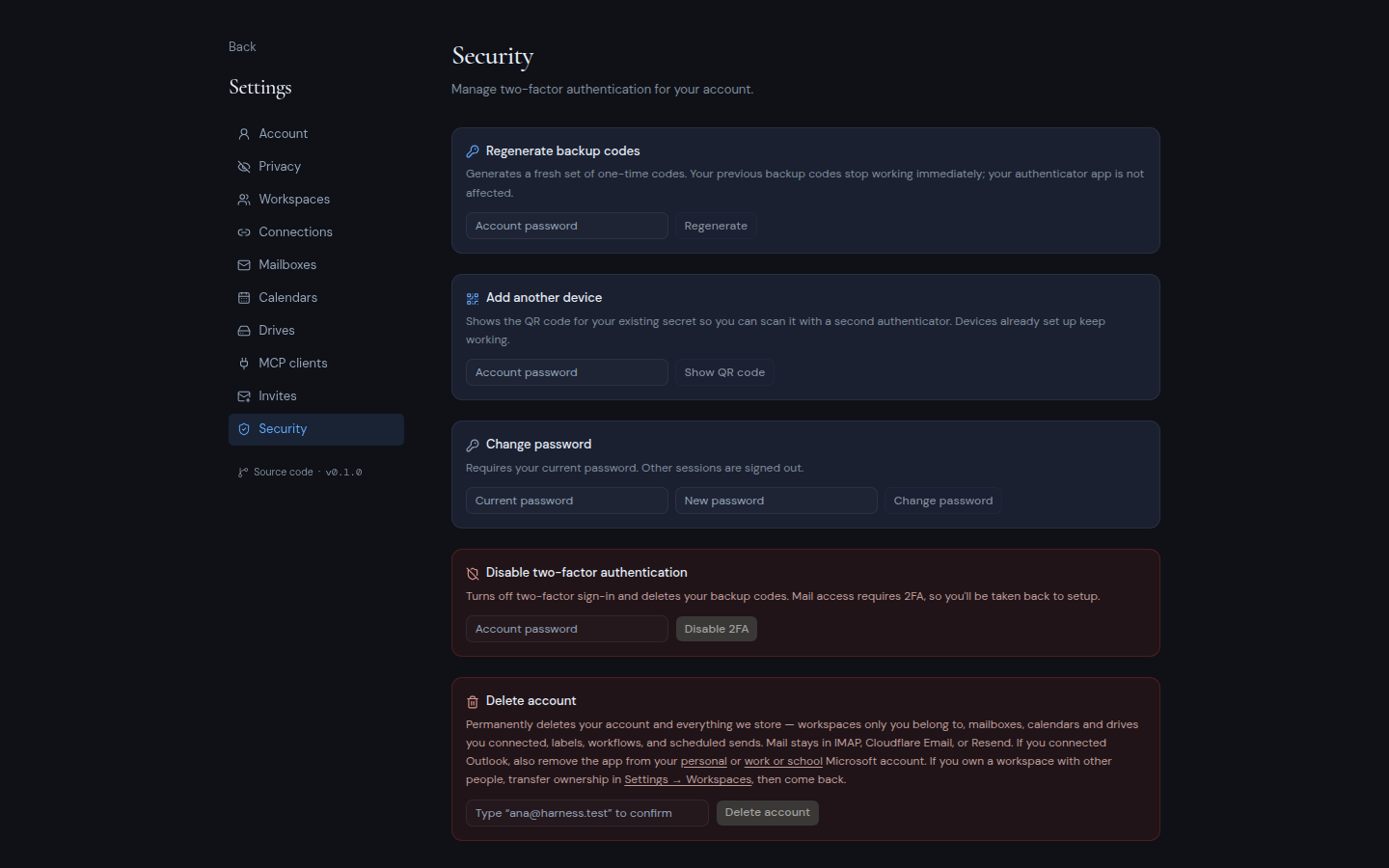
You manage it under **Settings**, then **Security**. To get there, open your user menu (the round button with your initials at the bottom of the left rail) and click **Settings**, then click **Security**.
 ## Codes and backup codes
There are two kinds of code:
- **Authenticator codes** come from your authenticator app. They are six digits long and change all the time.
- **Backup codes** are one-time codes you saved when you set up two-factor authentication. They look like `abcde-12345`. Each one works only once.
Metis Suite asks for a code when you sign in. It also asks before some sensitive actions, such as changing your password, signing out your other browsers, deleting your account, or turning on AI or phishing detection. In every one of these places, you can type either an authenticator code or a backup code.
If a code is wrong when you change your password, sign out other browsers or delete your account, you see "Invalid authenticator or backup code". At sign-in, you see "Invalid code".
## Make new backup codes
Make new backup codes if you used most of yours, or if you think someone else has seen them.
1. Go to **Settings**, then **Security**.
2. In the **Regenerate backup codes** card, type your **Account password**.
3. Click **Regenerate**.
4. A **Save these backup codes** card appears. Click **Download .txt** or **Copy**, and keep the codes somewhere safe.
Your old backup codes stop working right away. Your authenticator app keeps working as before.
## Add another device
You can put the same Metis Suite entry on a second phone or in a second authenticator app. This is a good way to have a spare.
1. Go to **Settings**, then **Security**.
2. In the **Add another device** card, type your **Account password**.
3. Click **Show QR code**.
## Codes and backup codes
There are two kinds of code:
- **Authenticator codes** come from your authenticator app. They are six digits long and change all the time.
- **Backup codes** are one-time codes you saved when you set up two-factor authentication. They look like `abcde-12345`. Each one works only once.
Metis Suite asks for a code when you sign in. It also asks before some sensitive actions, such as changing your password, signing out your other browsers, deleting your account, or turning on AI or phishing detection. In every one of these places, you can type either an authenticator code or a backup code.
If a code is wrong when you change your password, sign out other browsers or delete your account, you see "Invalid authenticator or backup code". At sign-in, you see "Invalid code".
## Make new backup codes
Make new backup codes if you used most of yours, or if you think someone else has seen them.
1. Go to **Settings**, then **Security**.
2. In the **Regenerate backup codes** card, type your **Account password**.
3. Click **Regenerate**.
4. A **Save these backup codes** card appears. Click **Download .txt** or **Copy**, and keep the codes somewhere safe.
Your old backup codes stop working right away. Your authenticator app keeps working as before.
## Add another device
You can put the same Metis Suite entry on a second phone or in a second authenticator app. This is a good way to have a spare.
1. Go to **Settings**, then **Security**.
2. In the **Add another device** card, type your **Account password**.
3. Click **Show QR code**.
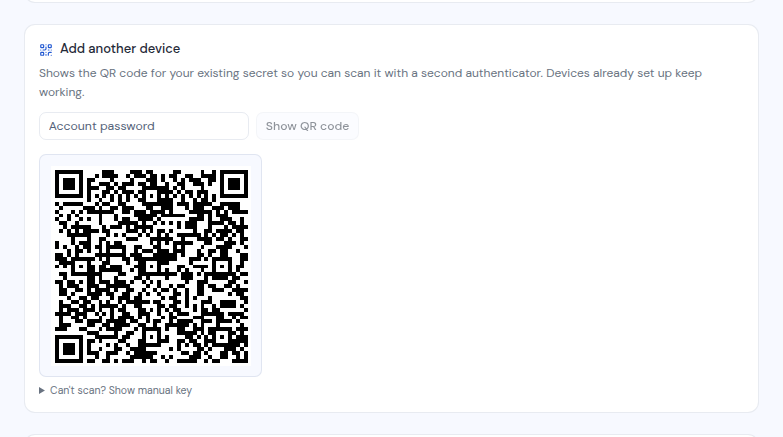
 4. Scan the QR code with the new device. If you cannot scan it, click **Can't scan? Show manual key** and type the key in instead.
The devices you already set up keep working. All of them show the same codes.
## Turn two-factor authentication off and on again
You cannot use Metis Suite without two-factor authentication. Turning it off is only useful if you want to start over with a new setup, for example to replace every device at once.
1. Go to **Settings**, then **Security**.
2. In the **Disable two-factor authentication** card, type your **Account password**.
3. Click **Disable 2FA**.
4. In the **Disable two-factor auth?** box, confirm.
Your authenticator entries and backup codes stop working. Metis Suite then takes you to the two-factor setup page. You cannot use the app until you set it up again with a new QR code and new backup codes.
## If you lose your phone
:::warning[Keep your backup codes]
Your backup codes are your way back in if you lose your phone. Store them somewhere other than that phone, such as a password manager.
:::
If you lost your phone but still have your backup codes:
1. Sign in with your email and password, or a magic link.
2. On the two-factor page, click **Use a backup code instead** and enter one of your backup codes.
3. Go to **Settings**, then **Security**.
4. Use **Add another device** to put Metis Suite on your new phone.
5. Use **Regenerate backup codes** to make a fresh set, because you used one of your old codes.
Your lost phone still has a working Metis Suite entry. If someone else might have it, [turn two-factor authentication off and on again](#turn-two-factor-authentication-off-and-on-again) instead of step 4. That gives you a new QR code, and the entry on the lost phone stops working. This also gives you new backup codes, so you can skip step 5.
Then sign out every other browser, so the lost phone is no longer signed in. See [Manage signed-in devices](/guide/account/signed-in-devices).
Lost your authenticator app and your backup codes? If you lose both, you cannot get back into your account, and there is no recovery inside Metis Suite. Keep your backup codes safe.
## Changing your password does not affect two-factor
Resetting or changing your password keeps your two-factor setup as it is. Your authenticator app and backup codes keep working. See [Change or reset your password](/guide/account/change-or-reset-your-password).
4. Scan the QR code with the new device. If you cannot scan it, click **Can't scan? Show manual key** and type the key in instead.
The devices you already set up keep working. All of them show the same codes.
## Turn two-factor authentication off and on again
You cannot use Metis Suite without two-factor authentication. Turning it off is only useful if you want to start over with a new setup, for example to replace every device at once.
1. Go to **Settings**, then **Security**.
2. In the **Disable two-factor authentication** card, type your **Account password**.
3. Click **Disable 2FA**.
4. In the **Disable two-factor auth?** box, confirm.
Your authenticator entries and backup codes stop working. Metis Suite then takes you to the two-factor setup page. You cannot use the app until you set it up again with a new QR code and new backup codes.
## If you lose your phone
:::warning[Keep your backup codes]
Your backup codes are your way back in if you lose your phone. Store them somewhere other than that phone, such as a password manager.
:::
If you lost your phone but still have your backup codes:
1. Sign in with your email and password, or a magic link.
2. On the two-factor page, click **Use a backup code instead** and enter one of your backup codes.
3. Go to **Settings**, then **Security**.
4. Use **Add another device** to put Metis Suite on your new phone.
5. Use **Regenerate backup codes** to make a fresh set, because you used one of your old codes.
Your lost phone still has a working Metis Suite entry. If someone else might have it, [turn two-factor authentication off and on again](#turn-two-factor-authentication-off-and-on-again) instead of step 4. That gives you a new QR code, and the entry on the lost phone stops working. This also gives you new backup codes, so you can skip step 5.
Then sign out every other browser, so the lost phone is no longer signed in. See [Manage signed-in devices](/guide/account/signed-in-devices).
Lost your authenticator app and your backup codes? If you lose both, you cannot get back into your account, and there is no recovery inside Metis Suite. Keep your backup codes safe.
## Changing your password does not affect two-factor
Resetting or changing your password keeps your two-factor setup as it is. Your authenticator app and backup codes keep working. See [Change or reset your password](/guide/account/change-or-reset-your-password).