---
title: Connect an AI client with MCP
description: Let an outside AI app such as Claude Code, Claude Desktop, Codex, Cursor or VS Code work with your mail, calendars and drives.
---
MCP (Model Context Protocol) is a standard way for AI apps to use tools. With it, an AI app you already use can read your mail, check your calendar and find files in Metis Suite on your behalf. In this tutorial you add a client in Metis Suite, paste its setup into your AI app, and approve the sign-in.
Before you start, you need:
- Two-factor authentication set up on your account. You type a code to approve the sign-in.
- At least one workspace where AI is allowed, with AI turned on for the mailboxes, calendars and drives you want the app to reach. See [How AI works in Metis Suite](/guide/assistant/how-ai-works).
- The AI app itself, installed and working.
:::note
If you do not see **MCP clients** in your settings, AI is not set up on your Metis Suite server. Ask the person who runs it.
:::
1. **Open MCP clients**
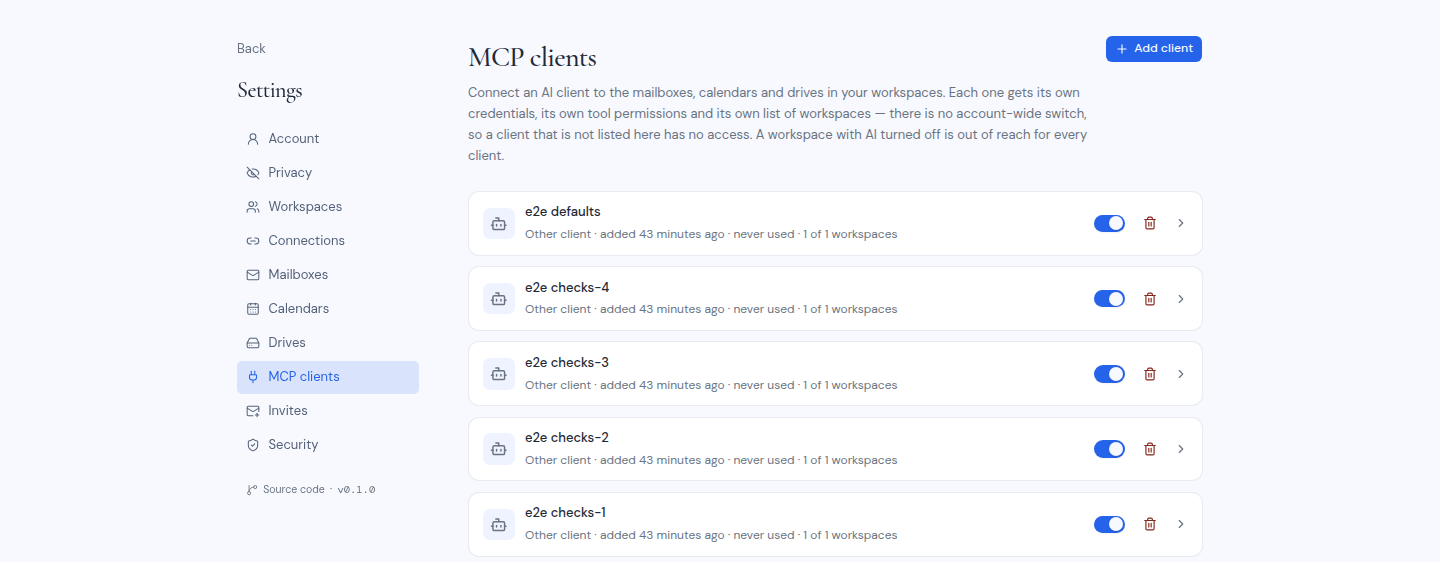
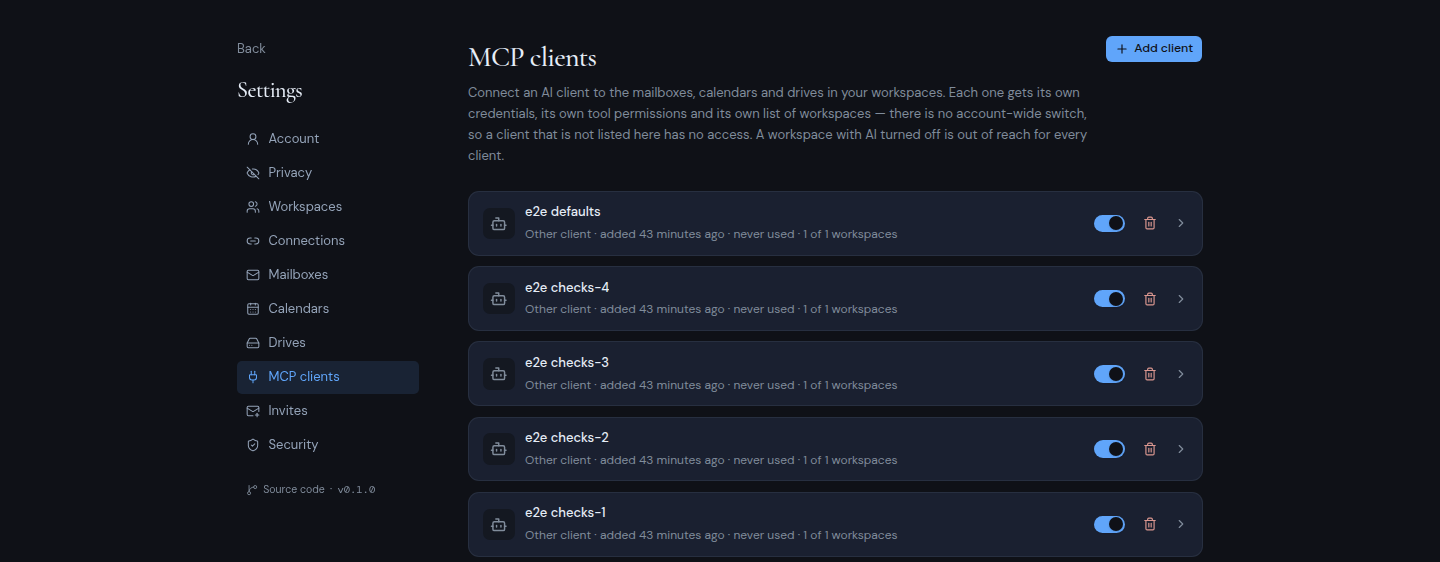
Open your account **Settings** and choose **MCP clients**. The page lists the AI apps you have connected. If you have none yet, it shows "No clients connected".
 2. **Add a client**
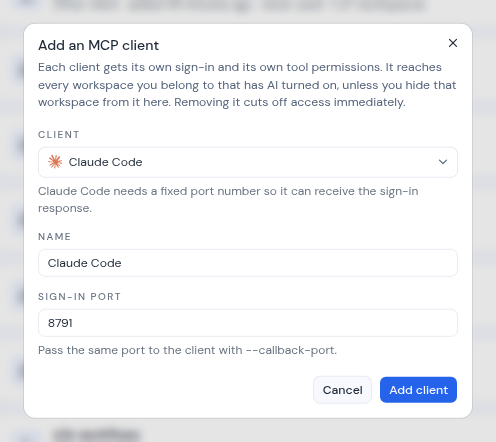
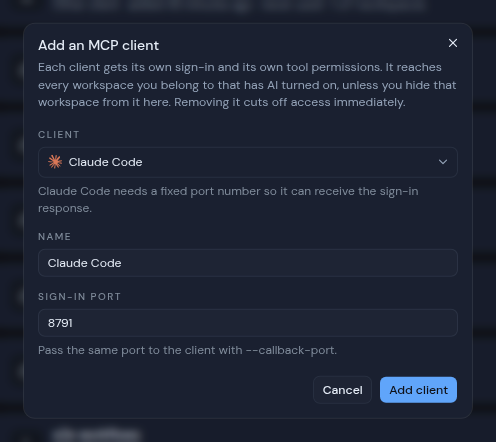
Click **Add client**. In the **Add an MCP client** dialog:
- **Client**: pick your AI app. The choices are **Claude Code**, **Claude Desktop / claude.ai**, **Codex CLI**, **Cursor (desktop)**, **Cursor (web / cloud agents)**, **VS Code / Copilot** and **Other client**. A hint under the list tells you what that app needs.
- **Name**: a name to help you recognize this client later, for example "Claude Code on my laptop". It starts as the app's name. Use up to 60 characters.
- **Sign-in port** (Claude Code only): the port Claude Code listens on during sign-in. The default is 8791. You pass the same port to Claude Code in the next step.
- **Sign-in return URL** (Other client only): the exact address your app returns to after sign-in. Check your app's documentation for it.
If you use Cursor both on your computer and on the web, add a client for each.
2. **Add a client**
Click **Add client**. In the **Add an MCP client** dialog:
- **Client**: pick your AI app. The choices are **Claude Code**, **Claude Desktop / claude.ai**, **Codex CLI**, **Cursor (desktop)**, **Cursor (web / cloud agents)**, **VS Code / Copilot** and **Other client**. A hint under the list tells you what that app needs.
- **Name**: a name to help you recognize this client later, for example "Claude Code on my laptop". It starts as the app's name. Use up to 60 characters.
- **Sign-in port** (Claude Code only): the port Claude Code listens on during sign-in. The default is 8791. You pass the same port to Claude Code in the next step.
- **Sign-in return URL** (Other client only): the exact address your app returns to after sign-in. Check your app's documentation for it.
If you use Cursor both on your computer and on the web, add a client for each.
 Click **Add client**.
3. **Copy the setup**
The dialog now says your client is ready. It shows two things:
- **Client ID**: the ID your app uses to sign in. There is no secret key. The client ID is all your app needs.
- **Setup**: the exact instructions for your app, with your server address and client ID already filled in.
Click **Copy** to copy the setup, then click **Done**. You can find the client ID again later on the client's own page.
4. **Paste the setup into your app**
What you do with the setup depends on your app. The server address always ends in `/api/mcp`, for example `https://mail.example.com/api/mcp`.
**Claude Code**
Run the copied command in your terminal. It looks like this:
```sh
claude mcp add --transport http \
--client-id YOUR-CLIENT-ID \
--callback-port 8791 \
metis-suite https://mail.example.com/api/mcp
```
**Claude Desktop**
In Claude Desktop or claude.ai, open **Settings**, then **Connectors**, and add a custom connector. Paste the server address as its URL. Under **Advanced settings**, paste the client ID as the OAuth Client ID. Leave the client secret empty.
**Codex CLI**
Run the copied command in your terminal. It looks like this:
```sh
codex mcp add metis-suite \
--url https://mail.example.com/api/mcp \
--oauth-client-id YOUR-CLIENT-ID
```
**Cursor**
Add the copied entry to Cursor's `mcp.json`. It looks like this:
```json
{
"mcpServers": {
"metis-suite": {
"url": "https://mail.example.com/api/mcp",
"auth": { "CLIENT_ID": "YOUR-CLIENT-ID" }
}
}
}
```
**VS Code**
Add the copied entry to VS Code's `mcp.json`. It looks like this:
```json
{
"servers": {
"metis-suite": {
"type": "http",
"url": "https://mail.example.com/api/mcp",
"oauth": { "clientId": "YOUR-CLIENT-ID" }
}
}
}
```
**Other client**
Give your app the server address and the client ID. Leave any client secret empty.
5. **Approve the sign-in**
When your app first connects, it opens a Metis Suite page in your browser. Sign in to Metis Suite if it asks you to. The page shows your app's name and the words "wants access to your mail, calendars and drives".
Read the two lists on the page:
- **What it will never get**: your password or any way to sign in as you, workspaces you hide from it and any workspace with AI turned off, mailboxes, calendars and drives that have AI turned off, and permission to change your AI settings, sharing or this app's own access.
- **It will be able to**: which workspaces it can reach, which tools it can use, see your name and email address, and stay connected so you do not need to approve it each time.
Type your code in **Two-factor code** and click **Approve**. The app stays connected even after you sign out of Metis Suite. If you do not want to connect after all, click **Deny**.
6. **Try it**
Go back to your app and ask it something, for example "What needs my attention in my inbox?". Each request runs inside one workspace, so the app first finds your workspaces and then works in the one you mean.
Back on the **MCP clients** page, your client now shows when it was last used.
## What the client can do at first
A new client can use every **non-sensitive** tool: it can read and organize your mail, calendars and drives. **Sensitive** tools, such as sending email or deleting files, stay off until you switch them on. MCP clients never show an approval card, so turning a sensitive tool on lets the client use it without asking. See [What an MCP client can do](/guide/assistant/what-an-mcp-client-can-do).
To change the tools or workspaces, see [Manage MCP clients](/guide/assistant/manage-mcp-clients).
## Apps that identify themselves
Some AI apps can connect without being added first. They identify themselves by a web address. When one of these connects for the first time, the sign-in page also shows:
- "This app identified itself. Check these match the app you are connecting:", followed by the app's web address and where it returns to after sign-in. Check that these belong to the app you meant to connect.
- **Workspaces**: the workspaces it will reach. Click the X on a workspace to leave it out, or type in the box after the workspaces to add one back. Workspaces with AI off show "AI off" and cannot be picked. Workspaces you join later are included too.
- **Tools**: the tools it may use, set up the same way as on a client's page.
Approve it the same way, with your two-factor code. Afterwards it appears in your list as "Self-identified client".
## If the sign-in page shows a problem
| Message | What it means |
| --- | --- |
| "This app can't connect here" | The app is not added and did not identify itself. Click **Go back to the app**, then add the client in **MCP clients** and start again. |
| "Invalid authenticator or backup code" | The two-factor code was wrong or expired. Type a new one. |
| "This client is already connected" | Someone else on this server already connected this app. Add your own client in **MCP clients** instead. |
| "Nothing to authorize" | The link is missing information. Start the connection again from your app. |
| "This request could not be loaded" | Click **Try again**. If it keeps failing, start again from your app. |
| "Could not complete the request" | Click **Approve** again. |
Click **Add client**.
3. **Copy the setup**
The dialog now says your client is ready. It shows two things:
- **Client ID**: the ID your app uses to sign in. There is no secret key. The client ID is all your app needs.
- **Setup**: the exact instructions for your app, with your server address and client ID already filled in.
Click **Copy** to copy the setup, then click **Done**. You can find the client ID again later on the client's own page.
4. **Paste the setup into your app**
What you do with the setup depends on your app. The server address always ends in `/api/mcp`, for example `https://mail.example.com/api/mcp`.
**Claude Code**
Run the copied command in your terminal. It looks like this:
```sh
claude mcp add --transport http \
--client-id YOUR-CLIENT-ID \
--callback-port 8791 \
metis-suite https://mail.example.com/api/mcp
```
**Claude Desktop**
In Claude Desktop or claude.ai, open **Settings**, then **Connectors**, and add a custom connector. Paste the server address as its URL. Under **Advanced settings**, paste the client ID as the OAuth Client ID. Leave the client secret empty.
**Codex CLI**
Run the copied command in your terminal. It looks like this:
```sh
codex mcp add metis-suite \
--url https://mail.example.com/api/mcp \
--oauth-client-id YOUR-CLIENT-ID
```
**Cursor**
Add the copied entry to Cursor's `mcp.json`. It looks like this:
```json
{
"mcpServers": {
"metis-suite": {
"url": "https://mail.example.com/api/mcp",
"auth": { "CLIENT_ID": "YOUR-CLIENT-ID" }
}
}
}
```
**VS Code**
Add the copied entry to VS Code's `mcp.json`. It looks like this:
```json
{
"servers": {
"metis-suite": {
"type": "http",
"url": "https://mail.example.com/api/mcp",
"oauth": { "clientId": "YOUR-CLIENT-ID" }
}
}
}
```
**Other client**
Give your app the server address and the client ID. Leave any client secret empty.
5. **Approve the sign-in**
When your app first connects, it opens a Metis Suite page in your browser. Sign in to Metis Suite if it asks you to. The page shows your app's name and the words "wants access to your mail, calendars and drives".
Read the two lists on the page:
- **What it will never get**: your password or any way to sign in as you, workspaces you hide from it and any workspace with AI turned off, mailboxes, calendars and drives that have AI turned off, and permission to change your AI settings, sharing or this app's own access.
- **It will be able to**: which workspaces it can reach, which tools it can use, see your name and email address, and stay connected so you do not need to approve it each time.
Type your code in **Two-factor code** and click **Approve**. The app stays connected even after you sign out of Metis Suite. If you do not want to connect after all, click **Deny**.
6. **Try it**
Go back to your app and ask it something, for example "What needs my attention in my inbox?". Each request runs inside one workspace, so the app first finds your workspaces and then works in the one you mean.
Back on the **MCP clients** page, your client now shows when it was last used.
## What the client can do at first
A new client can use every **non-sensitive** tool: it can read and organize your mail, calendars and drives. **Sensitive** tools, such as sending email or deleting files, stay off until you switch them on. MCP clients never show an approval card, so turning a sensitive tool on lets the client use it without asking. See [What an MCP client can do](/guide/assistant/what-an-mcp-client-can-do).
To change the tools or workspaces, see [Manage MCP clients](/guide/assistant/manage-mcp-clients).
## Apps that identify themselves
Some AI apps can connect without being added first. They identify themselves by a web address. When one of these connects for the first time, the sign-in page also shows:
- "This app identified itself. Check these match the app you are connecting:", followed by the app's web address and where it returns to after sign-in. Check that these belong to the app you meant to connect.
- **Workspaces**: the workspaces it will reach. Click the X on a workspace to leave it out, or type in the box after the workspaces to add one back. Workspaces with AI off show "AI off" and cannot be picked. Workspaces you join later are included too.
- **Tools**: the tools it may use, set up the same way as on a client's page.
Approve it the same way, with your two-factor code. Afterwards it appears in your list as "Self-identified client".
## If the sign-in page shows a problem
| Message | What it means |
| --- | --- |
| "This app can't connect here" | The app is not added and did not identify itself. Click **Go back to the app**, then add the client in **MCP clients** and start again. |
| "Invalid authenticator or backup code" | The two-factor code was wrong or expired. Type a new one. |
| "This client is already connected" | Someone else on this server already connected this app. Add your own client in **MCP clients** instead. |
| "Nothing to authorize" | The link is missing information. Start the connection again from your app. |
| "This request could not be loaded" | Click **Try again**. If it keeps failing, start again from your app. |
| "Could not complete the request" | Click **Approve** again. |