---
title: Use Workspace AI
description: Ask the Workspace Assistant about everything in your workspace, point it at exact items with @, and find past conversations.
---
The Workspace Assistant works across every mailbox, calendar and drive in your workspace that has AI turned on. It can also look up people in the workspace and work with your workflows. Your conversations are saved, so you can come back to them later.
## Open the assistant
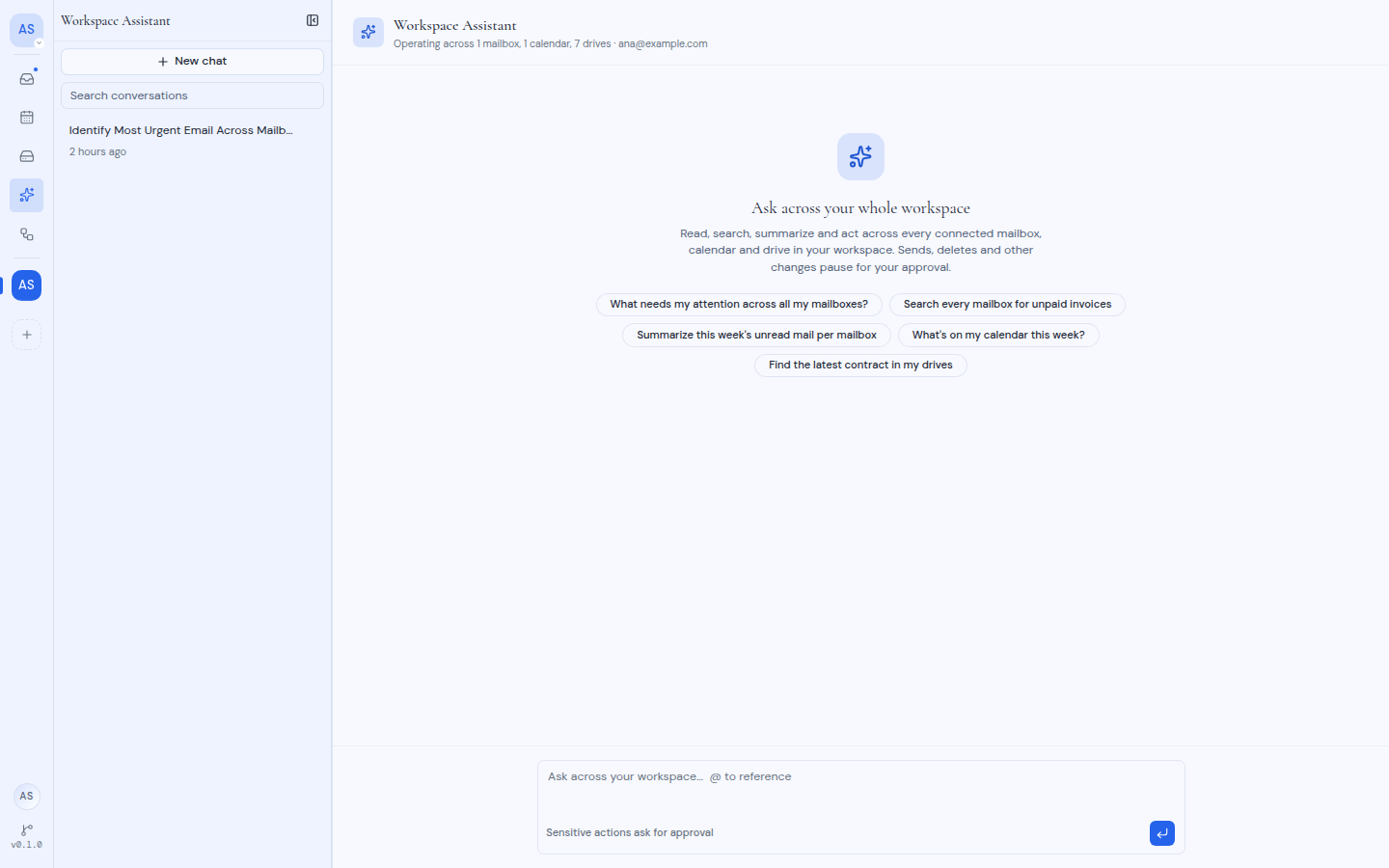
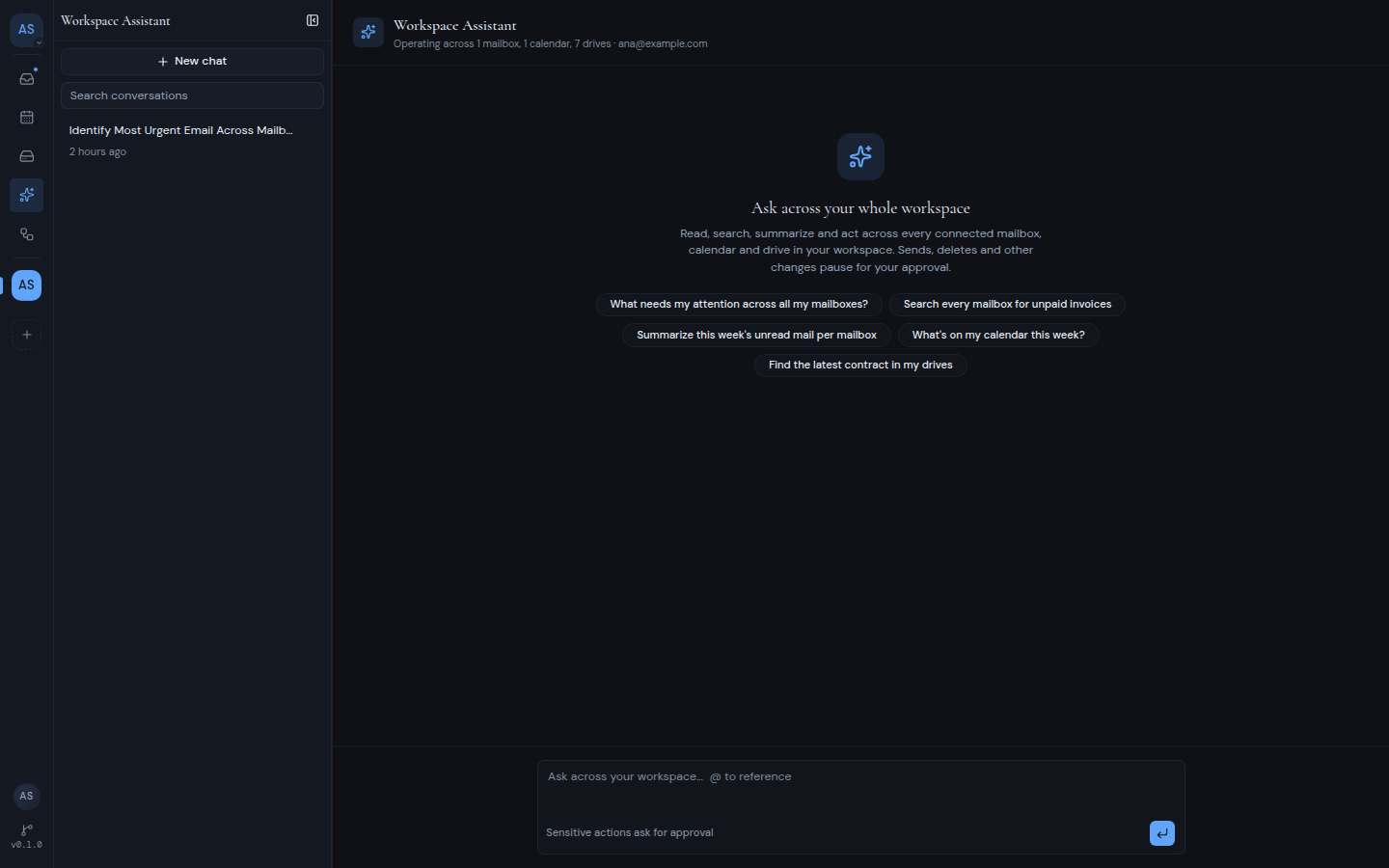
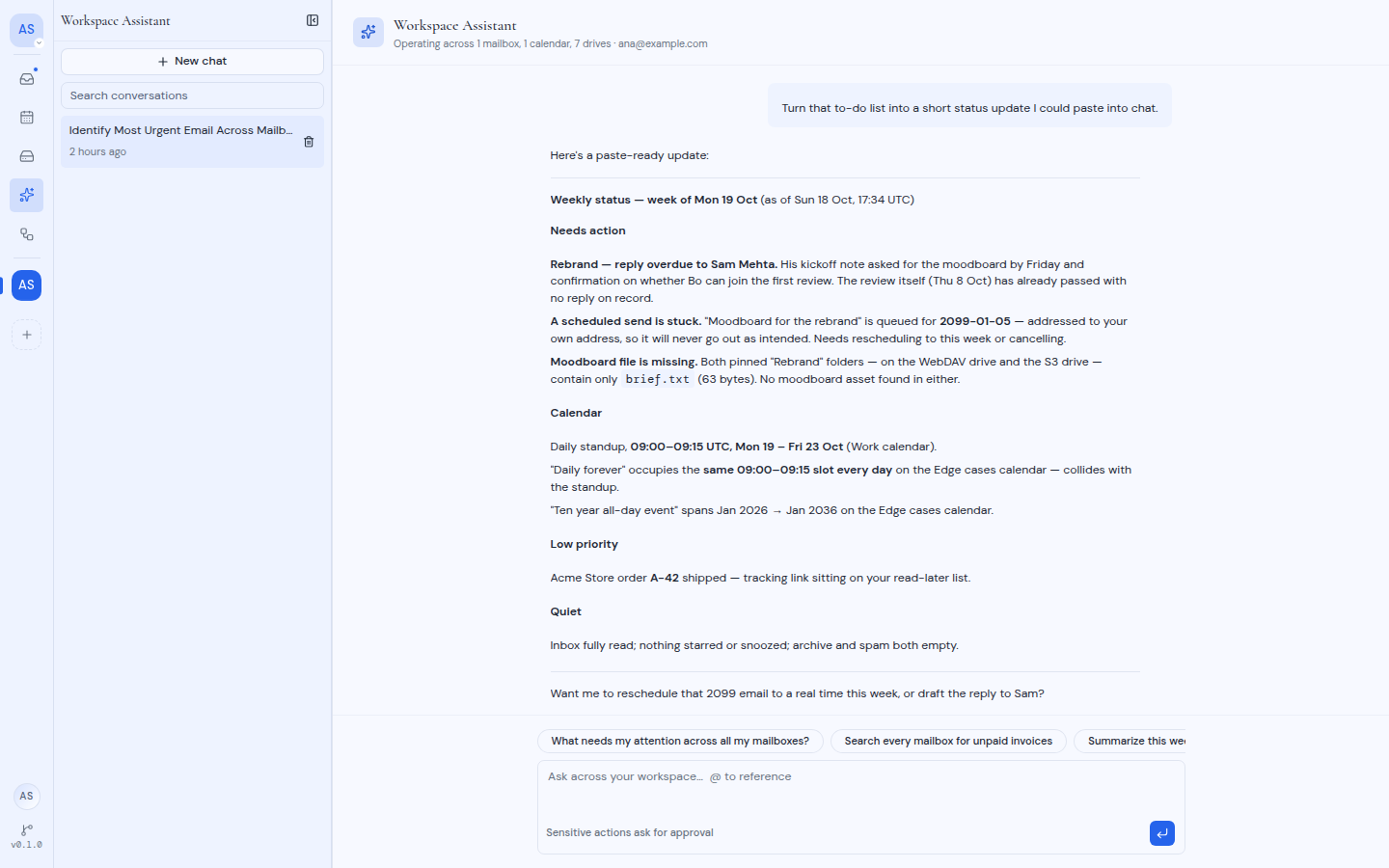
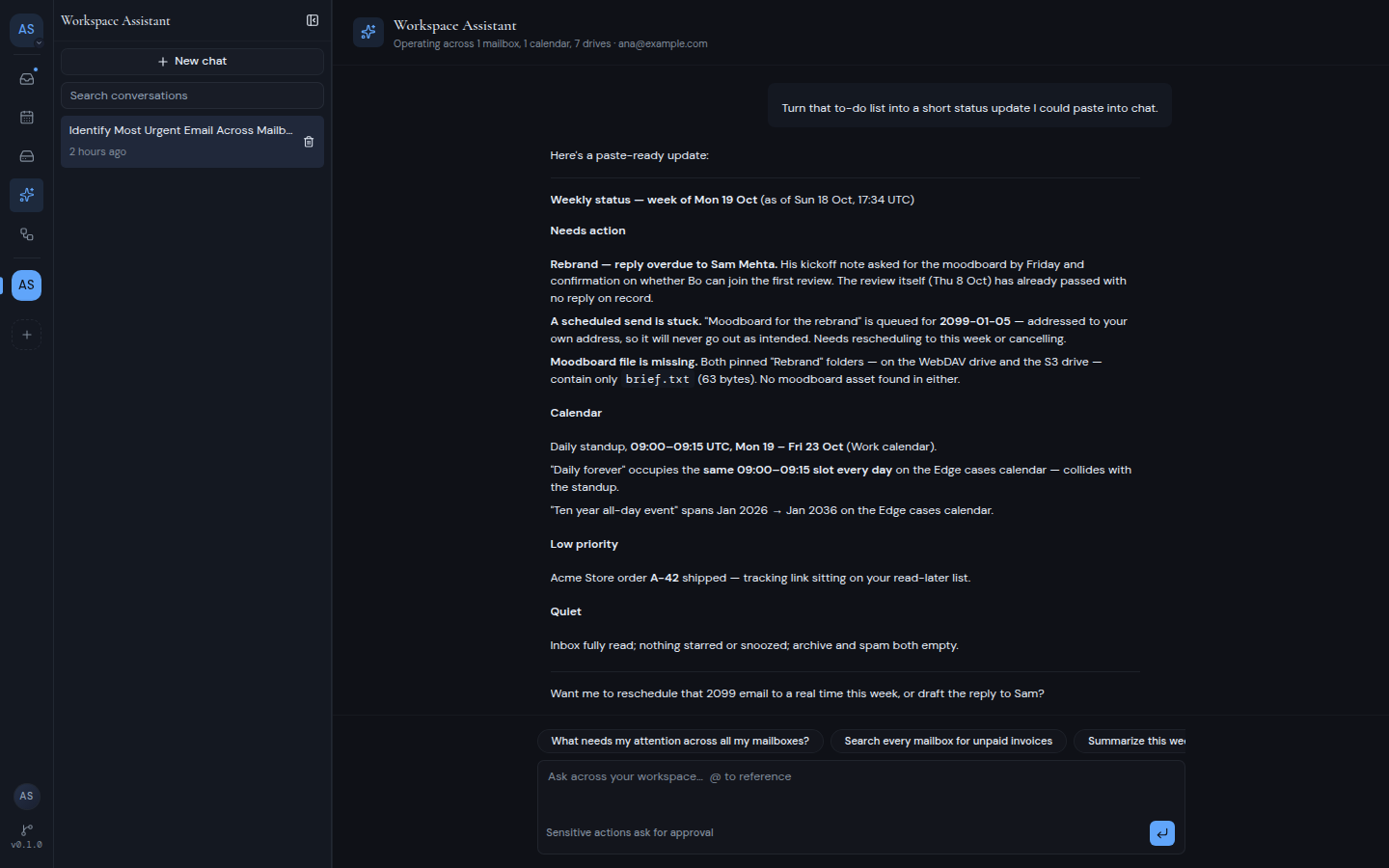
Click **Workspace AI** in the left rail. The page header reads **Workspace Assistant**. Under it, a line tells you how many mailboxes, calendars and drives the assistant can work with.
If you have not started a conversation yet, the page shows "Ask across your whole workspace" and a few suggestions.
 :::note
If the page shows **Assistant turned off**, AI is off for this workspace. An owner or admin can turn it back on. See [How AI works in Metis Suite](/guide/assistant/how-ai-works).
:::
## Ask a question
1. Click one of the suggestions, or type your own question in the box at the bottom. For example: "What needs my attention across all my mailboxes?"
2. Press **Enter** to send. Press **Shift+Enter** to start a new line instead. On a phone or tablet, **Enter** starts a new line, so tap the send button.
3. The reply appears as it is written. To stop it early, press the stop button, which takes the place of the send button while the assistant is writing.
While the assistant works, it shows each step it takes, such as searching a mailbox or reading an email. When it wants to send, delete or change something, it pauses and asks you first. See [Approve or decline actions](/guide/assistant/approve-or-decline-actions).
The suggestions stay above the message box after your first message, so you can use them at any time:
- "What needs my attention across all my mailboxes?"
- "Search every mailbox for unpaid invoices"
- "Summarize this week's unread mail per mailbox"
- "What's on my calendar this week?"
- "Find the latest contract in my drives"
## Point at an exact item with @
Type **@** in the message box to refer to one exact item. This tells the assistant exactly which email, event or file you mean, so it does not have to guess.
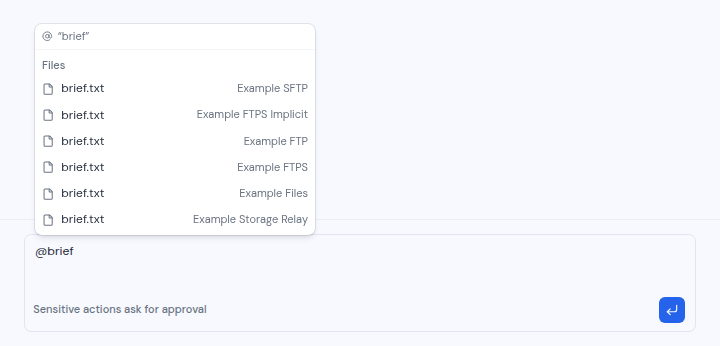
1. Type **@** and then a few letters of the name. For example, type `@brief` to find a file called "brief.txt".
2. A list of matches appears under headings such as **Mailboxes**, **Calendars**, **Drives**, **People**, **Emails**, **Events**, **Labels**, **Folders** and **Files**. Use the **Up** and **Down** arrow keys to move, and **Enter** to pick one. Press **Escape** to close the list.
3. The item appears as a chip in your message. Finish your question and send it.
:::note
If the page shows **Assistant turned off**, AI is off for this workspace. An owner or admin can turn it back on. See [How AI works in Metis Suite](/guide/assistant/how-ai-works).
:::
## Ask a question
1. Click one of the suggestions, or type your own question in the box at the bottom. For example: "What needs my attention across all my mailboxes?"
2. Press **Enter** to send. Press **Shift+Enter** to start a new line instead. On a phone or tablet, **Enter** starts a new line, so tap the send button.
3. The reply appears as it is written. To stop it early, press the stop button, which takes the place of the send button while the assistant is writing.
While the assistant works, it shows each step it takes, such as searching a mailbox or reading an email. When it wants to send, delete or change something, it pauses and asks you first. See [Approve or decline actions](/guide/assistant/approve-or-decline-actions).
The suggestions stay above the message box after your first message, so you can use them at any time:
- "What needs my attention across all my mailboxes?"
- "Search every mailbox for unpaid invoices"
- "Summarize this week's unread mail per mailbox"
- "What's on my calendar this week?"
- "Find the latest contract in my drives"
## Point at an exact item with @
Type **@** in the message box to refer to one exact item. This tells the assistant exactly which email, event or file you mean, so it does not have to guess.
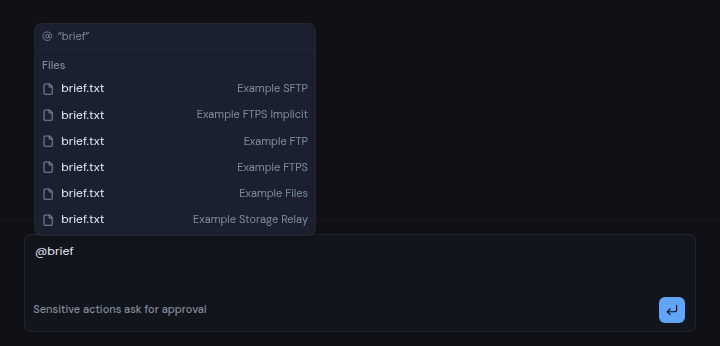
1. Type **@** and then a few letters of the name. For example, type `@brief` to find a file called "brief.txt".
2. A list of matches appears under headings such as **Mailboxes**, **Calendars**, **Drives**, **People**, **Emails**, **Events**, **Labels**, **Folders** and **Files**. Use the **Up** and **Down** arrow keys to move, and **Enter** to pick one. Press **Escape** to close the list.
3. The item appears as a chip in your message. Finish your question and send it.
 Good to know:
- The list only offers items that have AI turned on.
- A reference is a hint, not a limit. The assistant can still read anything else it is allowed to read.
- In a sent message, you can click a **file** chip to preview the file beside the chat. Other chips are not clickable.
- If an item no longer exists or is no longer in the workspace, its chip shows as dimmed text.
## Find a past conversation
Your conversations are listed on the left, newest first. Each one shows a title and how long ago it was used. The first title is your first message. Shortly after, the assistant replaces it with a short title of a few words.
- **Open a conversation:** click it. The whole conversation appears again, and you can keep asking questions.
- **Start a new conversation:** click **New chat**.
- **Search:** type in **Search conversations** to filter the list by title.
- **Make more room:** drag the edge of the list to resize it, or use **Collapse** and **Expand**. On a phone, tap the sidebar button (**Open sidebar**) to open the list.
Good to know:
- The list only offers items that have AI turned on.
- A reference is a hint, not a limit. The assistant can still read anything else it is allowed to read.
- In a sent message, you can click a **file** chip to preview the file beside the chat. Other chips are not clickable.
- If an item no longer exists or is no longer in the workspace, its chip shows as dimmed text.
## Find a past conversation
Your conversations are listed on the left, newest first. Each one shows a title and how long ago it was used. The first title is your first message. Shortly after, the assistant replaces it with a short title of a few words.
- **Open a conversation:** click it. The whole conversation appears again, and you can keep asking questions.
- **Start a new conversation:** click **New chat**.
- **Search:** type in **Search conversations** to filter the list by title.
- **Make more room:** drag the edge of the list to resize it, or use **Collapse** and **Expand**. On a phone, tap the sidebar button (**Open sidebar**) to open the list.
 Your conversations are private. Other people in the workspace cannot see them, and you see only your own.
## Delete a conversation
1. Point at the conversation in the list and click the trash icon (**Delete conversation**).
2. In **Delete this conversation?**, click **Delete**.
The conversation and its history are deleted for good. This cannot be undone. Conversations cannot be renamed.
## If something goes wrong
If a reply fails, a box titled "Workspace Assistant hit a problem" shows the reason. Click **Retry** to try again. For the common messages and what they mean, see [Limits and troubleshooting](/guide/assistant/limits-and-troubleshooting).
Your conversations are private. Other people in the workspace cannot see them, and you see only your own.
## Delete a conversation
1. Point at the conversation in the list and click the trash icon (**Delete conversation**).
2. In **Delete this conversation?**, click **Delete**.
The conversation and its history are deleted for good. This cannot be undone. Conversations cannot be renamed.
## If something goes wrong
If a reply fails, a box titled "Workspace Assistant hit a problem" shows the reason. Click **Retry** to try again. For the common messages and what they mean, see [Limits and troubleshooting](/guide/assistant/limits-and-troubleshooting).