---
title: All drives
description: See every drive in the workspace in one view, and upload or create folders from there.
---
**All drives** puts every drive in the workspace into one view. It is useful when your workspace has several drives and you do not remember which one holds a file.
## Open All drives
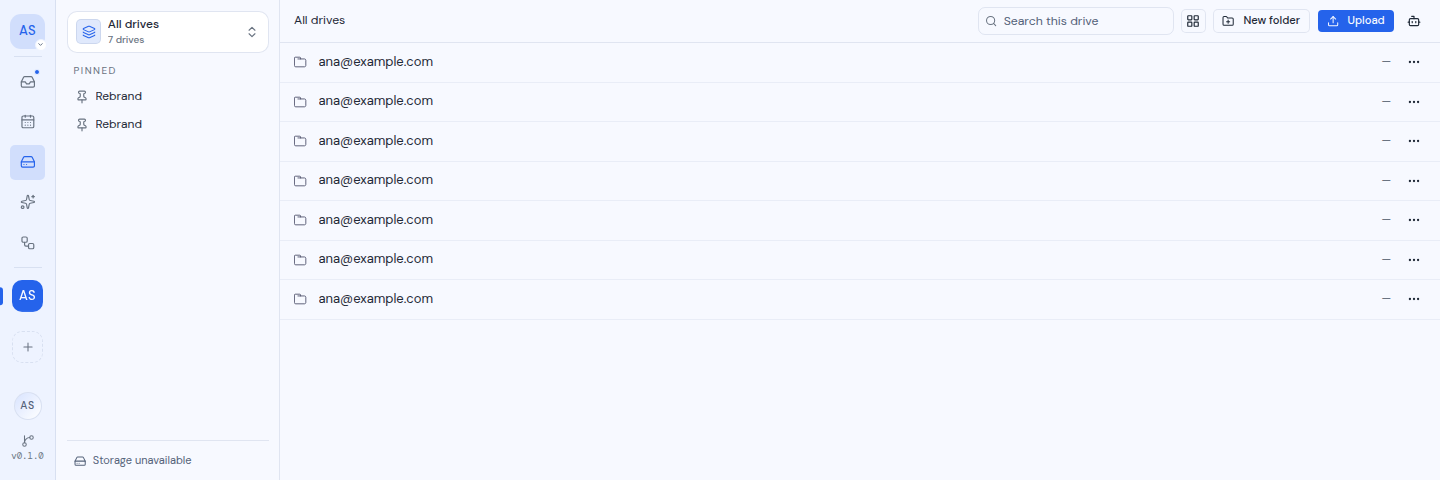
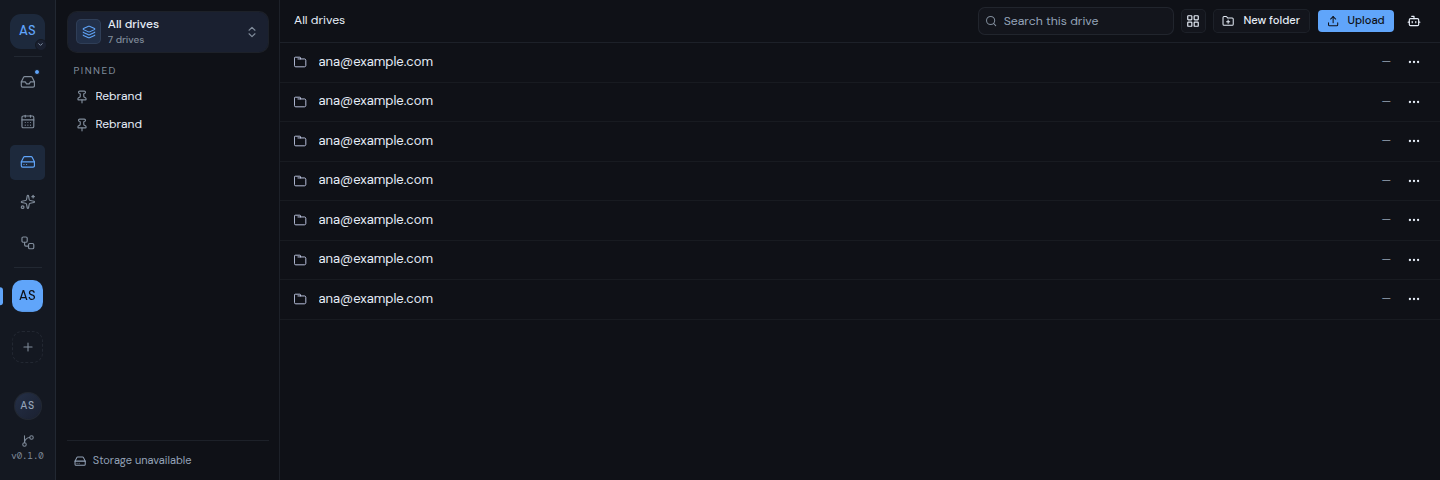
Click the drive switcher at the top of the sidebar and choose **All drives**. The option shows only when the workspace has more than one drive. While you are in All drives, the switcher shows **All drives** and the number of drives.
 ## What you see
- **At the top level**, each drive appears as one folder, named with the email address of its account.
- **Inside one of those folders**, you work in that drive just as you would on its own page.
- **The breadcrumbs** start with **All drives**. Click it to return to the top level.
- **The search box** searches every drive at once. See [Search](/guide/drive/search).
- **The storage line** in the sidebar says "Storage unavailable". Open a single drive to see its storage use.
## Upload or create a folder from the top level
At the top level there is no folder to put things in yet, so Metis asks you where they should go.
1. Click **Upload** and choose your files, or click **New folder**.
2. A dialog opens and asks where to put them:
- For an upload, the dialog is titled **Upload**. It names your file (or the number of files) and asks which folder to upload into.
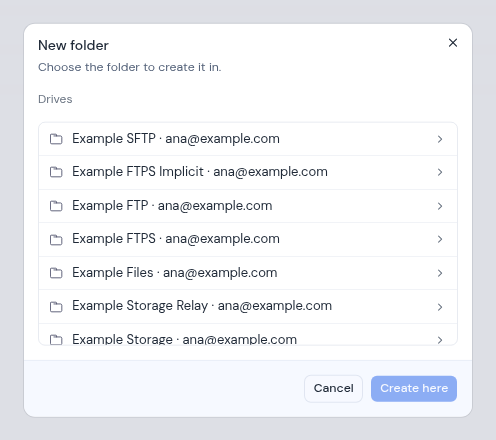
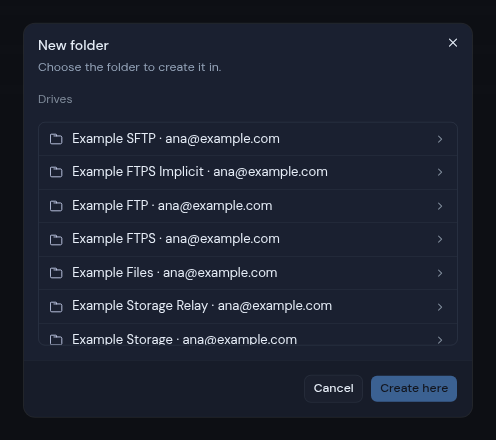
- For a new folder, the dialog is titled **New folder**. It says "Choose the folder to create it in."
3. The dialog starts at **Drives**, which lists each drive by its type or server name and its email address. Click a drive to open it, then click folders to go deeper. Use the path at the top of the dialog to go back.
4. Click **Upload here** or **Create here**. The button stays off until you have opened a drive.
5. For a new folder, type its name in the next dialog and click **Create**.
## What you see
- **At the top level**, each drive appears as one folder, named with the email address of its account.
- **Inside one of those folders**, you work in that drive just as you would on its own page.
- **The breadcrumbs** start with **All drives**. Click it to return to the top level.
- **The search box** searches every drive at once. See [Search](/guide/drive/search).
- **The storage line** in the sidebar says "Storage unavailable". Open a single drive to see its storage use.
## Upload or create a folder from the top level
At the top level there is no folder to put things in yet, so Metis asks you where they should go.
1. Click **Upload** and choose your files, or click **New folder**.
2. A dialog opens and asks where to put them:
- For an upload, the dialog is titled **Upload**. It names your file (or the number of files) and asks which folder to upload into.
- For a new folder, the dialog is titled **New folder**. It says "Choose the folder to create it in."
3. The dialog starts at **Drives**, which lists each drive by its type or server name and its email address. Click a drive to open it, then click folders to go deeper. Use the path at the top of the dialog to go back.
4. Click **Upload here** or **Create here**. The button stays off until you have opened a drive.
5. For a new folder, type its name in the next dialog and click **Create**.
 If the dialog cannot read your drives, it says "Could not read your drives". A drive or folder with nothing in it shows "Nothing here".
Inside a drive's folder, **Upload** and **New folder** work directly on the folder you are in, as they do on the drive's own page.
If the dialog cannot read your drives, it says "Could not read your drives". A drive or folder with nothing in it shows "Nothing here".
Inside a drive's folder, **Upload** and **New folder** work directly on the folder you are in, as they do on the drive's own page.