---
title: Keyboard shortcuts
description: Every keyboard shortcut you can use in Drive.
---
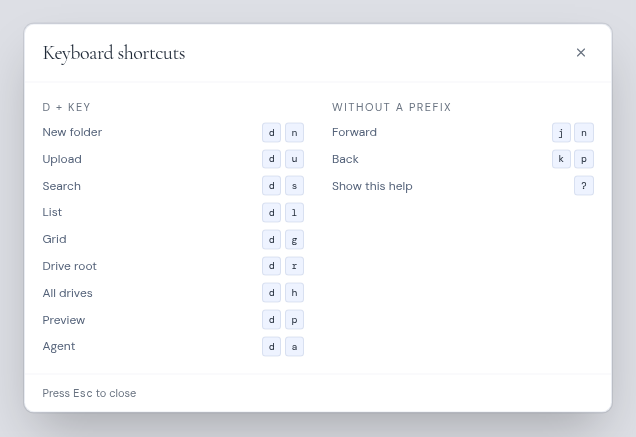
Most Drive shortcuts are two keys pressed one after the other: first d, then a second key. After you press d, a hint with the possible keys shows for a moment. A key that is not in the list does nothing.
Shortcuts do not work while you are typing in a box, such as the search box.
## Drive shortcuts
| Keys | What it does |
| --- | --- |
| d then n | New folder |
| d then u | Upload |
| d then s | Go to the search box |
| d then l | List view |
| d then g | Grid view |
| d then r | Go to the top of the drive |
| d then h | Go to [All drives](/guide/drive/all-drives) |
| d then p | Preview the selected file |
| d then a | Open or close [Drive AI](/guide/drive/drive-ai) |
## Single keys
| Keys | What it does |
| --- | --- |
| k or p | Back to the previous folder you visited |
| j or n | Forward again |
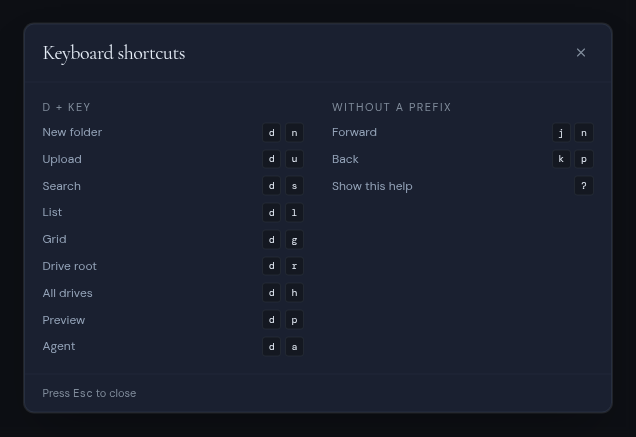
| ? | Show or hide the **Keyboard shortcuts** help |
| Alt + 1 to 9 | Switch to your first to ninth workspace (Option on a Mac) |
Back and forward walk through the folders you visited, like the back and forward buttons of a browser. They do not move the selection. The history stays when you switch to another drive, so k can take you back to a folder in the drive you came from.
 For other keys in the file list, see [Browse your files](/guide/drive/browse-your-files): Enter opens the selected item and Esc clears the selection.