---
title: Preview files
description: Open a file in the preview pane, which file types it shows, the size limits, and which drives support it.
---
The preview pane lets you look at a file without downloading it. It opens beside the file list, or full screen on a phone.
## Open a preview
Do any of these:
- Double-click a file.
- Select a file and press Enter.
- Select a file and press d then p.
- On a touch screen, tap the file.
- Click a file that the assistant shows you in a chat (see [Assistant](/guide/assistant)).
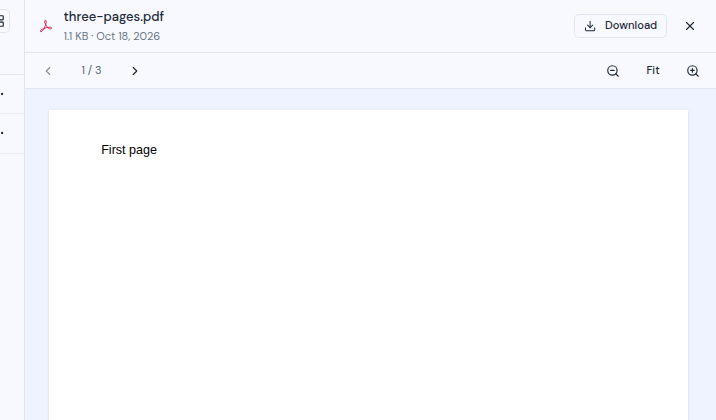
The top of the pane shows the file's icon, name, size and date, a **Download** button, and for Google Drive and OneDrive files an **Open in Google Drive** or **Open in OneDrive** button. Click **Close preview** (the X) to close it.
While the file loads, the pane shows how much has arrived.
 ## What each file type shows
| Type | File extensions | What you get |
| --- | --- | --- |
| Images | png, jpg, jpeg, gif, webp, avif, apng, svg, bmp, ico, heic, heif, tif, tiff, jxl | The picture. It shows only if your browser can display that format. |
| Video | mp4, m4v, webm, mov, mkv, ogv | A video player. |
| Audio | mp3, wav, ogg, oga, opus, flac, m4a, aac, weba | An audio player. |
| Markdown | md, markdown | The formatted page. Links open in a new tab. |
| Tables | csv, tsv | A table you can sort and filter (see below). |
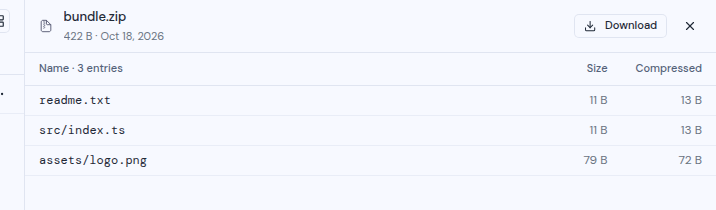
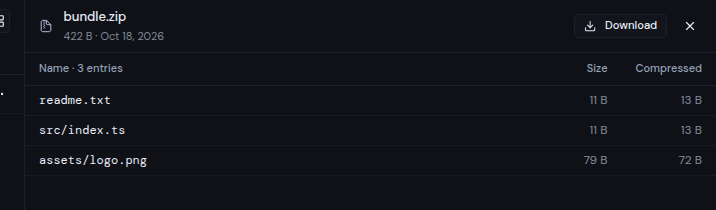
| ZIP archives | zip | The list of files inside, with their size and compressed size. |
| PDF | pdf | The pages, with page and zoom controls (see below). |
| Text | Any other extension, or no extension (for example a Dockerfile or a .json file) | The text as written. |
## What each file type shows
| Type | File extensions | What you get |
| --- | --- | --- |
| Images | png, jpg, jpeg, gif, webp, avif, apng, svg, bmp, ico, heic, heif, tif, tiff, jxl | The picture. It shows only if your browser can display that format. |
| Video | mp4, m4v, webm, mov, mkv, ogv | A video player. |
| Audio | mp3, wav, ogg, oga, opus, flac, m4a, aac, weba | An audio player. |
| Markdown | md, markdown | The formatted page. Links open in a new tab. |
| Tables | csv, tsv | A table you can sort and filter (see below). |
| ZIP archives | zip | The list of files inside, with their size and compressed size. |
| PDF | pdf | The pages, with page and zoom controls (see below). |
| Text | Any other extension, or no extension (for example a Dockerfile or a .json file) | The text as written. |
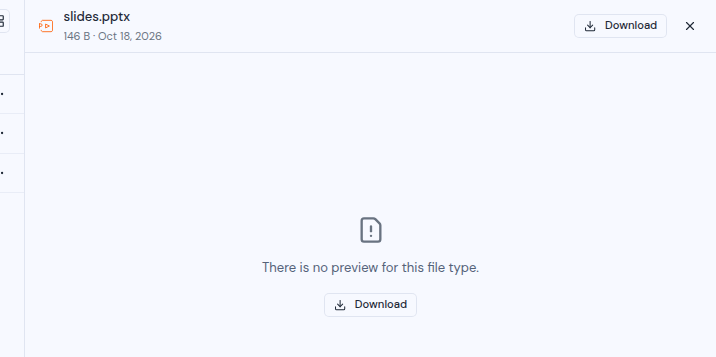
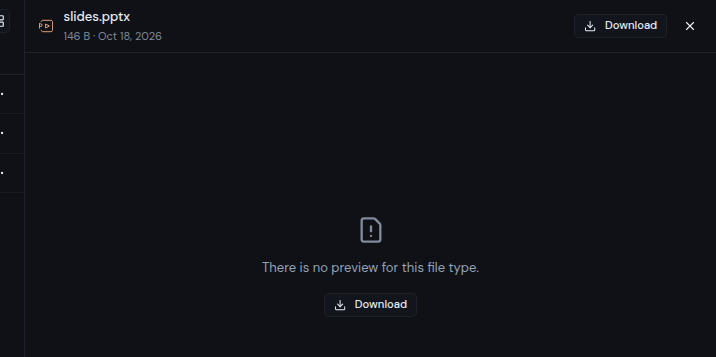
 These types have no preview. The pane says "There is no preview for this file type." and offers **Download**:
doc, docx, xls, xlsx, ppt, pptx, odt, ods, odp, rtf, gz, tgz, tar, bz2, tbz2, xz, txz, zst, 7z, rar, lz, lzma, cab.
These types have no preview. The pane says "There is no preview for this file type." and offers **Download**:
doc, docx, xls, xlsx, ppt, pptx, odt, ods, odp, rtf, gz, tgz, tar, bz2, tbz2, xz, txz, zst, 7z, rar, lz, lzma, cab.
 ### Tables
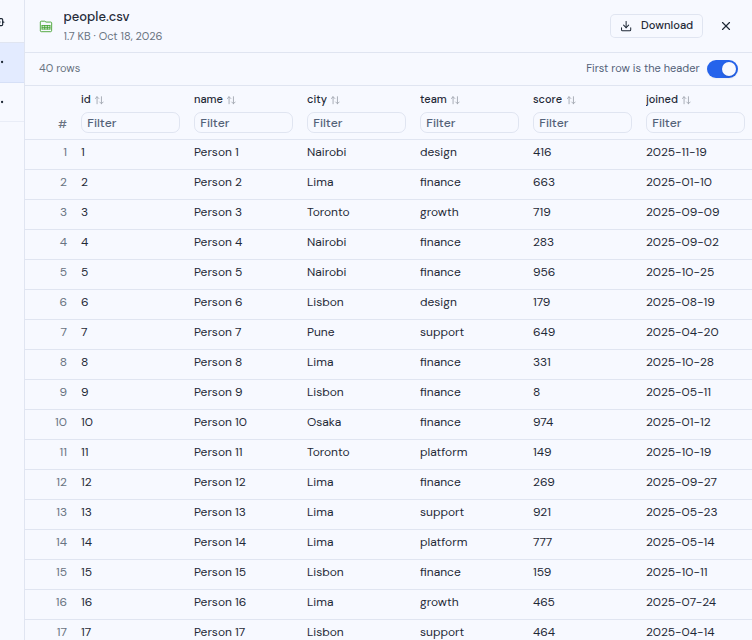
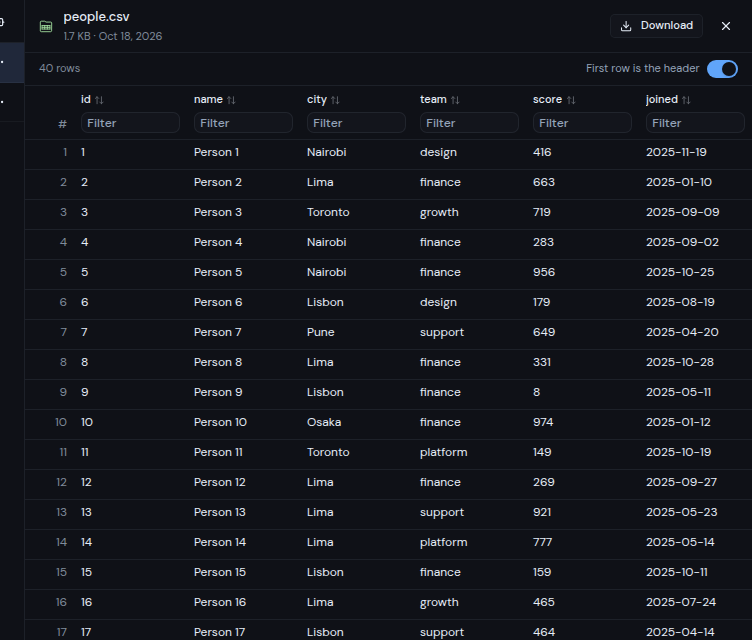
- Click a column name to sort by that column. Click again to change the order.
- Type in the **Filter** box under a column name to show only matching rows.
- The **First row is the header** switch decides whether the first row holds the column names. It is on at first.
- The top of the table shows how many rows there are. A very large file shows "Showing the first 100,000 rows".
- If no row matches your filters, you see "No rows match these filters".
### Tables
- Click a column name to sort by that column. Click again to change the order.
- Type in the **Filter** box under a column name to show only matching rows.
- The **First row is the header** switch decides whether the first row holds the column names. It is on at first.
- The top of the table shows how many rows there are. A very large file shows "Showing the first 100,000 rows".
- If no row matches your filters, you see "No rows match these filters".
 ### PDF files
- **Previous page** and **Next page** move through the pages. The page number shows as, for example, "2 / 3".
- **Zoom out** and **Zoom in** change the size, from 25% to 400%.
- The zoom button shows **Fit** when the page fits the pane. After you zoom, it shows the zoom level. Click it to fit the page again.
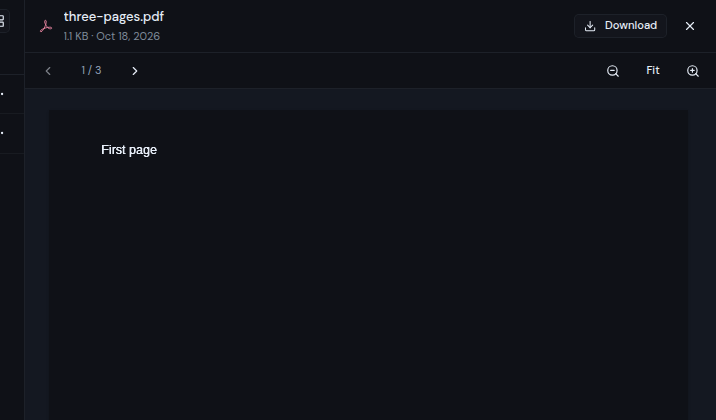
- In the dark theme, the pages are shown in dark colors too.
### Text files
Text must be plain UTF-8 text. Files that are not text show "This file can't be previewed here."
## Size limits
A file bigger than the limit for its type does not preview. The pane says "This file is over" followed by the limit and "too large to preview." Download the file to open it.
| Type | Largest file that previews |
| --- | --- |
| Images | 25 MB |
| Video | 200 MB |
| Audio | 200 MB |
| Markdown | 2 MB |
| Tables (csv, tsv) | 20 MB |
| ZIP archives | 100 MB |
| PDF | 50 MB |
Text files have no limit. Instead, the pane shows the first 2 MB with the note "Truncated: only the first 2 MB is shown. Download the file to see all of it." In that case, **Download** in the pane saves the whole file.
## Which drives support preview
| Drive type | Preview |
| --- | --- |
| OneDrive | Yes |
| WebDAV, FTP, FTPS, SFTP | Yes |
| S3 storage | Yes, if your administrator set up the storage to allow it. |
| Google Drive | No. The pane says "A preview isn't available for this file." and offers **Download** and **Open in Google Drive**. |
When a preview cannot load for any other reason, the pane shows "A preview isn't available for this file." or a message from the drive, with **Download** (and **Open in OneDrive** for OneDrive files).
## Safety and storage
:::note
Scripts inside a file, for example in an SVG, HTML, Markdown or PDF file, never run in the preview.
:::
Metis keeps files you have previewed in your browser, so they open faster next time. They are cleared when you sign out.
### PDF files
- **Previous page** and **Next page** move through the pages. The page number shows as, for example, "2 / 3".
- **Zoom out** and **Zoom in** change the size, from 25% to 400%.
- The zoom button shows **Fit** when the page fits the pane. After you zoom, it shows the zoom level. Click it to fit the page again.
- In the dark theme, the pages are shown in dark colors too.
### Text files
Text must be plain UTF-8 text. Files that are not text show "This file can't be previewed here."
## Size limits
A file bigger than the limit for its type does not preview. The pane says "This file is over" followed by the limit and "too large to preview." Download the file to open it.
| Type | Largest file that previews |
| --- | --- |
| Images | 25 MB |
| Video | 200 MB |
| Audio | 200 MB |
| Markdown | 2 MB |
| Tables (csv, tsv) | 20 MB |
| ZIP archives | 100 MB |
| PDF | 50 MB |
Text files have no limit. Instead, the pane shows the first 2 MB with the note "Truncated: only the first 2 MB is shown. Download the file to see all of it." In that case, **Download** in the pane saves the whole file.
## Which drives support preview
| Drive type | Preview |
| --- | --- |
| OneDrive | Yes |
| WebDAV, FTP, FTPS, SFTP | Yes |
| S3 storage | Yes, if your administrator set up the storage to allow it. |
| Google Drive | No. The pane says "A preview isn't available for this file." and offers **Download** and **Open in Google Drive**. |
When a preview cannot load for any other reason, the pane shows "A preview isn't available for this file." or a message from the drive, with **Download** (and **Open in OneDrive** for OneDrive files).
## Safety and storage
:::note
Scripts inside a file, for example in an SVG, HTML, Markdown or PDF file, never run in the preview.
:::
Metis keeps files you have previewed in your browser, so they open faster next time. They are cleared when you sign out.