---
title: Search
description: Find a file by name in one drive or in every drive at once, and how search behaves on each drive type.
---
The search box in the toolbar finds files and folders by name across the whole drive, not just the folder you are in.
## Search a drive
1. Click **Search this drive** in the toolbar, or press d then s.
2. Type part of the name. Results appear a moment after you stop typing.
3. Double-click a result to open it. Opening a folder from the results clears the search.
To go back to the folder you were in, clear the search box.
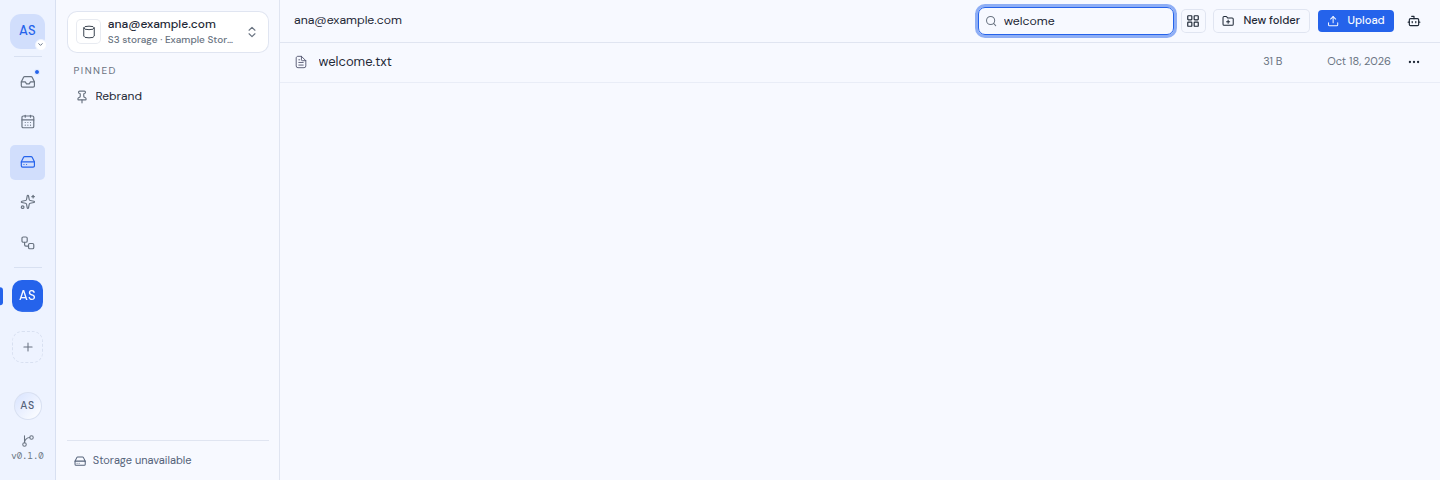
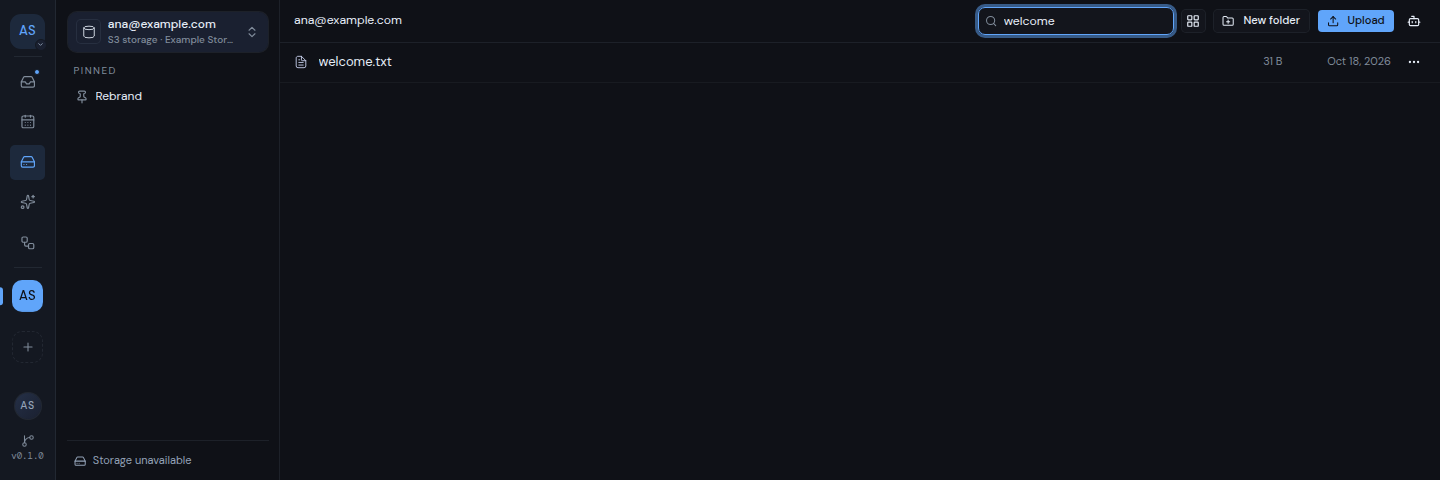 If nothing matches, you see "Nothing matched that search". When there are many results, click **Load more** at the bottom to see the rest.
In [All drives](/guide/drive/all-drives), the same box searches every drive in the workspace at once.
## What search can find
- Search never shows folders or files that a [folder restriction](/guide/drive/folder-restrictions) hides from this workspace.
- How far search looks depends on the drive type:
| Drive type | How search works |
| --- | --- |
| Google Drive | Uses Google Drive's own search. |
| OneDrive | Uses OneDrive's own search. |
| S3 storage | Matches part of the file name. |
| WebDAV, FTP, FTPS and SFTP | Looks through the folders one by one, up to a limit. A file buried very deep in many folders may not be found. |
If search does not find a file on a WebDAV, FTP, FTPS or SFTP drive, browse to it through its folders instead.
If nothing matches, you see "Nothing matched that search". When there are many results, click **Load more** at the bottom to see the rest.
In [All drives](/guide/drive/all-drives), the same box searches every drive in the workspace at once.
## What search can find
- Search never shows folders or files that a [folder restriction](/guide/drive/folder-restrictions) hides from this workspace.
- How far search looks depends on the drive type:
| Drive type | How search works |
| --- | --- |
| Google Drive | Uses Google Drive's own search. |
| OneDrive | Uses OneDrive's own search. |
| S3 storage | Matches part of the file name. |
| WebDAV, FTP, FTPS and SFTP | Looks through the folders one by one, up to a limit. A file buried very deep in many folders may not be found. |
If search does not find a file on a WebDAV, FTP, FTPS or SFTP drive, browse to it through its folders instead.