---
title: AI help in mail
description: Summary cards, smart replies, replies in a chosen stance, apology drafts and the Mail AI panel.
---
Metis Suite's AI can summarize a conversation, pull out what matters (a code, a delivery date, a meeting), and write replies for you. Replies it writes for you open in the composer, so you can check and edit them before you send.
:::note
AI help needs AI to be turned on for your workspace and for the mailbox. Your workspace admin and the mailbox's owner control these settings. See [Workspaces](/guide/workspaces).
:::
## Summary cards
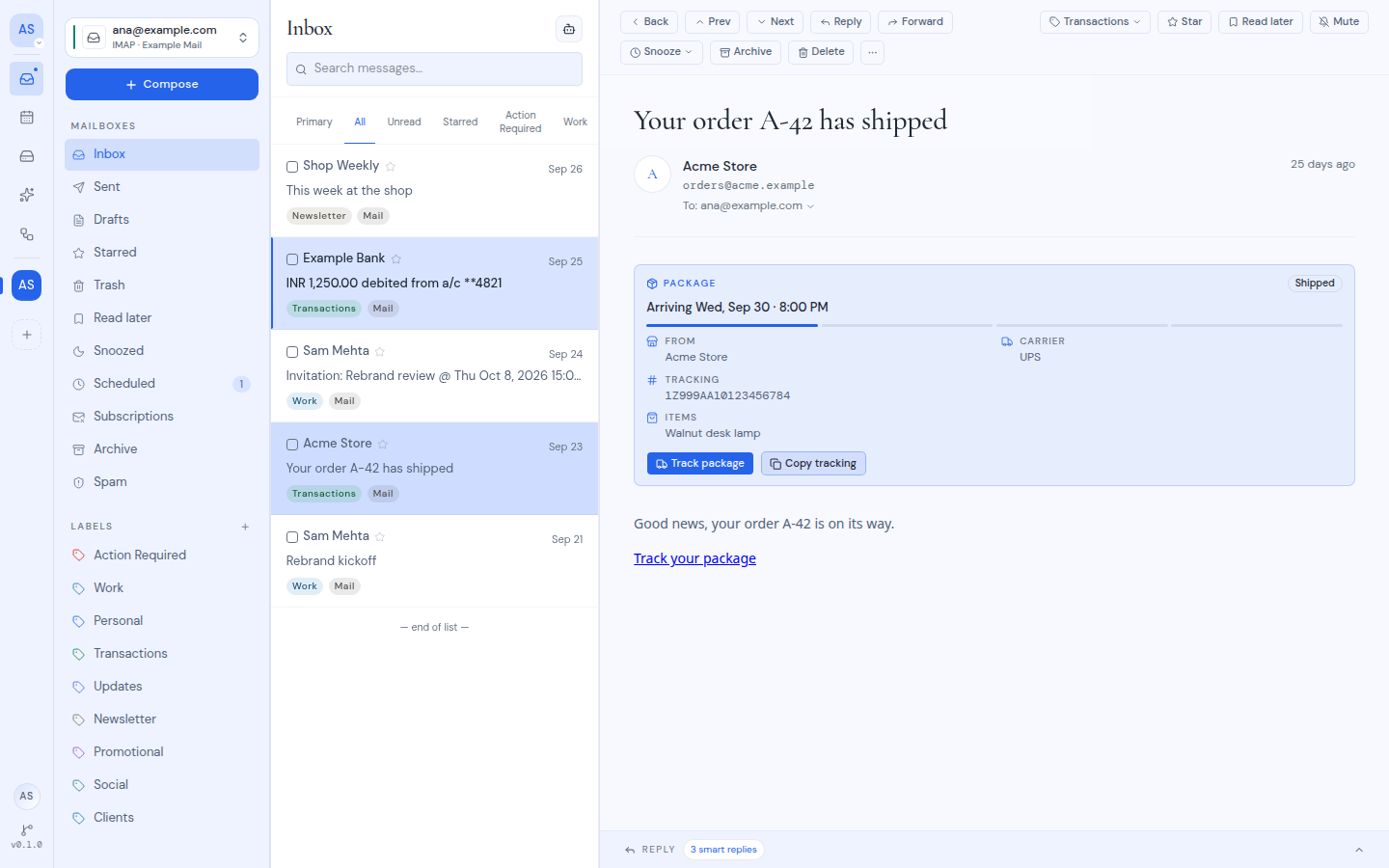
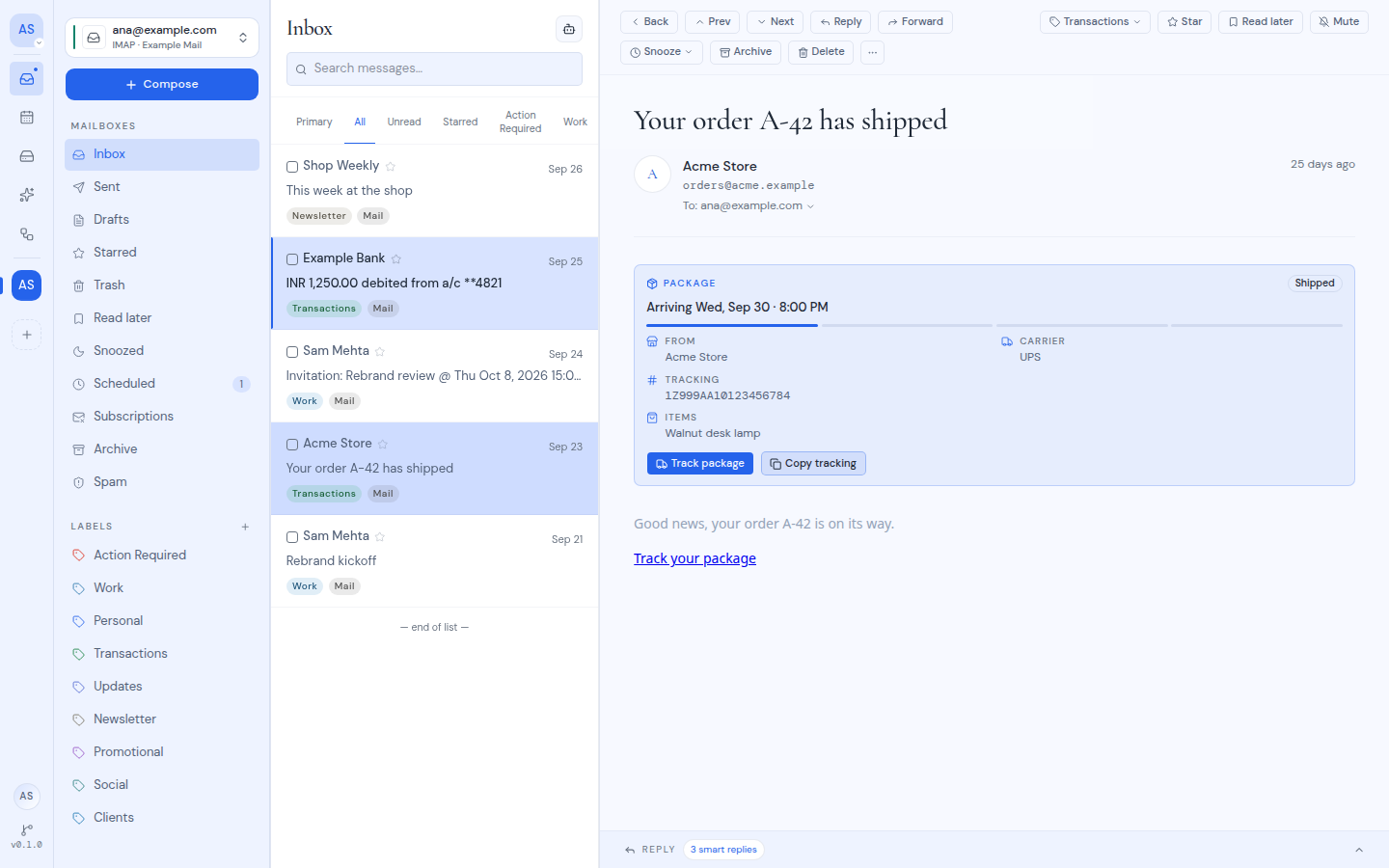
When you open a conversation, cards above it summarize what it is about. While they load, you see "Summarizing…". When a new message arrives in the conversation, the cards update.
 - If a message has nothing worth summarizing, you see "No summary for this email".
- If the summary could not be made, you see "Couldn't summarize this thread." You also see this when AI is off for the mailbox.
- Drafts have no summary cards.
- Everyone who can see the mailbox sees the same summaries.
- Every link in a card is checked against the links in the message and cleaned of tracking. See [Privacy and safety when reading](/guide/mail/privacy-and-safety).
### Kinds of cards
The card you get depends on the message.
| Card | What it shows | Buttons |
| --- | --- | --- |
| **TL;DR** | A short summary, key points and **Action items** | |
| Verification code | The code and when it expires | **Copy code** |
| Link (password reset, sign-in link, verify email, invitation, confirmation) | What the link does, the account and service, and when it expires | A button that opens the link, or **Open email** when the link is in the message |
| Security alert | **When**, **Device**, **Location** and **IP** of the activity | **Wasn't you? Review activity** |
| **Meeting** | **When**, **Time zone**, **Where**, **Online**, **Organizer**, **Calendar** and **Guests**, with a warning if it conflicts with your events | **Join**, **Directions**, and **Add to calendar** or **Going?** |
| **Order** | The merchant, total, order number and items | **View order** |
| **Package** | When it arrives or arrived, a progress bar, **From**, **Carrier**, **Tracking** and **Items** | **Track package**, **Copy tracking**, **Remind me** |
| Transaction | A payment, refund, request or failed payment, with **When**, **Account**, **Balance** and **Reference** | **View details** or **Review request** |
| **Bill** | The payee, amount, **Due** date and status, or **Overdue** | **Pay**, **Remind me** |
| **Subscription** | A renewal, trial ending, price change, failed payment or cancellation | **Manage**, **Remind me** |
| Reservation | A flight, hotel, train, bus, car, restaurant or event, with **When**, **Route**, **Where** and a ticket code | **Manage booking**, **Copy confirmation**, **Directions** |
| Shared document | A document shared with you, or waiting for your signature | **Open**, **Review and sign** or **View document** |
| Offer | The deal, discount, terms, code and end date | **Copy code**, **Shop** |
| Digest | The items in a newsletter, each with a short summary | **Unsubscribe** |
| GitHub, GitLab, Bitbucket, Jira or Linear | The item's state, where it is and who acted | **Open on** the platform |
| **Contact** | **Email**, **Phone**, **Address** and **Note** | **Save contact**, **Email**, **Copy email**, **Call**, **Website**, **Directions** |
A few buttons need more explanation:
- **Copy** buttons show "Copied". If copying fails, you see "Couldn't copy to the clipboard".
- **Remind me** snoozes the message until the date on the button. A bill reminder is set for the day before it is due, at 9 AM. A notice tells you when the message comes back, and it returns to your Inbox then. See [Snooze and read later](/guide/mail/snooze-and-read-later).
- **Save contact** downloads the contact as a file you can add to your address book.
- On a meeting card, **Add to calendar** opens a list of calendars you can add events to. The guests are invited. You see "Added to" and the calendar's name when it worked, or "Couldn't add the event". If the meeting is already on your calendar, the card shows **On your calendar** and asks **Going?** with **Yes**, **Maybe** and **No**.
## Smart replies
For messages in your Inbox, the **Reply** bar at the bottom of the message offers short suggested replies. When the bar is closed, it shows how many are ready, for example **3 smart replies**.
1. Open the **Reply** bar.
2. Click a suggestion. To read each one in full first, click **Smart replies** to show them as cards.
3. The composer opens as a reply with that text filled in. Edit it if you like, then send.
Smart replies only appear in the Inbox, and only when AI is on for the mailbox.
## Reply with stance
Under **Reply with stance** in the **Reply** bar, pick how you want to answer: **Accept**, **Polite decline**, **Negotiate**, **Buy time**, **Clarify** or **Defer**.
The AI writes a short reply of two to four sentences in that stance. The composer opens with the reply and the original message quoted, ready for you to check and send.
These buttons are not shown on drafts. When AI is off for the mailbox, they are still shown but do nothing.
## Draft an apology
1. Open the message you want to answer.
2. Click **More actions** (the **⋯** button) and choose **Draft apology**.
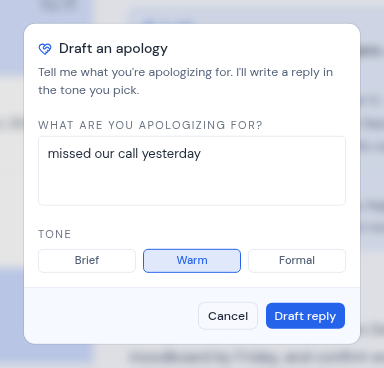
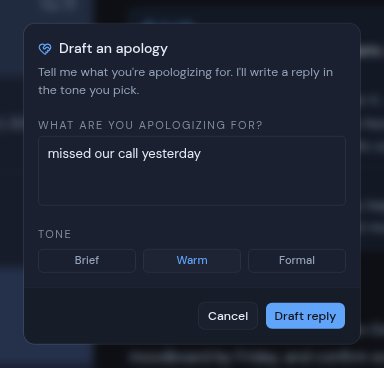
3. In **What are you apologizing for?**, describe what happened, in up to 500 characters.
4. Pick a **Tone**: **Brief**, **Warm** or **Formal**. **Warm** is picked first.
5. Click **Draft reply**. While it works, the button says "Drafting…". The composer then opens with the apology as a reply.
- If a message has nothing worth summarizing, you see "No summary for this email".
- If the summary could not be made, you see "Couldn't summarize this thread." You also see this when AI is off for the mailbox.
- Drafts have no summary cards.
- Everyone who can see the mailbox sees the same summaries.
- Every link in a card is checked against the links in the message and cleaned of tracking. See [Privacy and safety when reading](/guide/mail/privacy-and-safety).
### Kinds of cards
The card you get depends on the message.
| Card | What it shows | Buttons |
| --- | --- | --- |
| **TL;DR** | A short summary, key points and **Action items** | |
| Verification code | The code and when it expires | **Copy code** |
| Link (password reset, sign-in link, verify email, invitation, confirmation) | What the link does, the account and service, and when it expires | A button that opens the link, or **Open email** when the link is in the message |
| Security alert | **When**, **Device**, **Location** and **IP** of the activity | **Wasn't you? Review activity** |
| **Meeting** | **When**, **Time zone**, **Where**, **Online**, **Organizer**, **Calendar** and **Guests**, with a warning if it conflicts with your events | **Join**, **Directions**, and **Add to calendar** or **Going?** |
| **Order** | The merchant, total, order number and items | **View order** |
| **Package** | When it arrives or arrived, a progress bar, **From**, **Carrier**, **Tracking** and **Items** | **Track package**, **Copy tracking**, **Remind me** |
| Transaction | A payment, refund, request or failed payment, with **When**, **Account**, **Balance** and **Reference** | **View details** or **Review request** |
| **Bill** | The payee, amount, **Due** date and status, or **Overdue** | **Pay**, **Remind me** |
| **Subscription** | A renewal, trial ending, price change, failed payment or cancellation | **Manage**, **Remind me** |
| Reservation | A flight, hotel, train, bus, car, restaurant or event, with **When**, **Route**, **Where** and a ticket code | **Manage booking**, **Copy confirmation**, **Directions** |
| Shared document | A document shared with you, or waiting for your signature | **Open**, **Review and sign** or **View document** |
| Offer | The deal, discount, terms, code and end date | **Copy code**, **Shop** |
| Digest | The items in a newsletter, each with a short summary | **Unsubscribe** |
| GitHub, GitLab, Bitbucket, Jira or Linear | The item's state, where it is and who acted | **Open on** the platform |
| **Contact** | **Email**, **Phone**, **Address** and **Note** | **Save contact**, **Email**, **Copy email**, **Call**, **Website**, **Directions** |
A few buttons need more explanation:
- **Copy** buttons show "Copied". If copying fails, you see "Couldn't copy to the clipboard".
- **Remind me** snoozes the message until the date on the button. A bill reminder is set for the day before it is due, at 9 AM. A notice tells you when the message comes back, and it returns to your Inbox then. See [Snooze and read later](/guide/mail/snooze-and-read-later).
- **Save contact** downloads the contact as a file you can add to your address book.
- On a meeting card, **Add to calendar** opens a list of calendars you can add events to. The guests are invited. You see "Added to" and the calendar's name when it worked, or "Couldn't add the event". If the meeting is already on your calendar, the card shows **On your calendar** and asks **Going?** with **Yes**, **Maybe** and **No**.
## Smart replies
For messages in your Inbox, the **Reply** bar at the bottom of the message offers short suggested replies. When the bar is closed, it shows how many are ready, for example **3 smart replies**.
1. Open the **Reply** bar.
2. Click a suggestion. To read each one in full first, click **Smart replies** to show them as cards.
3. The composer opens as a reply with that text filled in. Edit it if you like, then send.
Smart replies only appear in the Inbox, and only when AI is on for the mailbox.
## Reply with stance
Under **Reply with stance** in the **Reply** bar, pick how you want to answer: **Accept**, **Polite decline**, **Negotiate**, **Buy time**, **Clarify** or **Defer**.
The AI writes a short reply of two to four sentences in that stance. The composer opens with the reply and the original message quoted, ready for you to check and send.
These buttons are not shown on drafts. When AI is off for the mailbox, they are still shown but do nothing.
## Draft an apology
1. Open the message you want to answer.
2. Click **More actions** (the **⋯** button) and choose **Draft apology**.
3. In **What are you apologizing for?**, describe what happened, in up to 500 characters.
4. Pick a **Tone**: **Brief**, **Warm** or **Formal**. **Warm** is picked first.
5. Click **Draft reply**. While it works, the button says "Drafting…". The composer then opens with the apology as a reply.
 If something goes wrong, the dialog shows the problem, such as "AI is turned off for this mailbox" or "Failed to draft apology".
If you use the AI tools very quickly, you may see "Too many requests. Please slow down." Wait a moment and try again.
## The Mail AI panel
The Mail AI panel lets you ask questions about your mail and have the assistant act on it. Open it with the robot button next to the folder heading (its tooltip says **AI Agent**), or press **m** then **a**. The panel is titled **Mail AI**. If you do not see the robot button, AI is not available on your instance.
If something goes wrong, the dialog shows the problem, such as "AI is turned off for this mailbox" or "Failed to draft apology".
If you use the AI tools very quickly, you may see "Too many requests. Please slow down." Wait a moment and try again.
## The Mail AI panel
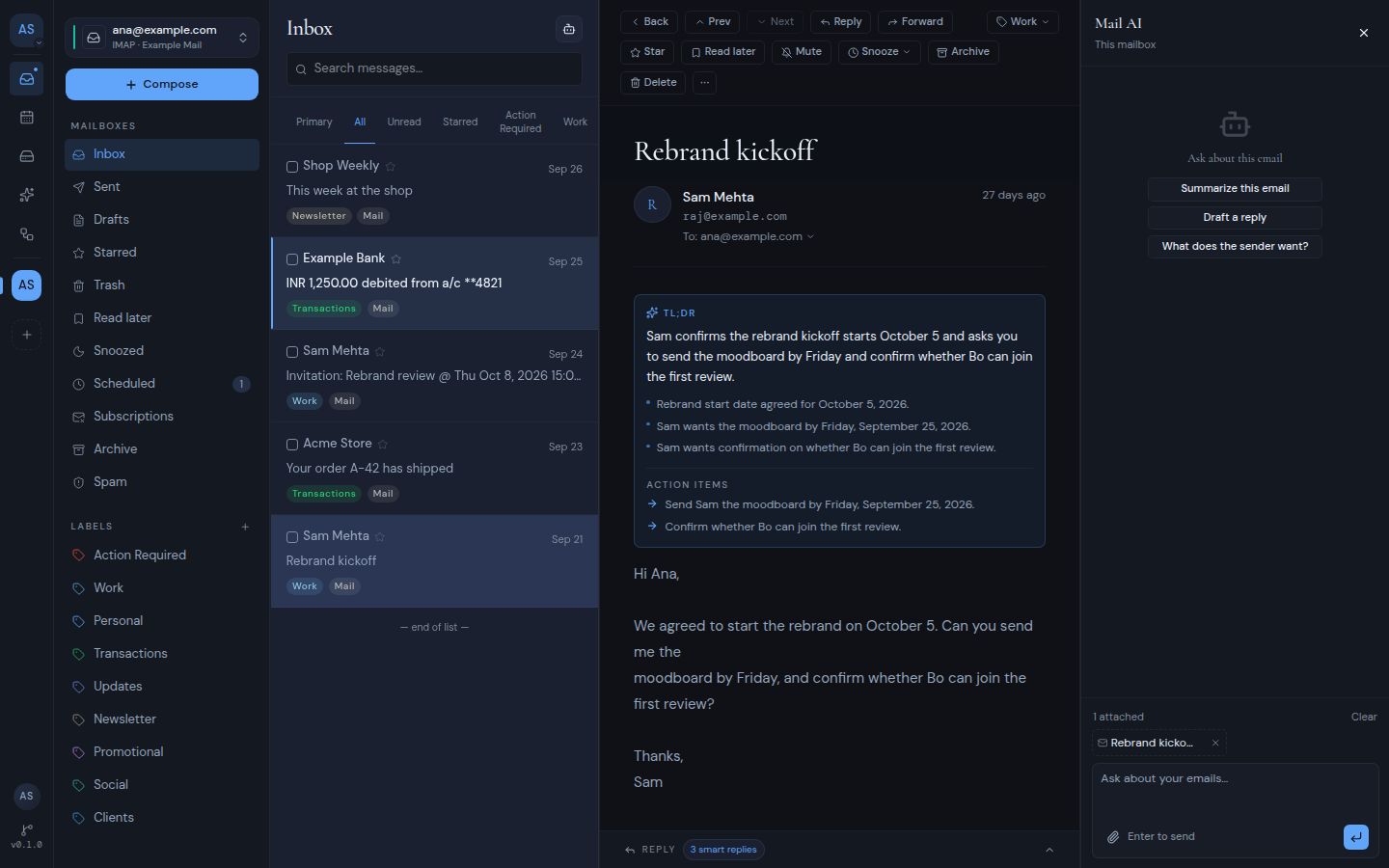
The Mail AI panel lets you ask questions about your mail and have the assistant act on it. Open it with the robot button next to the folder heading (its tooltip says **AI Agent**), or press **m** then **a**. The panel is titled **Mail AI**. If you do not see the robot button, AI is not available on your instance.
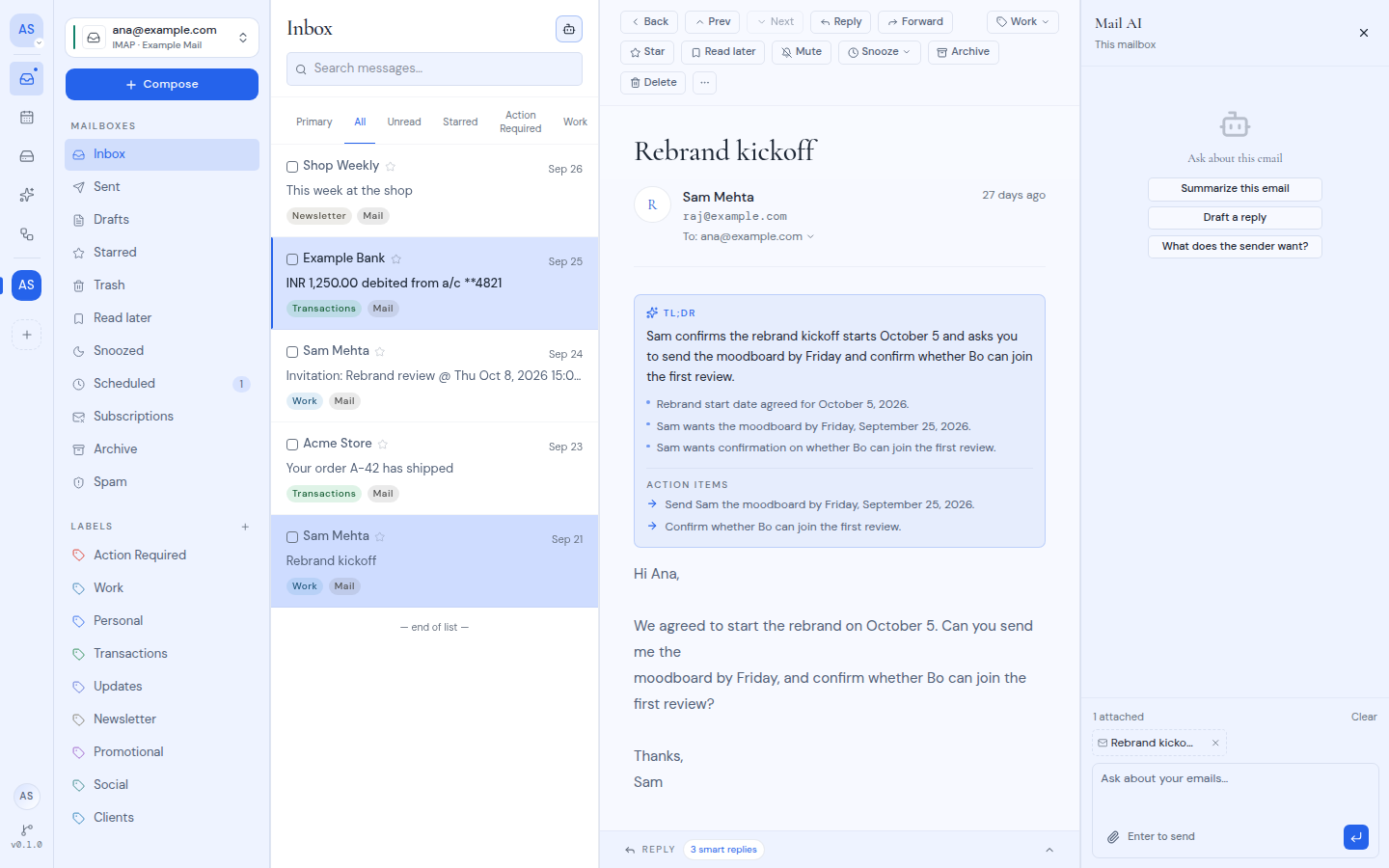
 - The message you have open is attached to your question automatically.
- To add more messages, drag them from the list onto the panel ("Drop to attach"), or use **Attach an email…**.
- Type in **Ask about your emails…** and press Enter.
- When the panel is empty, it suggests questions to start with, such as "Summarize my inbox" or, with a message attached, "Draft a reply".
- **Clear chat** starts over. **Close assistant** closes the panel.
If AI is off for the workspace or the mailbox, the panel tells you that the assistant is unavailable.
To learn more about what the assistant can do, see [Assistant](/guide/assistant).
- The message you have open is attached to your question automatically.
- To add more messages, drag them from the list onto the panel ("Drop to attach"), or use **Attach an email…**.
- Type in **Ask about your emails…** and press Enter.
- When the panel is empty, it suggests questions to start with, such as "Summarize my inbox" or, with a message attached, "Draft a reply".
- **Clear chat** starts over. **Close assistant** closes the panel.
If AI is off for the workspace or the mailbox, the panel tells you that the assistant is unavailable.
To learn more about what the assistant can do, see [Assistant](/guide/assistant).