---
title: Compose and send
description: Write a new message, reply, reply all and forward, add attachments or a Drive link, undo a send, and work with drafts.
---
This page covers everything about writing mail: a new message, replies and forwards, attachments, and what happens after you click **Send**.
## Write a new message
1. **Open the composer**
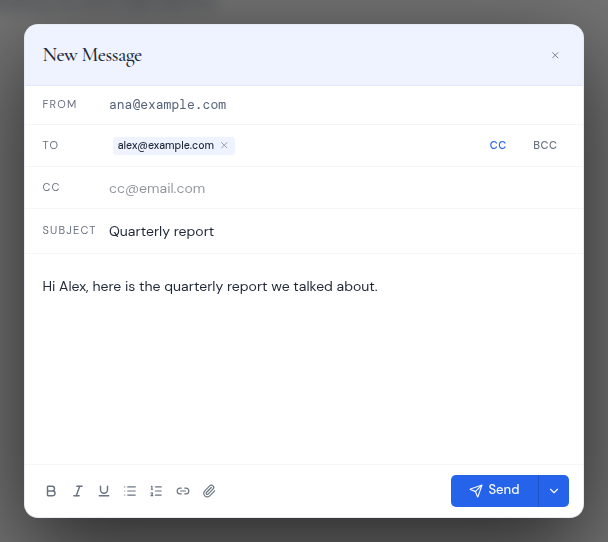
Click **Compose** in the sidebar, or press **m** then **c**. A **New Message** window opens.
2. **Check the From address**
If your workspace has more than one mailbox, **From** is a menu. It starts on the mailbox you are in (or the first mailbox in **All inboxes**). With one mailbox, **From** just shows its address.
3. **Add recipients**
Type an address in **To**. Metis Suite suggests contacts as you type. An address becomes a chip when you type a comma or semicolon, press Enter, or click away. Click **Cc** or **Bcc** to add those fields too.
4. **Add a subject and write your message**
Type the subject in **Subject line…** and your message in **Write your message…**.
5. **Click Send**
You have five seconds to change your mind. See [Undo a send](#undo-a-send).
 A few details about recipients:
- Each address becomes a chip that you can remove with its **X**.
- Text that is not a valid email address is left out without a warning, so check your chips before sending.
- Addresses are saved in lower case.
If you click **Send** without a recipient or a subject, a red strip says "To and Subject are required."
To close the composer, press Esc, click the **X** (**Close compose**) or click outside it. Once your draft has saved, it stays in **Drafts** (see [Drafts](#drafts)).
## Format your message
The bar under the message has these buttons:
- **Bold**, **Italic** and **Underline**
- **Bullet list** and **Numbered list**
- **Link**: your browser asks for the web address to link to
- **Attach files**: pick one or more files from your computer
- **Link a file from Drive**: see [Link a file from Drive](#link-a-file-from-drive)
## Attachments
Click **Attach files** and choose your files. Each file shows as a chip with an **X** to remove it.
Attachments can be up to 25 MB per file and 25 MB in total. If one file is too big, a message names the file and says it exceeds 25 MB. If all files together are too big, you see "Total attachments exceed 25 MB".
## Link a file from Drive
Instead of attaching a file, you can insert a link to a file in one of your workspace's drives. The file is not attached: the person you write to opens it through your drive provider's link.
1. Click **Link a file from Drive** (the drive icon).
2. Pick the file.
3. Click **Insert link**. A link with the file's name is added to your message.
This button only appears when your workspace has a Google Drive or OneDrive drive. Other kinds of drives cannot share links this way.
If the file has no link you can share, you see "That file has no shareable link at its provider". If the file cannot be opened, you see "Could not read that file".
## Reply
Open the message and click **Reply** in the toolbar. The composer opens with:
- **To** set to the sender, or to their reply address if they gave one. If you wrote the original message, the reply goes to its original recipients.
- the subject starting with "Re:"
- the original message quoted under your text, starting with "On (date), (sender) wrote:"
The quote is folded away. Click **Show quoted text** to see it and **Hide quoted text** to fold it again. Click the **X** next to it (**Remove quoted text**) to leave the quote out. Known trackers are always removed from the quote.
## Reply all
**Reply all** appears when the message went to more than one person in **To** and **Cc**. It works like **Reply**, and also adds the original **To** and **Cc** recipients. Your own addresses are left out.
## Forward
Click **Forward** in the toolbar. The composer opens with:
- an empty **To** field
- the subject starting with "Fwd:"
- a "Forwarded message" block with the original's From, Date, Subject and To, followed by the original message
:::note
The original message's attachments are not included when you forward. To pass them on, download them and attach them to the forward yourself.
:::
## Reply from the bottom of a message
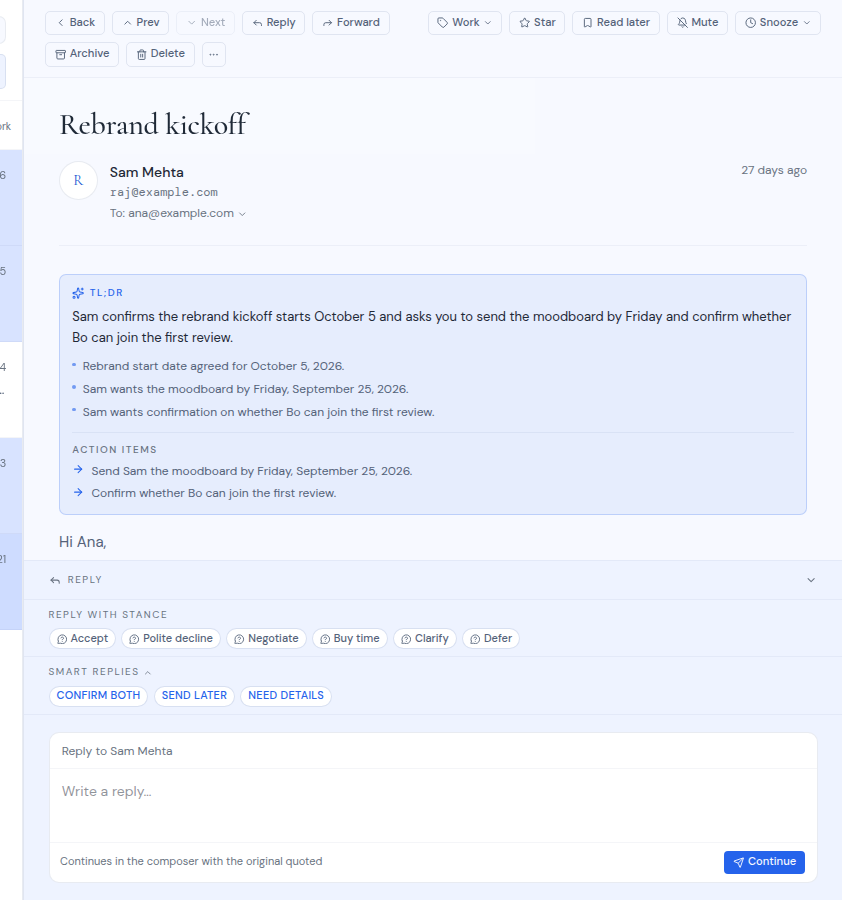
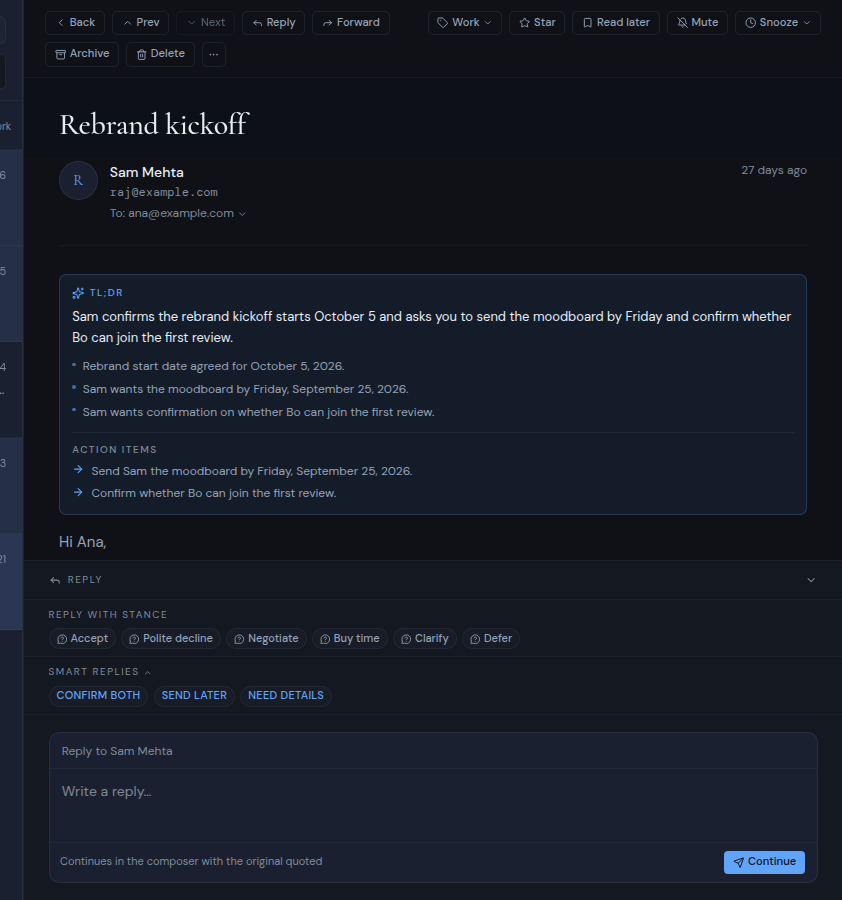
A **Reply** bar sits at the bottom of the reading pane. It opens when you scroll to the end of a message, or when you click it. When it is closed, it may show how many smart replies are ready, for example **3 smart replies**.
Inside you find:
- **Reply with stance** and **Smart replies**, which write a reply for you with AI. See [AI help in mail](/guide/mail/ai-help).
- A quick reply box, **Reply to** followed by the sender's name. Type in **Write a reply…** and click **Continue**. The full composer opens with your text and the original message quoted, so you can finish and send it there.
A few details about recipients:
- Each address becomes a chip that you can remove with its **X**.
- Text that is not a valid email address is left out without a warning, so check your chips before sending.
- Addresses are saved in lower case.
If you click **Send** without a recipient or a subject, a red strip says "To and Subject are required."
To close the composer, press Esc, click the **X** (**Close compose**) or click outside it. Once your draft has saved, it stays in **Drafts** (see [Drafts](#drafts)).
## Format your message
The bar under the message has these buttons:
- **Bold**, **Italic** and **Underline**
- **Bullet list** and **Numbered list**
- **Link**: your browser asks for the web address to link to
- **Attach files**: pick one or more files from your computer
- **Link a file from Drive**: see [Link a file from Drive](#link-a-file-from-drive)
## Attachments
Click **Attach files** and choose your files. Each file shows as a chip with an **X** to remove it.
Attachments can be up to 25 MB per file and 25 MB in total. If one file is too big, a message names the file and says it exceeds 25 MB. If all files together are too big, you see "Total attachments exceed 25 MB".
## Link a file from Drive
Instead of attaching a file, you can insert a link to a file in one of your workspace's drives. The file is not attached: the person you write to opens it through your drive provider's link.
1. Click **Link a file from Drive** (the drive icon).
2. Pick the file.
3. Click **Insert link**. A link with the file's name is added to your message.
This button only appears when your workspace has a Google Drive or OneDrive drive. Other kinds of drives cannot share links this way.
If the file has no link you can share, you see "That file has no shareable link at its provider". If the file cannot be opened, you see "Could not read that file".
## Reply
Open the message and click **Reply** in the toolbar. The composer opens with:
- **To** set to the sender, or to their reply address if they gave one. If you wrote the original message, the reply goes to its original recipients.
- the subject starting with "Re:"
- the original message quoted under your text, starting with "On (date), (sender) wrote:"
The quote is folded away. Click **Show quoted text** to see it and **Hide quoted text** to fold it again. Click the **X** next to it (**Remove quoted text**) to leave the quote out. Known trackers are always removed from the quote.
## Reply all
**Reply all** appears when the message went to more than one person in **To** and **Cc**. It works like **Reply**, and also adds the original **To** and **Cc** recipients. Your own addresses are left out.
## Forward
Click **Forward** in the toolbar. The composer opens with:
- an empty **To** field
- the subject starting with "Fwd:"
- a "Forwarded message" block with the original's From, Date, Subject and To, followed by the original message
:::note
The original message's attachments are not included when you forward. To pass them on, download them and attach them to the forward yourself.
:::
## Reply from the bottom of a message
A **Reply** bar sits at the bottom of the reading pane. It opens when you scroll to the end of a message, or when you click it. When it is closed, it may show how many smart replies are ready, for example **3 smart replies**.
Inside you find:
- **Reply with stance** and **Smart replies**, which write a reply for you with AI. See [AI help in mail](/guide/mail/ai-help).
- A quick reply box, **Reply to** followed by the sender's name. Type in **Write a reply…** and click **Continue**. The full composer opens with your text and the original message quoted, so you can finish and send it there.
 ## Undo a send
When you click **Send**, the message waits for five seconds before it goes out. A notice counts down ("Sending in 5s…") with an **Undo** button.
- Click **Undo** to stop the send. The composer opens again with your message.
- If you do nothing, the notice shows "Sending…" and then "Email sent".
- If sending fails, the notice shows "Send failed" with the reason.
:::warning
When you undo a send, the composer brings back the **To** recipients, the subject and the message. **Cc**, **Bcc** and attachments are not brought back, so add them again before you send.
:::
If you send too many messages in a short time, you see "Too many requests. Please slow down." Wait a moment, then send again.
To send at a later time instead, see [Schedule a send](/guide/mail/schedule-a-send).
## Drafts
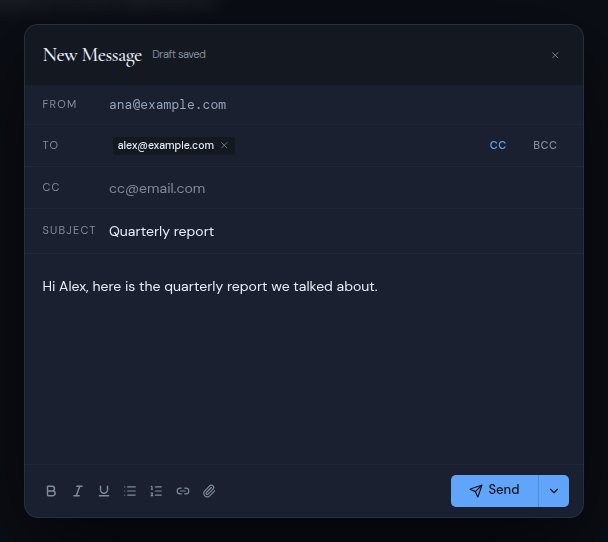
While you write, Metis Suite saves your draft with your mail provider a moment after you stop typing. It starts saving as soon as the message has a recipient, a subject or some text. Next to the **New Message** title you see "Saving draft…", then "Draft saved". If saving fails, it says "Couldn't save draft".
Your saved drafts are in the **Drafts** folder. To keep working on one:
1. Open **Drafts** and click the draft.
2. Click **Edit draft** in the toolbar. The composer opens and keeps saving to the same draft.
When you click **Send**, the saved draft is removed.
For Zoho mailboxes, each save replaces the draft with a new copy.
## Undo a send
When you click **Send**, the message waits for five seconds before it goes out. A notice counts down ("Sending in 5s…") with an **Undo** button.
- Click **Undo** to stop the send. The composer opens again with your message.
- If you do nothing, the notice shows "Sending…" and then "Email sent".
- If sending fails, the notice shows "Send failed" with the reason.
:::warning
When you undo a send, the composer brings back the **To** recipients, the subject and the message. **Cc**, **Bcc** and attachments are not brought back, so add them again before you send.
:::
If you send too many messages in a short time, you see "Too many requests. Please slow down." Wait a moment, then send again.
To send at a later time instead, see [Schedule a send](/guide/mail/schedule-a-send).
## Drafts
While you write, Metis Suite saves your draft with your mail provider a moment after you stop typing. It starts saving as soon as the message has a recipient, a subject or some text. Next to the **New Message** title you see "Saving draft…", then "Draft saved". If saving fails, it says "Couldn't save draft".
Your saved drafts are in the **Drafts** folder. To keep working on one:
1. Open **Drafts** and click the draft.
2. Click **Edit draft** in the toolbar. The composer opens and keeps saving to the same draft.
When you click **Send**, the saved draft is removed.
For Zoho mailboxes, each save replaces the draft with a new copy.