---
title: Find and filter mail
description: Search your mail, narrow the list with tabs and show only the messages with one label.
---
Three tools help you find a message: the search box, the tabs above the list, and the labels in the sidebar. They work together, so a search only shows results from the tab you are on.
## Search
1. **Click the search box**
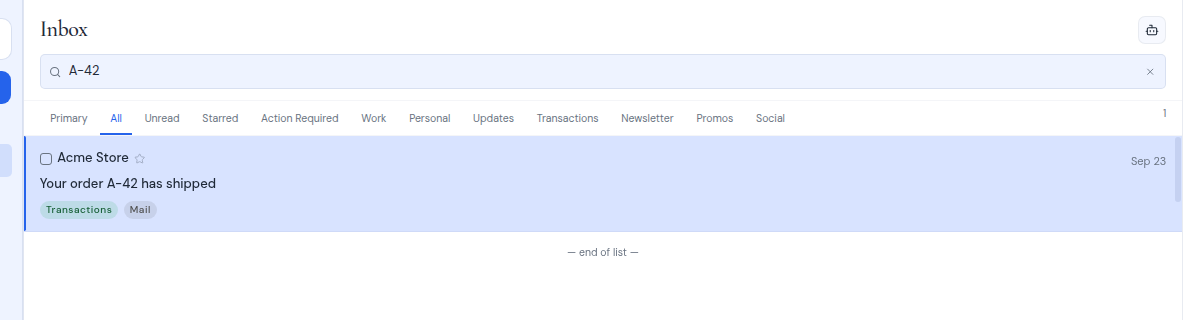
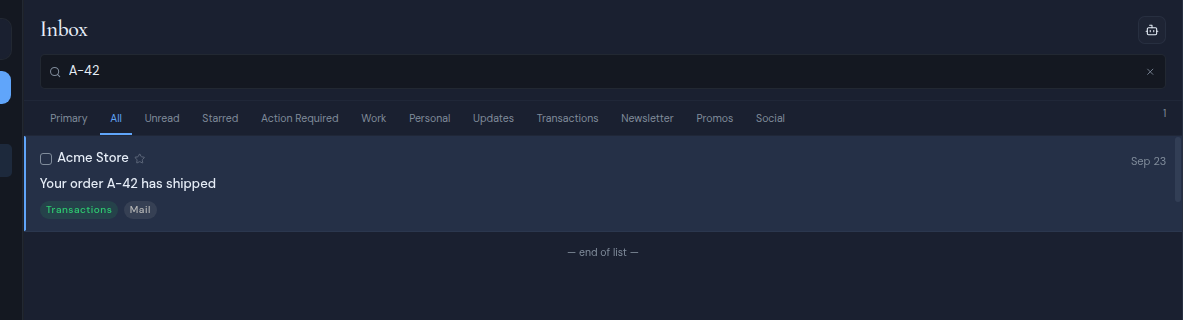
The box above the list says **Search messages…**. You can also press **m** then **/** to jump to it.
2. **Type what you are looking for and press Enter**
The search runs when you press Enter. It covers the mailbox you are in, or every mailbox when you are in **All inboxes**.
3. **Clear the search**
Click the **X** in the box to clear it and go back to the folder.
 :::tip
The tab you are on still filters your results. The Inbox opens on the **Primary** tab, which hides promotions, social mail, newsletters and transactions. If you cannot find a message, switch to the **All** tab.
:::
A few things to know about search:
- Search returns one set of results. Scrolling does not load more.
- For mailboxes connected over IMAP, search matches plain text in your Inbox, Archive and Sent folders. Results are not ranked.
- While a search is active, the list does not check for new mail.
## Tabs
The tabs above the list sort your mail by kind. In order, they are:
| Tab | Shows |
| --- | --- |
| **Primary** | Everything except mail labelled Promotional, Social, Newsletter or Transactions |
| **All** | Every message in the folder |
| **Unread** | Messages you have not read |
| **Starred** | Messages you starred |
| **Action Required**, **Work**, **Personal**, **Updates**, **Transactions**, **Newsletter**, **Promos**, **Social** | Messages with that label |
The number at the right of the tab row is how many messages the tab shows.
- The Inbox opens on **Primary**. Every other folder opens on **All**.
- Metis Suite remembers your tab for each mailbox and folder while you work, so opening and closing messages keeps you on the same tab.
- On the **Unread** tab, a message you open stays in the list even though it is now read, so it does not jump away while you read it.
To learn where the labels come from, see [Labels](/guide/mail/labels).
## Filter by label
Click any label in the **Labels** section of the sidebar. The Inbox now shows only messages with that label, and a banner at the top says **Filtered by:** with the label's name.
To go back to the whole Inbox, click the **X** in the banner (its tooltip says **Clear label filter**).
## Read later
**Read later** in the sidebar is a filter too. It shows the Inbox messages you saved for later. See [Snooze and read later](/guide/mail/snooze-and-read-later).
:::tip
The tab you are on still filters your results. The Inbox opens on the **Primary** tab, which hides promotions, social mail, newsletters and transactions. If you cannot find a message, switch to the **All** tab.
:::
A few things to know about search:
- Search returns one set of results. Scrolling does not load more.
- For mailboxes connected over IMAP, search matches plain text in your Inbox, Archive and Sent folders. Results are not ranked.
- While a search is active, the list does not check for new mail.
## Tabs
The tabs above the list sort your mail by kind. In order, they are:
| Tab | Shows |
| --- | --- |
| **Primary** | Everything except mail labelled Promotional, Social, Newsletter or Transactions |
| **All** | Every message in the folder |
| **Unread** | Messages you have not read |
| **Starred** | Messages you starred |
| **Action Required**, **Work**, **Personal**, **Updates**, **Transactions**, **Newsletter**, **Promos**, **Social** | Messages with that label |
The number at the right of the tab row is how many messages the tab shows.
- The Inbox opens on **Primary**. Every other folder opens on **All**.
- Metis Suite remembers your tab for each mailbox and folder while you work, so opening and closing messages keeps you on the same tab.
- On the **Unread** tab, a message you open stays in the list even though it is now read, so it does not jump away while you read it.
To learn where the labels come from, see [Labels](/guide/mail/labels).
## Filter by label
Click any label in the **Labels** section of the sidebar. The Inbox now shows only messages with that label, and a banner at the top says **Filtered by:** with the label's name.
To go back to the whole Inbox, click the **X** in the banner (its tooltip says **Clear label filter**).
## Read later
**Read later** in the sidebar is a filter too. It shows the Inbox messages you saved for later. See [Snooze and read later](/guide/mail/snooze-and-read-later).