---
title: Labels
description: How messages get their labels, how to change a label, label many messages at once, and create your own labels.
---
A label tells you what kind of message you are looking at, such as **Work** or **Newsletter**. Each message has at most one label. The label shows as a chip on the message row and on the **Change label** button when the message is open.
Labels belong to the mailbox, not to you. Everyone who can see the mailbox sees the same labels.
## Built-in labels
Every mailbox has eight built-in labels:
| Label | Row chip | Tab |
| --- | --- | --- |
| Action Required | Action Required | **Action Required** |
| Work | Work | **Work** |
| Personal | Personal | **Personal** |
| Transactions | Transactions | **Transactions** |
| Updates | Updates | **Updates** |
| Newsletter | Newsletter | **Newsletter** |
| Promotional | Promo | **Promos** |
| Social | Social | **Social** |
A message that was sent from the **Scheduled** folder also gets a **Scheduled** chip.
## How messages get a label
A label can come from three places:
1. **AI labels.** When AI is on for the mailbox, Metis Suite reads new messages in your list and labels them for you. If it is not sure about a message, it leaves the message without a label and does not try again.
2. **Gmail categories.** For Gmail mailboxes, Gmail's own categories become labels: Promotions becomes **Promotional**, Updates becomes **Updates**, Social becomes **Social**, and Forums becomes **Newsletter**.
3. **You.** A label you pick replaces the AI label, and the AI never changes it back.
:::note
AI labels only appear when AI is turned on for the workspace and for that mailbox. Your workspace admin and the mailbox's owner control these settings. See [Workspaces](/guide/workspaces). With AI off, messages are not labelled automatically.
:::
## Change the label of one message
1. Open the message.
2. Click the **Change label** button in the toolbar. It shows the current label's name, or **Label** when there is none.
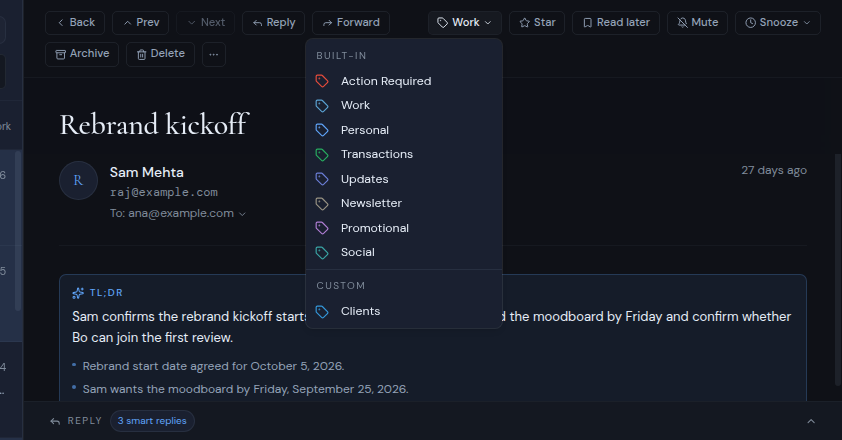
3. Pick a label. Built-in labels are under **Built-in**, your own labels under **Custom**.
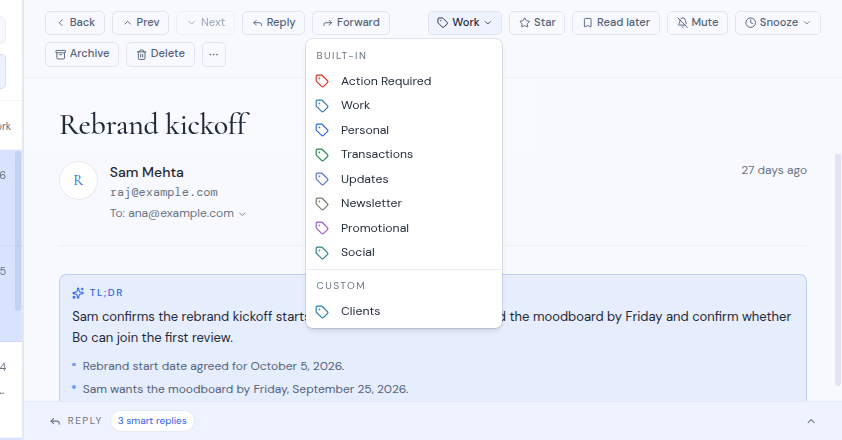
 A message confirms the change, for example "Labeled 1 email as Work", with an **Undo** button. Click **Undo** within a few seconds to put the old label back.
## Label many messages at once
1. Tick the checkbox on each message you want to label. A bar appears with the number selected.
2. Click **Label** in the bar.
3. Pick a label from **Built-in** or **Custom**.
The confirmation reads, for example, "Labeled 3 emails as Work", with **Undo**. If you click **Undo**, you see "Reverting…" and then "Label change undone". If the undo fails, you see "Couldn't undo the label change".
## Create a custom label
Custom labels are your own names, such as a client or a project. They appear in the sidebar under the built-in labels.
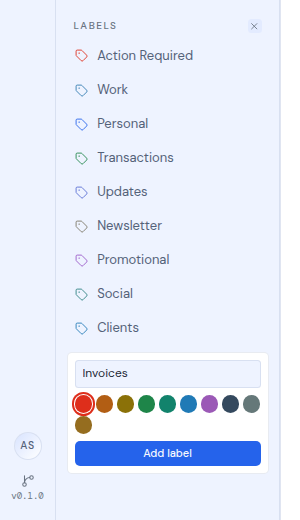
1. **Click + next to Labels**
Its tooltip says **Add custom label**. A small form opens in the sidebar.
2. **Type a name**
Type it in the **Label name** field. Names can be up to 40 characters long.
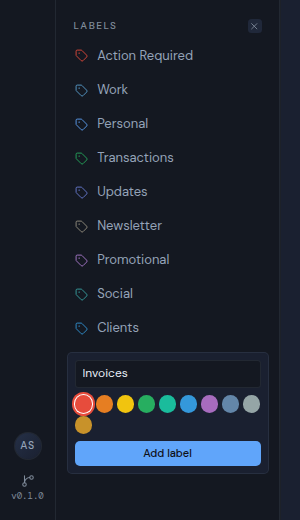
3. **Pick a color**
Choose one of ten colors: red, orange, yellow, green, teal, blue, purple, navy, gray or amber. Red is picked first.
4. **Click Add label**
Or press Enter. Press Esc, or click the **X** that replaced the **+** (**Cancel**), to cancel.
A message confirms the change, for example "Labeled 1 email as Work", with an **Undo** button. Click **Undo** within a few seconds to put the old label back.
## Label many messages at once
1. Tick the checkbox on each message you want to label. A bar appears with the number selected.
2. Click **Label** in the bar.
3. Pick a label from **Built-in** or **Custom**.
The confirmation reads, for example, "Labeled 3 emails as Work", with **Undo**. If you click **Undo**, you see "Reverting…" and then "Label change undone". If the undo fails, you see "Couldn't undo the label change".
## Create a custom label
Custom labels are your own names, such as a client or a project. They appear in the sidebar under the built-in labels.
1. **Click + next to Labels**
Its tooltip says **Add custom label**. A small form opens in the sidebar.
2. **Type a name**
Type it in the **Label name** field. Names can be up to 40 characters long.
3. **Pick a color**
Choose one of ten colors: red, orange, yellow, green, teal, blue, purple, navy, gray or amber. Red is picked first.
4. **Click Add label**
Or press Enter. Press Esc, or click the **X** that replaced the **+** (**Cancel**), to cancel.
 Things to know about custom labels:
- Everyone who can see the mailbox sees your custom labels and can use them.
- If you create a label while in **All inboxes**, it is added to every mailbox.
- If a label with the same name already exists, no new label is added.
- Custom labels appear in the **Change label** and **Label** menus under **Custom**.
## Delete a custom label
1. Point at the label in the sidebar. On a touch screen, skip this step.
2. Click the **X** next to the label.
3. In the **Delete this label?** dialog, click **Delete**. The dialog tells you the label will be removed from your sidebar.
The label is removed for everyone who can see the mailbox.
Built-in labels cannot be deleted.
Things to know about custom labels:
- Everyone who can see the mailbox sees your custom labels and can use them.
- If you create a label while in **All inboxes**, it is added to every mailbox.
- If a label with the same name already exists, no new label is added.
- Custom labels appear in the **Change label** and **Label** menus under **Custom**.
## Delete a custom label
1. Point at the label in the sidebar. On a touch screen, skip this step.
2. Click the **X** next to the label.
3. In the **Delete this label?** dialog, click **Delete**. The dialog tells you the label will be removed from your sidebar.
The label is removed for everyone who can see the mailbox.
Built-in labels cannot be deleted.