---
title: Schedule a send
description: Send a message later, follow it in the Scheduled folder, retry a failed send and resolve a send that was never confirmed.
---
You can write a message now and have Metis Suite send it later. Scheduled messages wait in the **Scheduled** folder until their time comes.
## Schedule a message
1. **Write your message**
Open the composer and fill in the recipients, subject and message as usual. See [Compose and send](/guide/mail/compose-and-send).
2. **Open the schedule menu**
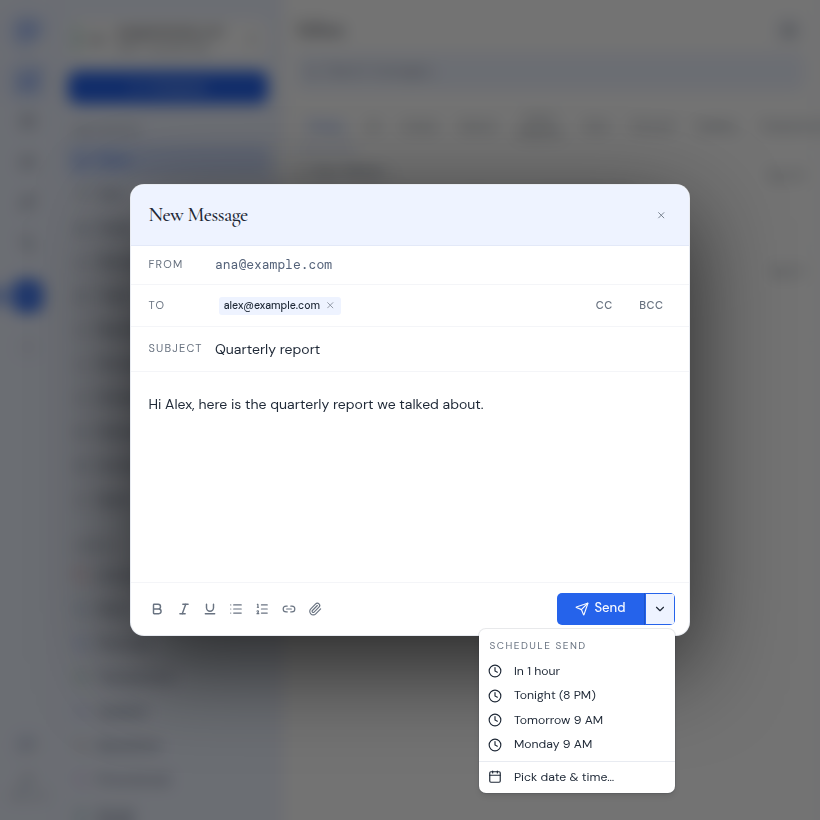
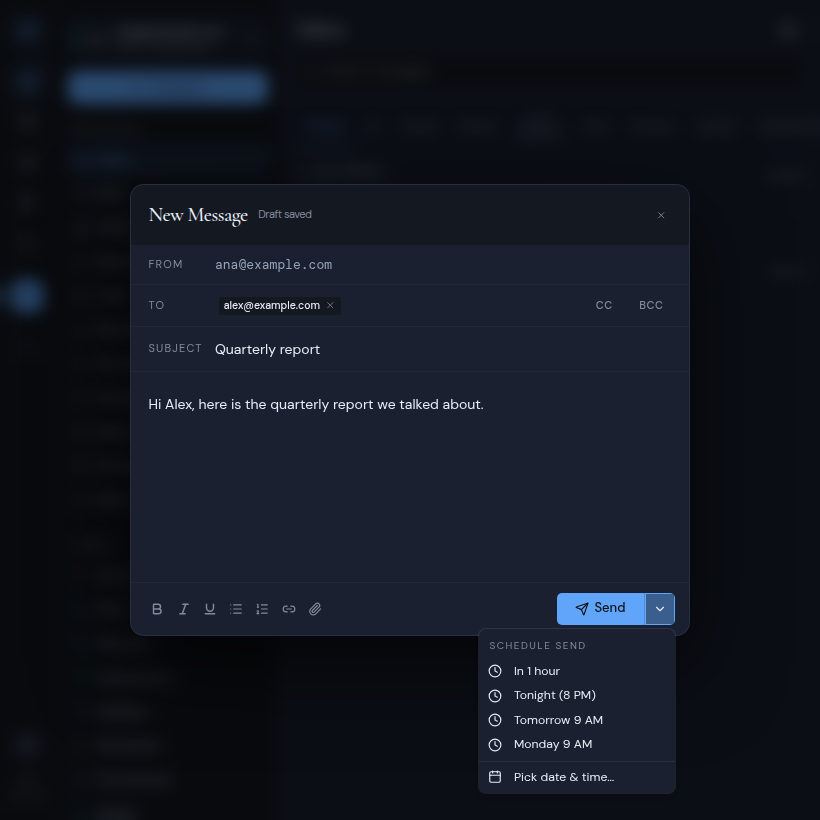
Click the small arrow next to **Send**. The **Schedule send** menu opens.
3. **Pick a time**
Choose **In 1 hour**, **Tonight (8 PM)**, **Tomorrow 9 AM**, **Monday 9 AM**, or **Pick date & time…** to choose your own.
4. **Click Send**
The button now shows the day and time, for example **Send Mon 9:00 AM**. Click it to schedule the message. A notice says "Scheduled to send" with the date.
 Changed your mind before clicking **Send**? Click **Cancel schedule** to go back to sending right away.
:::note
**Tonight (8 PM)** always means 8 PM today. If it is already past 8 PM, that time has passed and the message is not scheduled. Pick another time.
:::
### Pick your own date and time
**Pick date & time…** opens a **Schedule send** window:
1. Type or choose a date and time in **When to send**, or use the calendar button.
2. Check the preview, which reads "Will send" followed by the date.
3. Click **OK**, or press Enter.
If the date is not valid, you see "Invalid date". If the time has already passed, you see "Pick a time in the future".
## The Scheduled folder
Open **Scheduled** in the sidebar. The badge next to it counts the messages still waiting. The page heading shows how many are queued, and the messages are grouped into:
- **Pending**: waiting for their time
- **Sending**: going out now
- **History**: sent, failed, closed or canceled
Changed your mind before clicking **Send**? Click **Cancel schedule** to go back to sending right away.
:::note
**Tonight (8 PM)** always means 8 PM today. If it is already past 8 PM, that time has passed and the message is not scheduled. Pick another time.
:::
### Pick your own date and time
**Pick date & time…** opens a **Schedule send** window:
1. Type or choose a date and time in **When to send**, or use the calendar button.
2. Check the preview, which reads "Will send" followed by the date.
3. Click **OK**, or press Enter.
If the date is not valid, you see "Invalid date". If the time has already passed, you see "Pick a time in the future".
## The Scheduled folder
Open **Scheduled** in the sidebar. The badge next to it counts the messages still waiting. The page heading shows how many are queued, and the messages are grouped into:
- **Pending**: waiting for their time
- **Sending**: going out now
- **History**: sent, failed, closed or canceled
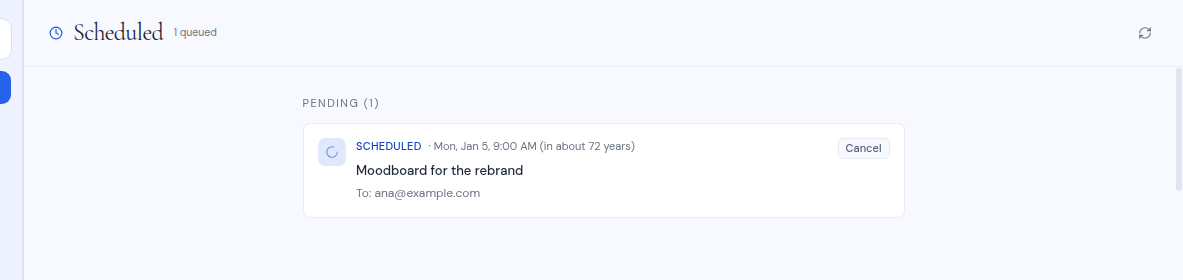
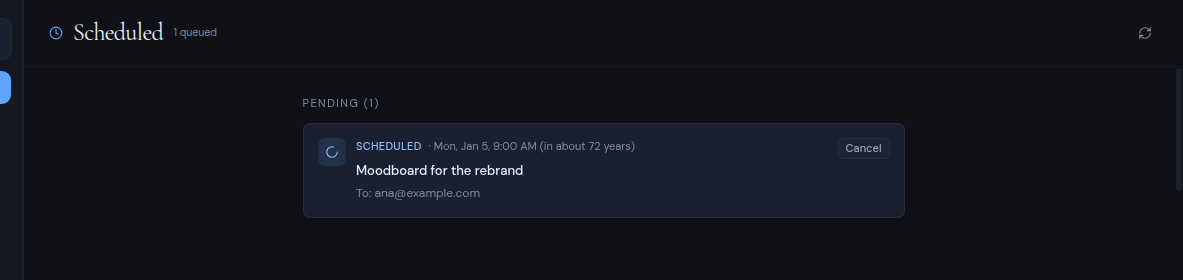 Each row shows the status, the scheduled date, the subject and the **To:** recipients. If something went wrong, the error is shown under it. If someone else in your workspace scheduled the message, the row says **Scheduled by** and their name.
Everyone who can see the sending mailbox sees its scheduled messages, and can cancel, retry or resolve them.
When a scheduled message is sent, it gets the **Scheduled** label.
### Statuses
| Status | Meaning |
| --- | --- |
| **Scheduled** | Waiting for its time. |
| **Sending** | Going out now. |
| **Sent** | Sent. |
| **Sent**, with a note about a follow-up | The message went out, but a step after sending (such as adding the **Scheduled** label) is retrying, failed, or did not apply the label. |
| **Couldn't send** | Sending failed. The error is shown on the row. |
| **Blocked** | The send could not go ahead. The error is shown on the row. |
| **Delivery unconfirmed** | Sending started, but your mail provider never confirmed that the message went out. See [Resolve an unconfirmed send](#resolve-an-unconfirmed-send). |
| **Closed**, not resent | Someone resolved an unconfirmed send by closing it. |
| **Canceled** | Someone canceled it before it was sent. |
## Cancel a scheduled message
Click **Cancel** on a pending row. The message will not be sent.
## Retry a failed send
Rows that failed show a retry button:
- **Retry** runs the steps that failed again.
- **Retry follow-up** appears when the message was already sent. It retries only the steps after sending. The message is not sent a second time.
## Resolve an unconfirmed send
Sometimes a send starts but your mail provider never confirms whether the message went out. Metis Suite never sends it again on its own, because that could deliver it twice. Instead the row shows **Delivery unconfirmed** and a **Resolve** button.
1. **Click Resolve**
The **Resolve an unconfirmed send** window opens and shows "Checking the Sent folder…" while it looks for the message.
2. **Confirm it from the Sent folder, if it is there**
Under **Found in Sent**, Metis Suite lists sent messages that match the sender, subject and recipients. If one of them is your message, click **This is it**. If nothing matches, the window says so.
3. **Or close it without resending**
Under **Close without resending**, choose a reason: **I believe it was delivered**, **It was not delivered** or **I no longer want it sent**. You can add a note in **Why (optional)**, up to 500 characters. Then click **Close without resending**.
Click **Not now** to leave it for later.
Closing records your decision. It is not proof of delivery, and the stored copy of the message is discarded. To send it again, write a new message.
After you resolve it, the row says either "Delivery confirmed from the Sent folder by" and the person's name, or "Closed by" with the name, the reason and any note.
Each row shows the status, the scheduled date, the subject and the **To:** recipients. If something went wrong, the error is shown under it. If someone else in your workspace scheduled the message, the row says **Scheduled by** and their name.
Everyone who can see the sending mailbox sees its scheduled messages, and can cancel, retry or resolve them.
When a scheduled message is sent, it gets the **Scheduled** label.
### Statuses
| Status | Meaning |
| --- | --- |
| **Scheduled** | Waiting for its time. |
| **Sending** | Going out now. |
| **Sent** | Sent. |
| **Sent**, with a note about a follow-up | The message went out, but a step after sending (such as adding the **Scheduled** label) is retrying, failed, or did not apply the label. |
| **Couldn't send** | Sending failed. The error is shown on the row. |
| **Blocked** | The send could not go ahead. The error is shown on the row. |
| **Delivery unconfirmed** | Sending started, but your mail provider never confirmed that the message went out. See [Resolve an unconfirmed send](#resolve-an-unconfirmed-send). |
| **Closed**, not resent | Someone resolved an unconfirmed send by closing it. |
| **Canceled** | Someone canceled it before it was sent. |
## Cancel a scheduled message
Click **Cancel** on a pending row. The message will not be sent.
## Retry a failed send
Rows that failed show a retry button:
- **Retry** runs the steps that failed again.
- **Retry follow-up** appears when the message was already sent. It retries only the steps after sending. The message is not sent a second time.
## Resolve an unconfirmed send
Sometimes a send starts but your mail provider never confirms whether the message went out. Metis Suite never sends it again on its own, because that could deliver it twice. Instead the row shows **Delivery unconfirmed** and a **Resolve** button.
1. **Click Resolve**
The **Resolve an unconfirmed send** window opens and shows "Checking the Sent folder…" while it looks for the message.
2. **Confirm it from the Sent folder, if it is there**
Under **Found in Sent**, Metis Suite lists sent messages that match the sender, subject and recipients. If one of them is your message, click **This is it**. If nothing matches, the window says so.
3. **Or close it without resending**
Under **Close without resending**, choose a reason: **I believe it was delivered**, **It was not delivered** or **I no longer want it sent**. You can add a note in **Why (optional)**, up to 500 characters. Then click **Close without resending**.
Click **Not now** to leave it for later.
Closing records your decision. It is not proof of delivery, and the stored copy of the message is discarded. To send it again, write a new message.
After you resolve it, the row says either "Delivery confirmed from the Sent folder by" and the person's name, or "Closed by" with the name, the reason and any note.