---
title: Narrow a search
description: Use the quick filter buttons, type filters for the sender, date, kind and more, let suggestions finish your search, and fix the parts search marks as problems.
---
A few words are often enough. When you get too many results, narrow the search with the quick filter buttons, or type filters yourself. Search suggests keys and values as you type, and marks any part it cannot use.
## Use the quick filters
The row of buttons under the search box limits results to one group of kinds.
| Button | Shows |
| --- | --- |
| **Mail** | Email messages |
| **Events** | Calendar events |
| **Files** | Files and folders in your drives |
| **Chats** | Your Workspace AI chats |
| **People** | Members of the workspace and contacts from your mail |
| **Workflows** | Workflows and workflow runs |
| **Workspace** | The workspace's mailboxes, calendars, drives, mail folders, labels and connected accounts |
| **Commands** | Commands, settings pages and your other workspaces |
- Only one button is on at a time. The one that is on is highlighted.
- Clicking another button replaces the current one. Clicking the button that is on turns it off.
- Each button adds a filter to the box, such as `type:mail`, so you can see it and change it.
### Search in one mailbox, calendar or drive
Click **In a resource** at the end of the row. The menu lists the workspace's **Mailboxes**, **Calendars** and **Drives** by their email address. Pick one to add a filter for it, such as `mailbox:` and its name, to the end of your search.
## Type filters
A filter is a key, a colon and a value, with no spaces: `from:sam`. Put as many as you need in one search, with or without other words.
| You type | Finds |
| --- | --- |
| `from:sam invoice` | Mail from Sam that mentions "invoice" |
| `is:unread has:attachment` | Unread mail with an attachment |
| `"quarterly report" after:30d` | Results from the last 30 days with that exact phrase |
| `type:file kind:pdf contract` | PDF files with "contract" in the name |
| `type:event attendee:sam@example.com after:today` | Upcoming events Sam is invited to |
| `invoice OR receipt` | Results that match either word |
| `invoice -from:billing@example.com` | Results with "invoice" that were not sent from that address |
| `type:run status:failed` | Workflow runs that failed |
| `type:member role:admin` | The workspace's admins |
- A space between two parts means both must match. Use `OR` for either, and `NOT` or a minus sign (`-`) to leave something out. Use parentheses to group parts.
- A filter only searches the kinds it applies to. For example, `from:sam` searches only mail.
- If a value has spaces, put it in quotes: `sub-calendar:"Team events"`.
For every key and the values each one takes, see [Search syntax](/guide/reference/search-syntax).
:::tip
To find everything to do with one person, open their profile and click **Search everything with this person**. See [Members and roles](/guide/workspaces/members-and-roles).
:::
## Let suggestions finish your search
As you type, a **Suggestions** group appears at the top of the results.
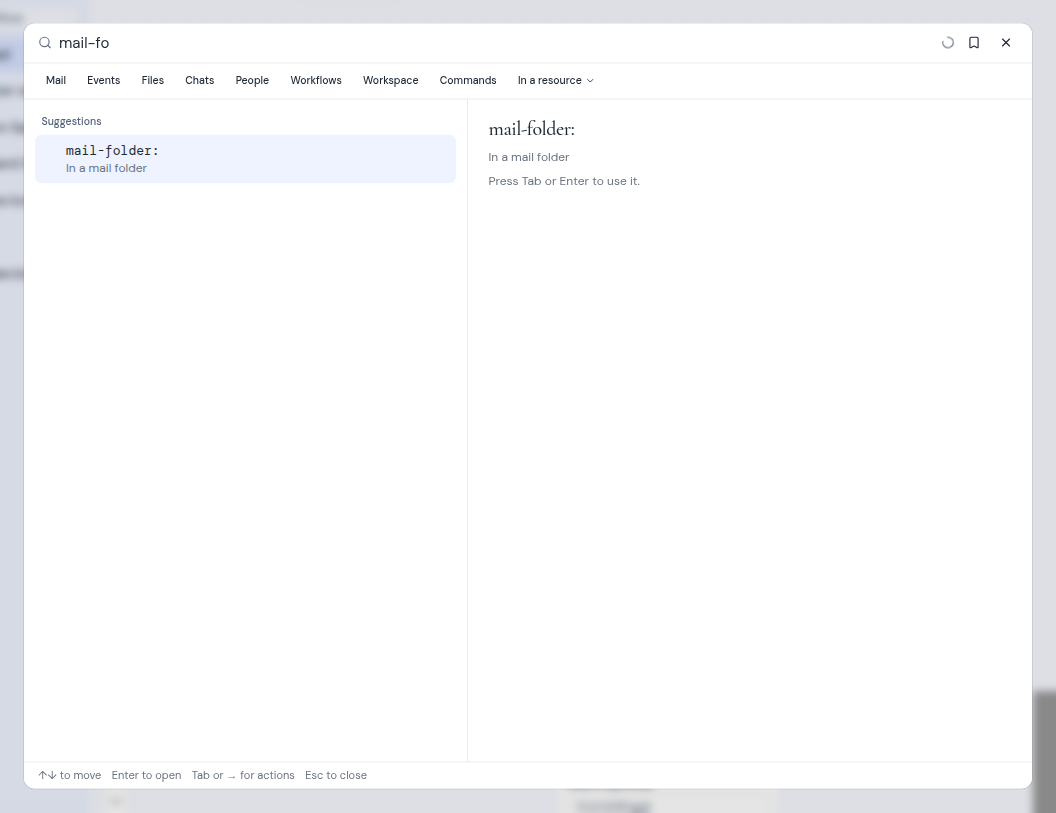
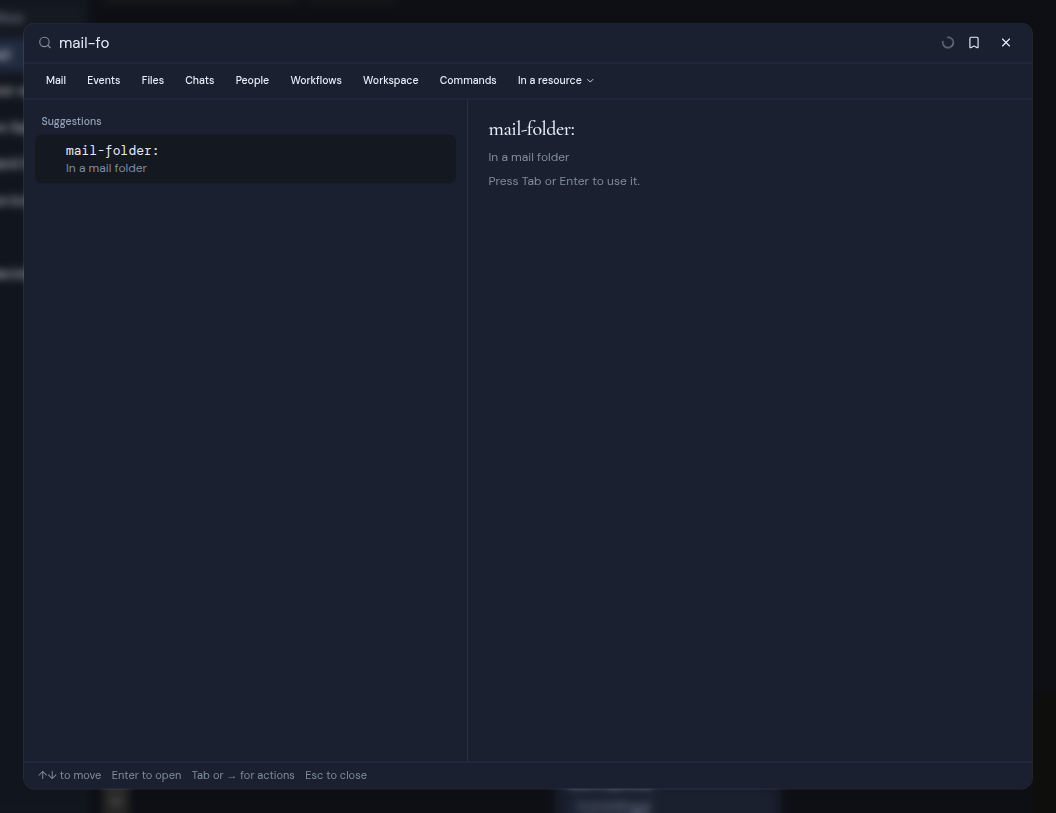
- **While you type a key**, search suggests up to 8 keys that match, each with a short description. For example, `mail-fo` suggests `mail-folder:`, "In a mail folder". If your search already has a `type:` filter, only the keys for that kind are suggested.
- **After you type a key and a colon**, search suggests values for it:
- the fixed choices for keys such as `is:`, `mail-folder:` or `kind:`
- `today`, `yesterday`, `7d`, `30d` and `1y` for dates
- `>1mb`, `>10mb`, `>100mb` and `<100kb` for sizes
- the workspace's mailboxes, calendar accounts and drives (shown by their email address) for `mailbox:`, `calendar:` and `drive:`
- the calendars the workspace shows for `sub-calendar:`
- the built-in and custom labels for `label:`
- your workflows' names for `workflow:`
- members and contacts from your mail for `from:`, `to:`, `cc:`, `attendee:`, `organizer:` and `email:`
To use a suggestion, press **Tab** (it takes the highlighted suggestion, or the first one), press **Enter**, or click it. When you pick a key, the cursor waits after the colon, so you can type or pick the value next. Values with spaces are put in quotes for you.
 ## Read the colors
Search colors your search as you type, so you can check it at a glance:
- Keys are in the accent color. Values and quoted phrases have colors of their own.
- `AND`, `OR` and `NOT` are shown in bold. A `-` or `NOT` at the start of a part is shown in bold red, because it leaves results out.
- Parentheses are dim. The one that matches the parenthesis next to your cursor is tinted, so you can see which pair belongs together.
## Fix a problem
When part of your search cannot be used, search underlines it with a wavy red line. Point at it to see why. The first problem also shows in red under the box, for example "There is no colour: filter" or "Add a value after from:".
- While a search has a problem, it does not run, and you cannot save it.
- While a quote or a parenthesis is still open, search shows a grey hint instead: "Finish the search: close every quote and parenthesis."
- If search cannot read a part at all, the colors before it stay. The underline runs from the point where the search breaks to the end of the search.
For the full list of messages and what to do about each one, see [Problem messages](/guide/reference/search-syntax#problem-messages).
## Read the colors
Search colors your search as you type, so you can check it at a glance:
- Keys are in the accent color. Values and quoted phrases have colors of their own.
- `AND`, `OR` and `NOT` are shown in bold. A `-` or `NOT` at the start of a part is shown in bold red, because it leaves results out.
- Parentheses are dim. The one that matches the parenthesis next to your cursor is tinted, so you can see which pair belongs together.
## Fix a problem
When part of your search cannot be used, search underlines it with a wavy red line. Point at it to see why. The first problem also shows in red under the box, for example "There is no colour: filter" or "Add a value after from:".
- While a search has a problem, it does not run, and you cannot save it.
- While a quote or a parenthesis is still open, search shows a grey hint instead: "Finish the search: close every quote and parenthesis."
- If search cannot read a part at all, the colors before it stay. The underline runs from the point where the search breaks to the end of the search.
For the full list of messages and what to do about each one, see [Problem messages](/guide/reference/search-syntax#problem-messages).