---
title: Saved and recent searches
description: Save a search under a name to run it again later, pick up a search you used lately, and remove the ones you no longer need.
---
Search keeps two lists for you in each workspace. **Saved searches** are the ones you chose to keep, under a name. **Recent searches** are the ones you used lately. Both show when the search box is empty.
 ## Save a search
1. Type a search. Wait until it has no problems marked in red.
2. Click the bookmark icon (**Save this search**) at the right of the box. It shows only while the box holds a search that search can use.
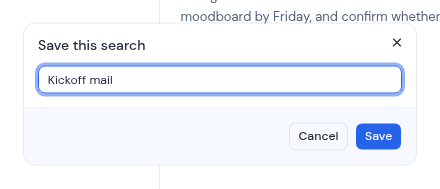
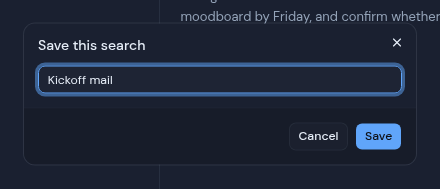
3. The **Save this search** dialog opens. Its name box starts with the first 40 characters of your search. Type a name of your own if you like.
4. Click **Save**. You see "Search saved".
To close the dialog without saving, click **Cancel**.
Good to know:
- A name can be up to 80 characters, and a search up to 500.
- You can save up to 50 searches in each workspace. When you reach that, you see "You have saved as many searches as this workspace allows". Remove one to save another.
- Each workspace has its own list. A search you save in one workspace does not show in another.
- Saved searches follow your account, so you see them in every browser you sign in to.
:::note[Saved searches are private]
Saved searches are yours alone. Other members of the workspace do not see them, and you do not see theirs.
:::
## Run a saved search
- **With an empty box:** your saved searches show under **Saved searches**, each with its name and the search under it. Click one, or move to it and press **Enter**. The search goes into the box and runs.
- **While you type:** a saved search whose name or search matches what you type shows as a command, "Saved search:" followed by its name. Pick it to put its search in the box.
You can change the search in the box after it loads. The saved search itself stays as it was.
## Recent searches
Search remembers a search when you open a result or run an action while the box holds that search. With an empty box, your last 8 show under **Recent searches**, newest first. Click one to run it again.
Recent searches are kept in the browser you use, for each workspace. Another browser has its own list.
## Remove a saved or recent search
Click the **X** at the right of its row. Its label reads "Remove" and the name of the search. It goes away right away, with no question first.
## Save a search
1. Type a search. Wait until it has no problems marked in red.
2. Click the bookmark icon (**Save this search**) at the right of the box. It shows only while the box holds a search that search can use.
3. The **Save this search** dialog opens. Its name box starts with the first 40 characters of your search. Type a name of your own if you like.
4. Click **Save**. You see "Search saved".
To close the dialog without saving, click **Cancel**.
Good to know:
- A name can be up to 80 characters, and a search up to 500.
- You can save up to 50 searches in each workspace. When you reach that, you see "You have saved as many searches as this workspace allows". Remove one to save another.
- Each workspace has its own list. A search you save in one workspace does not show in another.
- Saved searches follow your account, so you see them in every browser you sign in to.
:::note[Saved searches are private]
Saved searches are yours alone. Other members of the workspace do not see them, and you do not see theirs.
:::
## Run a saved search
- **With an empty box:** your saved searches show under **Saved searches**, each with its name and the search under it. Click one, or move to it and press **Enter**. The search goes into the box and runs.
- **While you type:** a saved search whose name or search matches what you type shows as a command, "Saved search:" followed by its name. Pick it to put its search in the box.
You can change the search in the box after it loads. The saved search itself stays as it was.
## Recent searches
Search remembers a search when you open a result or run an action while the box holds that search. With an empty box, your last 8 show under **Recent searches**, newest first. Click one to run it again.
Recent searches are kept in the browser you use, for each workspace. Another browser has its own list.
## Remove a saved or recent search
Click the **X** at the right of its row. Its label reads "Remove" and the name of the search. It goes away right away, with no question first.