---
title: Search your workspace
description: Open workspace search, read the results and the preview, and open or act on a result without leaving search.
---
Workspace search looks through the workspace you are in, all at once. It finds mail, events, files, your Workspace AI chats, members and contacts, workflows and their runs, and the workspace's mailboxes, calendars, drives, mail folders, labels and connected accounts. It also finds commands, settings pages and your other workspaces.
Search works whatever your AI settings are. Only **Ask the assistant**, the **New chat** command and the **MCP clients** settings page need AI.
## Open search
You can open search in two ways:
- Click **Search** (the magnifier icon) on the left rail, just above **Inbox**. Its tooltip reads "Search · Ctrl/⌘ K".
- Press **Ctrl** + **K** (**⌘** + **K** on a Mac) on any page of a workspace, including its settings. The shortcut does nothing while you are typing in a field or in the message editor. It does not work on your account settings or on the instance dashboard.
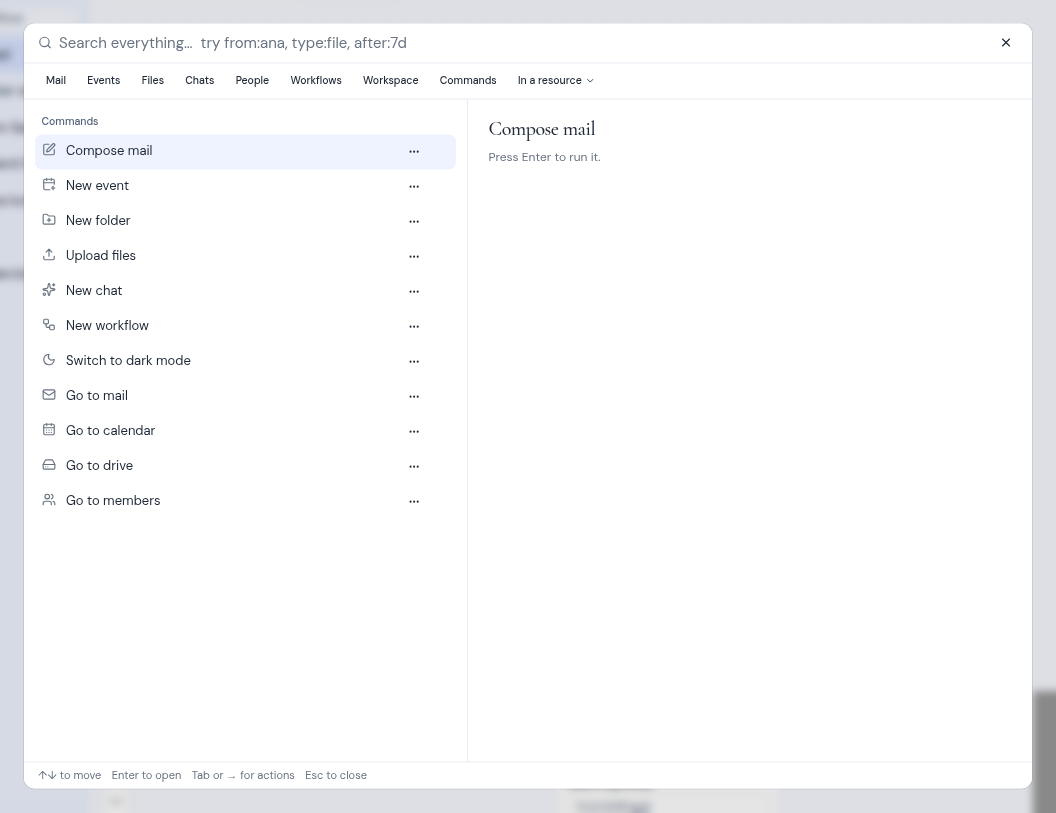
Until you type, the search box shows a few example searches as a hint.
 ### When you open search from a mailbox, calendar or drive
If you open search while you are in one mailbox, one calendar account or one drive, the box already holds a filter for it, such as `mailbox:` followed by the mailbox's short name. The filter is selected:
- To search only there, press the **End** key and type your words after it.
- To search the whole workspace, just start typing. Your words replace the filter.
If you open search from **All inboxes**, from all calendars or from **All drives**, the box starts empty.
## Before you type
With an empty box, search shows up to three groups:
- **Saved searches**: the searches you saved in this workspace, each with its name and the search under it.
- **Recent searches**: the searches you used lately in this browser.
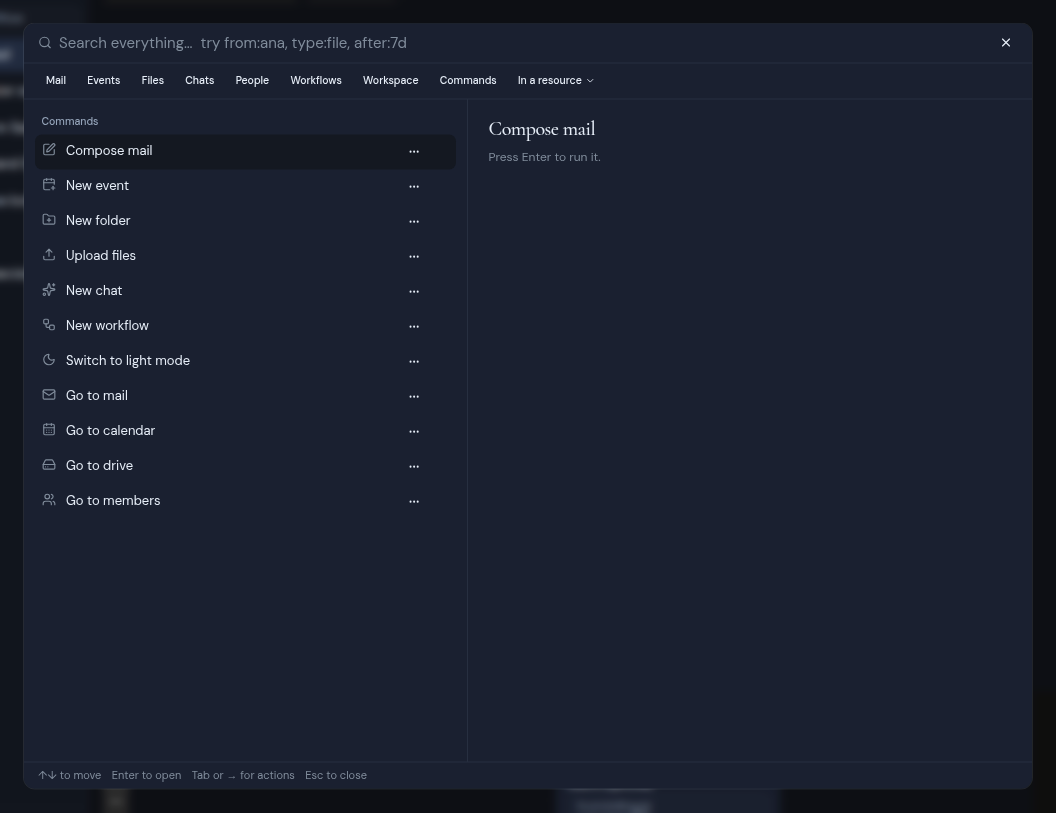
- **Commands**: things you can do right away, such as **Compose mail**, **New event** or **Go to members**.
Click a saved or recent search, or move to it and press **Enter**, to put it in the box and run it. See [Saved and recent searches](/guide/search/saved-and-recent-searches).
## Run a search
1. **Type what you are looking for**
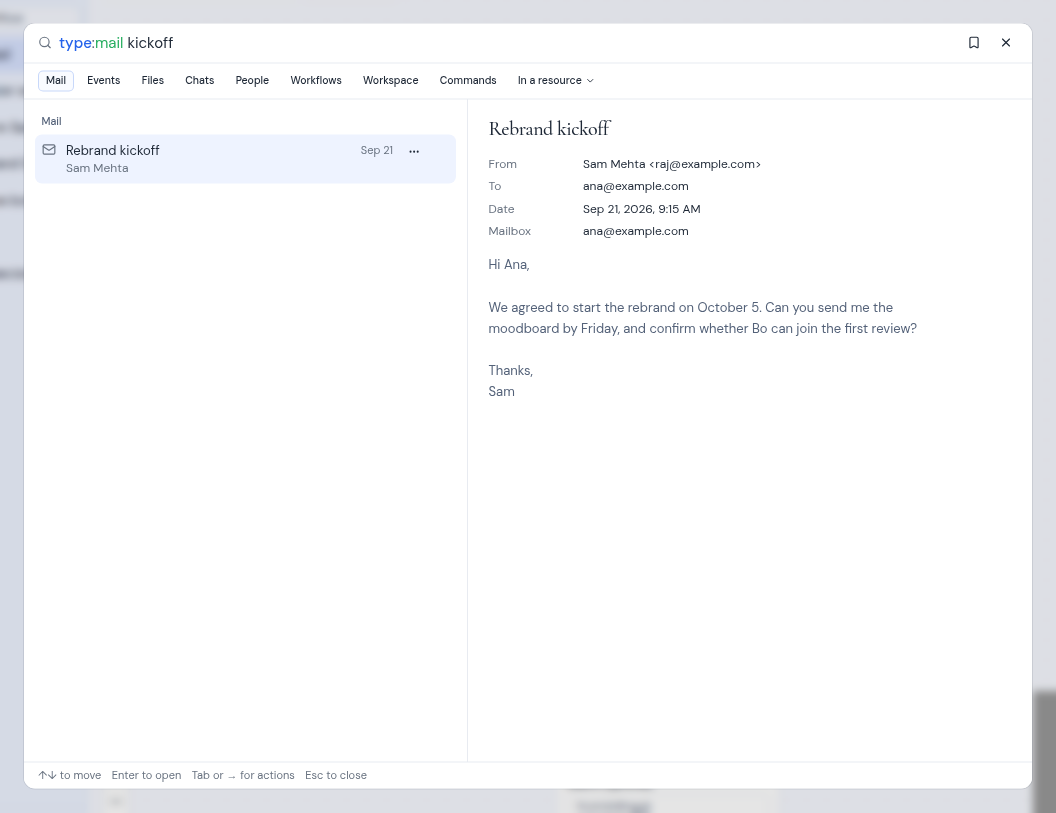
Type one or more words. Results appear a moment after you stop typing. To narrow the results, add filters such as `type:file` or `from:sam`. See [Narrow a search](/guide/search/narrow-a-search).
2. **Look through the results**
Results are grouped by kind, under headings such as **Mail**, **Events**, **Files** and **Members**. The words that match are in bold. Use the **Up** and **Down** arrow keys to move through them.
3. **Check the preview**
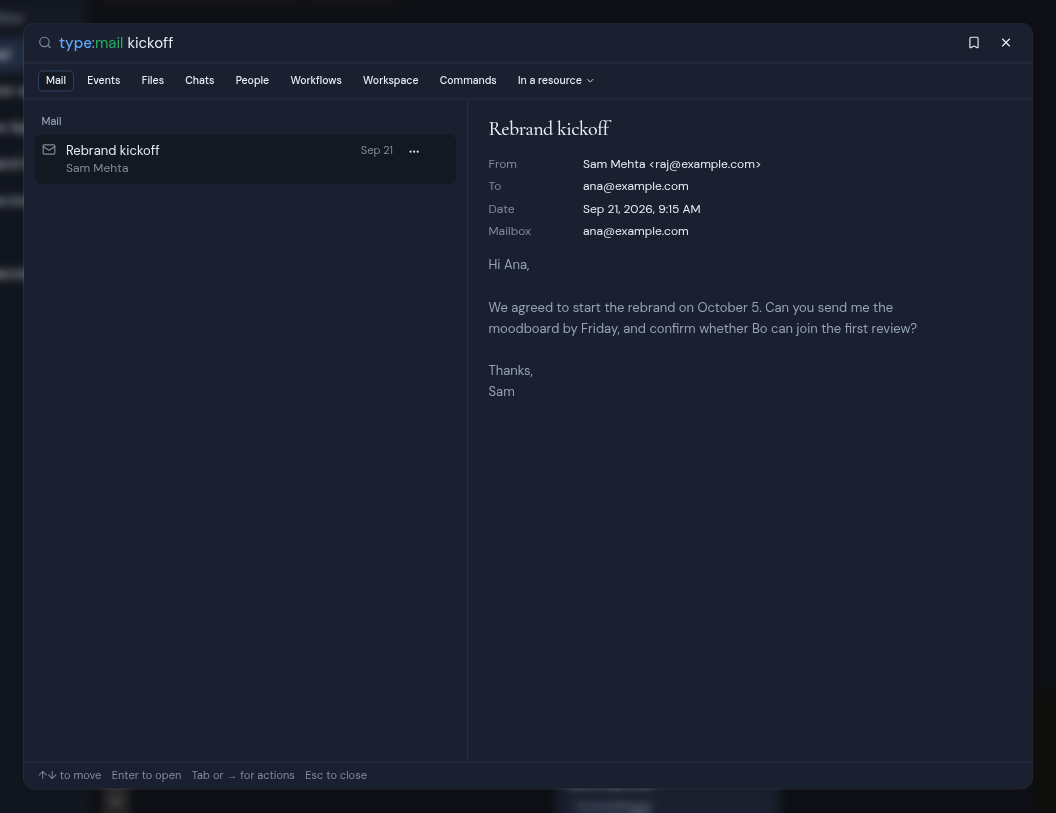
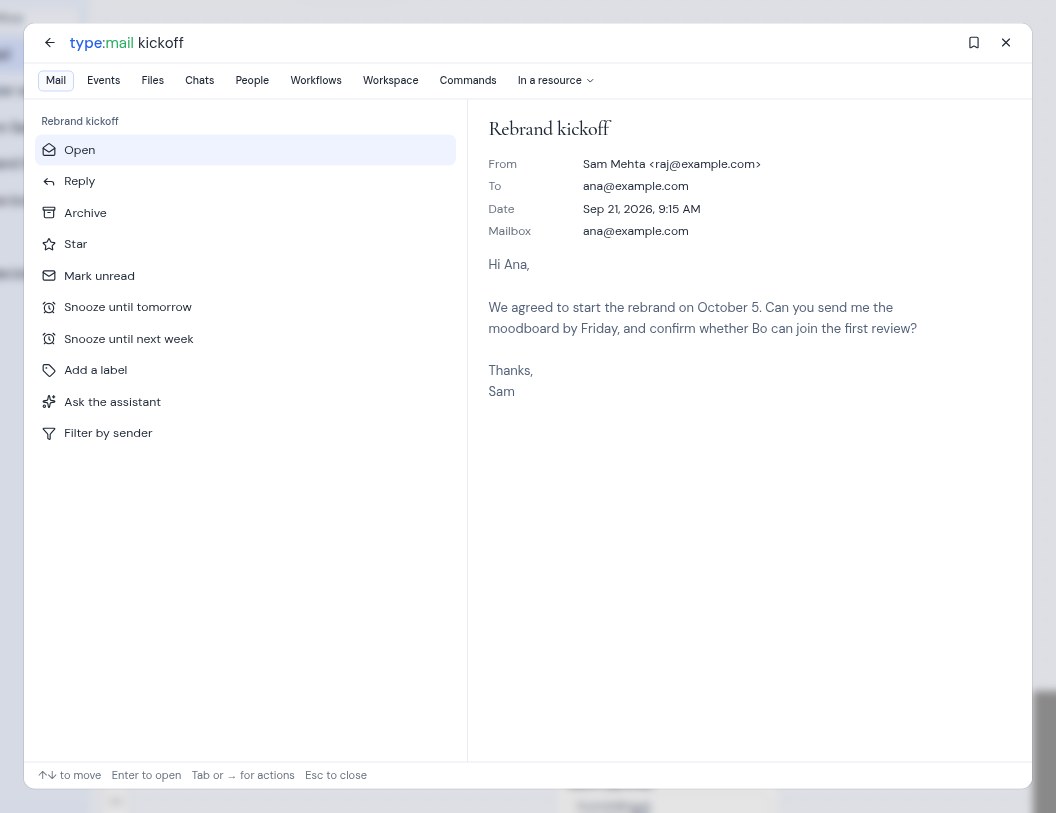
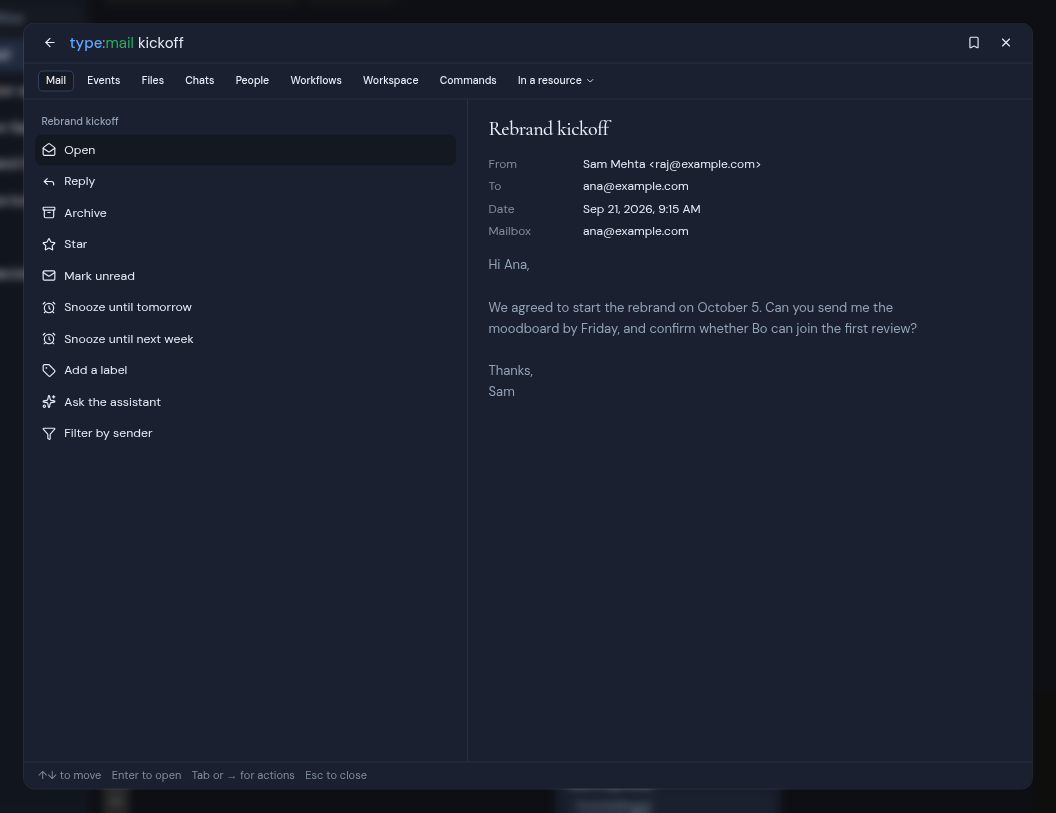
The **Preview** pane on the right shows the details of the result you are on. The first result is highlighted for you. For mail, the preview shows the sender, the recipients, the date and the message text. When there is nothing in the list, it says "Pick a result to see it here."
### When you open search from a mailbox, calendar or drive
If you open search while you are in one mailbox, one calendar account or one drive, the box already holds a filter for it, such as `mailbox:` followed by the mailbox's short name. The filter is selected:
- To search only there, press the **End** key and type your words after it.
- To search the whole workspace, just start typing. Your words replace the filter.
If you open search from **All inboxes**, from all calendars or from **All drives**, the box starts empty.
## Before you type
With an empty box, search shows up to three groups:
- **Saved searches**: the searches you saved in this workspace, each with its name and the search under it.
- **Recent searches**: the searches you used lately in this browser.
- **Commands**: things you can do right away, such as **Compose mail**, **New event** or **Go to members**.
Click a saved or recent search, or move to it and press **Enter**, to put it in the box and run it. See [Saved and recent searches](/guide/search/saved-and-recent-searches).
## Run a search
1. **Type what you are looking for**
Type one or more words. Results appear a moment after you stop typing. To narrow the results, add filters such as `type:file` or `from:sam`. See [Narrow a search](/guide/search/narrow-a-search).
2. **Look through the results**
Results are grouped by kind, under headings such as **Mail**, **Events**, **Files** and **Members**. The words that match are in bold. Use the **Up** and **Down** arrow keys to move through them.
3. **Check the preview**
The **Preview** pane on the right shows the details of the result you are on. The first result is highlighted for you. For mail, the preview shows the sender, the recipients, the date and the message text. When there is nothing in the list, it says "Pick a result to see it here."
 Good to know:
- If nothing matches, you see "Nothing matched that search."
- If an account could not be searched, you see "Some places could not be searched:" followed by the accounts, or the kinds of result, that could not be searched. Results from every other place still appear.
- **Mail** and **Files** end with **Load more** when there are more results. Click it, or move to it and press **Enter**.
- To see which words match which kind of result, see [Free text](/guide/reference/search-syntax#free-text).
## Open a result or act on it
Every result has a list of actions. The first one runs when you click the row or press **Enter**. For most results it is **Open**, which takes you to the item and closes search.
To see all the actions for a result:
1. Move to the result. Then do one of these:
- Press **Tab**. While suggestions show at the top of the list, **Tab** picks a suggestion instead.
- Press **Right arrow** when the cursor is at the end of the box.
- Press **Ctrl** + **Enter** (**⌘** + **Enter** on a Mac).
- Click the **...** button on the row. Its label reads "Actions for" and the result's name.
2. The list of actions takes the place of the results, under the result's name. The magnifier icon becomes a back arrow (**Back to results**).
3. Move to an action and press **Enter**, or click it. Press **Esc** or click **Back to results** to go back to the results.
Good to know:
- If nothing matches, you see "Nothing matched that search."
- If an account could not be searched, you see "Some places could not be searched:" followed by the accounts, or the kinds of result, that could not be searched. Results from every other place still appear.
- **Mail** and **Files** end with **Load more** when there are more results. Click it, or move to it and press **Enter**.
- To see which words match which kind of result, see [Free text](/guide/reference/search-syntax#free-text).
## Open a result or act on it
Every result has a list of actions. The first one runs when you click the row or press **Enter**. For most results it is **Open**, which takes you to the item and closes search.
To see all the actions for a result:
1. Move to the result. Then do one of these:
- Press **Tab**. While suggestions show at the top of the list, **Tab** picks a suggestion instead.
- Press **Right arrow** when the cursor is at the end of the box.
- Press **Ctrl** + **Enter** (**⌘** + **Enter** on a Mac).
- Click the **...** button on the row. Its label reads "Actions for" and the result's name.
2. The list of actions takes the place of the results, under the result's name. The magnifier icon becomes a back arrow (**Back to results**).
3. Move to an action and press **Enter**, or click it. Press **Esc** or click **Back to results** to go back to the results.
 - Actions that delete or remove something are shown in red. Most of them ask you to confirm first.
- Actions that open a page close search. Actions that change an item in place, such as **Archive**, **Star** or **Mark read**, keep search open so you can carry on.
- If an action does not work, a message pops up with the reason.
For every action of every kind of result, see [Results and actions](/guide/search/results-and-actions).
## Close search
Press **Esc**, or click the **X** (**Close search**) at the right of the box. If the list of actions is open, the first **Esc** goes back to the results, and the next one closes search.
## Search on a phone
On a phone, search opens as a sheet that fills the screen from the bottom. There is no preview pane and no line of keyboard hints. Tap a row to run its first action, or tap its **...** button to see all its actions.
- Actions that delete or remove something are shown in red. Most of them ask you to confirm first.
- Actions that open a page close search. Actions that change an item in place, such as **Archive**, **Star** or **Mark read**, keep search open so you can carry on.
- If an action does not work, a message pops up with the reason.
For every action of every kind of result, see [Results and actions](/guide/search/results-and-actions).
## Close search
Press **Esc**, or click the **X** (**Close search**) at the right of the box. If the list of actions is open, the first **Esc** goes back to the results, and the next one closes search.
## Search on a phone
On a phone, search opens as a sheet that fills the screen from the bottom. There is no preview pane and no line of keyboard hints. Tap a row to run its first action, or tap its **...** button to see all its actions.