---
title: Add a BCC to outgoing mail
description: Build a workflow that copies the mail you send to another address, such as an archive.
---
A workflow that starts with **Before a message is sent** runs each time someone in the workspace sends a message from the mail app, just before it goes out. With an **Auto-BCC** step, it adds an address as a blind copy (BCC). The people you write to do not see a BCC address.
Use this to keep a copy of your sent mail in an archive mailbox, or to copy a team address on everything you send.
## Build the workflow
1. Click **Workflows** in the left rail.
2. Click **New workflow** and pick any template, such as **One mailbox, on arrival**. Then remove its steps with the **X** in each step's title bar until the canvas is empty.
3. Click **Add step** and choose **Before a message is sent** under **Trigger**.
4. In **Applies to**, choose **Any mailbox**, or pick one mailbox so the copy is only added to mail sent from that address.
5. Click **Add step** and choose **Auto-BCC** under **Action**.
6. In **BCC address**, enter the address to copy, for example `archive@example.com`.
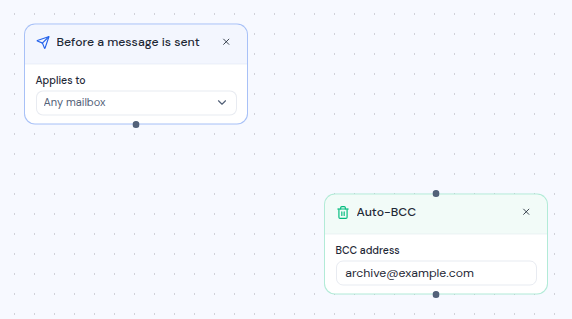
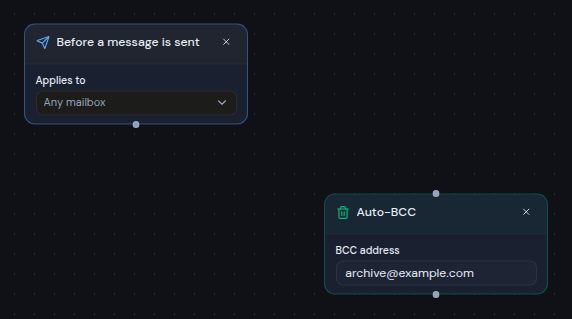 7. Drag from the dot at the bottom of **Before a message is sent** to the dot at the top of **Auto-BCC**.
8. Name the workflow, check that the switch says **Enabled**, and click **Create workflow**.
From now on, every message anyone in the workspace sends from the chosen mailboxes in the mail app, including scheduled messages, gets the extra BCC address. Mail sent by the AI assistant or a connected AI client does not.
## Copy only some messages
To add the BCC only to some messages, put an **If** step between the trigger and **Auto-BCC**:
1. Add an **If** step and connect the trigger to it.
2. Set a condition, for example **Recipient** **ends with** `@example.com`.
3. Connect the **Yes** output of **If** to **Auto-BCC**, and remove the direct connection from the trigger.
The conditions check the message you are sending. See [Steps](/guide/workflows/steps#if) for the fields you can test.
## Good to know
- **Only mail sent from the mail app.** Messages sent from the chosen mailboxes in the mail app get the BCC, including scheduled messages. Mail sent by the AI assistant or a connected AI client does not.
- **An address is never added twice.** If the address is already on the message as a recipient, Cc or BCC, it is not added again.
- **Only If and Auto-BCC work here.** A **Before a message is sent** trigger cannot feed **Mailbox**, **Ask** or any other action. Saving shows a message if you try.
- **Several workflows can add addresses.** If more than one enabled workflow applies to a message, each one adds its address.
- **No runs in the history.** These workflows run as part of sending, so they do not appear under **Activity**.
- **Turned off means no copy.** A disabled workflow adds nothing.
7. Drag from the dot at the bottom of **Before a message is sent** to the dot at the top of **Auto-BCC**.
8. Name the workflow, check that the switch says **Enabled**, and click **Create workflow**.
From now on, every message anyone in the workspace sends from the chosen mailboxes in the mail app, including scheduled messages, gets the extra BCC address. Mail sent by the AI assistant or a connected AI client does not.
## Copy only some messages
To add the BCC only to some messages, put an **If** step between the trigger and **Auto-BCC**:
1. Add an **If** step and connect the trigger to it.
2. Set a condition, for example **Recipient** **ends with** `@example.com`.
3. Connect the **Yes** output of **If** to **Auto-BCC**, and remove the direct connection from the trigger.
The conditions check the message you are sending. See [Steps](/guide/workflows/steps#if) for the fields you can test.
## Good to know
- **Only mail sent from the mail app.** Messages sent from the chosen mailboxes in the mail app get the BCC, including scheduled messages. Mail sent by the AI assistant or a connected AI client does not.
- **An address is never added twice.** If the address is already on the message as a recipient, Cc or BCC, it is not added again.
- **Only If and Auto-BCC work here.** A **Before a message is sent** trigger cannot feed **Mailbox**, **Ask** or any other action. Saving shows a message if you try.
- **Several workflows can add addresses.** If more than one enabled workflow applies to a message, each one adds its address.
- **No runs in the history.** These workflows run as part of sending, so they do not appear under **Activity**.
- **Turned off means no copy.** A disabled workflow adds nothing.