---
title: Let AI decide with Ask and Branch
description: Ask an AI model questions about each message, then send the message down a path for each answer.
---
An **If** step can only match text. When the rule is harder to write down, such as "is this a refund request?" or "which team should handle this?", use the two decision steps:
- **Ask** sends each message to an AI model with one or more questions.
- **Branch** reads the answer to one question and sends the message down the matching path, such as **Yes**, **No** or **Unsure**.
## Before you start
- **Your instance has to offer decision steps.** If **Ask** and **Branch** are not in the **Add step** menu under **Decisions**, your administrator has not turned them on.
- **AI has to be on for every mailbox that feeds the Ask step.** AI must be allowed in the workspace and turned on for each of those mailboxes. If it is not, saving shows "Turn AI on for every mailbox that feeds this Ask step". See [Workspaces](/guide/workspaces) for the AI switches.
- **Decision steps cannot run before a message is sent.** You can use them after **When mail arrives**, **On a schedule** or **When run manually**, but not after **Before a message is sent**.
## Add an Ask step and its questions
1. **Add the Ask step**
Click **Add step** and choose **Ask** under **Decisions**. Connect a **Mailbox** step (or an **If** step) to its top dot.
2. **Choose what the model sees**
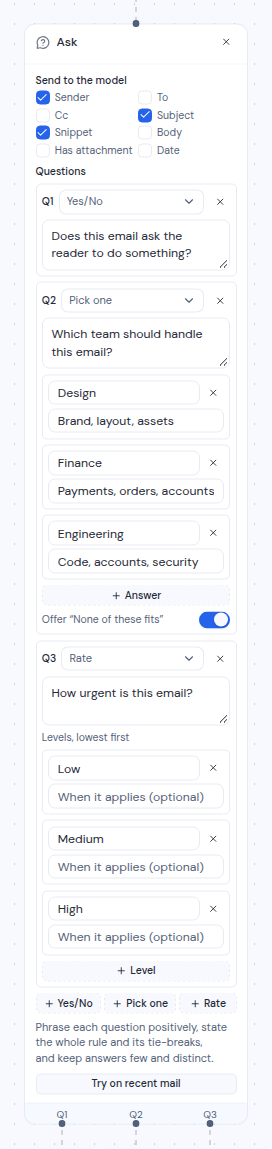
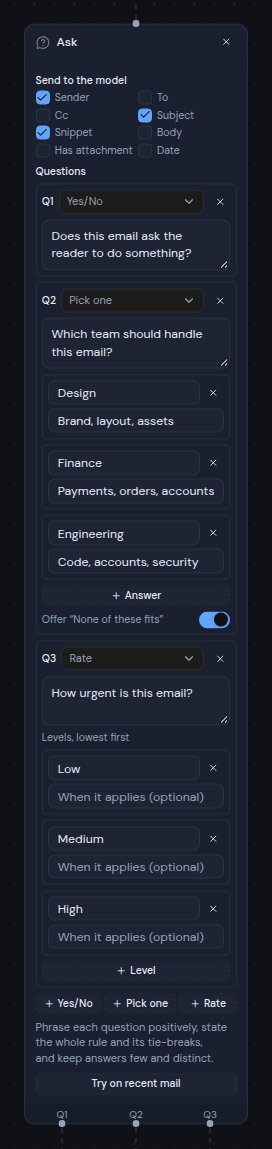
Under **Send to the model**, tick the parts of each message the model may read: **Sender**, **To**, **Cc**, **Subject**, **Snippet**, **Body**, **Has attachment** and **Date**. **Sender**, **Subject** and **Snippet** are ticked to start with. At least one has to stay ticked.
Send only what the model needs. A long body is cut to its first 8,000 characters.
3. **Add your questions**
Under **Questions**, click one of the three buttons to add a question:
| Button | Question type | The model answers with |
| --- | --- | --- |
| **+ Yes/No** | **Yes/No** | Yes or No |
| **+ Pick one** | **Pick one** | One answer from a list you write |
| **+ Rate** | **Rate** | One level from a scale you write |
Type the question in its text box, for example "Is this email a request for a refund?". Questions can be up to 500 characters. You can change a question's type with the list next to its number, or remove it with **Remove question**.
For **Pick one**, write at least two answers. Each answer has a name (up to 40 characters) and an optional **When it applies (optional)** note (up to 200 characters) that tells the model when to choose it. Click **+ Answer** to add another. Leave **Offer "None of these fits"** on if a message might fit none of your answers.
For **Rate**, write at least two levels under **Levels, lowest first**, for example Low, Medium and High. Click **+ Level** to add another.
All the questions in one Ask step are asked together, in one go for each message. Each question gets its own output on the Ask step: **Q1**, **Q2** and so on.
 4. **Write questions the model can answer well**
The card gives this advice: "Phrase each question positively, state the whole rule and its tie-breaks, and keep answers few and distinct." For example, ask "Does this email ask the reader to do something?" rather than "Is this email not just for information?".
If you remove a question or an answer that a connection still uses, the dialog **Remove connections?** asks you to confirm. Click **Remove** to remove the question and those connections, or **Cancel** to keep everything.
## Route mail with Branch steps
Each question needs its own **Branch** step to act on the answer. An Ask output can only connect to a Branch step, and a Branch step can only take its input from an Ask step.
1. **Add and connect a Branch step**
Click **Add step** and choose **Branch**. Drag from one of the Ask step's outputs, such as **Q1**, to the top of the Branch step. Until it is connected, the card says "Connect this to a question on an Ask step." Once connected, it shows the question, for example "Q1: Is this email a request for a refund?".
2. **Set how sure the model has to be**
The model gives each answer with a level of confidence. The sliders on the Branch step set how confident it has to be:
- For a **Yes/No** question: **Yes when at least** (80% to start with) and **No when at most** (20% to start with).
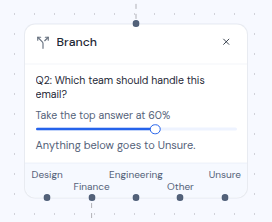
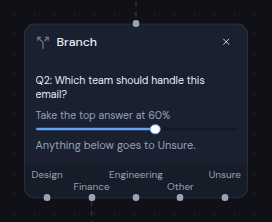
- For **Pick one** and **Rate**: **Take the top answer at** (60% to start with).
Anything that does not reach the line goes to **Unsure**. Higher values for **Yes when at least** and **Take the top answer at** send fewer messages down **Yes** or an answer path, and more to **Unsure**. For **No when at most**, a higher value sends more messages to **No**. Keep **No when at most** below **Yes when at least**, or saving shows "Set the No threshold below the Yes threshold".
4. **Write questions the model can answer well**
The card gives this advice: "Phrase each question positively, state the whole rule and its tie-breaks, and keep answers few and distinct." For example, ask "Does this email ask the reader to do something?" rather than "Is this email not just for information?".
If you remove a question or an answer that a connection still uses, the dialog **Remove connections?** asks you to confirm. Click **Remove** to remove the question and those connections, or **Cancel** to keep everything.
## Route mail with Branch steps
Each question needs its own **Branch** step to act on the answer. An Ask output can only connect to a Branch step, and a Branch step can only take its input from an Ask step.
1. **Add and connect a Branch step**
Click **Add step** and choose **Branch**. Drag from one of the Ask step's outputs, such as **Q1**, to the top of the Branch step. Until it is connected, the card says "Connect this to a question on an Ask step." Once connected, it shows the question, for example "Q1: Is this email a request for a refund?".
2. **Set how sure the model has to be**
The model gives each answer with a level of confidence. The sliders on the Branch step set how confident it has to be:
- For a **Yes/No** question: **Yes when at least** (80% to start with) and **No when at most** (20% to start with).
- For **Pick one** and **Rate**: **Take the top answer at** (60% to start with).
Anything that does not reach the line goes to **Unsure**. Higher values for **Yes when at least** and **Take the top answer at** send fewer messages down **Yes** or an answer path, and more to **Unsure**. For **No when at most**, a higher value sends more messages to **No**. Keep **No when at most** below **Yes when at least**, or saving shows "Set the No threshold below the Yes threshold".
 3. **Connect the paths you need**
The Branch step has one output for each possible result:
| Question type | Outputs |
| --- | --- |
| **Yes/No** | **Yes**, **No**, **Unsure** |
| **Pick one** | One for each answer, then **Other** (when "None of these fits" is on) and **Unsure** |
| **Rate** | One for each level, then **Unsure** |
Connect the outputs you want to act on, for example **Yes** to **Apply label**. You can leave the others unconnected. If the model declines to answer, the message goes to **Unsure**.
## Try your questions on recent mail
Before you save, you can see how the model answers your questions on real mail. Nothing in the mailbox changes.
1. On the Ask step, click **Try on recent mail**. The button is greyed out until the step has a question.
2. A panel opens on the right. Pick a mailbox and click **Ask**. Only mailboxes with AI turned on are listed. If there are none, the panel says "No mailbox in this workspace has AI turned on."
3. The panel lists the 10 newest messages in that mailbox's inbox. Under each subject and sender, it shows each question's answer and how sure the model was, and, for each connected Branch step, the path the message would take.
3. **Connect the paths you need**
The Branch step has one output for each possible result:
| Question type | Outputs |
| --- | --- |
| **Yes/No** | **Yes**, **No**, **Unsure** |
| **Pick one** | One for each answer, then **Other** (when "None of these fits" is on) and **Unsure** |
| **Rate** | One for each level, then **Unsure** |
Connect the outputs you want to act on, for example **Yes** to **Apply label**. You can leave the others unconnected. If the model declines to answer, the message goes to **Unsure**.
## Try your questions on recent mail
Before you save, you can see how the model answers your questions on real mail. Nothing in the mailbox changes.
1. On the Ask step, click **Try on recent mail**. The button is greyed out until the step has a question.
2. A panel opens on the right. Pick a mailbox and click **Ask**. Only mailboxes with AI turned on are listed. If there are none, the panel says "No mailbox in this workspace has AI turned on."
3. The panel lists the 10 newest messages in that mailbox's inbox. Under each subject and sender, it shows each question's answer and how sure the model was, and, for each connected Branch step, the path the message would take.
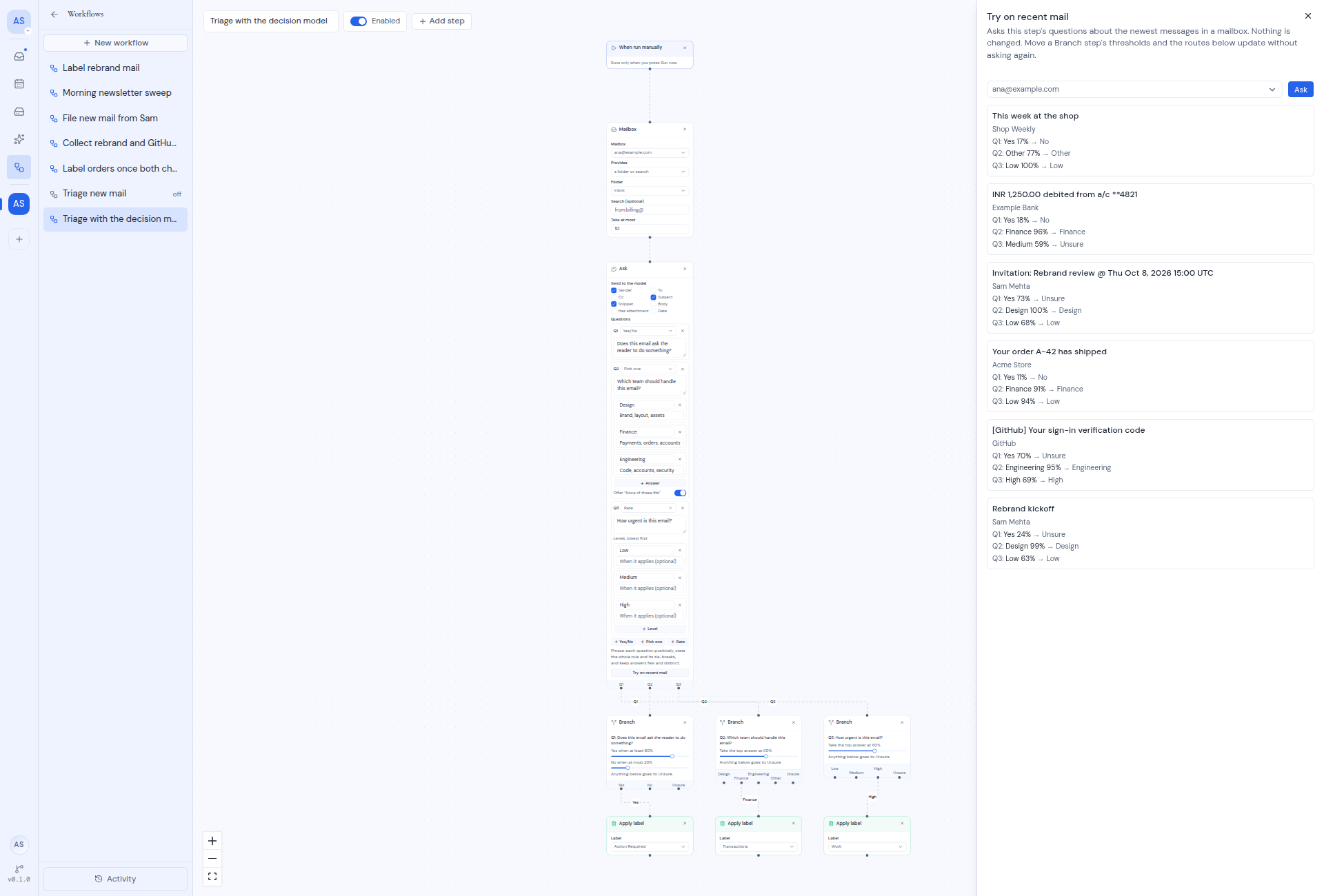
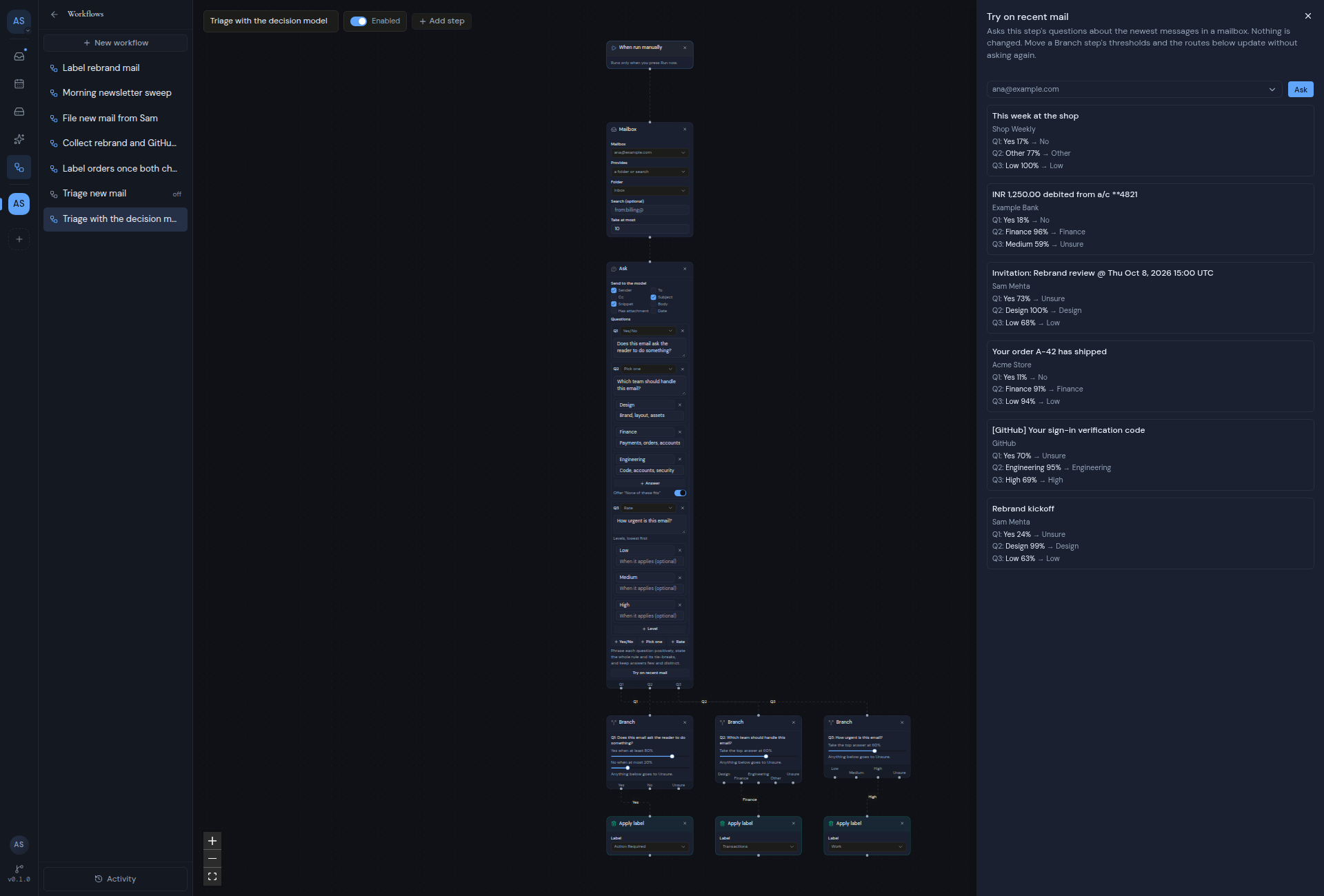 The panel does not block the canvas. Move a Branch step's sliders while it is open, and the paths in the panel update without asking the model again. You can try this up to 10 times a minute.
## What happens when AI is not available
If AI is turned off for a mailbox, or decision steps are turned off on the instance, a run that reaches an Ask step does not fail. It is **blocked**, and the run details show the reason, for example "AI is turned off for this mailbox". Fix the cause, then retry the run. Questions that were already answered are not asked again. See [Cancel and retry runs](/guide/workflows/cancel-and-retry-runs).
In the run details, each message under a Branch step shows the path it took and how sure the model was, for example "Yes · 92%".
The panel does not block the canvas. Move a Branch step's sliders while it is open, and the paths in the panel update without asking the model again. You can try this up to 10 times a minute.
## What happens when AI is not available
If AI is turned off for a mailbox, or decision steps are turned off on the instance, a run that reaches an Ask step does not fail. It is **blocked**, and the run details show the reason, for example "AI is turned off for this mailbox". Fix the cause, then retry the run. Questions that were already answered are not asked again. See [Cancel and retry runs](/guide/workflows/cancel-and-retry-runs).
In the run details, each message under a Branch step shows the path it took and how sure the model was, for example "Yes · 92%".