---
title: Build your first workflow
description: Build and save a workflow that archives new mail from one sender shortly after it arrives.
---
In this tutorial you will build a workflow that archives new mail from one sender shortly after it arrives. You will start from a template, set a condition, save it, and then see its runs in the history. It takes about five minutes.
You need a workspace with at least one mailbox. Pick a sender whose mail you are happy to see archived, such as a newsletter. Archived mail is not deleted: it leaves your inbox and stays in your archive.
1. **Open the Workflows page**
Click **Workflows** in the left rail. The page lists your workflows on the left. If you have none yet, the list says "No workflows yet. Build one on the canvas to auto-triage your inbox."
2. **Start from a template**
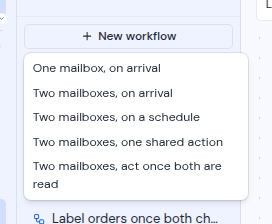
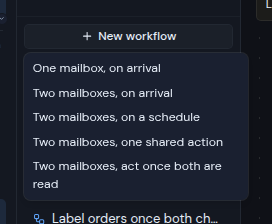
Click **New workflow** at the top of the list. A menu of templates opens. Each template is a ready-made set of connected steps that you can change.
Click **One mailbox, on arrival**.
 The canvas now shows four connected steps, from top to bottom:
1. **When mail arrives**: the trigger. It starts the workflow when new mail lands.
2. **Mailbox**: the mailbox to watch.
3. **If**: the condition each new message has to meet.
4. **Archive**: the action, connected to the **Yes** output of **If**.
Nothing is saved yet. The workflow only exists on your screen until you click **Create workflow**.
3. **Name the workflow**
Click the name field at the top left of the canvas. It shows "Untitled workflow" until you type. Enter a name that says what the workflow does, such as `Archive newsletters`. Names can be up to 80 characters.
4. **Choose the mailbox**
In the **Mailbox** step, open the **Mailbox** list and pick the mailbox to watch. The first mailbox in the workspace is already selected.
Leave **Provides** set to **newly arrived mail**. That setting is what lets the **When mail arrives** trigger watch this mailbox. When the trigger is connected, its card says which address it is watching.
5. **Set the condition**
The **If** step decides which messages go on to the action. It starts with one condition: **Sender** **contains** an empty value.
Click the field that shows "value" and type part of the sender's address, for example `news@example.com`. You can change **Sender** to **Recipient**, **Cc**, **Subject**, **Body** or **Has attachment**, and **contains** to **equals**, **starts with** or **ends with**.
The canvas now shows four connected steps, from top to bottom:
1. **When mail arrives**: the trigger. It starts the workflow when new mail lands.
2. **Mailbox**: the mailbox to watch.
3. **If**: the condition each new message has to meet.
4. **Archive**: the action, connected to the **Yes** output of **If**.
Nothing is saved yet. The workflow only exists on your screen until you click **Create workflow**.
3. **Name the workflow**
Click the name field at the top left of the canvas. It shows "Untitled workflow" until you type. Enter a name that says what the workflow does, such as `Archive newsletters`. Names can be up to 80 characters.
4. **Choose the mailbox**
In the **Mailbox** step, open the **Mailbox** list and pick the mailbox to watch. The first mailbox in the workspace is already selected.
Leave **Provides** set to **newly arrived mail**. That setting is what lets the **When mail arrives** trigger watch this mailbox. When the trigger is connected, its card says which address it is watching.
5. **Set the condition**
The **If** step decides which messages go on to the action. It starts with one condition: **Sender** **contains** an empty value.
Click the field that shows "value" and type part of the sender's address, for example `news@example.com`. You can change **Sender** to **Recipient**, **Cc**, **Subject**, **Body** or **Has attachment**, and **contains** to **equals**, **starts with** or **ends with**.
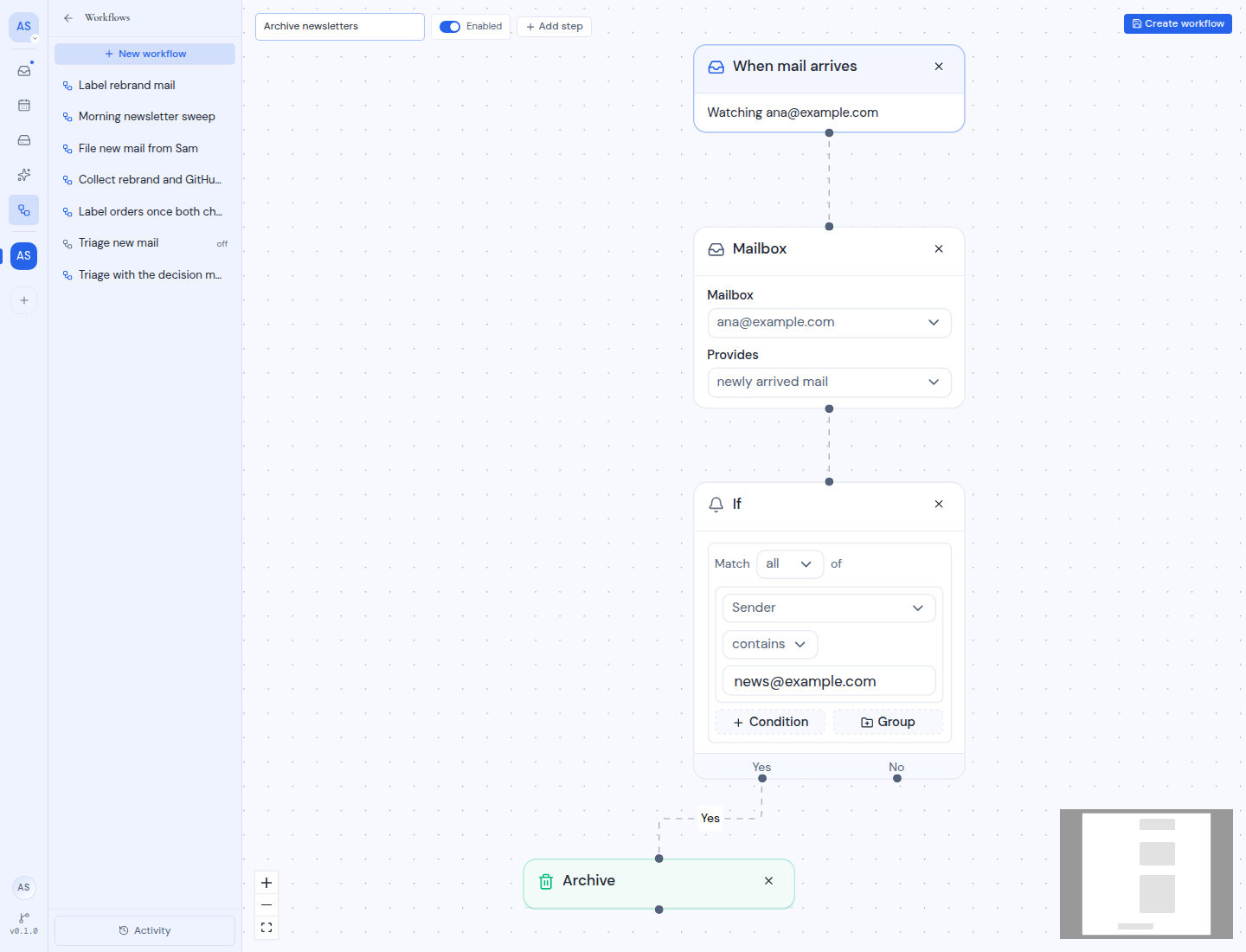
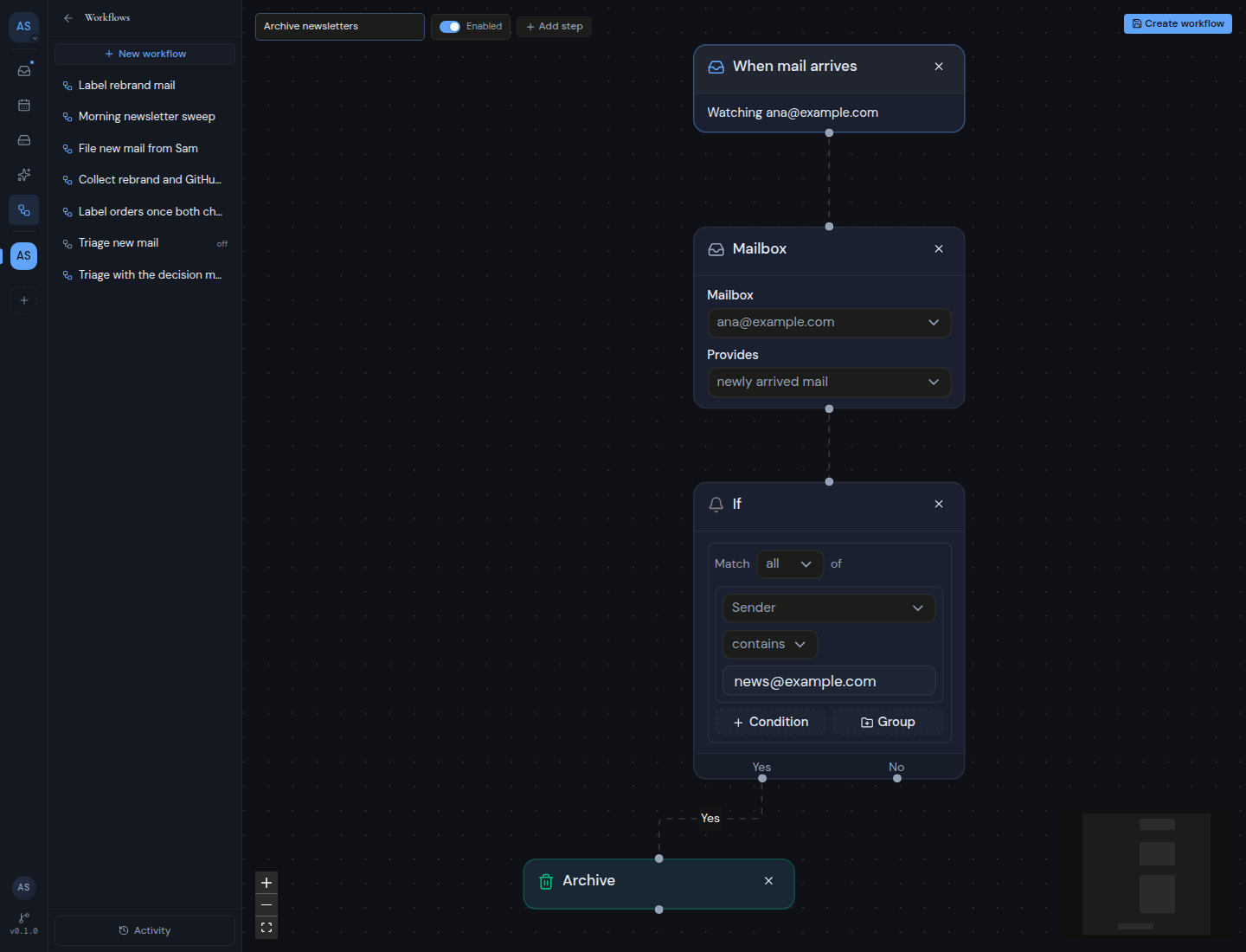 Messages that match go out of the **Yes** output to **Archive**. Messages that do not match go out of **No**, which is not connected here, so nothing happens to them.
:::tip
Start with a narrow condition, such as one exact sender address. A workflow acts on every message that matches, and it does not ask you first.
:::
6. **Save the workflow**
Check that the switch next to the name says **Enabled**. Then click **Create workflow** at the top right.
If something is missing, a red message appears at the top right instead, for example "Give your workflow a name". Fix what it says and click **Create workflow** again.
When the save works, the top right shows **Saved**, the button changes to **Save**, and your workflow appears in the list on the left.
7. **Let it take a baseline**
Right after you save, the **When mail arrives** card says it is taking a baseline. This means Metis Suite is noting the mail already in the mailbox, so the workflow skips it. Only mail that arrives from now on goes through the workflow.
After a short while, reload the page. The card then shows **Checked** followed by the date and time of its last check.
8. **See it work**
Wait for a new message from the sender, or send yourself a test message that matches your condition. Shortly after it arrives, the workflow runs and the message moves to **Archive**.
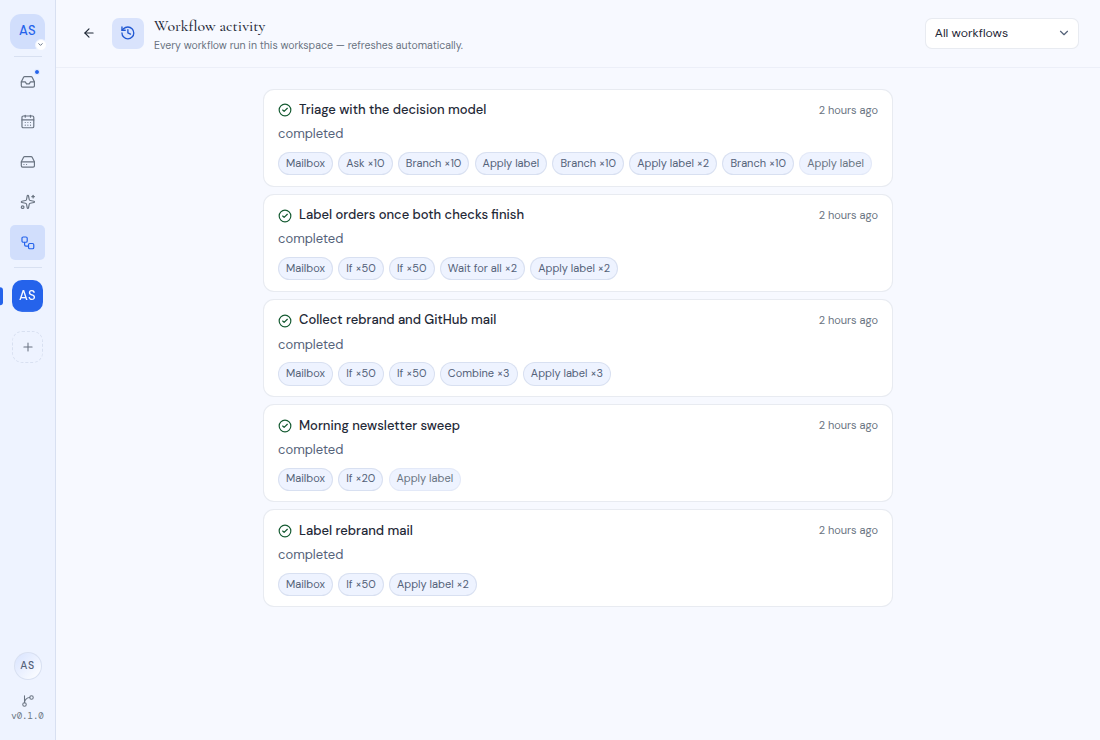
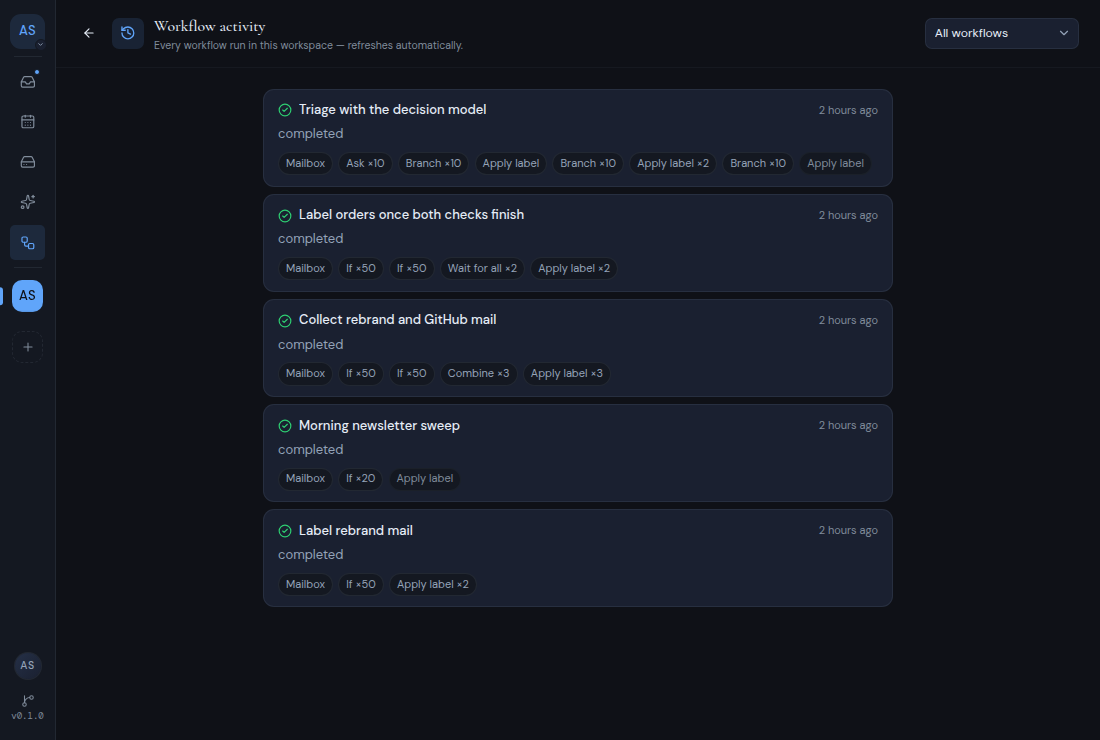
To see what happened, click **Activity** at the bottom of the workflow list. Each run of your workflow appears as a card with its status and the steps it ran. Click the card to open the run and see which messages each step handled.
Messages that match go out of the **Yes** output to **Archive**. Messages that do not match go out of **No**, which is not connected here, so nothing happens to them.
:::tip
Start with a narrow condition, such as one exact sender address. A workflow acts on every message that matches, and it does not ask you first.
:::
6. **Save the workflow**
Check that the switch next to the name says **Enabled**. Then click **Create workflow** at the top right.
If something is missing, a red message appears at the top right instead, for example "Give your workflow a name". Fix what it says and click **Create workflow** again.
When the save works, the top right shows **Saved**, the button changes to **Save**, and your workflow appears in the list on the left.
7. **Let it take a baseline**
Right after you save, the **When mail arrives** card says it is taking a baseline. This means Metis Suite is noting the mail already in the mailbox, so the workflow skips it. Only mail that arrives from now on goes through the workflow.
After a short while, reload the page. The card then shows **Checked** followed by the date and time of its last check.
8. **See it work**
Wait for a new message from the sender, or send yourself a test message that matches your condition. Shortly after it arrives, the workflow runs and the message moves to **Archive**.
To see what happened, click **Activity** at the bottom of the workflow list. Each run of your workflow appears as a card with its status and the steps it ran. Click the card to open the run and see which messages each step handled.
 ## What you built
You built a workflow with one trigger, one mailbox, one condition and one action, and you saw its runs in the history. Every workflow follows the same pattern, with more steps or different ones.
If this was only practice, turn the workflow off or delete it. See [Manage workflows](/guide/workflows/manage-workflows).
## Next steps
- Run a workflow on a timetable instead of on arrival: see [Triggers](/guide/workflows/triggers).
- Add more conditions, labels or a second branch: see [Steps](/guide/workflows/steps).
- Read a run in detail, or retry one that failed: see [Run a workflow and check its history](/guide/workflows/run-and-check-history).
## What you built
You built a workflow with one trigger, one mailbox, one condition and one action, and you saw its runs in the history. Every workflow follows the same pattern, with more steps or different ones.
If this was only practice, turn the workflow off or delete it. See [Manage workflows](/guide/workflows/manage-workflows).
## Next steps
- Run a workflow on a timetable instead of on arrival: see [Triggers](/guide/workflows/triggers).
- Add more conditions, labels or a second branch: see [Steps](/guide/workflows/steps).
- Read a run in detail, or retry one that failed: see [Run a workflow and check its history](/guide/workflows/run-and-check-history).