---
title: Test a workflow
description: Try a workflow on real data without changing anything, pin a sample event, and replay an earlier run.
---
A test run goes through the workflow as it is on your screen, saved or not. It changes nothing: steps that change something only report what they would do. Testing does not count as a change to the workflow, and it does not appear under **Activity**.
The **Test run** tab says: "Runs this version of the workflow, saved or not, and changes nothing: steps that change something report what they would do. AI steps still call the model."
## Run a test
1. Open the workflow.
2. Click **Test** in the top bar, or press **w** then **t**. The **Test run** tab opens under the canvas.
3. If the workflow has more than one trigger, pick the one to start from under **Start from**.
4. Under **Test with**, choose what the test starts with. The list shows only the choices that fit the trigger:
| Test with | What the test starts with |
| --------------------- | --------------------------------------------------------------------------------------------------------------------- |
| **A recent item** | One of the newest messages, events or files that a mail, calendar or drive trigger watches. Pick it under **Sample**. |
| **The pinned sample** | The event you pinned for this trigger. See [Pin a sample event](#pin-a-sample-event). |
| **Inputs I fill in** | Values you type in, for **Run by hand**, **When called** and **Webhook** triggers. |
| **Nothing** | No event, for **On a schedule**. |
| **An event I paste** | An event you paste as JSON, for example `{ "subject": "Invoice 42" }`. |
5. Click **Run test**.
For **A recent item**, the **Sample** list shows the 15 newest messages of a mail trigger, the events from 7 days ago to 14 days ahead of a calendar trigger, or the files in the folder of a drive trigger. While it loads, it says "Loading recent items…". If there is nothing, it says "Nothing there to test with yet."
## Read the result
The tab shows the result, such as **completed**. Below that is one row for each step the test reached, with what the step did, and "×" with the number of items it handled. Click a row to select that step.
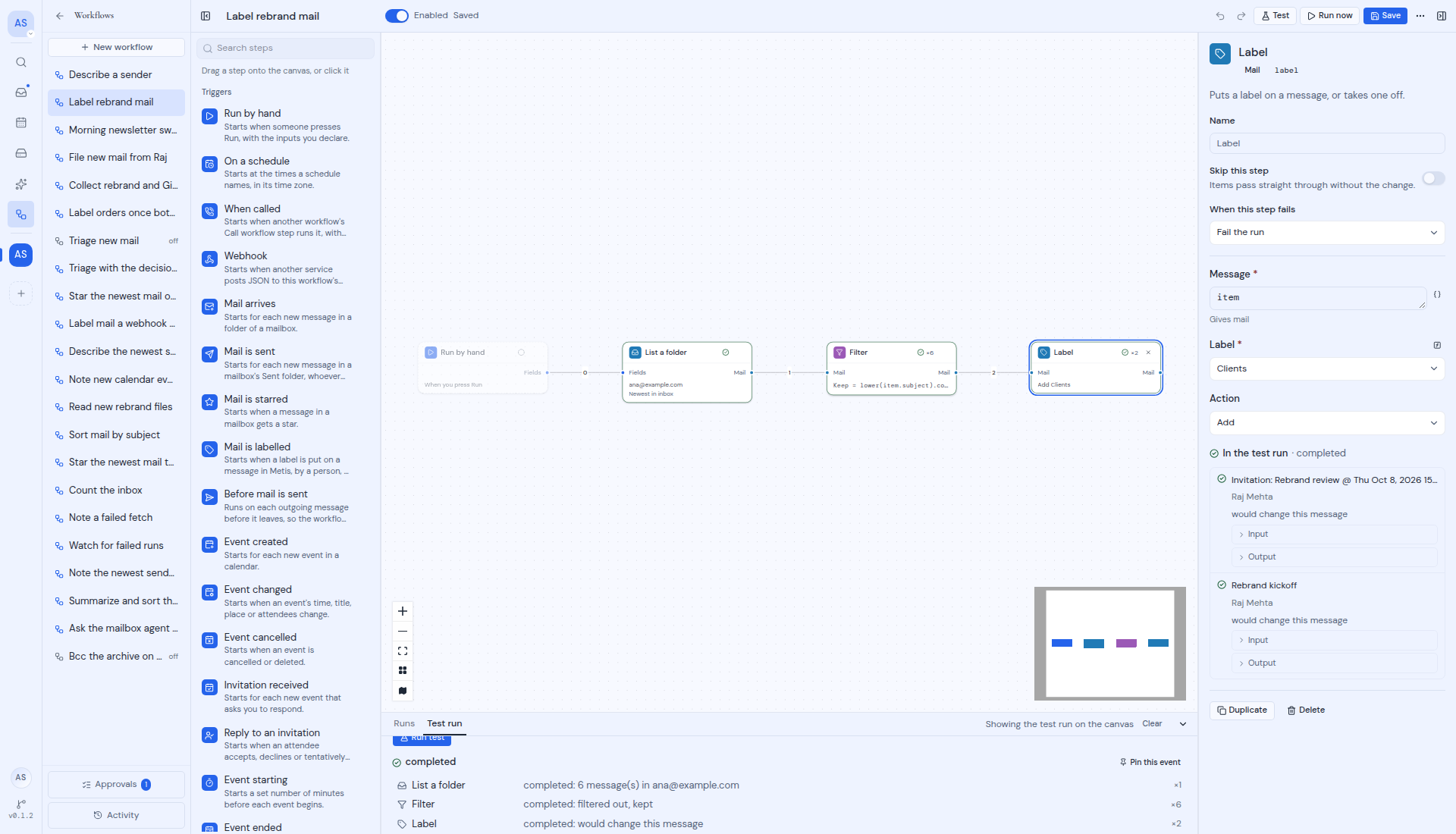
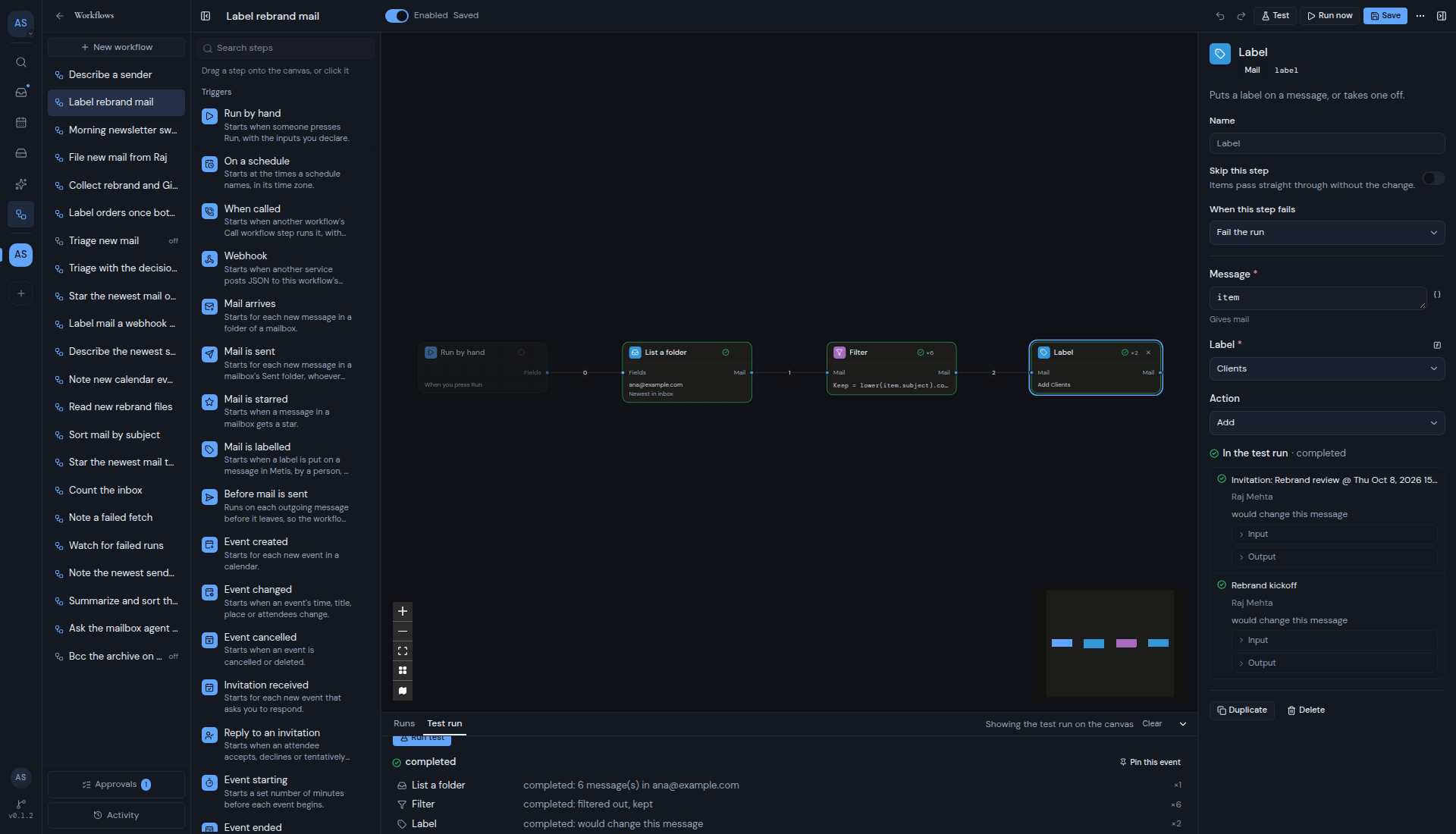 The canvas shows the test run too. Each step shows how it went, and the connections the items took are highlighted. The tab's header says "Showing the test run on the canvas". Click a step to see each item it handled under **In the test run** in the Inspector, with the output it took and its **Input** and **Output**. Click **Clear** in the header to hide the test run.
Steps that change something say what they would have done, for example:
- "would change this message"
- "would send to" and the recipients
- "would save a draft"
- "would create the file"
- "would run the other workflow"
- "would wait"
- "would wait; a test run goes on through Timed out"
- "would ask for approval; a test run goes on through Approved"
## Pin a sample event
Some triggers have no recent items to pick from. To test them, save an event as the trigger's **pinned sample**:
1. Run a test, for example with **An event I paste**.
2. Click **Pin this event** next to the result. A message says "Pinned as this trigger's sample".
Pinning works once the workflow is saved. A sample can be up to 64 KB. A larger one is refused with "That sample is larger than 64 KB".
Click the trigger to see its sample in the Inspector: "A pinned sample event is used by test runs." Click **Pinned event** to see it, or **Unpin** to remove it.
**Before mail is sent**, **A run fails**, **Phishing detected**, **AI labels mail**, **Mail is labelled** and **Member joins** have no recent items. Until you pin a sample, their test starts with **An event I paste**. If you leave the box empty or the text is not valid JSON, the test says "Paste the event as JSON".
## Replay an earlier run
You can test a workflow again with the event that started an earlier run:
1. Open the **Runs** tab under the canvas and click a run.
2. Click **Replay in a test**. The **Test run** tab opens and says "Replaying run" with the first characters of the run's id.
3. Under **Run from**, pick **from the start**, or **from** a step. When you start from a step, the test reuses that run's results for the steps before it.
4. Click **Run test**.
Click **Stop replaying** (the **X**) to go back to a normal test. Runs from before the workflow engine upgrade cannot be replayed.
## Keep in mind
- **Fix problems first.** **Run test** is greyed out while the workflow has problems, and the tab says "Fix the problems in the workflow before testing it."
- **A test needs a trigger.** Without one, the tab says "Add a trigger to test from."
- **AI steps still ask the AI model.** Everything else changes nothing.
- **Waits do not wait.** **Delay**, **Wait until**, **Wait for** and **Ask for approval** go on at once, as the lines above describe.
- **You can run up to 10 tests a minute.** After that, you see "Too many requests. Please slow down."
The canvas shows the test run too. Each step shows how it went, and the connections the items took are highlighted. The tab's header says "Showing the test run on the canvas". Click a step to see each item it handled under **In the test run** in the Inspector, with the output it took and its **Input** and **Output**. Click **Clear** in the header to hide the test run.
Steps that change something say what they would have done, for example:
- "would change this message"
- "would send to" and the recipients
- "would save a draft"
- "would create the file"
- "would run the other workflow"
- "would wait"
- "would wait; a test run goes on through Timed out"
- "would ask for approval; a test run goes on through Approved"
## Pin a sample event
Some triggers have no recent items to pick from. To test them, save an event as the trigger's **pinned sample**:
1. Run a test, for example with **An event I paste**.
2. Click **Pin this event** next to the result. A message says "Pinned as this trigger's sample".
Pinning works once the workflow is saved. A sample can be up to 64 KB. A larger one is refused with "That sample is larger than 64 KB".
Click the trigger to see its sample in the Inspector: "A pinned sample event is used by test runs." Click **Pinned event** to see it, or **Unpin** to remove it.
**Before mail is sent**, **A run fails**, **Phishing detected**, **AI labels mail**, **Mail is labelled** and **Member joins** have no recent items. Until you pin a sample, their test starts with **An event I paste**. If you leave the box empty or the text is not valid JSON, the test says "Paste the event as JSON".
## Replay an earlier run
You can test a workflow again with the event that started an earlier run:
1. Open the **Runs** tab under the canvas and click a run.
2. Click **Replay in a test**. The **Test run** tab opens and says "Replaying run" with the first characters of the run's id.
3. Under **Run from**, pick **from the start**, or **from** a step. When you start from a step, the test reuses that run's results for the steps before it.
4. Click **Run test**.
Click **Stop replaying** (the **X**) to go back to a normal test. Runs from before the workflow engine upgrade cannot be replayed.
## Keep in mind
- **Fix problems first.** **Run test** is greyed out while the workflow has problems, and the tab says "Fix the problems in the workflow before testing it."
- **A test needs a trigger.** Without one, the tab says "Add a trigger to test from."
- **AI steps still ask the AI model.** Everything else changes nothing.
- **Waits do not wait.** **Delay**, **Wait until**, **Wait for** and **Ask for approval** go on at once, as the lines above describe.
- **You can run up to 10 tests a minute.** After that, you see "Too many requests. Please slow down."