---
title: Use the editor
description: Add, connect, copy and remove steps on the canvas, set what happens when a step fails, and fix the problems the editor finds.
---
This page explains how to work with steps in the workflow editor. To see what each step does, go to [Steps](/guide/workflows/steps) and [Triggers](/guide/workflows/triggers).
## Add a step
There are two ways to add a step:
- **From the step palette** on the left of the editor. Click a step to add it to the canvas, or drag it onto the canvas and drop it where you want it. Type in **Search steps** to filter the list. If nothing fits, the palette says "No step matches."
- **From the Add step window.** Press **w** then **a** (or tap **Add step** on a phone). Type to search, then press **Enter** to add the highlighted step, or click a step.
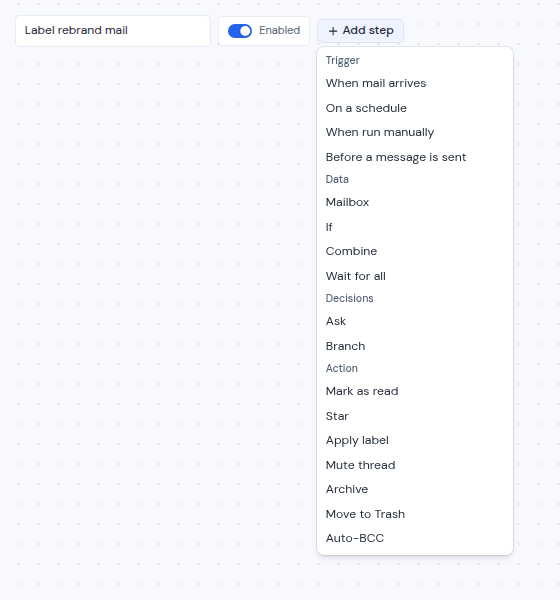
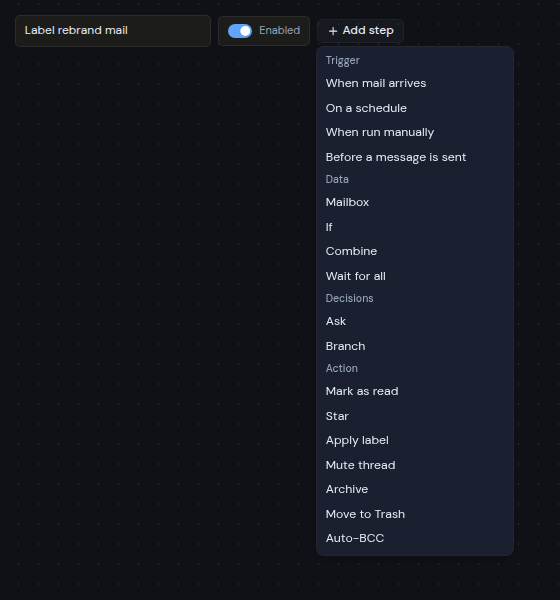 The palette groups the steps under **Triggers**, **Mail**, **Calendar**, **Drive**, **Logic**, **Waits and flow** and **AI**. Each entry shows the step's name and a short description.
The new step is selected, and its settings open in the Inspector on the right.
## Work with steps on the canvas
Each step shows as a card. The card gives a short summary of the step's settings, in up to four lines. To change the settings, click the card and use the Inspector.
- **Move a step:** drag its card. Steps snap to a grid.
- **Connect two steps:** drag from an output on the right side of one card to an input on the left side of the next. Items flow in that direction. Each input and output has a label. It names the kind of item it carries, such as "Mail", "Event", "File" or "Anything", or the path it stands for, such as **Yes** or **No**.
- **Select several steps:** hold Shift, Ctrl or Cmd and click each one. Click an empty part of the canvas to clear the selection.
- **Remove a step:** point at its card and click **Remove step** (the **X**), or click **Delete** in the Inspector. You can also select steps and press Delete or Backspace.
- **Remove a connection:** click the line and press Delete or Backspace.
- **Copy steps:** select them and press Ctrl + C (Cmd + C on a Mac), then Ctrl + V to paste. The connections between the copied steps come along. You can paste into another workflow too. Ctrl + D, or **Duplicate** in the Inspector, makes a copy in one go. Pasted steps get new step ids.
- **Undo a change:** click **Undo** in the top bar, or press Ctrl + Z. **Redo** brings it back. The editor keeps the last 100 changes. Typing in one field, or one drag, counts as one change.
- **Move around:** drag the empty canvas to pan. The buttons in the corner of the canvas zoom in and out, fit the whole workflow in view (**Fit View**), tidy it (**Tidy up the layout**) and hide or show the small map (**Hide the minimap**).
**Tidy up the layout** arranges the steps in columns from left to right and fits them in view. It is also in the **More workflow actions** menu (**...**) in the top bar, and on the keyboard as **w** then **l**. See [Keyboard shortcuts](/guide/reference/keyboard-shortcuts#workflows) for every key.
### Which connections work
The canvas refuses a connection that can never work:
- A connection into a trigger.
- A step connected to itself.
- A connection that would make a loop, so an item comes back to a step it already passed.
- A second connection into an ordinary step. Every step except **Merge** and **Wait for all** takes one incoming connection.
- A connection from an **Ask** question to anything other than a **Branch** step.
An **End loop** also takes one incoming connection, and needs one **Loop** before it. See [Loop and End loop](/guide/workflows/steps#loop-and-end-loop).
To bring two or more branches back together, use **Merge** or **Wait for all**. Their inputs are named "Branch 1", "Branch 2" and so on. There is always one spare empty input, up to 16. Connect each branch to its own input. See [Steps](/guide/workflows/steps#logic).
## Settings every step has
Click a step to see its settings in the Inspector. At the top, the Inspector shows the step's icon, its name, its category and a short description. Steps that send or create something, such as **Send mail** or **Create an event**, also show a "Sends or creates" badge.
The Inspector also shows the step's id, a short code such as `s1a2b3c4d`. Expressions in later steps use this id to read the step's result. See [Expressions](/guide/workflows/expressions#what-an-expression-can-read).
Above the step's own settings, every step has:
- **Name**: a name of your own for the step, up to 60 characters. It shows on the card, with the kind of step in small text under it. Leave it empty to use the step's usual name.
- **Skip this step** (steps that change something only): turn it on to keep the step in the workflow without running it. "Items pass straight through without the change." The card shows "Skipped".
- **When this step fails** (every step except a trigger): what happens to an item when the step fails for it.
| When this step fails | What happens |
| ------------------------------------- | ----------------------------------------------------------------------------------------------------------------------------------- |
| **Fail the run** (the default) | The step fails, and the run shows it as failed. |
| **Route the item to an Error output** | The step gets an extra **Error** output. Connect it to the steps that should handle the failure. The card shows "On error: branch". |
| **Pass the item on unchanged** | The item goes on to the next step as if the step had not run. The card shows "On error: continue". |
On steps that send or create something, a failure always shows "Needs review", and a blocked step always holds the run, whatever this setting says.
At the bottom of the Inspector are **Duplicate** and **Delete**.
Condition settings (**Condition** on **If**, **Keep when** on **Filter** and **Only when** on triggers) open as rows of a field, a comparison and a value. Click **Edit as expression** to type the condition instead. See [Build a condition from rows](/guide/workflows/expressions#build-a-condition-from-rows).
When you change a setting that removes outputs with connections on them, for example when you remove a case from a **Switch** step, the dialog **Remove connections?** asks first. Click **Remove** to remove those connections too, or **Cancel** to keep everything.
When several steps are selected, the Inspector says how many, for example "3 steps selected", with **Duplicate** and **Delete**.
## Problems show as you build
Metis Suite checks the workflow after every change. When a step has a problem, its card gets a red border and shows the first problem in red at the bottom. In the Inspector, a problem with a setting's expression or template shows in red right under that setting. Other problems are listed at the top of the Inspector, under "Something needs attention". When there are several, the heading counts them, for example "2 things need attention". The top bar shows a red button such as **1 problem** or **3 problems**. Click it to see the problems. It selects the first step with a problem, or, when a problem belongs to the whole workflow, shows the full list in the Inspector.
When no step is selected, the Inspector says "Select a step to edit it. Drag from a step's output on the right to another step's input on the left to connect them." It then shows how many steps and connections the workflow has, and either "Ready to save: no problems found." or the list of problems. Click a problem to select its step. Below that are the **Workflow settings**. See [Manage workflows](/guide/workflows/manage-workflows#change-the-workflow-settings).
A workflow with problems cannot be saved. See [Limits](/guide/workflows/limits#problem-messages) for the problem messages and what to do about them.
## Save your changes
Changes on the canvas are not saved until you click **Save** (or **Create workflow** for a new one), or press Ctrl + S (Cmd + S on a Mac). The top bar shows the save status next to the **Enabled** switch: "Not saved yet", "Unsaved changes", "Saving" or "Saved".
If something is wrong, the save stops with a message:
- "Give your workflow a name"
- "Fix the problem in this workflow before saving", or for several, for example "Fix the 2 problems in this workflow before saving"
- "Could not save the workflow", or a message from your server that says what went wrong
Each save keeps a new version of the workflow, called a revision. Runs that already started finish on the version they started with. To see what each save changed, click **More workflow actions** (**...**), then **Revisions**. See [Manage workflows](/guide/workflows/manage-workflows#see-what-each-save-changed).
## On a phone
On a phone there is no step palette. Tap **Add step** (the **+** button) in the top bar to open the **Add step** window. Tap a step on the canvas to open its settings in a panel at the bottom of the screen.
The palette groups the steps under **Triggers**, **Mail**, **Calendar**, **Drive**, **Logic**, **Waits and flow** and **AI**. Each entry shows the step's name and a short description.
The new step is selected, and its settings open in the Inspector on the right.
## Work with steps on the canvas
Each step shows as a card. The card gives a short summary of the step's settings, in up to four lines. To change the settings, click the card and use the Inspector.
- **Move a step:** drag its card. Steps snap to a grid.
- **Connect two steps:** drag from an output on the right side of one card to an input on the left side of the next. Items flow in that direction. Each input and output has a label. It names the kind of item it carries, such as "Mail", "Event", "File" or "Anything", or the path it stands for, such as **Yes** or **No**.
- **Select several steps:** hold Shift, Ctrl or Cmd and click each one. Click an empty part of the canvas to clear the selection.
- **Remove a step:** point at its card and click **Remove step** (the **X**), or click **Delete** in the Inspector. You can also select steps and press Delete or Backspace.
- **Remove a connection:** click the line and press Delete or Backspace.
- **Copy steps:** select them and press Ctrl + C (Cmd + C on a Mac), then Ctrl + V to paste. The connections between the copied steps come along. You can paste into another workflow too. Ctrl + D, or **Duplicate** in the Inspector, makes a copy in one go. Pasted steps get new step ids.
- **Undo a change:** click **Undo** in the top bar, or press Ctrl + Z. **Redo** brings it back. The editor keeps the last 100 changes. Typing in one field, or one drag, counts as one change.
- **Move around:** drag the empty canvas to pan. The buttons in the corner of the canvas zoom in and out, fit the whole workflow in view (**Fit View**), tidy it (**Tidy up the layout**) and hide or show the small map (**Hide the minimap**).
**Tidy up the layout** arranges the steps in columns from left to right and fits them in view. It is also in the **More workflow actions** menu (**...**) in the top bar, and on the keyboard as **w** then **l**. See [Keyboard shortcuts](/guide/reference/keyboard-shortcuts#workflows) for every key.
### Which connections work
The canvas refuses a connection that can never work:
- A connection into a trigger.
- A step connected to itself.
- A connection that would make a loop, so an item comes back to a step it already passed.
- A second connection into an ordinary step. Every step except **Merge** and **Wait for all** takes one incoming connection.
- A connection from an **Ask** question to anything other than a **Branch** step.
An **End loop** also takes one incoming connection, and needs one **Loop** before it. See [Loop and End loop](/guide/workflows/steps#loop-and-end-loop).
To bring two or more branches back together, use **Merge** or **Wait for all**. Their inputs are named "Branch 1", "Branch 2" and so on. There is always one spare empty input, up to 16. Connect each branch to its own input. See [Steps](/guide/workflows/steps#logic).
## Settings every step has
Click a step to see its settings in the Inspector. At the top, the Inspector shows the step's icon, its name, its category and a short description. Steps that send or create something, such as **Send mail** or **Create an event**, also show a "Sends or creates" badge.
The Inspector also shows the step's id, a short code such as `s1a2b3c4d`. Expressions in later steps use this id to read the step's result. See [Expressions](/guide/workflows/expressions#what-an-expression-can-read).
Above the step's own settings, every step has:
- **Name**: a name of your own for the step, up to 60 characters. It shows on the card, with the kind of step in small text under it. Leave it empty to use the step's usual name.
- **Skip this step** (steps that change something only): turn it on to keep the step in the workflow without running it. "Items pass straight through without the change." The card shows "Skipped".
- **When this step fails** (every step except a trigger): what happens to an item when the step fails for it.
| When this step fails | What happens |
| ------------------------------------- | ----------------------------------------------------------------------------------------------------------------------------------- |
| **Fail the run** (the default) | The step fails, and the run shows it as failed. |
| **Route the item to an Error output** | The step gets an extra **Error** output. Connect it to the steps that should handle the failure. The card shows "On error: branch". |
| **Pass the item on unchanged** | The item goes on to the next step as if the step had not run. The card shows "On error: continue". |
On steps that send or create something, a failure always shows "Needs review", and a blocked step always holds the run, whatever this setting says.
At the bottom of the Inspector are **Duplicate** and **Delete**.
Condition settings (**Condition** on **If**, **Keep when** on **Filter** and **Only when** on triggers) open as rows of a field, a comparison and a value. Click **Edit as expression** to type the condition instead. See [Build a condition from rows](/guide/workflows/expressions#build-a-condition-from-rows).
When you change a setting that removes outputs with connections on them, for example when you remove a case from a **Switch** step, the dialog **Remove connections?** asks first. Click **Remove** to remove those connections too, or **Cancel** to keep everything.
When several steps are selected, the Inspector says how many, for example "3 steps selected", with **Duplicate** and **Delete**.
## Problems show as you build
Metis Suite checks the workflow after every change. When a step has a problem, its card gets a red border and shows the first problem in red at the bottom. In the Inspector, a problem with a setting's expression or template shows in red right under that setting. Other problems are listed at the top of the Inspector, under "Something needs attention". When there are several, the heading counts them, for example "2 things need attention". The top bar shows a red button such as **1 problem** or **3 problems**. Click it to see the problems. It selects the first step with a problem, or, when a problem belongs to the whole workflow, shows the full list in the Inspector.
When no step is selected, the Inspector says "Select a step to edit it. Drag from a step's output on the right to another step's input on the left to connect them." It then shows how many steps and connections the workflow has, and either "Ready to save: no problems found." or the list of problems. Click a problem to select its step. Below that are the **Workflow settings**. See [Manage workflows](/guide/workflows/manage-workflows#change-the-workflow-settings).
A workflow with problems cannot be saved. See [Limits](/guide/workflows/limits#problem-messages) for the problem messages and what to do about them.
## Save your changes
Changes on the canvas are not saved until you click **Save** (or **Create workflow** for a new one), or press Ctrl + S (Cmd + S on a Mac). The top bar shows the save status next to the **Enabled** switch: "Not saved yet", "Unsaved changes", "Saving" or "Saved".
If something is wrong, the save stops with a message:
- "Give your workflow a name"
- "Fix the problem in this workflow before saving", or for several, for example "Fix the 2 problems in this workflow before saving"
- "Could not save the workflow", or a message from your server that says what went wrong
Each save keeps a new version of the workflow, called a revision. Runs that already started finish on the version they started with. To see what each save changed, click **More workflow actions** (**...**), then **Revisions**. See [Manage workflows](/guide/workflows/manage-workflows#see-what-each-save-changed).
## On a phone
On a phone there is no step palette. Tap **Add step** (the **+** button) in the top bar to open the **Add step** window. Tap a step on the canvas to open its settings in a panel at the bottom of the screen.