---
title: AI and privacy settings
description: Decide whether AI features and phishing detection are allowed anywhere in a workspace.
---
The **AI & privacy** section of a workspace's **General** settings page sets what the whole workspace allows. A mailbox, calendar or drive can always be more restrictive than the workspace, never less.
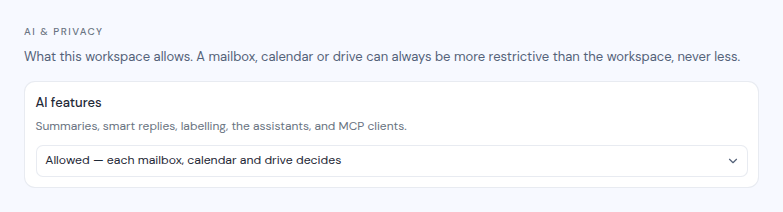
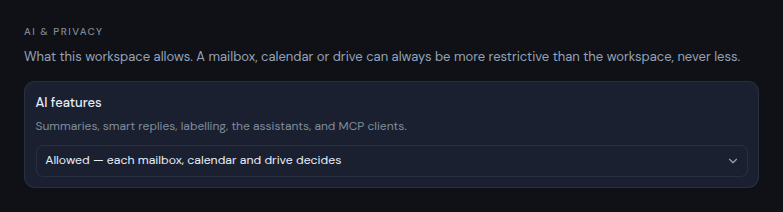 The screenshot shows only the **AI features** card. The **Phishing detection** card appears only when your instance has phishing detection set up.
Owners and admins can change these settings. Members can see them but not change them.
The section appears only when your instance has AI or phishing detection set up. Each card appears only when your instance has that feature.
## AI features
This covers summaries, smart replies, labelling, the assistants and MCP clients. Choose one:
- **Allowed** (each mailbox, calendar and drive decides). This is the default. AI works only on the resources whose own AI setting is on. See [Turn AI on or off for a resource](/guide/workspaces/add-resources#turn-ai-on-or-off-for-a-resource).
- **Off** (no AI anywhere in this workspace). The assistants stop working here, and no MCP client can reach this workspace.
Turning AI off here does not change the resources' own AI settings. When you allow AI again, resources whose own AI setting is on use AI again right away. The rest stay off until the person who connected them turns them on.
## Phishing detection
Phishing detection scans incoming mail and flags suspicious messages. Choose one:
- **Allowed** (each mailbox decides). This is the default.
- **Required** (every mailbox must have it on). Detection runs for every mailbox in this workspace, even those whose own setting is off.
- **Off** (no phishing detection in this workspace). Detection stops for every mailbox here, even those whose own setting is on.
The confirm dialog lists the mailboxes whose setting the change overrides. A mailbox's own setting is not changed, and other workspaces are not affected.
## Confirm the change
Every change opens a dialog, such as "Turn AI off for this workspace?" or "Turn detection on for every mailbox here?". Enter your authenticator code and click **Confirm**.
On the workspace's **Mailboxes**, **Calendars** and **Drives** pages, a resource that the workspace overrides shows an **Off here** or **Required here** badge.
The screenshot shows only the **AI features** card. The **Phishing detection** card appears only when your instance has phishing detection set up.
Owners and admins can change these settings. Members can see them but not change them.
The section appears only when your instance has AI or phishing detection set up. Each card appears only when your instance has that feature.
## AI features
This covers summaries, smart replies, labelling, the assistants and MCP clients. Choose one:
- **Allowed** (each mailbox, calendar and drive decides). This is the default. AI works only on the resources whose own AI setting is on. See [Turn AI on or off for a resource](/guide/workspaces/add-resources#turn-ai-on-or-off-for-a-resource).
- **Off** (no AI anywhere in this workspace). The assistants stop working here, and no MCP client can reach this workspace.
Turning AI off here does not change the resources' own AI settings. When you allow AI again, resources whose own AI setting is on use AI again right away. The rest stay off until the person who connected them turns them on.
## Phishing detection
Phishing detection scans incoming mail and flags suspicious messages. Choose one:
- **Allowed** (each mailbox decides). This is the default.
- **Required** (every mailbox must have it on). Detection runs for every mailbox in this workspace, even those whose own setting is off.
- **Off** (no phishing detection in this workspace). Detection stops for every mailbox here, even those whose own setting is on.
The confirm dialog lists the mailboxes whose setting the change overrides. A mailbox's own setting is not changed, and other workspaces are not affected.
## Confirm the change
Every change opens a dialog, such as "Turn AI off for this workspace?" or "Turn detection on for every mailbox here?". Enter your authenticator code and click **Confirm**.
On the workspace's **Mailboxes**, **Calendars** and **Drives** pages, a resource that the workspace overrides shows an **Off here** or **Required here** badge.