---
title: Create a workspace
description: Start a new workspace and, if you like, invite people to it right away.
---
Anyone with an account can create a workspace. You become its owner.
## Create the workspace
1. Open the **Create a workspace** dialog in one of two ways:
- In the left rail, click the dashed **+** tile below your workspace tiles (**New workspace**).
- Or open **Settings**, choose **Workspaces** and click **New workspace**.
2. Type a **Name**, for example "Acme Corp". It must be 2 to 60 characters long.
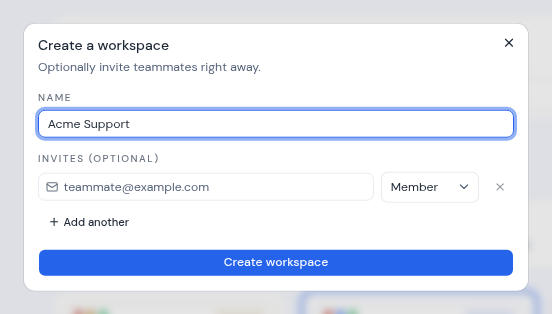
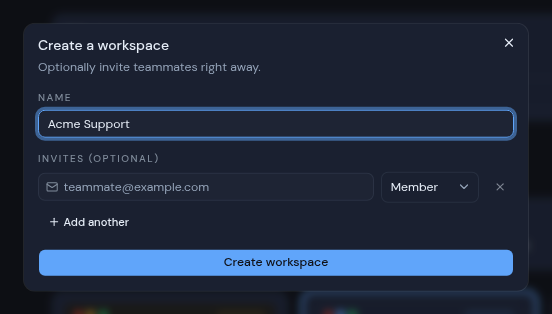 3. Optionally, invite people under **Invites (optional)**. See [Invite people while you create it](#invite-people-while-you-create-it).
4. Click **Create workspace**.
Metis Suite opens the new workspace on a page titled "Nothing in this workspace yet". From there you can add a mailbox, or a calendar or drive from the settings menu. See [Add, share and remove resources](/guide/workspaces/add-resources).
## Invite people while you create it
Each invite row has an email field and a role picker.
- Type an email address and choose **Member** or **Admin**. **Member** is selected unless you change it.
- Click **Add another**, or press Enter in a row, to add another row. Click the X on a row to remove it (it is unavailable when only one row is left).
- You can paste several addresses at once, separated by commas, semicolons, spaces or new lines. Each address gets its own row.
Each person gets an email with a link to join. To accept, the person needs an account on your Metis Suite instance. They can sign in, or create one, and then open the link within 7 days. For more about invites and roles, see [Members and roles](/guide/workspaces/members-and-roles).
## If something goes wrong
- "Name must be at least 2 characters": type a longer name.
- "Not a valid email: ..." or "Duplicate email: ...": fix or remove the address the message names.
- "Workspace created, but these invites failed: ..." means the workspace exists, but some invites were not sent. Click **Retry invites** to try them again, or close the dialog and invite those people later.
## The workspace's web address
Metis Suite makes the workspace's web address from its name. For example, "Acme Corp" becomes `acme-corp`. A long name is cut to 32 characters. If that address is taken, a number is added, such as `acme-corp-2`.
The name and the web address cannot be changed after you create the workspace, so choose the name with care.
3. Optionally, invite people under **Invites (optional)**. See [Invite people while you create it](#invite-people-while-you-create-it).
4. Click **Create workspace**.
Metis Suite opens the new workspace on a page titled "Nothing in this workspace yet". From there you can add a mailbox, or a calendar or drive from the settings menu. See [Add, share and remove resources](/guide/workspaces/add-resources).
## Invite people while you create it
Each invite row has an email field and a role picker.
- Type an email address and choose **Member** or **Admin**. **Member** is selected unless you change it.
- Click **Add another**, or press Enter in a row, to add another row. Click the X on a row to remove it (it is unavailable when only one row is left).
- You can paste several addresses at once, separated by commas, semicolons, spaces or new lines. Each address gets its own row.
Each person gets an email with a link to join. To accept, the person needs an account on your Metis Suite instance. They can sign in, or create one, and then open the link within 7 days. For more about invites and roles, see [Members and roles](/guide/workspaces/members-and-roles).
## If something goes wrong
- "Name must be at least 2 characters": type a longer name.
- "Not a valid email: ..." or "Duplicate email: ...": fix or remove the address the message names.
- "Workspace created, but these invites failed: ..." means the workspace exists, but some invites were not sent. Click **Retry invites** to try them again, or close the dialog and invite those people later.
## The workspace's web address
Metis Suite makes the workspace's web address from its name. For example, "Acme Corp" becomes `acme-corp`. A long name is cut to 32 characters. If that address is taken, a number is added, such as `acme-corp-2`.
The name and the web address cannot be changed after you create the workspace, so choose the name with care.