---
title: Members and roles
description: Invite people to a workspace, manage pending invites, change roles, transfer ownership and remove members.
---
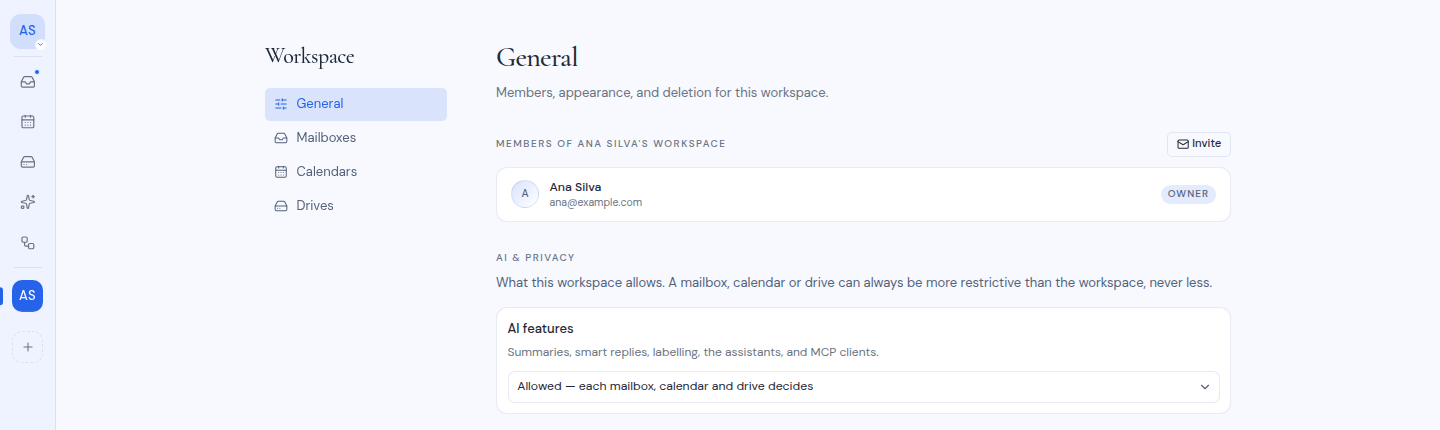
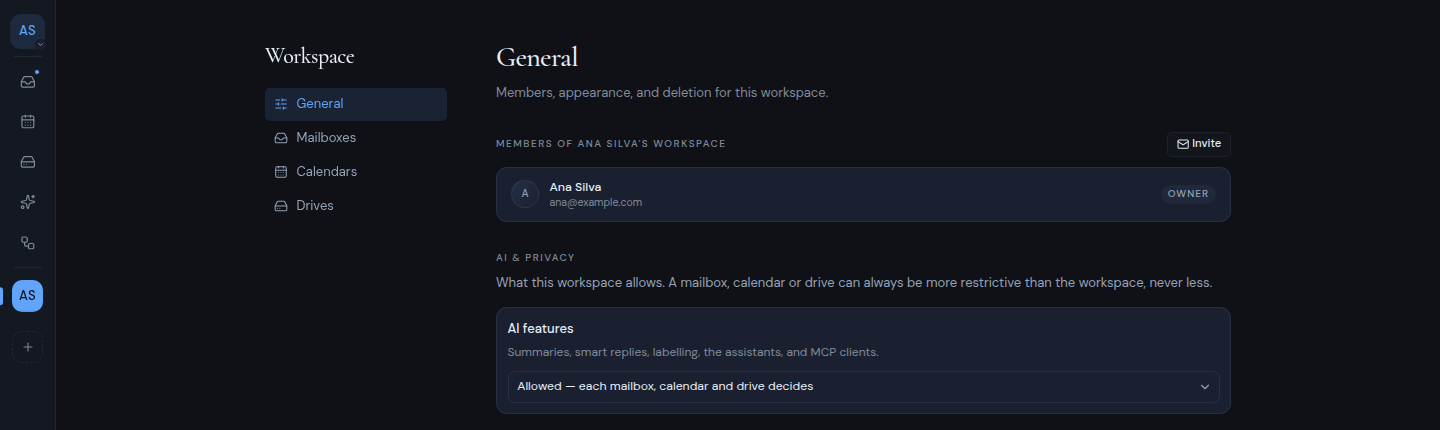
You manage a workspace's members on its **General** settings page. Open the workspace menu at the top of the left rail and choose **General**. The section headed **Members of** and the workspace's name lists each member's name, email address and role.
 A workspace has three roles:
- **Owner**: there is exactly one. The owner can do everything, including changing roles, transferring ownership and deleting the workspace.
- **Admin**: manages members, invites and the workspace's settings, and sees every resource in the workspace.
- **Member**: uses the workspace and adds their own resources.
For the full comparison, see [Roles and permissions](/guide/reference/roles-and-permissions).
## Invite people
Owners and admins can invite people.
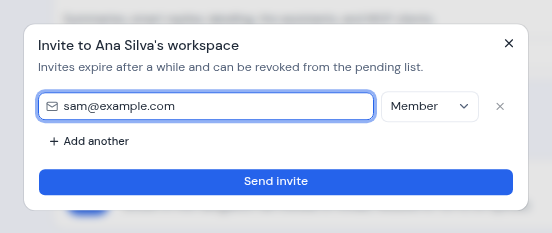
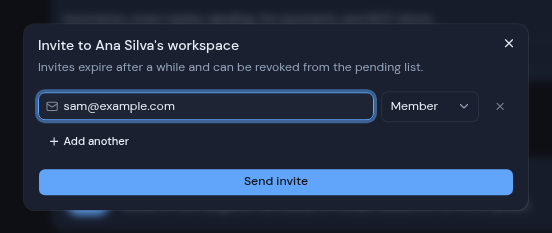
1. Click **Invite**. A dialog titled "Invite to" followed by the workspace's name opens.
2. Type an email address and choose **Member** or **Admin**. Add more rows with **Add another**, or paste several addresses at once.
3. Click **Send invite** (or **Send invites**).
A workspace has three roles:
- **Owner**: there is exactly one. The owner can do everything, including changing roles, transferring ownership and deleting the workspace.
- **Admin**: manages members, invites and the workspace's settings, and sees every resource in the workspace.
- **Member**: uses the workspace and adds their own resources.
For the full comparison, see [Roles and permissions](/guide/reference/roles-and-permissions).
## Invite people
Owners and admins can invite people.
1. Click **Invite**. A dialog titled "Invite to" followed by the workspace's name opens.
2. Type an email address and choose **Member** or **Admin**. Add more rows with **Add another**, or paste several addresses at once.
3. Click **Send invite** (or **Send invites**).
 Each person gets an email titled with your name and the workspace's name, with an **Accept invite** button. Invites expire after 7 days.
- A workspace invite works only for someone who already has an account on your Metis Suite instance, unless your instance lets anyone sign up. To invite someone who has no account yet, first send them an account invite. See [Account](/guide/account).
- Metis Suite does not show the invite link in the dialog, so the person needs the email to join.
- If you send too many invites in a short time, the dialog lists the addresses that failed.
:::warning[Treat invite links as private]
Treat an invite link like a password. Share it only with the person you invited, because anyone who opens it can use it.
:::
### Pending invites
Owners and admins see invites that have not been accepted yet under **Pending invites**. Each shows the email address, the role and when it expires.
To cancel one, click its trash icon (**Revoke invite**), then click **Cancel invite**. The link stops working right away. You can invite the person again at any time.
### Accepting an invite
When someone clicks **Accept invite**:
- If they are signed out, they see "Sign in to accept". They click **Go to sign in**, and after signing in they come back to the invite.
- If it works, they see "You're in!" and the workspace opens.
- If it does not, they see "Couldn't accept invite" with the reason: "Invite not found", "Invite already used" or "Invite expired". Ask an owner or admin for a new invite.
## Change a member's role
Only the owner can change roles. Use the **Member** or **Admin** picker on the member's row.
- **Making someone an admin** asks for your authenticator code. The dialog "Make this member an admin?" explains what admins can do. Enter the code and click **Make admin**.
- **Changing an admin back to member** needs no code.
## Transfer ownership
Only the owner can transfer ownership, and only from the workspace's **General** settings page.
1. Click **Transfer** on the row of the member who should become the owner.
2. The dialog "Transfer ownership?" says the workspace will belong to them and you will become an admin.
3. Enter your authenticator code and click **Transfer ownership**.
## Remove a member
Owners and admins can remove members. Admins can also remove other admins. Nobody can remove the owner.
1. Click the trash icon on the member's row (**Remove member**).
2. Click **Remove** in the dialog.
The person loses access right away to every mailbox, calendar and drive shared in the workspace. The mailboxes, calendars and drives they connected themselves leave the workspace at the same moment, and stay on their own account.
## Leaving a workspace
There is no **Leave** button. A member asks an owner or admin to remove them. An admin can remove themselves with the trash icon on their own row. The owner must transfer ownership first.
Each person gets an email titled with your name and the workspace's name, with an **Accept invite** button. Invites expire after 7 days.
- A workspace invite works only for someone who already has an account on your Metis Suite instance, unless your instance lets anyone sign up. To invite someone who has no account yet, first send them an account invite. See [Account](/guide/account).
- Metis Suite does not show the invite link in the dialog, so the person needs the email to join.
- If you send too many invites in a short time, the dialog lists the addresses that failed.
:::warning[Treat invite links as private]
Treat an invite link like a password. Share it only with the person you invited, because anyone who opens it can use it.
:::
### Pending invites
Owners and admins see invites that have not been accepted yet under **Pending invites**. Each shows the email address, the role and when it expires.
To cancel one, click its trash icon (**Revoke invite**), then click **Cancel invite**. The link stops working right away. You can invite the person again at any time.
### Accepting an invite
When someone clicks **Accept invite**:
- If they are signed out, they see "Sign in to accept". They click **Go to sign in**, and after signing in they come back to the invite.
- If it works, they see "You're in!" and the workspace opens.
- If it does not, they see "Couldn't accept invite" with the reason: "Invite not found", "Invite already used" or "Invite expired". Ask an owner or admin for a new invite.
## Change a member's role
Only the owner can change roles. Use the **Member** or **Admin** picker on the member's row.
- **Making someone an admin** asks for your authenticator code. The dialog "Make this member an admin?" explains what admins can do. Enter the code and click **Make admin**.
- **Changing an admin back to member** needs no code.
## Transfer ownership
Only the owner can transfer ownership, and only from the workspace's **General** settings page.
1. Click **Transfer** on the row of the member who should become the owner.
2. The dialog "Transfer ownership?" says the workspace will belong to them and you will become an admin.
3. Enter your authenticator code and click **Transfer ownership**.
## Remove a member
Owners and admins can remove members. Admins can also remove other admins. Nobody can remove the owner.
1. Click the trash icon on the member's row (**Remove member**).
2. Click **Remove** in the dialog.
The person loses access right away to every mailbox, calendar and drive shared in the workspace. The mailboxes, calendars and drives they connected themselves leave the workspace at the same moment, and stay on their own account.
## Leaving a workspace
There is no **Leave** button. A member asks an owner or admin to remove them. An admin can remove themselves with the trash icon on their own row. The owner must transfer ownership first.