---
title: Switch between workspaces
description: Move between workspaces with the left rail or the keyboard, put them in your own order, and choose where signing in takes you.
---
The left rail on the side of every workspace page lists your workspaces. This page shows how to move between them and how to organize them.
## The left rail
From top to bottom, the rail shows:
1. **The workspace menu**: the current workspace's logo or initials, with a small arrow. Click it for the workspace's settings pages (**General**, **Mailboxes**, **Calendars**, **Drives**) and **All workspaces**.
2. **Inbox**, **Calendar** and **Drive**.
3. **Workspace AI**, when your instance has AI set up.
4. **Workflows**.
5. **Your workspace tiles**, one for each workspace you belong to. The current workspace is highlighted and has a bar on its left.
6. **New workspace**, the dashed **+** tile.
7. **Your account menu**, your initials in a circle.
8. A link to the source code, with the version number of Metis Suite.
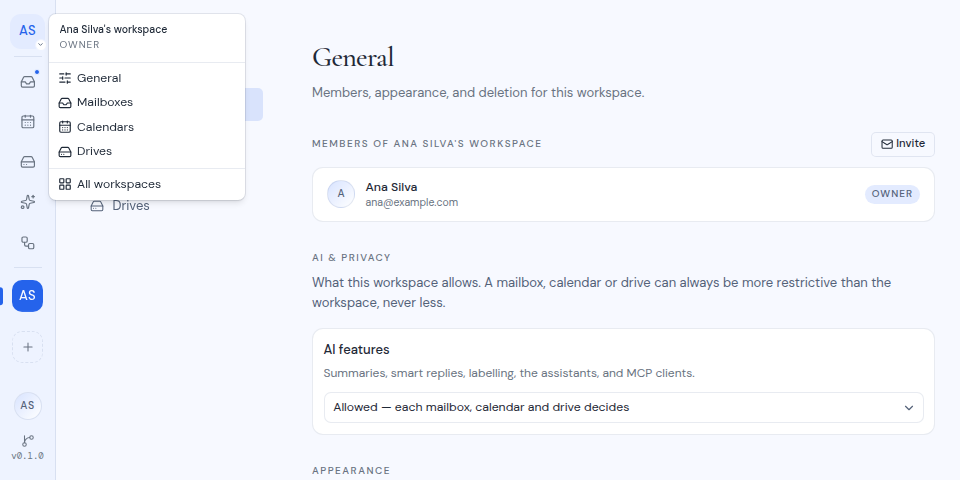
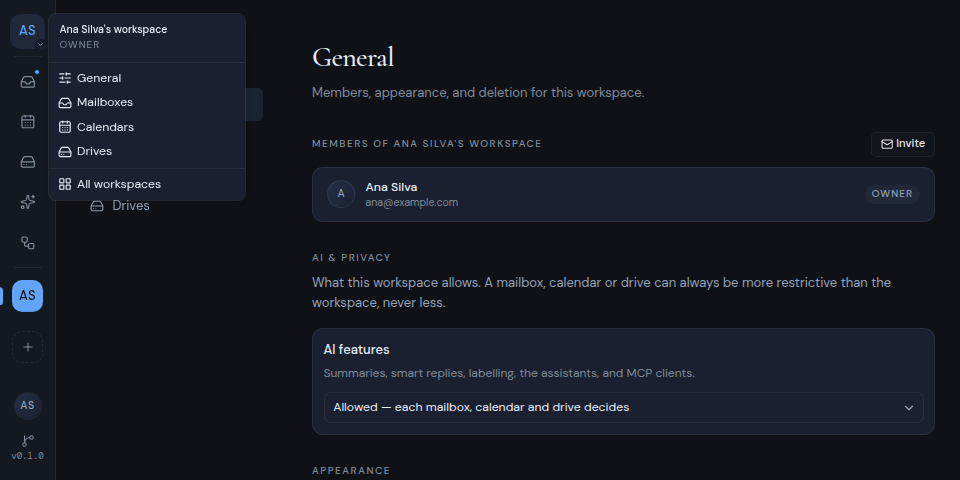 Hover over a workspace tile to see the workspace's name and your role in it.
## Switch with a click
Click a workspace tile. Metis Suite keeps you in the same section:
- From mail, you go to the other workspace's mail. The same goes for calendar, drive, Workspace AI and settings.
- In workflows, you stay on the same kind of page.
- From anywhere else, you go to the workspace's usual starting page.
## Switch with the keyboard
Press **Alt** and a number from **1** to **9** (on a Mac, **Option** and a number). **Alt+1** opens the first workspace in the rail, **Alt+2** the second, and so on.
- It works on any workspace page, using the number keys above the letters, with any keyboard layout.
- While you hold **Alt**, the first nine tiles show their numbers.
- It does nothing if you also hold Ctrl, Cmd or Shift.
## Put your workspaces in order
Drag a workspace tile up or down the rail. The order is yours alone: other members do not see it. It is also the order that **Alt** and a number follow.
## Choose your default workspace
Your default workspace is the one that opens when you sign in.
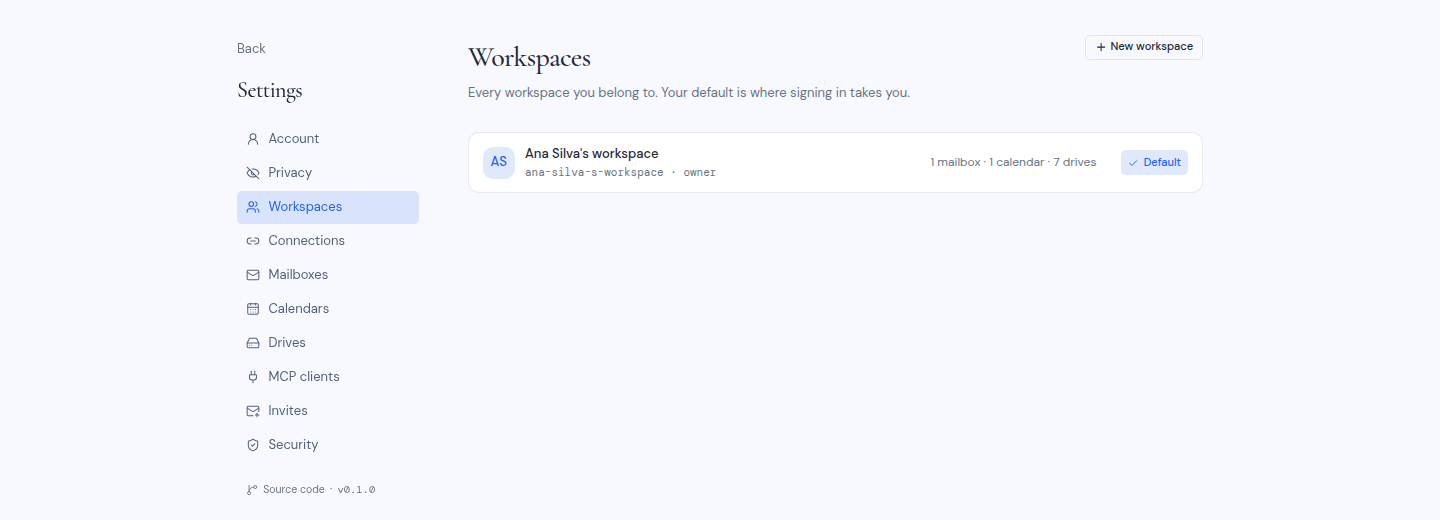
1. Open the account menu and choose **Workspaces**. You can also open **All workspaces** from the workspace menu.
2. Find the workspace you want and click **Make default**.
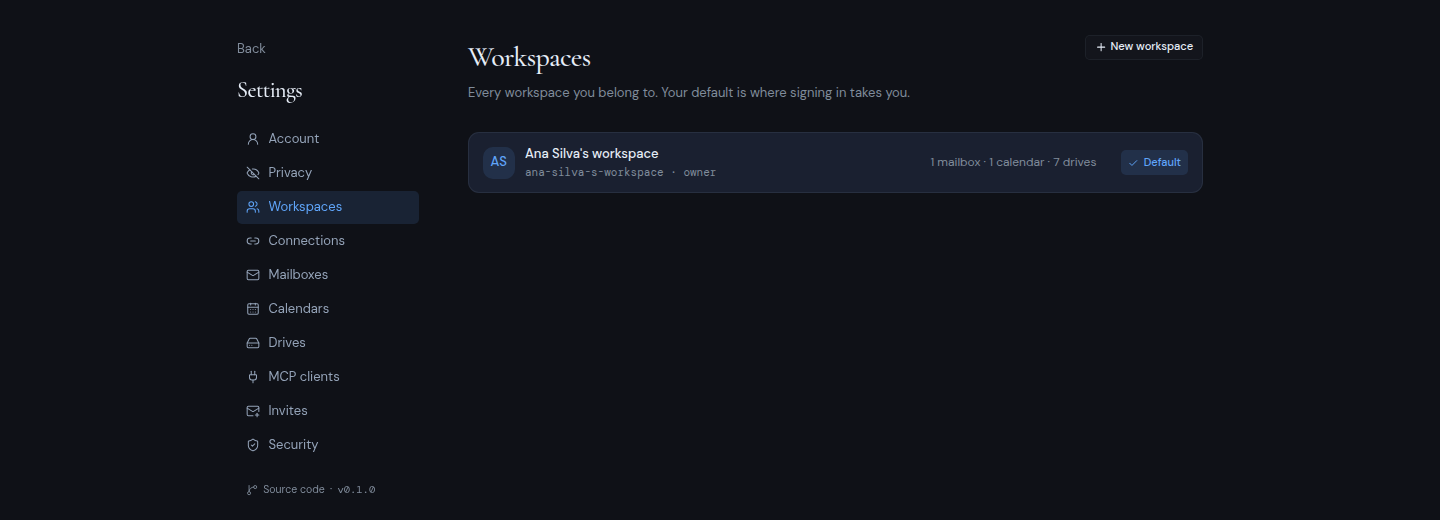
The current default shows a **Default** badge. Each row also shows the workspace's web address, your role, and what it holds, such as "2 mailboxes · 1 calendar", or "Empty".
Hover over a workspace tile to see the workspace's name and your role in it.
## Switch with a click
Click a workspace tile. Metis Suite keeps you in the same section:
- From mail, you go to the other workspace's mail. The same goes for calendar, drive, Workspace AI and settings.
- In workflows, you stay on the same kind of page.
- From anywhere else, you go to the workspace's usual starting page.
## Switch with the keyboard
Press **Alt** and a number from **1** to **9** (on a Mac, **Option** and a number). **Alt+1** opens the first workspace in the rail, **Alt+2** the second, and so on.
- It works on any workspace page, using the number keys above the letters, with any keyboard layout.
- While you hold **Alt**, the first nine tiles show their numbers.
- It does nothing if you also hold Ctrl, Cmd or Shift.
## Put your workspaces in order
Drag a workspace tile up or down the rail. The order is yours alone: other members do not see it. It is also the order that **Alt** and a number follow.
## Choose your default workspace
Your default workspace is the one that opens when you sign in.
1. Open the account menu and choose **Workspaces**. You can also open **All workspaces** from the workspace menu.
2. Find the workspace you want and click **Make default**.
The current default shows a **Default** badge. Each row also shows the workspace's web address, your role, and what it holds, such as "2 mailboxes · 1 calendar", or "Empty".
 ## The account menu
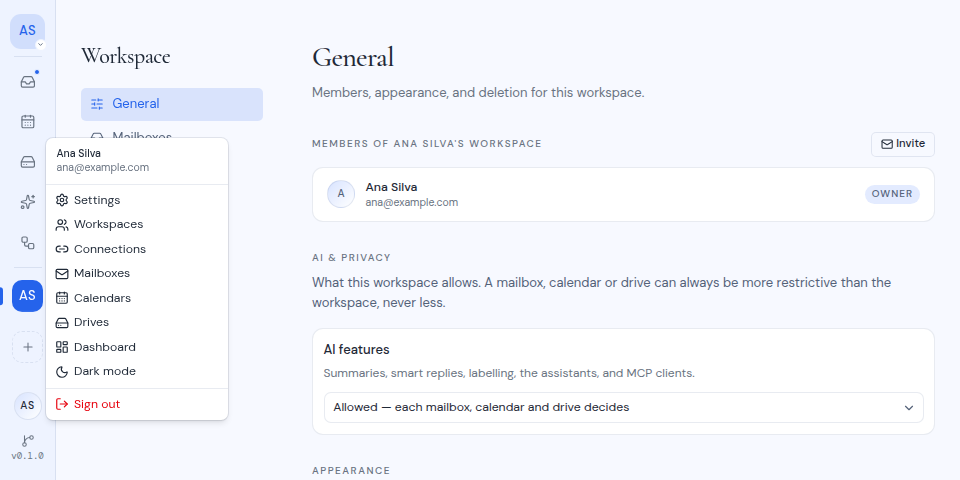
Click your initials at the bottom of the rail to open the account menu. It shows your name and email address, then:
- **Settings**, your account settings.
- **Workspaces**, **Connections**, **Mailboxes**, **Calendars** and **Drives**, the pages where you manage your workspaces and connected accounts.
- **Dashboard**, only for the owner of the Metis Suite instance.
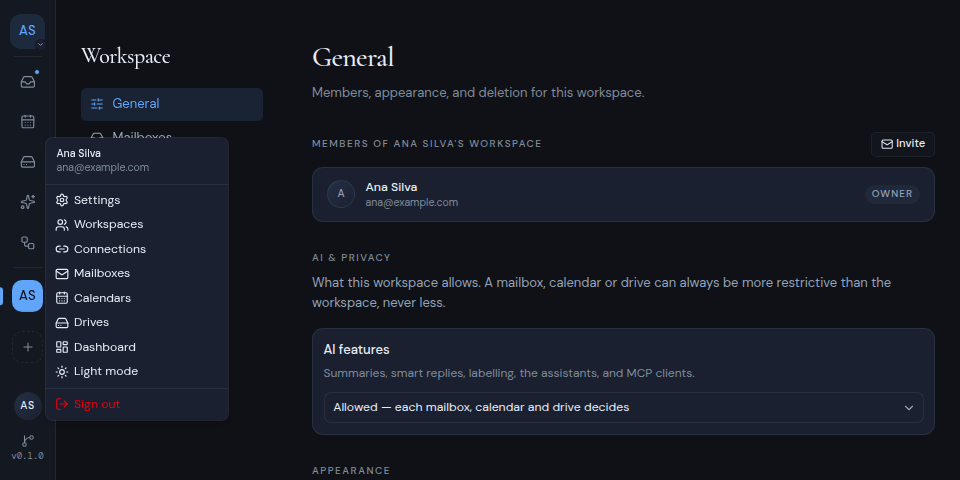
- **Dark mode** or **Light mode**, to switch the theme for yourself.
- **Sign out**.
In the desktop and mobile apps, **App settings** appears right after **Settings**.
## The account menu
Click your initials at the bottom of the rail to open the account menu. It shows your name and email address, then:
- **Settings**, your account settings.
- **Workspaces**, **Connections**, **Mailboxes**, **Calendars** and **Drives**, the pages where you manage your workspaces and connected accounts.
- **Dashboard**, only for the owner of the Metis Suite instance.
- **Dark mode** or **Light mode**, to switch the theme for yourself.
- **Sign out**.
In the desktop and mobile apps, **App settings** appears right after **Settings**.
 ## When a workspace has nothing to show
If you open mail, calendar or drive in a workspace that has none, you see a card such as "No mailbox in this workspace". Click its button, for example **Go to mailbox settings**, to add one. See [Add, share and remove resources](/guide/workspaces/add-resources).
If the card says no providers are set up yet, your instance owner has not set up any providers for that kind of account. Ask them to add one.
Workspace AI, Workflows and some mail links need a mailbox or other resource. If the current workspace has none but another of your workspaces does, a "Continue to" page lists your other workspaces. Click one to continue there, or use the link at the bottom to connect a mailbox to the current workspace. Workspaces that cannot be used for that page are greyed out.
## Switch inside a section
Each section also has its own switcher at the top of its sidebar:
- In mail, **Switch mailbox** lists the workspace's mailboxes you can see. **All inboxes** shows every mailbox in the workspace together, when there is more than one. **Manage mailboxes** opens the workspace's mailbox settings.
- In calendar, **Switch calendar** lists the calendar accounts in the workspace, with **All calendars** when there is more than one, and **Add calendar**.
- In drive, **Switch drive** lists the drives in the workspace, with **All drives** when there is more than one, and **Add drive**.
## On a phone
The rail stays on screen. On pages with a side panel, an **Open sidebar** button at the top of the rail opens it. In settings, the menu becomes a row of tabs that you can scroll sideways.
## When a workspace has nothing to show
If you open mail, calendar or drive in a workspace that has none, you see a card such as "No mailbox in this workspace". Click its button, for example **Go to mailbox settings**, to add one. See [Add, share and remove resources](/guide/workspaces/add-resources).
If the card says no providers are set up yet, your instance owner has not set up any providers for that kind of account. Ask them to add one.
Workspace AI, Workflows and some mail links need a mailbox or other resource. If the current workspace has none but another of your workspaces does, a "Continue to" page lists your other workspaces. Click one to continue there, or use the link at the bottom to connect a mailbox to the current workspace. Workspaces that cannot be used for that page are greyed out.
## Switch inside a section
Each section also has its own switcher at the top of its sidebar:
- In mail, **Switch mailbox** lists the workspace's mailboxes you can see. **All inboxes** shows every mailbox in the workspace together, when there is more than one. **Manage mailboxes** opens the workspace's mailbox settings.
- In calendar, **Switch calendar** lists the calendar accounts in the workspace, with **All calendars** when there is more than one, and **Add calendar**.
- In drive, **Switch drive** lists the drives in the workspace, with **All drives** when there is more than one, and **Add drive**.
## On a phone
The rail stays on screen. On pages with a side panel, an **Open sidebar** button at the top of the rail opens it. In settings, the menu becomes a row of tabs that you can scroll sideways.