---
title: Server lists
description: Offer your own IMAP, CalDAV, S3, WebDAV, FTP, FTPS and SFTP servers to the people on your instance.
---
Besides Google, Microsoft and Zoho, users can connect to servers that you list. You decide the servers. Users pick one by its name in the connect dialog and bring only their own login. Metis Suite never connects to a server address that a user types in.
| Provider | What users connect | Page under **System**, **Providers** |
| --- | --- | --- |
| IMAP | A mailbox over IMAP, sending over SMTP | **IMAP** |
| CalDAV | A calendar account | **CalDAV** |
| S3 | A bucket, on keys you hold. Users pick only a bucket and a prefix | **S3** |
| WebDAV | A drive, relayed through your server | **WebDAV** |
| FTP and FTPS | A drive, relayed through your server | **FTP** |
| SFTP | A drive, relayed through your server, with a pinned host key | **SFTP** |
| Cloudflare Email, Resend | A mailbox on your own domain | See [Mail gateways](/self-hosting/mail-gateways) |
## Add a server in the dashboard
1. Open **Dashboard**, **System**, then the provider under **Providers**.
2. Click **Add server** and fill in the fields. New entries are marked "new".
3. Click **Save changes** and enter your authenticator code. The server is checked before it is saved.
4. In the **Health** card, click **Run check**. It runs the same checks as a deploy, against every entry, without signing in as any user.
Each entry shows how many connections use it. To remove one, click its trash icon.
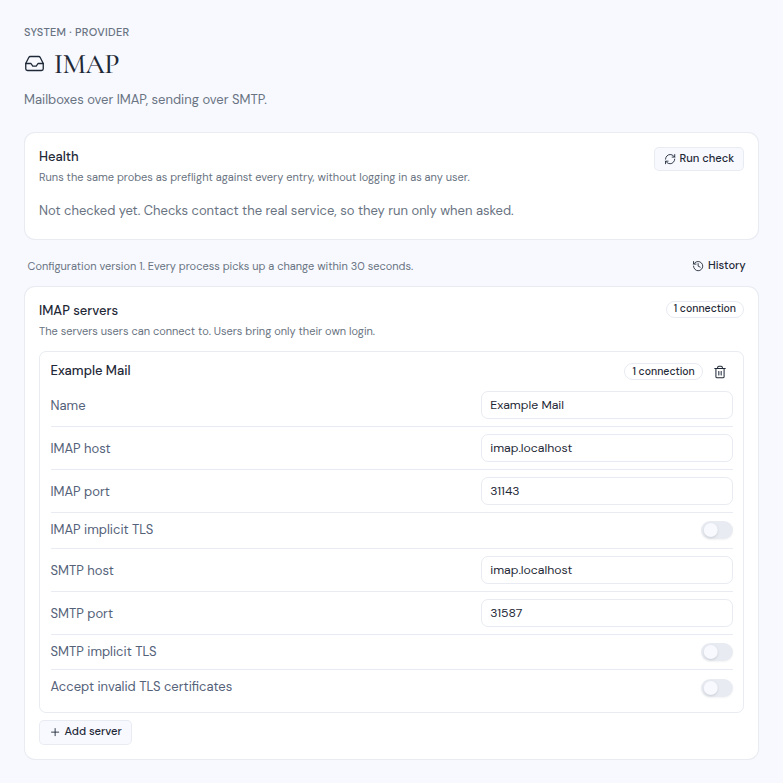
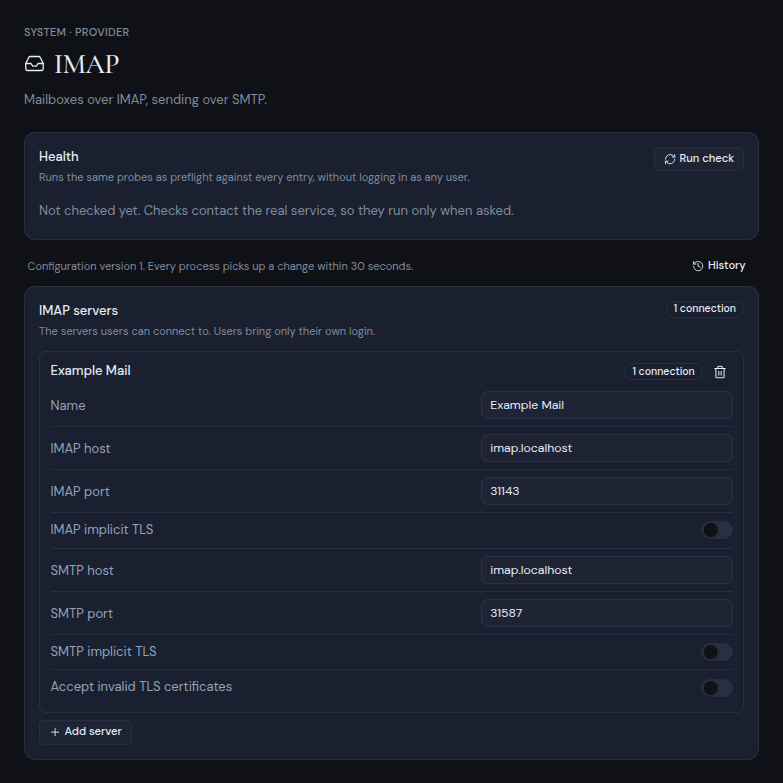 Rules for every entry:
- Each entry needs a **Name** of 1 to 64 characters, different from the other entries. Users see this name.
- Host fields take a hostname such as `imap.example.com`, never a URL.
- Renaming an entry keeps its connections.
:::warning[Removing a server hides its accounts]
When you remove an entry, every account connected through it is quarantined: it disappears from every workspace. To bring them back, restore the earlier configuration version under **System**, **History**. Adding the server again as a new entry does not bring them back. Users can also delete them from their account settings.
:::
## Fields for each provider
### IMAP
| Field | Default |
| --- | --- |
| **IMAP host**, **IMAP port** | port `993` |
| **IMAP implicit TLS** | on |
| **SMTP host**, **SMTP port** | port `465` |
| **SMTP implicit TLS** | on |
| **Accept invalid TLS certificates** | off |
### CalDAV
| Field | Notes |
| --- | --- |
| **CalDAV URL** | The full URL, including `https://`. |
| **Accept invalid TLS certificates** | Off by default. |
### S3
| Field | Default and notes |
| --- | --- |
| **Endpoint** | An `http://` or `https://` URL. |
| **Region** | `us-east-1` |
| **Access key ID**, **Secret access key** | The keys Metis Suite uses for this server. |
| **Path-style addressing** | on |
| **Accept invalid TLS certificates** | off |
| **Transfers** | `direct` (the default) or `relay`. See below. |
| **Checksums** | `required` (the default) or `supported`. Choose `supported` for AWS S3 or Cloudflare R2. Leave it at `required` for MinIO and most other S3-compatible servers. |
With `direct` transfers, files go straight between the browser and the bucket, so the browser must be able to reach the endpoint and the bucket needs a CORS rule. Choose `relay` when browsers cannot reach the endpoint, the certificate is self-signed, or the bucket cannot have a CORS rule. Relayed files pass through your server. See [Drive transfers](/self-hosting/configure/drive-transfers).
### WebDAV
| Field | Notes |
| --- | --- |
| **WebDAV URL** | The full URL of the WebDAV server. |
| **Accept invalid TLS certificates** | Off by default. |
### FTP and FTPS
| Field | Default and notes |
| --- | --- |
| **Host**, **Port** | port `21` |
| **TLS** | `explicit` (the default), `implicit`, or `none` for plain FTP. |
| **Accept invalid TLS certificates** | off |
| **Pool size** | `2`, from 1 to 10. The total number of connections Metis Suite opens to this server, across all users. Keep it under the server's limit per IP address. |
### SFTP
| Field | Default and notes |
| --- | --- |
| **Host**, **Port** | port `22` |
| **Host key (SHA256)** | Required. A server that presents any other key is refused. |
| **Pool size** | `3`, from 1 to 10. Total connections across all users. |
Get the host key fingerprint from a trusted machine with:
```bash
ssh-keyscan -p 22 sftp.example.com | ssh-keygen -lf -
```
Enter it as `ssh-keygen` prints it, starting with `SHA256:`.
## Set the starting list in the environment
Before the first start, you can set each list as a JSON array. After the first start, change the lists in the dashboard.
```bash
METIS_IMAP_SERVERS=[{"name":"Fastmail","imap":{"host":"imap.fastmail.com"},"smtp":{"host":"smtp.fastmail.com"}}]
METIS_CALDAV_SERVERS=[{"name":"Fastmail Calendar","url":"https://caldav.fastmail.com/dav/"}]
METIS_S3_SERVERS=[{"name":"Team Storage","endpoint":"https://s3.eu-central-1.amazonaws.com","region":"eu-central-1","accessKeyId":"AKIA...","secretAccessKey":"...","forcePathStyle":true}]
METIS_WEBDAV_SERVERS=[{"name":"Nextcloud","url":"https://cloud.example.com/remote.php/dav/files/"}]
METIS_FTP_SERVERS=[{"name":"Office FTP","host":"ftp.example.com","port":21,"secure":"explicit","poolSize":2}]
METIS_SFTP_SERVERS=[{"name":"Office SFTP","host":"sftp.example.com","port":22,"hostKeySha256":"SHA256:..."}]
```
The JSON keys are listed in [Environment variables](/self-hosting/reference/environment-variables#server-lists).
:::note
WebDAV, FTP, SFTP and relayed S3 servers need `METIS_DRIVE_RELAY_SECRET` set to a value of at least 32 characters. The bootstrap script generates it for you.
:::
Rules for every entry:
- Each entry needs a **Name** of 1 to 64 characters, different from the other entries. Users see this name.
- Host fields take a hostname such as `imap.example.com`, never a URL.
- Renaming an entry keeps its connections.
:::warning[Removing a server hides its accounts]
When you remove an entry, every account connected through it is quarantined: it disappears from every workspace. To bring them back, restore the earlier configuration version under **System**, **History**. Adding the server again as a new entry does not bring them back. Users can also delete them from their account settings.
:::
## Fields for each provider
### IMAP
| Field | Default |
| --- | --- |
| **IMAP host**, **IMAP port** | port `993` |
| **IMAP implicit TLS** | on |
| **SMTP host**, **SMTP port** | port `465` |
| **SMTP implicit TLS** | on |
| **Accept invalid TLS certificates** | off |
### CalDAV
| Field | Notes |
| --- | --- |
| **CalDAV URL** | The full URL, including `https://`. |
| **Accept invalid TLS certificates** | Off by default. |
### S3
| Field | Default and notes |
| --- | --- |
| **Endpoint** | An `http://` or `https://` URL. |
| **Region** | `us-east-1` |
| **Access key ID**, **Secret access key** | The keys Metis Suite uses for this server. |
| **Path-style addressing** | on |
| **Accept invalid TLS certificates** | off |
| **Transfers** | `direct` (the default) or `relay`. See below. |
| **Checksums** | `required` (the default) or `supported`. Choose `supported` for AWS S3 or Cloudflare R2. Leave it at `required` for MinIO and most other S3-compatible servers. |
With `direct` transfers, files go straight between the browser and the bucket, so the browser must be able to reach the endpoint and the bucket needs a CORS rule. Choose `relay` when browsers cannot reach the endpoint, the certificate is self-signed, or the bucket cannot have a CORS rule. Relayed files pass through your server. See [Drive transfers](/self-hosting/configure/drive-transfers).
### WebDAV
| Field | Notes |
| --- | --- |
| **WebDAV URL** | The full URL of the WebDAV server. |
| **Accept invalid TLS certificates** | Off by default. |
### FTP and FTPS
| Field | Default and notes |
| --- | --- |
| **Host**, **Port** | port `21` |
| **TLS** | `explicit` (the default), `implicit`, or `none` for plain FTP. |
| **Accept invalid TLS certificates** | off |
| **Pool size** | `2`, from 1 to 10. The total number of connections Metis Suite opens to this server, across all users. Keep it under the server's limit per IP address. |
### SFTP
| Field | Default and notes |
| --- | --- |
| **Host**, **Port** | port `22` |
| **Host key (SHA256)** | Required. A server that presents any other key is refused. |
| **Pool size** | `3`, from 1 to 10. Total connections across all users. |
Get the host key fingerprint from a trusted machine with:
```bash
ssh-keyscan -p 22 sftp.example.com | ssh-keygen -lf -
```
Enter it as `ssh-keygen` prints it, starting with `SHA256:`.
## Set the starting list in the environment
Before the first start, you can set each list as a JSON array. After the first start, change the lists in the dashboard.
```bash
METIS_IMAP_SERVERS=[{"name":"Fastmail","imap":{"host":"imap.fastmail.com"},"smtp":{"host":"smtp.fastmail.com"}}]
METIS_CALDAV_SERVERS=[{"name":"Fastmail Calendar","url":"https://caldav.fastmail.com/dav/"}]
METIS_S3_SERVERS=[{"name":"Team Storage","endpoint":"https://s3.eu-central-1.amazonaws.com","region":"eu-central-1","accessKeyId":"AKIA...","secretAccessKey":"...","forcePathStyle":true}]
METIS_WEBDAV_SERVERS=[{"name":"Nextcloud","url":"https://cloud.example.com/remote.php/dav/files/"}]
METIS_FTP_SERVERS=[{"name":"Office FTP","host":"ftp.example.com","port":21,"secure":"explicit","poolSize":2}]
METIS_SFTP_SERVERS=[{"name":"Office SFTP","host":"sftp.example.com","port":22,"hostKeySha256":"SHA256:..."}]
```
The JSON keys are listed in [Environment variables](/self-hosting/reference/environment-variables#server-lists).
:::note
WebDAV, FTP, SFTP and relayed S3 servers need `METIS_DRIVE_RELAY_SECRET` set to a value of at least 32 characters. The bootstrap script generates it for you.
:::