---
title: Sign-in providers
description: Create OAuth clients for Google, Microsoft and Zoho so users can connect Gmail, Outlook, Zoho Mail and their calendars and drives.
---
Users connect Google, Microsoft and Zoho accounts by signing in to the provider and giving Metis Suite permission. For that, your instance needs its own OAuth client (an app registration) at each provider you want to offer. Only providers you configure appear in the connect dialog.
| Provider | What users can connect |
| --- | --- |
| Google | Gmail, Google Calendar and Google Drive |
| Microsoft | Outlook, Outlook Calendar and OneDrive |
| Zoho | Zoho Mail and Zoho Calendar |
## Find your redirect URI
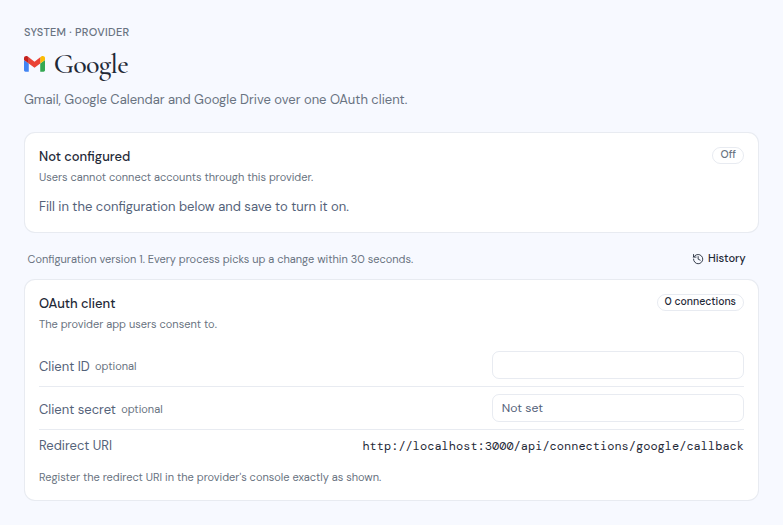
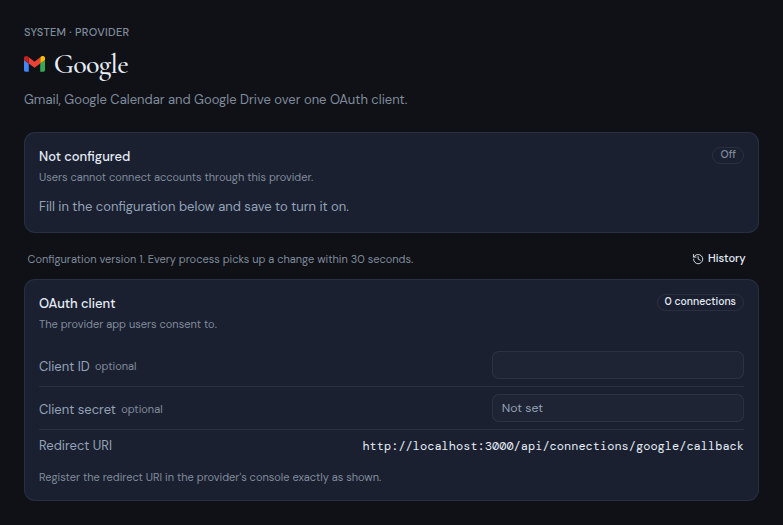
Each provider needs to know where to send users back after they sign in. Open **Dashboard**, **System**, then the provider's page under **Providers**. The **OAuth client** card shows the **Redirect URI**. Register it in the provider's console exactly as shown.
The redirect URI has this form, with your app's address at the start:
```
https://mail.example.com/api/connections/google/callback
https://mail.example.com/api/connections/microsoft/callback
https://mail.example.com/api/connections/zoho/callback
```
 ## Create the OAuth client
**Google**
In the Google Cloud console:
1. Create a project, or pick an existing one.
2. Enable the Gmail API, the Google Calendar API and the Google Drive API.
3. Set up the OAuth consent screen.
4. Create an OAuth client ID of type **Web application**, and add your
redirect URI as an authorized redirect URI.
5. Copy the client ID and the client secret.
Metis Suite asks users for these permissions, depending on what they
connect: `openid`, `email` and `profile`; `gmail.modify` and `gmail.send`
for mail; `calendar` for calendars; `drive` for drives.
**Microsoft**
In the Microsoft Entra admin center:
1. Create a new app registration.
2. For supported account types, choose accounts in any organizational
directory and personal Microsoft accounts. Metis Suite signs users in
through Microsoft's common endpoint, which serves both.
3. Add a **Web** platform with your redirect URI.
4. Create a client secret, and copy its value along with the
application (client) ID.
Metis Suite asks users for these Microsoft Graph permissions, depending
on what they connect: `openid`, `email`, `profile`, `User.Read` and
`offline_access`; `Mail.ReadWrite` and `Mail.Send` for mail;
`Calendars.ReadWrite` for calendars; `Files.ReadWrite` for drives.
**Zoho**
In the Zoho API console for your region:
1. Add a server-based application.
2. Add your redirect URI as an authorized redirect URI.
3. Copy the client ID and the client secret.
Set the **Region** to the data center your users' Zoho accounts live in:
`com` (the default), `in`, `eu`, `com.au` or `jp`.
Metis Suite asks users for `AaaServer.profile.READ`; `ZohoMail.messages.ALL`,
`ZohoMail.folders.ALL` and `ZohoMail.accounts.READ` for mail; and
`ZohoCalendar.calendar.ALL` and `ZohoCalendar.event.ALL` for calendars.
## Add the client to Metis Suite
1. Open **Dashboard**, **System**, then the provider under **Providers**.
2. Enter the **Client ID** and **Client secret**. For Zoho, also pick the **Region**.
3. Click **Save changes** and enter your authenticator code.
4. In the **Health** card, click **Run check**. It confirms the provider accepts your client ID and secret.
You can also set the starting values before the first start, with `GOOGLE_CLIENT_ID` and `GOOGLE_CLIENT_SECRET`, `MICROSOFT_CLIENT_ID` and `MICROSOFT_CLIENT_SECRET`, or `ZOHO_CLIENT_ID`, `ZOHO_CLIENT_SECRET` and `ZOHO_REGION`. After the first start, change them in the dashboard.
:::warning[Removing a provider hides its accounts]
If you clear a provider's client, every account connected through it is quarantined: it disappears from every workspace. The accounts come back when you configure the provider again. Users can also delete them from their account settings.
:::
:::note
The redirect URI changes when your app's address changes. After you move to a new domain, register the new redirect URI with each provider.
:::
## Create the OAuth client
**Google**
In the Google Cloud console:
1. Create a project, or pick an existing one.
2. Enable the Gmail API, the Google Calendar API and the Google Drive API.
3. Set up the OAuth consent screen.
4. Create an OAuth client ID of type **Web application**, and add your
redirect URI as an authorized redirect URI.
5. Copy the client ID and the client secret.
Metis Suite asks users for these permissions, depending on what they
connect: `openid`, `email` and `profile`; `gmail.modify` and `gmail.send`
for mail; `calendar` for calendars; `drive` for drives.
**Microsoft**
In the Microsoft Entra admin center:
1. Create a new app registration.
2. For supported account types, choose accounts in any organizational
directory and personal Microsoft accounts. Metis Suite signs users in
through Microsoft's common endpoint, which serves both.
3. Add a **Web** platform with your redirect URI.
4. Create a client secret, and copy its value along with the
application (client) ID.
Metis Suite asks users for these Microsoft Graph permissions, depending
on what they connect: `openid`, `email`, `profile`, `User.Read` and
`offline_access`; `Mail.ReadWrite` and `Mail.Send` for mail;
`Calendars.ReadWrite` for calendars; `Files.ReadWrite` for drives.
**Zoho**
In the Zoho API console for your region:
1. Add a server-based application.
2. Add your redirect URI as an authorized redirect URI.
3. Copy the client ID and the client secret.
Set the **Region** to the data center your users' Zoho accounts live in:
`com` (the default), `in`, `eu`, `com.au` or `jp`.
Metis Suite asks users for `AaaServer.profile.READ`; `ZohoMail.messages.ALL`,
`ZohoMail.folders.ALL` and `ZohoMail.accounts.READ` for mail; and
`ZohoCalendar.calendar.ALL` and `ZohoCalendar.event.ALL` for calendars.
## Add the client to Metis Suite
1. Open **Dashboard**, **System**, then the provider under **Providers**.
2. Enter the **Client ID** and **Client secret**. For Zoho, also pick the **Region**.
3. Click **Save changes** and enter your authenticator code.
4. In the **Health** card, click **Run check**. It confirms the provider accepts your client ID and secret.
You can also set the starting values before the first start, with `GOOGLE_CLIENT_ID` and `GOOGLE_CLIENT_SECRET`, `MICROSOFT_CLIENT_ID` and `MICROSOFT_CLIENT_SECRET`, or `ZOHO_CLIENT_ID`, `ZOHO_CLIENT_SECRET` and `ZOHO_REGION`. After the first start, change them in the dashboard.
:::warning[Removing a provider hides its accounts]
If you clear a provider's client, every account connected through it is quarantined: it disappears from every workspace. The accounts come back when you configure the provider again. Users can also delete them from their account settings.
:::
:::note
The redirect URI changes when your app's address changes. After you move to a new domain, register the new redirect URI with each provider.
:::