---
title: First run
description: Use the setup code to create the first account, set up two-factor authentication and open the owner dashboard.
---
A new instance has no accounts, and nobody can sign up on their own. You create the first account on the setup page, with the setup code from the install. In this tutorial you create that account, secure it, and open the owner dashboard.
1. **Open the setup page**
Open `/setup` on your instance, for example
`https://mail.example.com/setup`. Without a domain, open
`http://localhost:3000/setup` through the SSH tunnel from the install.
The page shows **Set up Metis Suite** and "Create the first account on
this instance."
2. **Fill in the form**
- **Setup code**: paste the code the bootstrap script printed. It is also
`METIS_SETUP_CODE` in `/opt/metis-suite/.env`.
- **Name**: your name.
- **Email address**: if you set an owner email during the install, this
field is already filled in and cannot be changed.
- **Password**: at least 8 characters.
If you set a terms or privacy link, tick the "I agree to the" checkbox.
3. **Create the account**
Click **Create account**. Metis Suite signs you in and takes you to
authenticator setup.
4. **Set up two-factor authentication**
Two-factor authentication is required for every account. Follow the
steps on the page to add Metis Suite to an authenticator app. Save the
backup codes you are given: they work anywhere a six-digit code does.
See [Get started](/guide/get-started) for the user side of signing in.
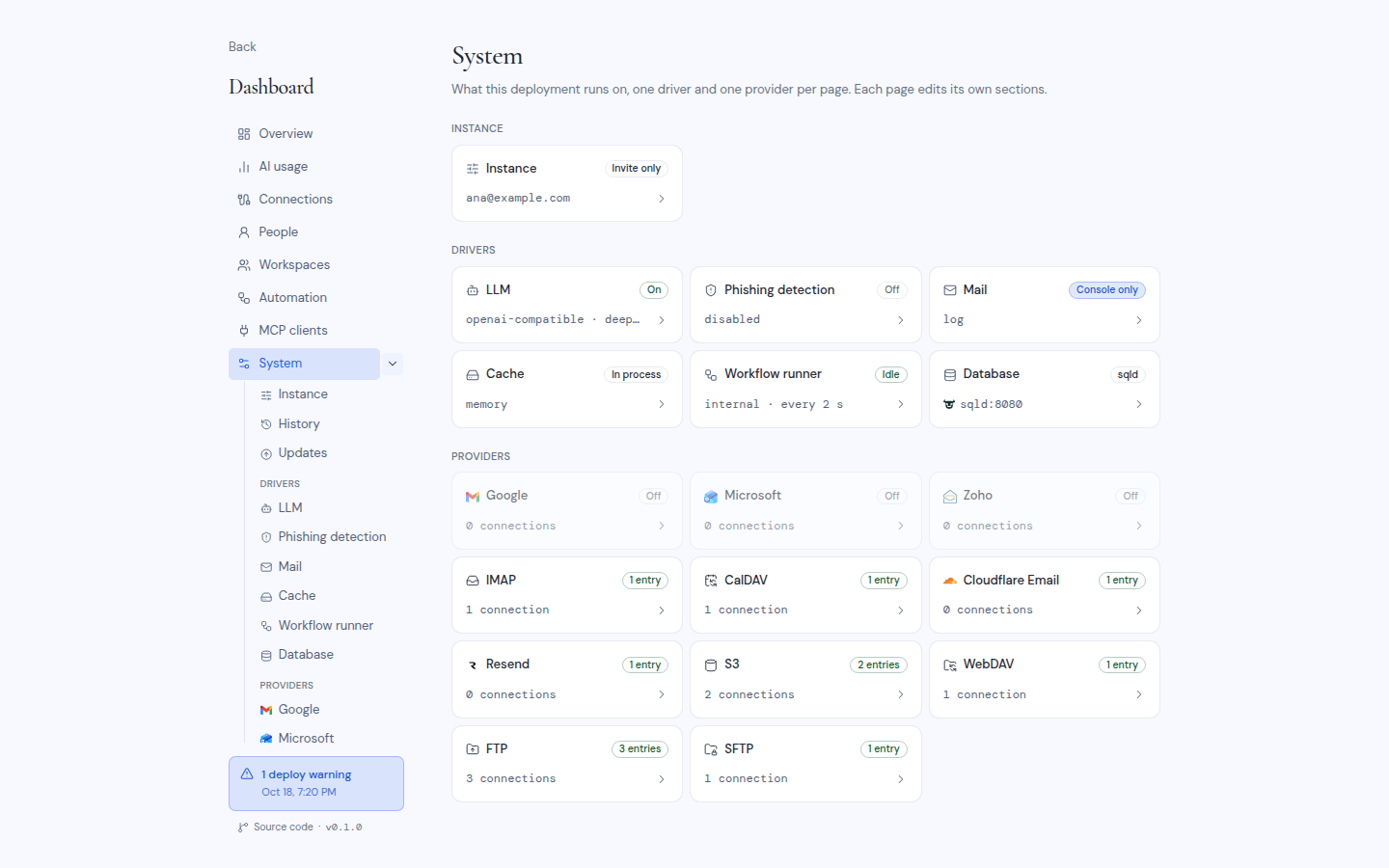
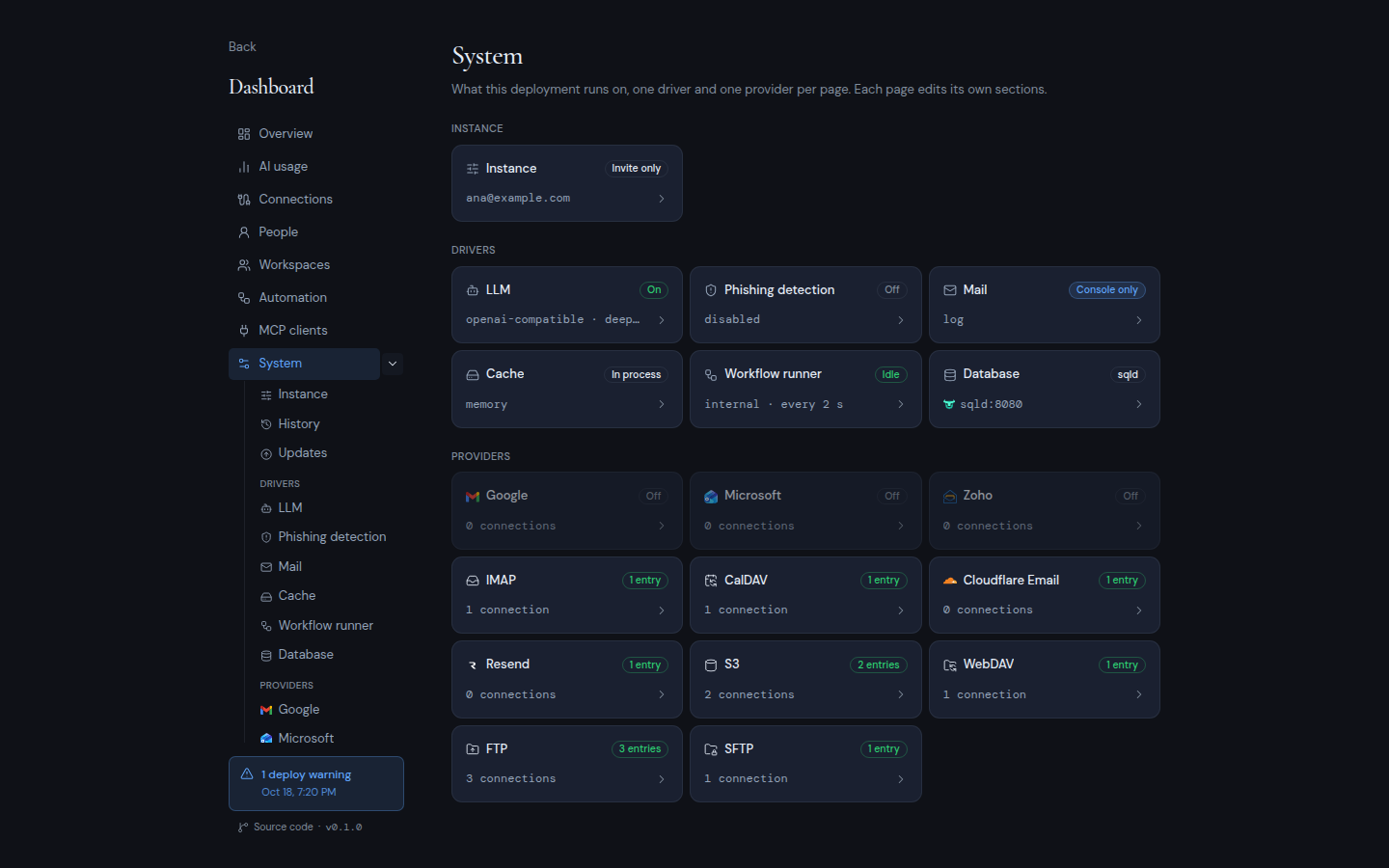
5. **Open the owner dashboard**
If your email matches the owner email, you are the owner. Click your
initials at the bottom of the left rail and choose **Dashboard**. Start
with **System**, where you add the providers people can connect to. Until
you add one, nobody can connect a mailbox, calendar or drive. See
[Configure](/self-hosting/configure).
 ## After the first account
The setup page stops working as soon as any account exists. Opening it then takes you to the sign-in page. You can remove `METIS_SETUP_CODE` from `.env` once the first account exists.
Everyone else joins by invitation. Any signed-in user can invite someone from their account settings; see [Account](/guide/account). To let people create accounts on their own, see [Sign-up](/self-hosting/configure/sign-up).
## If the setup page does not work
| What you see | What it means |
| --- | --- |
| **Not available**, "This page isn't available." | No setup code is set. Add `METIS_SETUP_CODE` to `.env` and restart the app. |
| "That setup code isn't valid" | The code does not match. Copy it again from `.env`. |
| "This instance only allows its configured owner email" | An owner email is set, and you typed a different one. |
| "Too many requests. Please slow down." | Too many attempts in a short time. Wait a few minutes. |
| "Account created, but sign-in failed. Try signing in from the home page." | The account exists. Sign in from the home page. |
:::note[Forgot to set the owner email?]
Without `METIS_OWNER_EMAIL`, the owner dashboard is turned off for everyone. Add the line `METIS_OWNER_EMAIL=you@example.com` to `.env`, then restart the app with `sudo docker compose --project-directory /opt/metis-suite up -d`.
:::
## After the first account
The setup page stops working as soon as any account exists. Opening it then takes you to the sign-in page. You can remove `METIS_SETUP_CODE` from `.env` once the first account exists.
Everyone else joins by invitation. Any signed-in user can invite someone from their account settings; see [Account](/guide/account). To let people create accounts on their own, see [Sign-up](/self-hosting/configure/sign-up).
## If the setup page does not work
| What you see | What it means |
| --- | --- |
| **Not available**, "This page isn't available." | No setup code is set. Add `METIS_SETUP_CODE` to `.env` and restart the app. |
| "That setup code isn't valid" | The code does not match. Copy it again from `.env`. |
| "This instance only allows its configured owner email" | An owner email is set, and you typed a different one. |
| "Too many requests. Please slow down." | Too many attempts in a short time. Wait a few minutes. |
| "Account created, but sign-in failed. Try signing in from the home page." | The account exists. Sign in from the home page. |
:::note[Forgot to set the owner email?]
Without `METIS_OWNER_EMAIL`, the owner dashboard is turned off for everyone. Add the line `METIS_OWNER_EMAIL=you@example.com` to `.env`, then restart the app with `sudo docker compose --project-directory /opt/metis-suite up -d`.
:::