---
title: Owner dashboard
description: Every page of the owner dashboard, from usage stats to instance settings, history and deploy checks.
---
The owner dashboard shows what your instance is carrying and holds its settings. Only the owner can open it: the account whose email matches `METIS_OWNER_EMAIL`. For everyone else, and for everyone when no owner email is set, the dashboard does not exist.
The owner is not an administrator of other people's data. The dashboard shows counts and settings, never anyone's mail, events or files.
## Open the dashboard
Click your initials at the bottom of the left rail and choose **Dashboard**. The item appears only for the owner. If your account has no two-factor authentication yet, you are sent to set it up first.
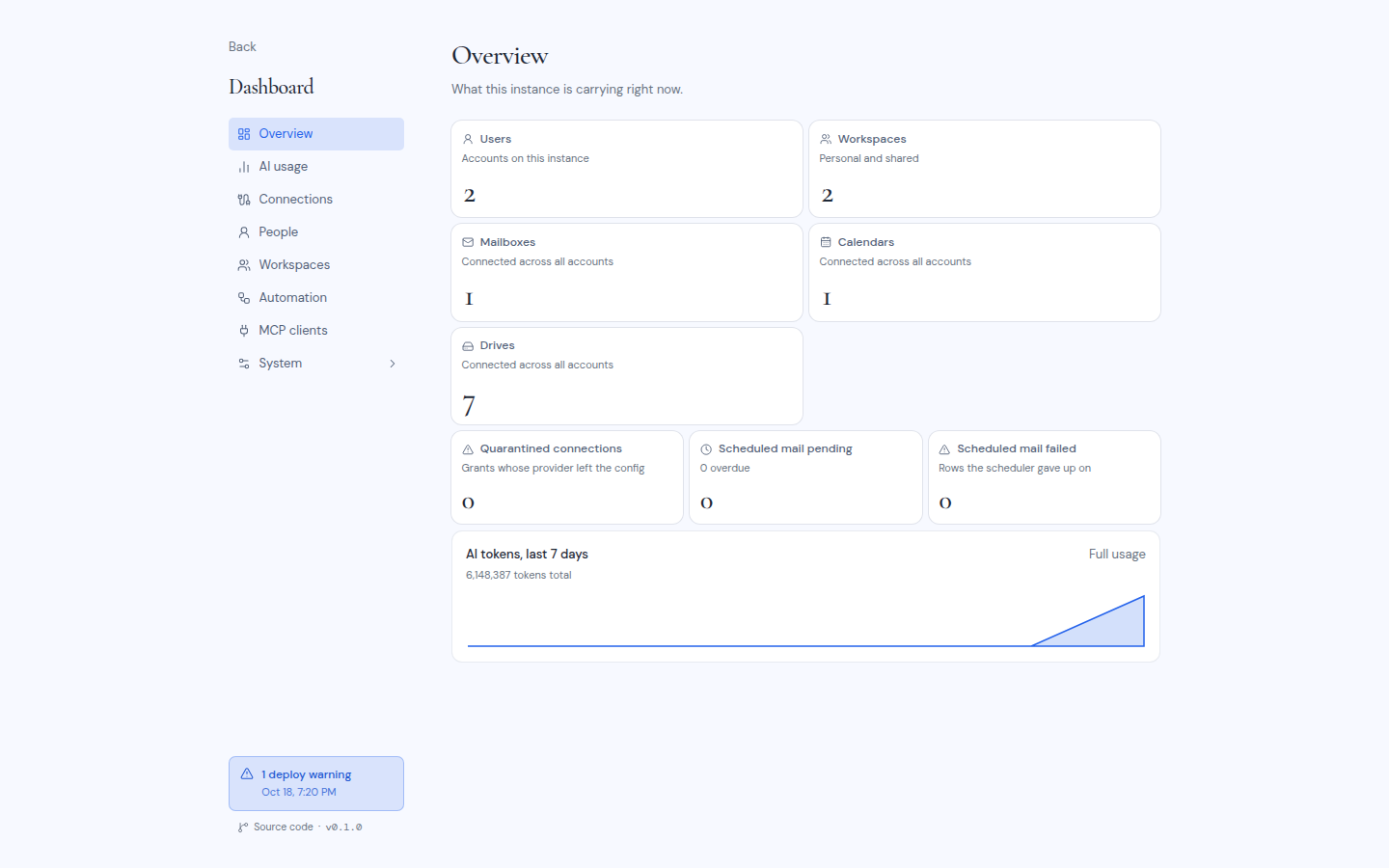
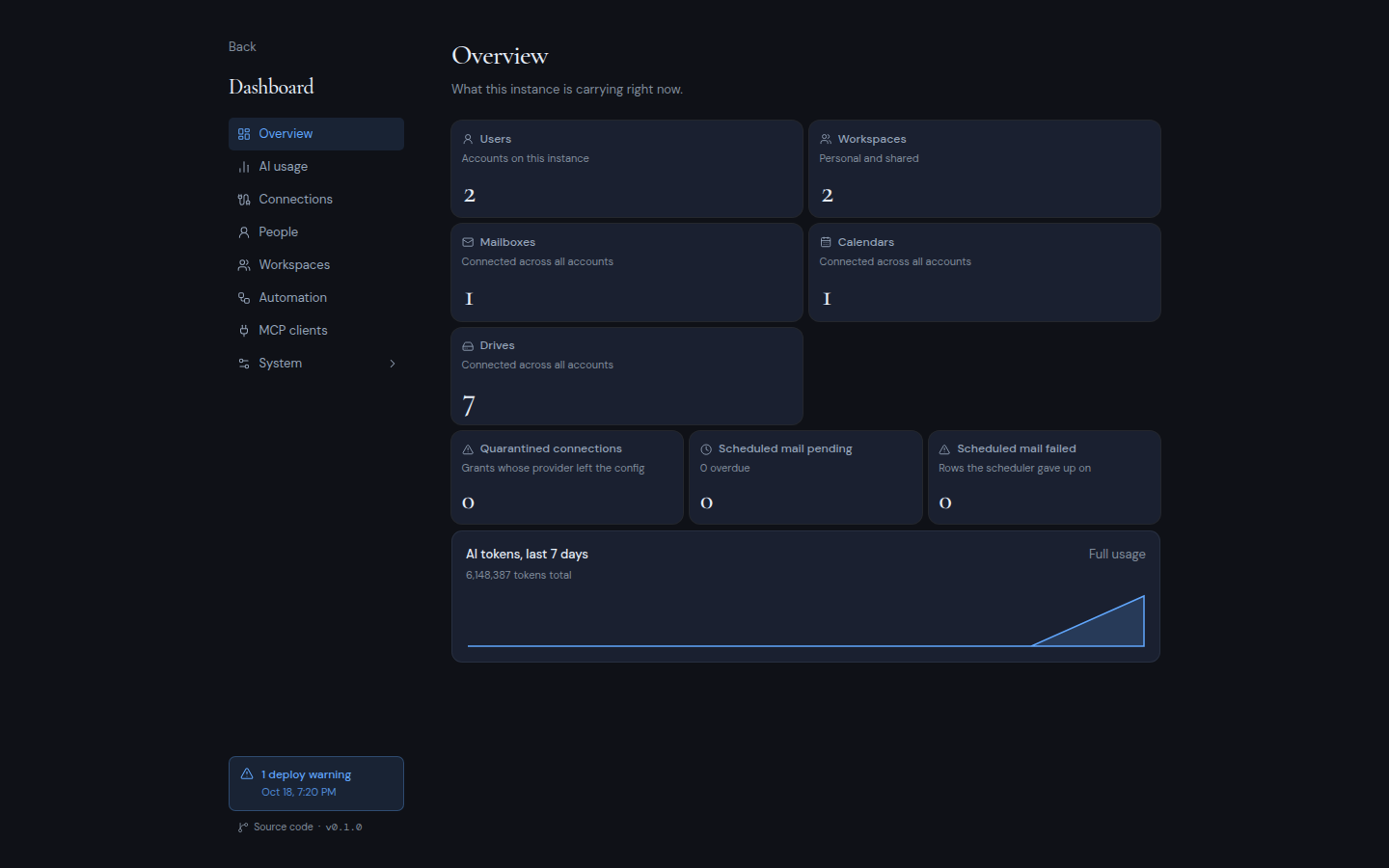
The sidebar lists **Overview**, **AI usage**, **Connections**, **People**, **Workspaces**, **Automation**, **MCP clients** and **System**. Click **Back** to return to your mail. At the bottom of the sidebar are the deploy check bar and the source code link.
 Every page except **System** is read-only.
## Overview
"What this instance is carrying right now."
- **Counts:** **Users**, **Workspaces**, **Mailboxes**, **Calendars** and **Drives**.
- **Health cards:** **Quarantined connections** (accounts whose provider was removed from the settings), **Scheduled mail pending** (with how many are overdue) and **Scheduled mail failed** (scheduled mail that was given up on). A health card turns red when it is above zero.
- **AI tokens, last 7 days:** a small chart, with a **Full usage** link to **AI usage**.
## AI usage
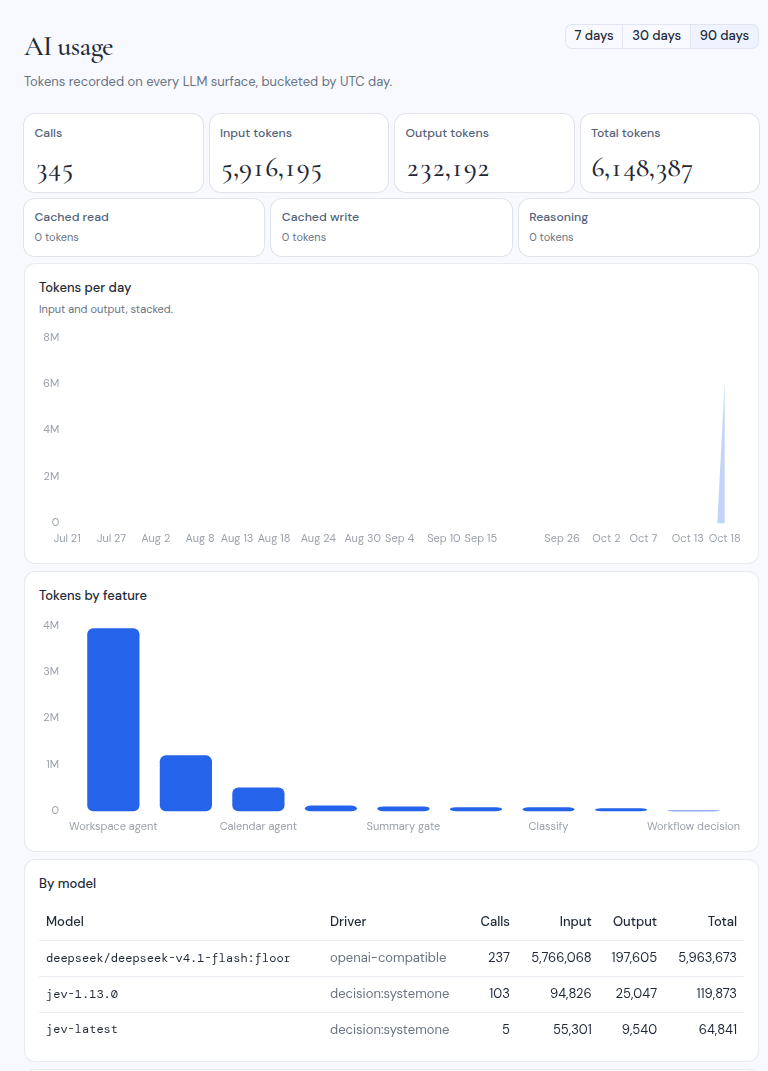
The tokens every AI feature used, counted per day in UTC. Pick **7 days**, **30 days** (the default) or **90 days**.
- Totals: **Calls**, **Input tokens**, **Output tokens** and **Total tokens**, plus cached reads, cached writes and reasoning tokens.
- Charts: **Tokens per day** and **Tokens by feature**.
- Tables: **By model** (model, driver, calls and tokens) and **Recent calls** (the last 20 in the range).
Every page except **System** is read-only.
## Overview
"What this instance is carrying right now."
- **Counts:** **Users**, **Workspaces**, **Mailboxes**, **Calendars** and **Drives**.
- **Health cards:** **Quarantined connections** (accounts whose provider was removed from the settings), **Scheduled mail pending** (with how many are overdue) and **Scheduled mail failed** (scheduled mail that was given up on). A health card turns red when it is above zero.
- **AI tokens, last 7 days:** a small chart, with a **Full usage** link to **AI usage**.
## AI usage
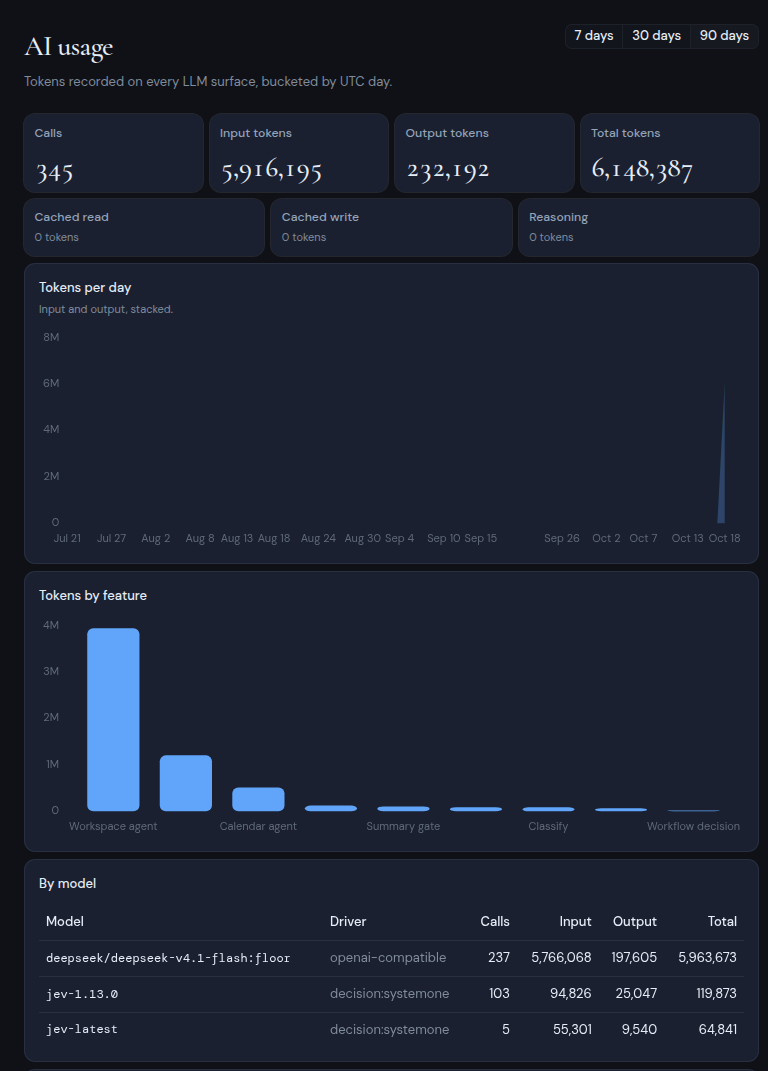
The tokens every AI feature used, counted per day in UTC. Pick **7 days**, **30 days** (the default) or **90 days**.
- Totals: **Calls**, **Input tokens**, **Output tokens** and **Total tokens**, plus cached reads, cached writes and reasoning tokens.
- Charts: **Tokens per day** and **Tokens by feature**.
- Tables: **By model** (model, driver, calls and tokens) and **Recent calls** (the last 20 in the range).
 ## Connections
Every connected account on the instance and what it provides.
- **Grants** and **Quarantined** counts. A grant is one connected account, which can provide a mailbox, a calendar and a drive.
- **By provider:** grants, mailboxes, calendars and drives per provider.
- **Quarantined:** accounts whose provider or server is no longer configured. They come back when you configure the provider again, or restore the removed server entry from **History**.
## People
"Accounts, invites, and how they are secured."
- Counts: **Accounts**, **With 2FA**, **Signup invites** and **Workspace invites** (pending and not expired).
- **Newest accounts:** the last 10 accounts, with name, email, whether two-factor authentication is **Enabled** or **Off**, and when they joined.
This page is read-only. The dashboard has no way to disable, delete or edit accounts.
## Workspaces
How the instance is split up: **Workspaces**, **Shared** (more than one member) and **Personal** (one member). The **All workspaces** table lists each workspace, newest first, with its AI setting, members, mailboxes, calendars and drives.
## Automation
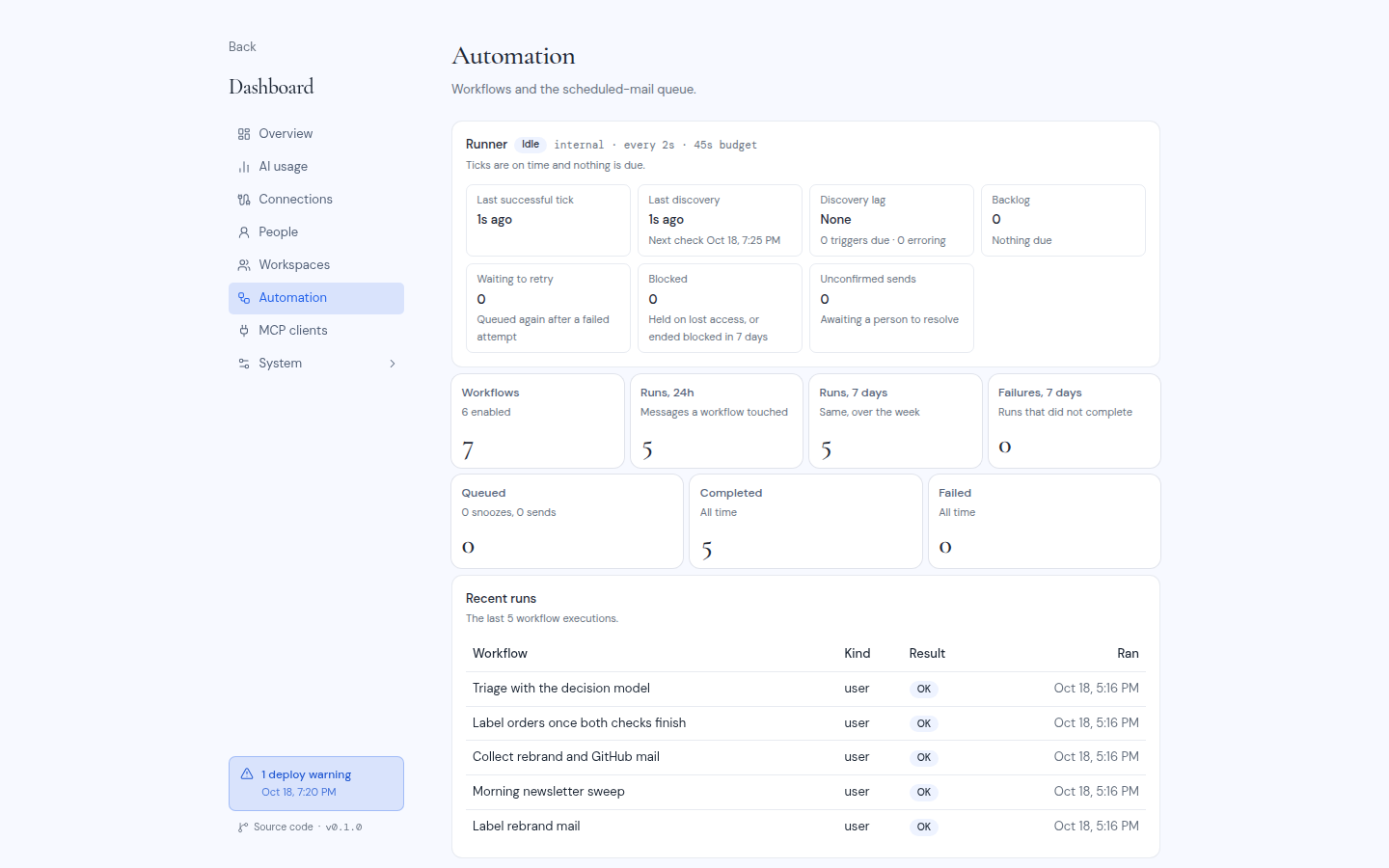
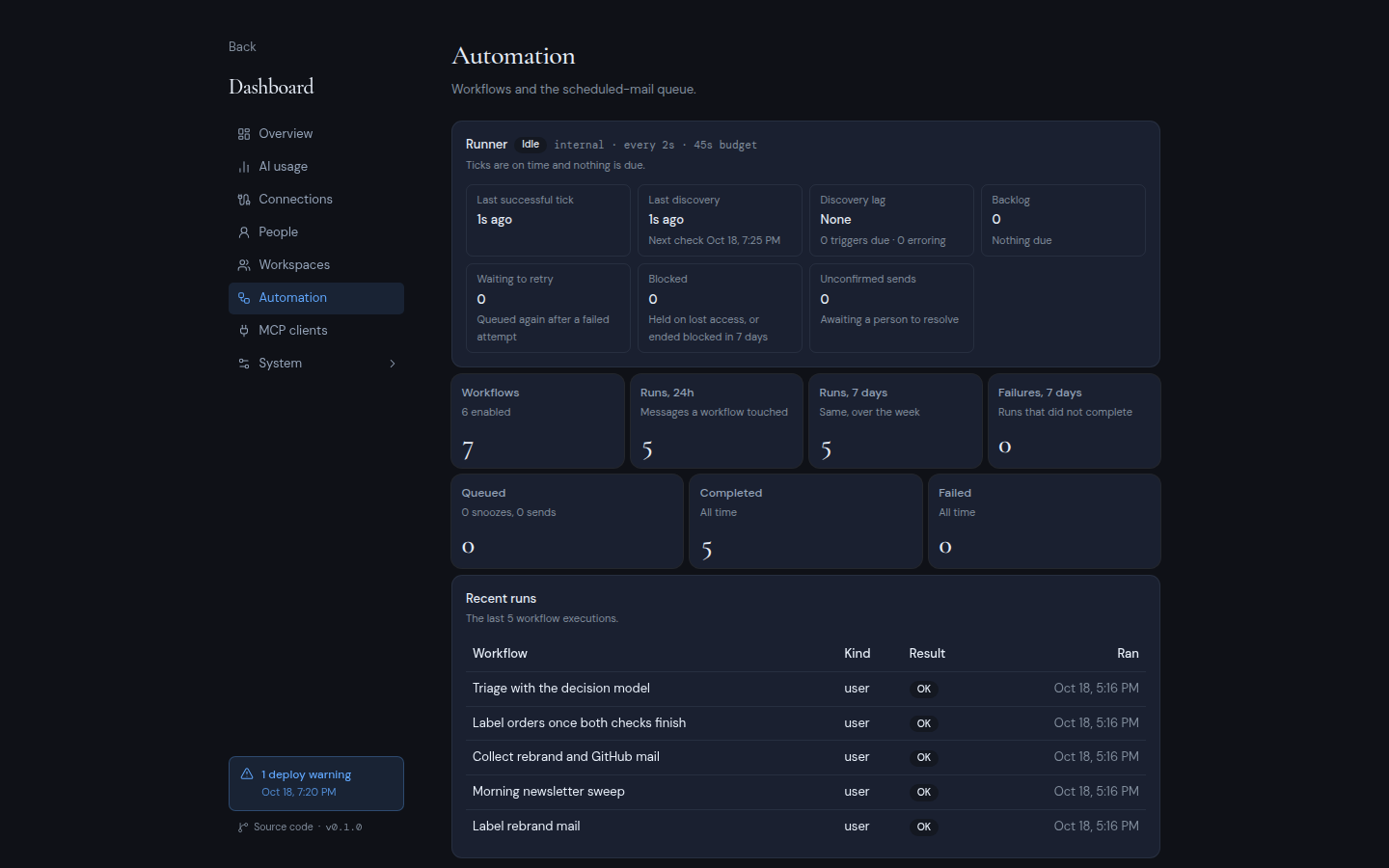
Workflows and the queue of scheduled mail. Use it to see whether background work is running.
The runner card shows a status badge, the runner, its cadence and its tick budget:
| Status | Meaning |
| --- | --- |
| **No tick yet** | The runner has never finished a tick. Start the worker, point your scheduler at the tick endpoint, or read the app's startup log, depending on your runner. |
| **Failing** | The last tick ended with an infrastructure error. The error is shown. |
| **Delayed** | Ticks or due work are running later than the cadence allows. |
| **Working** | Ticks are on time and due work is being drained. |
| **Idle** | Ticks are on time and nothing is due. |
Below it are the last successful tick, discovery lag, backlog, work waiting to retry, blocked runs, and unconfirmed sends waiting for a person. The page also counts workflows, runs and failures, and the queued, completed and failed scheduled mail. **Recent runs** lists the latest workflow runs and their results.
## Connections
Every connected account on the instance and what it provides.
- **Grants** and **Quarantined** counts. A grant is one connected account, which can provide a mailbox, a calendar and a drive.
- **By provider:** grants, mailboxes, calendars and drives per provider.
- **Quarantined:** accounts whose provider or server is no longer configured. They come back when you configure the provider again, or restore the removed server entry from **History**.
## People
"Accounts, invites, and how they are secured."
- Counts: **Accounts**, **With 2FA**, **Signup invites** and **Workspace invites** (pending and not expired).
- **Newest accounts:** the last 10 accounts, with name, email, whether two-factor authentication is **Enabled** or **Off**, and when they joined.
This page is read-only. The dashboard has no way to disable, delete or edit accounts.
## Workspaces
How the instance is split up: **Workspaces**, **Shared** (more than one member) and **Personal** (one member). The **All workspaces** table lists each workspace, newest first, with its AI setting, members, mailboxes, calendars and drives.
## Automation
Workflows and the queue of scheduled mail. Use it to see whether background work is running.
The runner card shows a status badge, the runner, its cadence and its tick budget:
| Status | Meaning |
| --- | --- |
| **No tick yet** | The runner has never finished a tick. Start the worker, point your scheduler at the tick endpoint, or read the app's startup log, depending on your runner. |
| **Failing** | The last tick ended with an infrastructure error. The error is shown. |
| **Delayed** | Ticks or due work are running later than the cadence allows. |
| **Working** | Ticks are on time and due work is being drained. |
| **Idle** | Ticks are on time and nothing is due. |
Below it are the last successful tick, discovery lag, backlog, work waiting to retry, blocked runs, and unconfirmed sends waiting for a person. The page also counts workflows, runs and failures, and the queued, completed and failed scheduled mail. **Recent runs** lists the latest workflow runs and their results.
 See [Background work](/self-hosting/configure/background-work).
## MCP clients
Every external MCP client registered on the instance: **Clients**, **Enabled** and **Via CIMD** (clients that registered themselves by URL). The table shows each client, the workspaces it is hidden from, its status, its tools and when it was last used. Clients are disabled or deleted by their owners, in their own account settings.
## System
"What this deployment runs on, one driver and one provider per page."
The System page groups cards into **Instance**, **Drivers** and **Providers**:
- **Instance:** **Setup code live** (red, while no account exists), **Invite only** or **Open sign-up**, and the owner email.
- **Drivers:** one card per driver with its state. LLM and phishing detection show **On** or **Off**. Mail shows **Delivering**, **Console only** or **Not delivered**. Cache shows **In process** or **Shared**. The workflow runner shows **Never ticked**, **Failing**, **Delayed**, **Busy** or **Idle**. Database shows the driver.
- **Providers:** the number of entries for each provider, or **Off**, and how many connections and quarantined connections it has.
Warnings appear above the cards. On a new instance you see: "No provider is configured, so no mailbox, calendar or drive can be connected until one is added under Dashboard → System."
Under **System** in the sidebar are these pages:
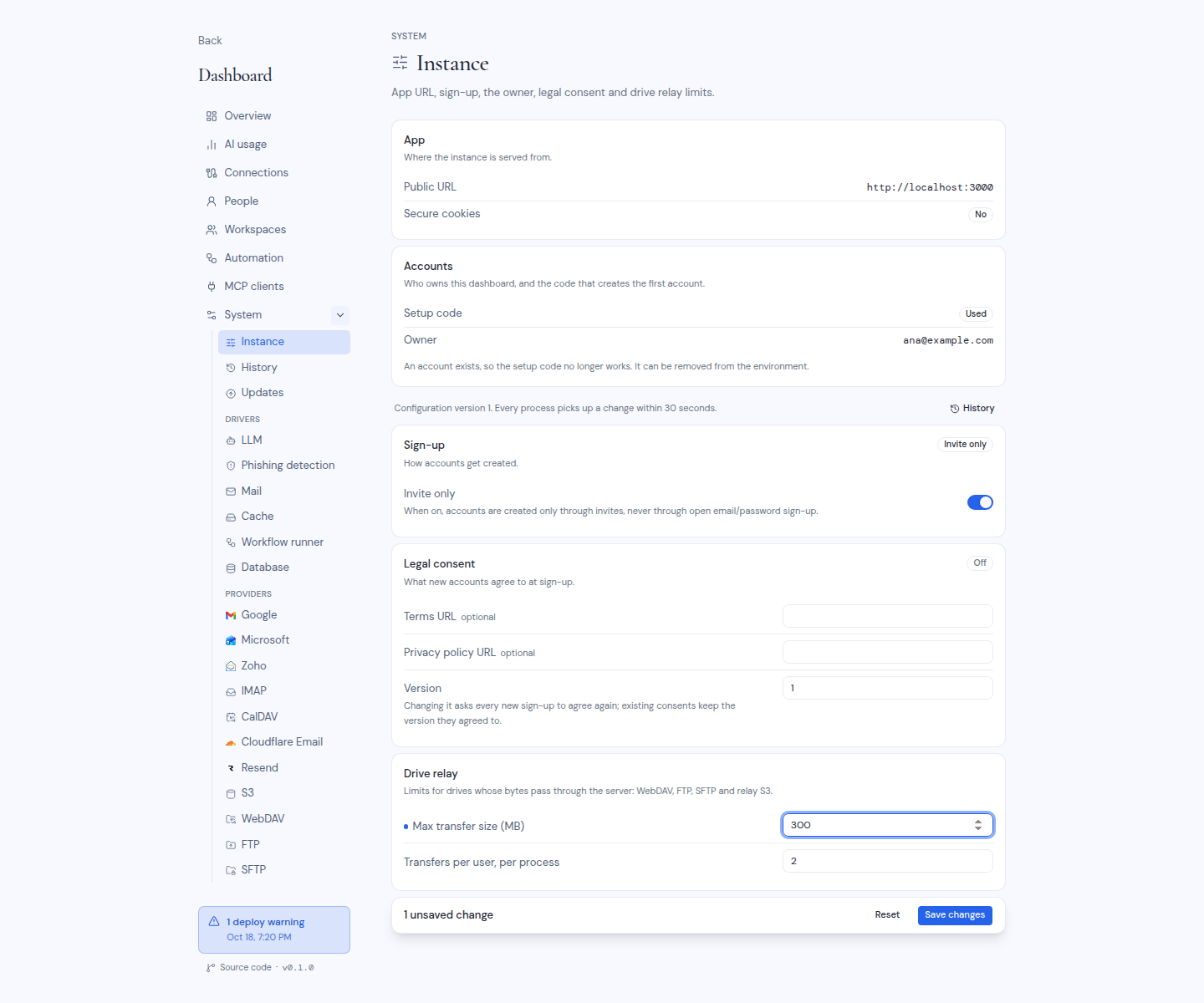
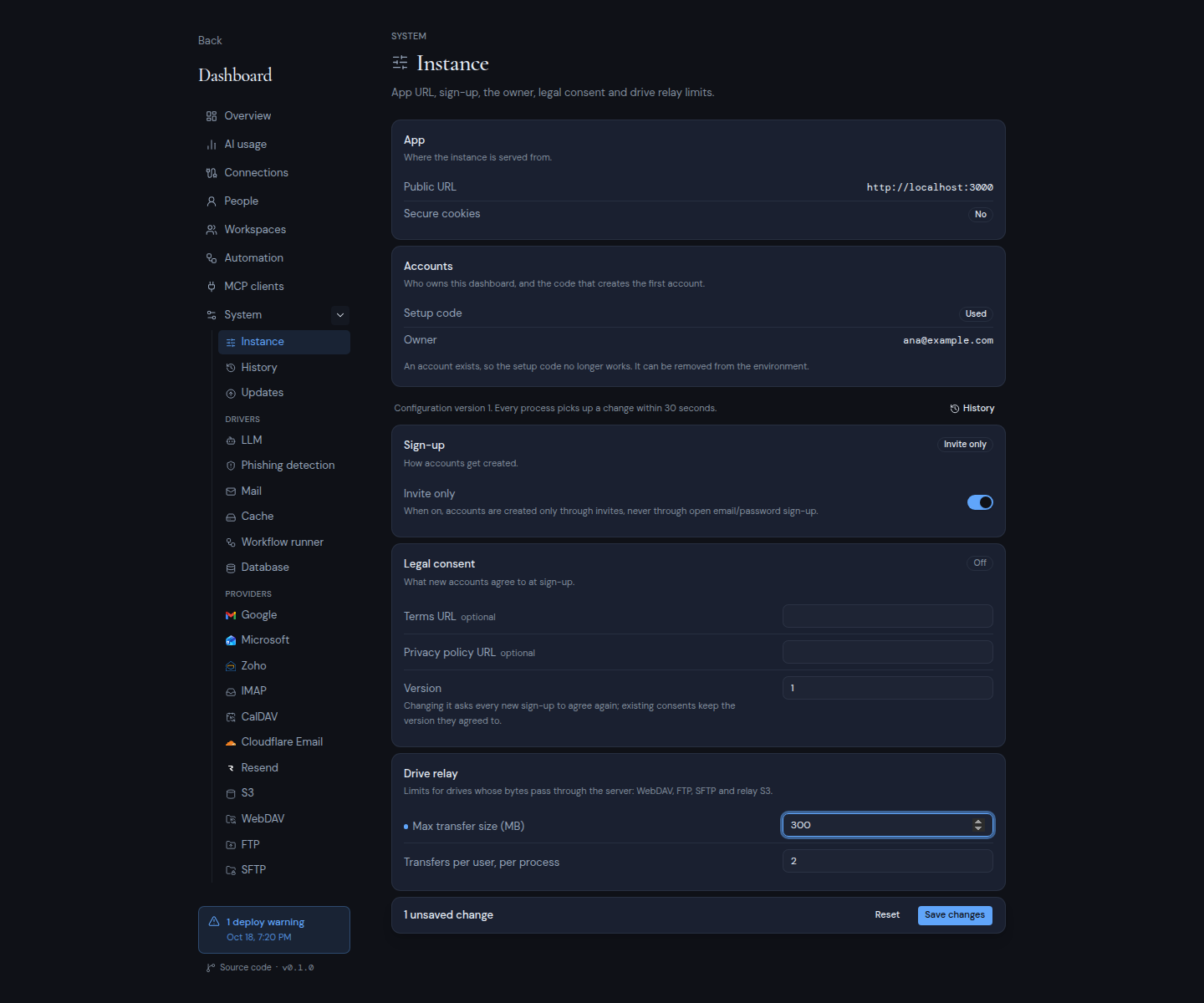
- **Instance:** the app address, sign-up, the owner, legal consent and drive relay limits. See [Sign-up](/self-hosting/configure/sign-up), [Terms and privacy links](/self-hosting/configure/terms-and-privacy) and [Drive transfers](/self-hosting/configure/drive-transfers).
- **History:** every stored version of the configuration (below).
- **Updates:** moving between releases. See [Update and roll back](/self-hosting/operate/update-and-roll-back).
- **Drivers:** **LLM**, **Phishing detection**, **Mail**, **Cache**, **Workflow runner** and **Database**.
- **Providers:** **Google**, **Microsoft**, **Zoho**, **IMAP**, **CalDAV**, **Cloudflare Email**, **Resend**, **S3**, **WebDAV**, **FTP** and **SFTP**.
Every field on these pages is listed in [Dashboard settings](/self-hosting/reference/dashboard-settings).
### Health checks on driver and provider pages
Every driver page and every configured provider page has a **Health** card. Checks contact the real service, so they run only when you click **Run check** (then **Re-check**). Each result shows OK, Warning, Failed or Skipped, how long it took, and when it ran. Provider failures start with "Misconfigured:" or "Unreachable:".
A provider with no settings shows **Not configured**: "Users cannot connect accounts through this provider."
### Saving changes
Editing a field shows a bar with the number of unsaved changes, **Reset** and **Save changes**. Saving asks for your authenticator code, then checks the changed settings against the real service before anything is stored. See [How configuration works](/self-hosting/configure/how-configuration-works#saving-a-change-in-the-dashboard).
See [Background work](/self-hosting/configure/background-work).
## MCP clients
Every external MCP client registered on the instance: **Clients**, **Enabled** and **Via CIMD** (clients that registered themselves by URL). The table shows each client, the workspaces it is hidden from, its status, its tools and when it was last used. Clients are disabled or deleted by their owners, in their own account settings.
## System
"What this deployment runs on, one driver and one provider per page."
The System page groups cards into **Instance**, **Drivers** and **Providers**:
- **Instance:** **Setup code live** (red, while no account exists), **Invite only** or **Open sign-up**, and the owner email.
- **Drivers:** one card per driver with its state. LLM and phishing detection show **On** or **Off**. Mail shows **Delivering**, **Console only** or **Not delivered**. Cache shows **In process** or **Shared**. The workflow runner shows **Never ticked**, **Failing**, **Delayed**, **Busy** or **Idle**. Database shows the driver.
- **Providers:** the number of entries for each provider, or **Off**, and how many connections and quarantined connections it has.
Warnings appear above the cards. On a new instance you see: "No provider is configured, so no mailbox, calendar or drive can be connected until one is added under Dashboard → System."
Under **System** in the sidebar are these pages:
- **Instance:** the app address, sign-up, the owner, legal consent and drive relay limits. See [Sign-up](/self-hosting/configure/sign-up), [Terms and privacy links](/self-hosting/configure/terms-and-privacy) and [Drive transfers](/self-hosting/configure/drive-transfers).
- **History:** every stored version of the configuration (below).
- **Updates:** moving between releases. See [Update and roll back](/self-hosting/operate/update-and-roll-back).
- **Drivers:** **LLM**, **Phishing detection**, **Mail**, **Cache**, **Workflow runner** and **Database**.
- **Providers:** **Google**, **Microsoft**, **Zoho**, **IMAP**, **CalDAV**, **Cloudflare Email**, **Resend**, **S3**, **WebDAV**, **FTP** and **SFTP**.
Every field on these pages is listed in [Dashboard settings](/self-hosting/reference/dashboard-settings).
### Health checks on driver and provider pages
Every driver page and every configured provider page has a **Health** card. Checks contact the real service, so they run only when you click **Run check** (then **Re-check**). Each result shows OK, Warning, Failed or Skipped, how long it took, and when it ran. Provider failures start with "Misconfigured:" or "Unreachable:".
A provider with no settings shows **Not configured**: "Users cannot connect accounts through this provider."
### Saving changes
Editing a field shows a bar with the number of unsaved changes, **Reset** and **Save changes**. Saving asks for your authenticator code, then checks the changed settings against the real service before anything is stored. See [How configuration works](/self-hosting/configure/how-configuration-works#saving-a-change-in-the-dashboard).
 If you click another dashboard link with unsaved changes, the dashboard keeps you on the page and the bar asks you to save or reset first. Closing or reloading the tab asks you to confirm. The browser's Back button is not guarded, so save before you use it.
If someone else saved a change while you were editing, saving fails with "The configuration changed since you opened it". Reload the page and make your change again.
### History
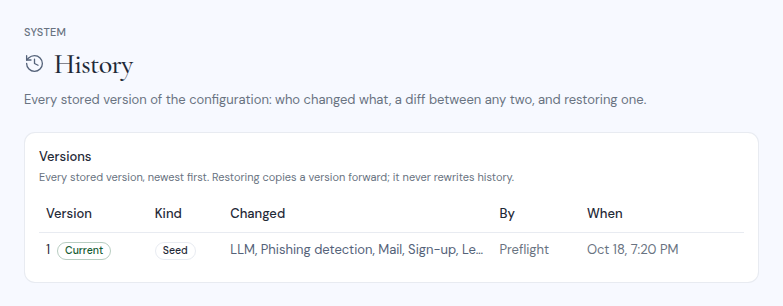
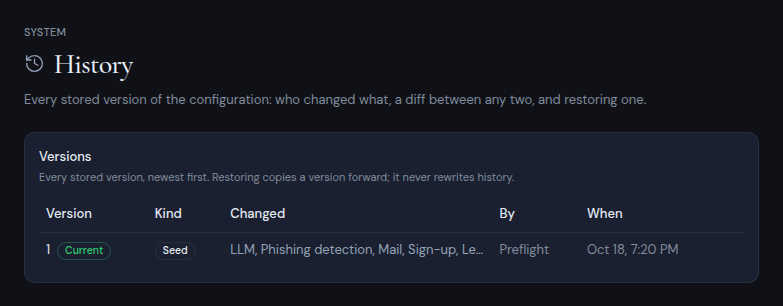
Every saved change is a version. The **History** page lists them, newest first: the version (the current one is marked **Current**), its kind (**Seed** for the first one, **Edit**, or **Restore**), the settings that changed, who changed them (or "Preflight"), and when.
- **Compare:** pick two versions in **From** and **To** to see what changed, as old and new values. Secrets show only whether they changed.
- **Restore:** click **Restore** on a row and enter your authenticator code. Every setting that differs is checked against the real service, then stored as a new version. Restoring never rewrites history. If a check fails, you see **Restore refused** and nothing changes.
If you click another dashboard link with unsaved changes, the dashboard keeps you on the page and the bar asks you to save or reset first. Closing or reloading the tab asks you to confirm. The browser's Back button is not guarded, so save before you use it.
If someone else saved a change while you were editing, saving fails with "The configuration changed since you opened it". Reload the page and make your change again.
### History
Every saved change is a version. The **History** page lists them, newest first: the version (the current one is marked **Current**), its kind (**Seed** for the first one, **Edit**, or **Restore**), the settings that changed, who changed them (or "Preflight"), and when.
- **Compare:** pick two versions in **From** and **To** to see what changed, as old and new values. Secrets show only whether they changed.
- **Restore:** click **Restore** on a row and enter your authenticator code. Every setting that differs is checked against the real service, then stored as a new version. Restoring never rewrites history. If a check fails, you see **Restore refused** and nothing changes.
 You can also reach History from the **History** button on any settings page.
### Deploy checks
Every deploy runs preflight, which records warnings here. Click the deploy check bar at the bottom of the sidebar to open this page. It reads "Last deploy: no warnings", or shows how many warnings the last deploy had.
See [Troubleshooting](/self-hosting/operate/troubleshooting) for what each warning means and what to do.
You can also reach History from the **History** button on any settings page.
### Deploy checks
Every deploy runs preflight, which records warnings here. Click the deploy check bar at the bottom of the sidebar to open this page. It reads "Last deploy: no warnings", or shows how many warnings the last deploy had.
See [Troubleshooting](/self-hosting/operate/troubleshooting) for what each warning means and what to do.