---
title: Upgrade and undo
description: Upgrade your instance to a newer release from the owner dashboard, undo the last upgrade, and what happens when a step fails.
---
With the Compose stack, you upgrade Metis Suite from the owner dashboard. The updater service (the part of the stack that changes which release runs) does the work for you:
1. It downloads the release you choose.
2. It stops the app and takes a snapshot of the database, when your instance supports it (see below). A snapshot is a full copy of the database at that moment.
3. It runs preflight, the check that runs before the app starts. Preflight applies the new release's changes to your database, then checks your settings.
4. It switches the app to the new release and waits until it answers.
If any step fails, the updater puts the snapshot back, if it took one, and switches to the release you had.
Releases install forward only. The dashboard offers only releases that are newer than the one you run. To go back, use **Undo last upgrade**. It returns to the release you had before your last upgrade, with the database as it was in the snapshot.
The **Updates** page exists only when the updater is connected, which the Compose stack does for you. On hosts that build from source, the page does not appear: update by deploying the new version there.
## Snapshots need the bundled database
The updater can take a snapshot only when your instance uses the bundled database server. The bootstrap script sets this up unless you choose Turso.
If your databases are on Turso, or on a database server you run yourself (as in [Install with Docker Compose](/self-hosting/install/install-with-docker-compose)), then:
- Upgrades still work, but there is no snapshot, and an upgrade cannot be undone.
- The **Undo** row on the **Updates** page reads **Not available**, and the page says "The database is not this stack's sqld, so the updater cannot snapshot it and an upgrade cannot be undone. Back up the database before upgrading."
- Back up your databases before every upgrade. See [Backups](/self-hosting/operate/backups).
## See what is available
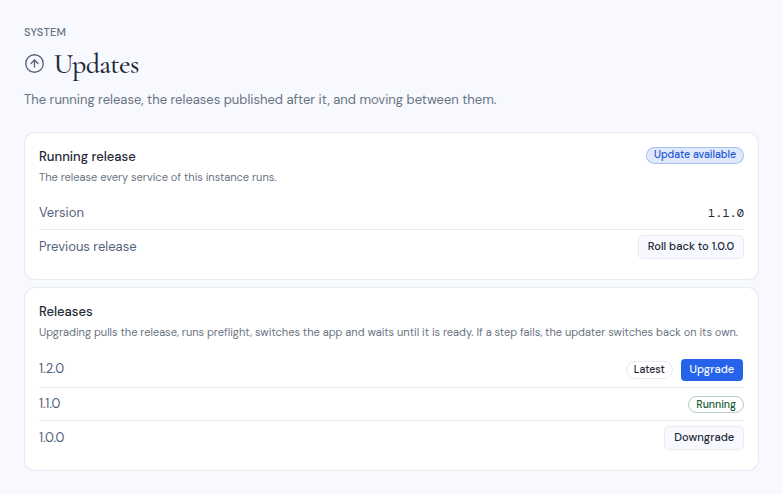
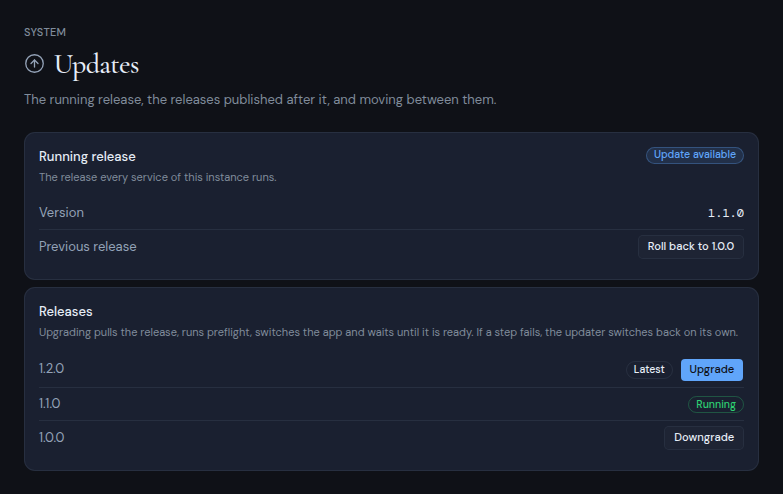
Open **Dashboard**, **System**, **Updates**.
- **Running release** shows the release every service of your instance runs.
- The badge reads **Up to date** or **Update available**. When the images are not pinned to a release, there is no badge.
- The **Version** row shows the version. If the images are not pinned to a release, it shows **Not a pinned release** instead, and upgrading pins them.
- The **Undo** row shows the **Undo last upgrade** button when there is an upgrade to undo. Otherwise it reads **None**, or **Not available** when your instance cannot take snapshots.
- **Releases** lists the releases that are newer than the one you run, up to 10, newest first. The newest one is marked **Latest**. Each one has an **Upgrade** button, and a **Release notes** toggle when the release has notes.
- If no newer release exists, the card says "No newer release is published."
- If your images are not pinned to a release, the card lists every published release, up to 10.
 ## Read the release notes first
Click **Release notes** under a release to read what changed in it. Read the **Upgrade notes** section first, when the notes have one. It says what you need to do besides clicking **Upgrade**, such as running the bootstrap script again before you upgrade. See [Releases that need the bootstrap script](#releases-that-need-the-bootstrap-script).
If you skip releases, read the notes of every release between yours and the one you install.
## Upgrade
1. **Pick the release**
Click **Upgrade** next to the release you want. You can pick any listed
release, not only the latest.
2. **Confirm**
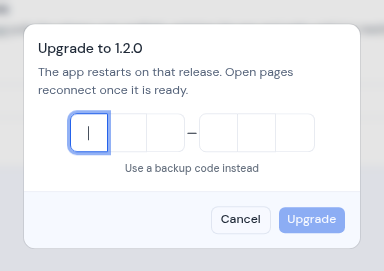
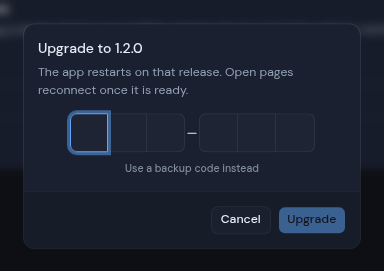
The dialog says "The app restarts on that release. Open pages reconnect
once it is ready." Enter your authenticator code and click **Upgrade**.
To use a backup code, click **Use a backup code instead** first.
## Read the release notes first
Click **Release notes** under a release to read what changed in it. Read the **Upgrade notes** section first, when the notes have one. It says what you need to do besides clicking **Upgrade**, such as running the bootstrap script again before you upgrade. See [Releases that need the bootstrap script](#releases-that-need-the-bootstrap-script).
If you skip releases, read the notes of every release between yours and the one you install.
## Upgrade
1. **Pick the release**
Click **Upgrade** next to the release you want. You can pick any listed
release, not only the latest.
2. **Confirm**
The dialog says "The app restarts on that release. Open pages reconnect
once it is ready." Enter your authenticator code and click **Upgrade**.
To use a backup code, click **Use a backup code instead** first.
 3. **Watch the progress**
The **Last upgrade** card shows the move from the old version to the new
one, and these steps:
1. **Pull the release**
2. **Stop the app and snapshot the database**
3. **Run preflight and migrate the database**
4. **Switch the app**
5. **Wait until it is ready**
Without snapshots, step 2 is not shown.
While the app restarts, the page says "The app is restarting. This page
reconnects on its own once the new release answers."
4. **Reload**
When the card shows **Succeeded**, a pop-up message says "Now running"
with the new version, and the card says "Reload the page to use" that
version. Reload the page to use the new release.
Only one upgrade or undo runs at a time. The buttons are turned off while one runs.
While an upgrade runs, your instance is offline for a while:
- **With snapshots**, the app stops at the snapshot step and comes back when the new release is ready. A large database takes longer to copy.
- **Without snapshots**, your current release keeps working while preflight runs. The app is offline only while it switches to the new release.
:::warning[Keep free disk space for the snapshot]
Each snapshot is a full copy of your database, kept on the server. During an upgrade, the server can hold two copies at once: the one kept for undo and the new one. Make sure the disk has room for both.
:::
## Undo the last upgrade
**Undo last upgrade** returns your instance to the release it ran before your last upgrade. It also puts back the database snapshot taken just before that upgrade, for both the app database and the AI memory database.
Everything written to the database after the snapshot is lost. That includes settings you changed, accounts and workspaces people created, and mail they scheduled.
Mail, events and files at the providers your users connected stay as they are. Undo does not reverse what your instance did at those providers after the upgrade, such as mail it sent. Scheduled work that ran after the upgrade is due again in the restored database and runs again soon after the undo. A scheduled message that was sent after the upgrade is sent a second time, and a scheduled workflow that ran since then runs once more. Snoozed messages whose wake time passed after the upgrade wake again.
The button appears only when all of these are true:
- Your instance uses the bundled database server, so it can take snapshots.
- Your last successful upgrade kept its snapshot.
- Before that upgrade, the **Version** row showed a release number, not **Not a pinned release**.
- You still run the release that upgrade installed.
To undo:
1. **Check what you will lose**
Under **Running release**, the page says which release undo returns to,
and the date and time of the snapshot: "Everything written since then is
lost."
2. **Confirm**
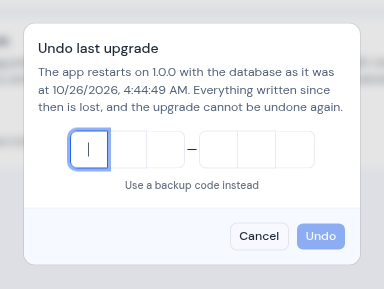
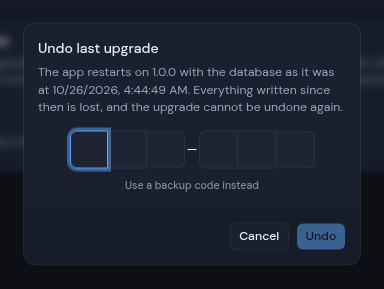
Click **Undo last upgrade**. The dialog names the release and the
snapshot time, and says the upgrade cannot be undone again. Enter your
authenticator code and click **Undo**. To use a backup code, click
**Use a backup code instead** first.
3. **Watch the progress**
The **Last upgrade** card shows the move from the old version to the new
one, and these steps:
1. **Pull the release**
2. **Stop the app and snapshot the database**
3. **Run preflight and migrate the database**
4. **Switch the app**
5. **Wait until it is ready**
Without snapshots, step 2 is not shown.
While the app restarts, the page says "The app is restarting. This page
reconnects on its own once the new release answers."
4. **Reload**
When the card shows **Succeeded**, a pop-up message says "Now running"
with the new version, and the card says "Reload the page to use" that
version. Reload the page to use the new release.
Only one upgrade or undo runs at a time. The buttons are turned off while one runs.
While an upgrade runs, your instance is offline for a while:
- **With snapshots**, the app stops at the snapshot step and comes back when the new release is ready. A large database takes longer to copy.
- **Without snapshots**, your current release keeps working while preflight runs. The app is offline only while it switches to the new release.
:::warning[Keep free disk space for the snapshot]
Each snapshot is a full copy of your database, kept on the server. During an upgrade, the server can hold two copies at once: the one kept for undo and the new one. Make sure the disk has room for both.
:::
## Undo the last upgrade
**Undo last upgrade** returns your instance to the release it ran before your last upgrade. It also puts back the database snapshot taken just before that upgrade, for both the app database and the AI memory database.
Everything written to the database after the snapshot is lost. That includes settings you changed, accounts and workspaces people created, and mail they scheduled.
Mail, events and files at the providers your users connected stay as they are. Undo does not reverse what your instance did at those providers after the upgrade, such as mail it sent. Scheduled work that ran after the upgrade is due again in the restored database and runs again soon after the undo. A scheduled message that was sent after the upgrade is sent a second time, and a scheduled workflow that ran since then runs once more. Snoozed messages whose wake time passed after the upgrade wake again.
The button appears only when all of these are true:
- Your instance uses the bundled database server, so it can take snapshots.
- Your last successful upgrade kept its snapshot.
- Before that upgrade, the **Version** row showed a release number, not **Not a pinned release**.
- You still run the release that upgrade installed.
To undo:
1. **Check what you will lose**
Under **Running release**, the page says which release undo returns to,
and the date and time of the snapshot: "Everything written since then is
lost."
2. **Confirm**
Click **Undo last upgrade**. The dialog names the release and the
snapshot time, and says the upgrade cannot be undone again. Enter your
authenticator code and click **Undo**. To use a backup code, click
**Use a backup code instead** first.
 3. **Watch the progress**
The **Last undo** card shows these steps:
1. **Pull the previous release**
2. **Stop the app and restore the database snapshot**
3. **Switch the app**
4. **Wait until it is ready**
The app is offline until the last step finishes.
4. **Reload**
When the card shows **Succeeded**, a pop-up message says "Now running"
with the previous version, and the card says "Reload the page to use"
that version. Reload the page.
Undo works once. After it, the **Undo** row reads **None** until your next upgrade.
There is only ever one undo. Each successful upgrade replaces the snapshot, so you can undo only your most recent successful upgrade. A failed upgrade does not change it.
The snapshot is kept in `/opt/metis-suite/.updater-snapshot/` on the server. Leave that folder alone if you want to keep the undo. If you delete it, the undo is gone.
The undo is recorded in the **Audit log** as **Instance upgrade undone**, with the two versions and the owner who started it. It also shows in your own [Security activity](/guide/account/security-activity). The row is written once the undo has succeeded and the **Updates** page loads again. If you closed the page during the undo, it is written the next time you open **Updates**. See [Owner dashboard](/self-hosting/operate/owner-dashboard#audit-log).
## When a step fails
The card shows **Failed**, and a pop-up message says "The upgrade failed" or "The undo failed". A note says what the updater did, and the error is shown below it. When preflight failed, the error includes the end of its output, which names the database change that failed.
In these examples, you ran 1.1.0 and upgraded to 1.2.0.
| Note | What happened |
| ----------------------------------------------------------------------------------------- | ----------------------------------------------------------------------------------------------------------------------- |
| "1.2.0 was not installed; 1.1.0 kept running." | The release could not be downloaded, the snapshot failed, or preflight failed on an instance without snapshots. |
| "1.2.0 failed, so the updater restored the database snapshot and switched back to 1.1.0." | Preflight failed, or the new release did not come up. The updater put the snapshot back and returned to your release. |
| "1.2.0 failed, so the updater switched back to 1.1.0." | Without snapshots: the new release did not come up, and the updater returned to your release. |
| "The undo did not start; 1.2.0 kept running." | The previous release could not be downloaded, or the app could not be stopped. Your release and database are unchanged. |
:::warning[Without snapshots, a failed preflight can leave changes behind]
On Turso or your own database server, a release can apply some of its database changes and then fail. Your current release keeps running, but those changes stay in the database. This is why you back up before every upgrade on these instances.
:::
### Needs attention
The card shows **Needs attention** when the updater could not get back to a working state:
- An upgrade failed, and switching back or starting your release again failed too.
- An undo failed partway.
- The updater stopped in the middle of an upgrade or undo.
When a snapshot exists, the error names the folder in `/opt/metis-suite/.updater-snapshot/` that holds it. Do not delete that folder: it is the copy of your database from before the upgrade.
Check the stack on the server: which images `.env` pins, that the database server and the app are running, and the app's log:
```bash
sudo grep _IMAGE= /opt/metis-suite/.env
sudo docker compose --project-directory /opt/metis-suite ps
sudo docker compose --project-directory /opt/metis-suite logs app
```
### The updater is not answering
If the page shows **The updater is not answering**, the updater service is not running. Check it with:
```bash
sudo docker compose --project-directory /opt/metis-suite ps updater
```
### Errors in the dialog
| Message | What to do |
| ------------------------------------------- | ----------------------------------------------------------------------------------------- |
| "Invalid authenticator or backup code" | Enter a fresh code from your authenticator app, or a backup code. |
| "Too many attempts. Please slow down." | Wait a few minutes. You can try 10 codes every 5 minutes, for upgrades and undo together. |
| "an upgrade or rollback is already running" | Wait until the **Last upgrade** or **Last undo** card shows the result. |
| "there is no upgrade to undo" | The undo is no longer available. Reload the page. |
## Releases that need the bootstrap script
Upgrades from the dashboard change only the app's images. They never update the updater itself or the Compose file. A release's **Upgrade notes** say when it needs either.
To pick up a new updater or Compose file, run the [bootstrap script](/self-hosting/install/install-with-bootstrap#run-the-script-again) again. It updates the updater, downloads the Compose file of the release it installs, and pins every image to that release: the newest one, or the one in `METIS_VERSION`.
A bootstrap run is also an upgrade, but a different kind:
- It takes no snapshot, and it cannot be undone. Back up first. See [Backups](/self-hosting/operate/backups).
- Preflight still applies the release's database changes.
- If the run moves your instance to a different release, it ends any undo that was waiting. The **Undo** row then reads **None**.
## Going back further
Once a release has changed your database, an older release cannot run on it. If you pin older images, with `METIS_VERSION` on a bootstrap run or by editing `.env`, preflight refuses the database and the app does not start. The preflight log says the database has changes "which this release does not ship: a newer release migrated it." To recover, pin that newer release again, or a newer one.
To go back, you have two ways:
- **Undo last upgrade**, while it is offered.
- Restore a database backup you took before the newer release, together with that older release. See [Backups](/self-hosting/operate/backups).
3. **Watch the progress**
The **Last undo** card shows these steps:
1. **Pull the previous release**
2. **Stop the app and restore the database snapshot**
3. **Switch the app**
4. **Wait until it is ready**
The app is offline until the last step finishes.
4. **Reload**
When the card shows **Succeeded**, a pop-up message says "Now running"
with the previous version, and the card says "Reload the page to use"
that version. Reload the page.
Undo works once. After it, the **Undo** row reads **None** until your next upgrade.
There is only ever one undo. Each successful upgrade replaces the snapshot, so you can undo only your most recent successful upgrade. A failed upgrade does not change it.
The snapshot is kept in `/opt/metis-suite/.updater-snapshot/` on the server. Leave that folder alone if you want to keep the undo. If you delete it, the undo is gone.
The undo is recorded in the **Audit log** as **Instance upgrade undone**, with the two versions and the owner who started it. It also shows in your own [Security activity](/guide/account/security-activity). The row is written once the undo has succeeded and the **Updates** page loads again. If you closed the page during the undo, it is written the next time you open **Updates**. See [Owner dashboard](/self-hosting/operate/owner-dashboard#audit-log).
## When a step fails
The card shows **Failed**, and a pop-up message says "The upgrade failed" or "The undo failed". A note says what the updater did, and the error is shown below it. When preflight failed, the error includes the end of its output, which names the database change that failed.
In these examples, you ran 1.1.0 and upgraded to 1.2.0.
| Note | What happened |
| ----------------------------------------------------------------------------------------- | ----------------------------------------------------------------------------------------------------------------------- |
| "1.2.0 was not installed; 1.1.0 kept running." | The release could not be downloaded, the snapshot failed, or preflight failed on an instance without snapshots. |
| "1.2.0 failed, so the updater restored the database snapshot and switched back to 1.1.0." | Preflight failed, or the new release did not come up. The updater put the snapshot back and returned to your release. |
| "1.2.0 failed, so the updater switched back to 1.1.0." | Without snapshots: the new release did not come up, and the updater returned to your release. |
| "The undo did not start; 1.2.0 kept running." | The previous release could not be downloaded, or the app could not be stopped. Your release and database are unchanged. |
:::warning[Without snapshots, a failed preflight can leave changes behind]
On Turso or your own database server, a release can apply some of its database changes and then fail. Your current release keeps running, but those changes stay in the database. This is why you back up before every upgrade on these instances.
:::
### Needs attention
The card shows **Needs attention** when the updater could not get back to a working state:
- An upgrade failed, and switching back or starting your release again failed too.
- An undo failed partway.
- The updater stopped in the middle of an upgrade or undo.
When a snapshot exists, the error names the folder in `/opt/metis-suite/.updater-snapshot/` that holds it. Do not delete that folder: it is the copy of your database from before the upgrade.
Check the stack on the server: which images `.env` pins, that the database server and the app are running, and the app's log:
```bash
sudo grep _IMAGE= /opt/metis-suite/.env
sudo docker compose --project-directory /opt/metis-suite ps
sudo docker compose --project-directory /opt/metis-suite logs app
```
### The updater is not answering
If the page shows **The updater is not answering**, the updater service is not running. Check it with:
```bash
sudo docker compose --project-directory /opt/metis-suite ps updater
```
### Errors in the dialog
| Message | What to do |
| ------------------------------------------- | ----------------------------------------------------------------------------------------- |
| "Invalid authenticator or backup code" | Enter a fresh code from your authenticator app, or a backup code. |
| "Too many attempts. Please slow down." | Wait a few minutes. You can try 10 codes every 5 minutes, for upgrades and undo together. |
| "an upgrade or rollback is already running" | Wait until the **Last upgrade** or **Last undo** card shows the result. |
| "there is no upgrade to undo" | The undo is no longer available. Reload the page. |
## Releases that need the bootstrap script
Upgrades from the dashboard change only the app's images. They never update the updater itself or the Compose file. A release's **Upgrade notes** say when it needs either.
To pick up a new updater or Compose file, run the [bootstrap script](/self-hosting/install/install-with-bootstrap#run-the-script-again) again. It updates the updater, downloads the Compose file of the release it installs, and pins every image to that release: the newest one, or the one in `METIS_VERSION`.
A bootstrap run is also an upgrade, but a different kind:
- It takes no snapshot, and it cannot be undone. Back up first. See [Backups](/self-hosting/operate/backups).
- Preflight still applies the release's database changes.
- If the run moves your instance to a different release, it ends any undo that was waiting. The **Undo** row then reads **None**.
## Going back further
Once a release has changed your database, an older release cannot run on it. If you pin older images, with `METIS_VERSION` on a bootstrap run or by editing `.env`, preflight refuses the database and the app does not start. The preflight log says the database has changes "which this release does not ship: a newer release migrated it." To recover, pin that newer release again, or a newer one.
To go back, you have two ways:
- **Undo last upgrade**, while it is offered.
- Restore a database backup you took before the newer release, together with that older release. See [Backups](/self-hosting/operate/backups).