Troubleshooting
What the dashboard's deploy checks and warnings mean, and how to fix the most common problems.
Start in the owner dashboard. The deploy check bar at the bottom of the sidebar shows whether the last deploy found problems, and the System page shows warnings above its cards.
Read the deploy checks
Every deploy runs preflight, which checks your settings and servers and records what it found. Click the deploy check bar to open the Deploy checks page.
- The Last run card says when preflight ran and against which configuration version. Its badge reads No warnings, or offers an Acknowledge button.
- Clicking Acknowledge clears the highlight on the sidebar bar. It does not fix anything, and the next deploy records a new run.
- If the configuration changed after that run, a note says that some warnings may no longer apply. The next deploy checks again.
- Before the first deploy, the page shows No preflight run yet.
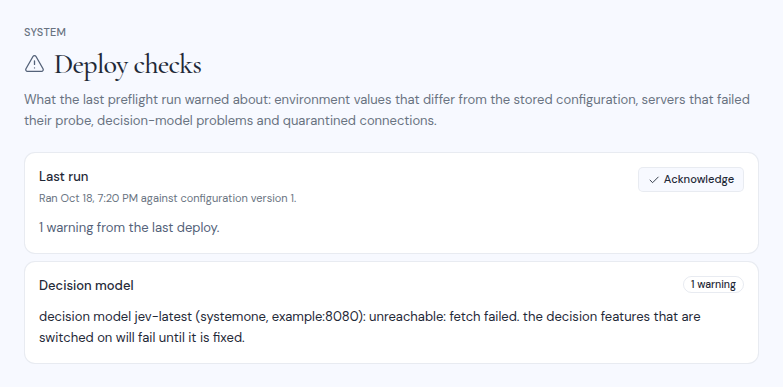
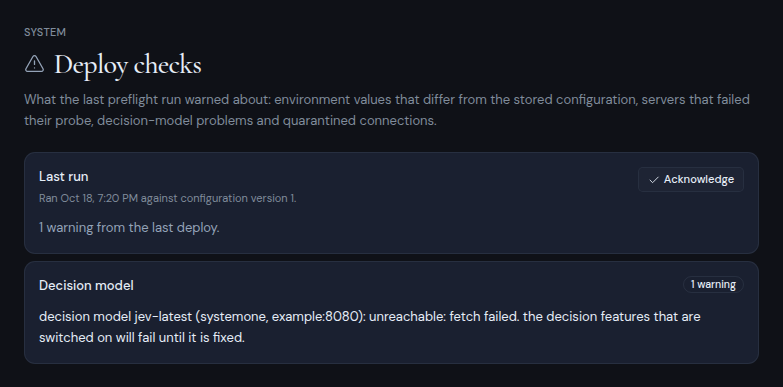
Warnings are grouped as follows.
| Group | What it means | What to do |
|---|---|---|
| Seeding | The first stored settings have a problem. For example, no provider is configured, or the internal runner was stored on a host that suspends the app. |
Fix the setting under System. |
| Environment differs from the stored config | A setting in the environment or the config file differs from the one stored in the dashboard. The stored value is used. | Change the setting in the dashboard, or remove it from the environment. |
| Server checks | A server in your lists, or an OAuth client, failed its check. People cannot connect through it until it is fixed. | Open the provider page under System, fix the entry and click Run check. |
| Decision model | The decision model is missing an API key, rejected the key, could not be reached, or does not offer the model. | Fix the METIS_DECISION_* variables and restart. See AI models. |
| Quarantine | Some connections were hidden because their provider or server is no longer configured. | They come back when you configure the provider again, or restore the removed server entry from History. Users can also delete those connections. |
Common problems
Nobody can connect an account
The System page says “No provider is configured, so no mailbox, calendar or drive can be connected until one is added under Dashboard → System.” Add a provider. See Sign-in providers and Server lists.
Connecting a Google, Microsoft or Zoho account fails
Check that the redirect URI registered with the provider matches the Redirect URI on the provider’s page exactly. It changes when your domain changes. Then click Run check on the provider page: it tells a wrong client ID or secret apart from other problems.
Accounts disappeared from every workspace
Their provider or server entry was removed, so they are quarantined. The Connections page lists them. They come back when you configure the provider again, or restore the removed server entry from History.
Sign-in links and invitations never arrive
The Mail card on the System page shows Console only or Not delivered. Set up Resend or SMTP. See Outgoing email.
Scheduled mail and workflows do not run
Open Automation. If the status is No tick yet or Delayed, the workflow runner is not being woken. See Background work.
AI features are missing
The LLM card on the System page shows Off. Set up a model. See AI models. People can also turn AI off for their own workspaces and mailboxes.
The app does not start after a change to .env
A setting has a wrong value. The app refuses to start and names the setting. Read the preflight log:
sudo docker compose --project-directory /opt/metis-suite logs preflightThe owner dashboard is missing
Only the account whose email matches METIS_OWNER_EMAIL sees Dashboard in the user menu. If no owner email is set, nobody does. Set it in .env and restart the app. See First run.
Saving a setting fails
| Message | What to do |
|---|---|
| Check failed, “Nothing was saved.” | A setting did not pass its check against the real service. Fix the fields shown and save again. |
| “Invalid authenticator or backup code” | Enter a fresh code from your authenticator app, or a backup code. |
| “Too many attempts. Please slow down.” | Wait a few minutes. You can try 10 codes every 5 minutes. |
| “The configuration changed since you opened it” | Someone saved a change while you were editing. Reload the page and try again. |