Update and roll back
Move your instance to a newer or older release from the owner dashboard, and what happens when a step fails.
With the Compose stack, you update Metis Suite from the owner dashboard. The updater service pulls the release you choose, checks it against your database, switches the app to it, and waits until it answers. If any step fails, it switches back to the release you had.
Only the app moves. The database server, Caddy and the updater itself are not touched.
The Updates page exists only when the updater is connected, which the Compose stack does for you. On hosts that build from source, the page does not appear: update by deploying the new version there.
See what is available
Open Dashboard, System, Updates.
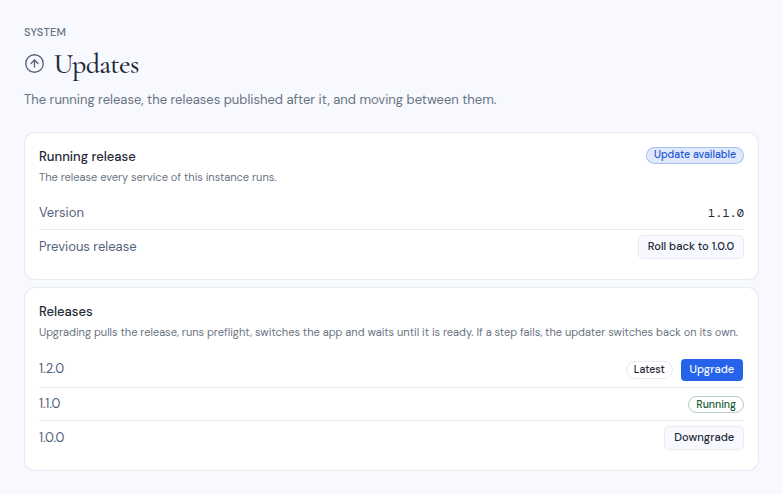
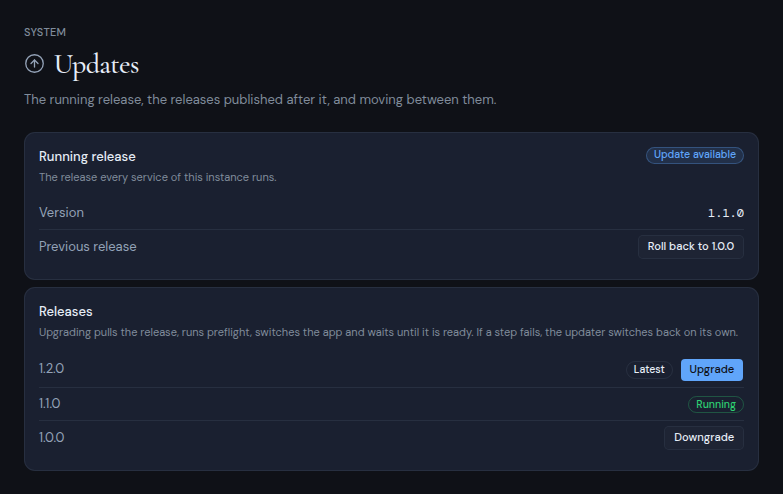
- Running release shows the version you run, with Up to date or Update available. If the images are not pinned to a release, it shows Not a pinned release instead, and upgrading pins them. It also names the previous release, with a Roll back to button.
- Releases lists up to 10 published releases, marked Latest and Running. Newer releases have an Upgrade button and older ones a Downgrade button.
Upgrade
Pick the release
Click Upgrade next to the release you want. You can pick any listed release, not only the latest.
Confirm
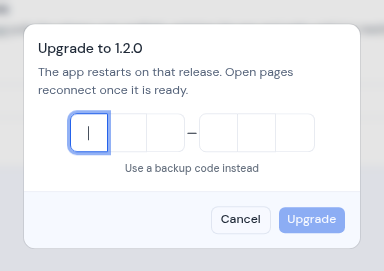
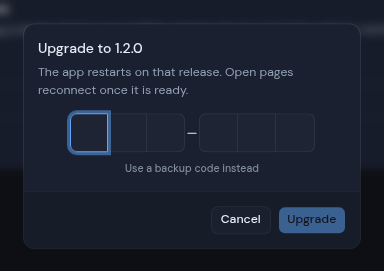
The dialog says “The app restarts on that release. Open pages reconnect once it is ready.” Enter your authenticator code and click Upgrade.
Watch the progress
The Last upgrade card shows the move from the old version to the new one, and four steps:
- Pull the release
- Run preflight
- Switch the app
- Wait until it is ready
While the app restarts, the page says “The app is restarting. This page reconnects on its own once the new release answers.”
Reload
When the card shows Succeeded, you see “Now running” and the new version. Reload the page to use the new release.
Only one upgrade or rollback runs at a time. The buttons are turned off while one runs.
Roll back
Click Roll back to under Running release, enter your authenticator code and confirm. The rollback goes through the same four steps. Rolling back twice in a row returns you to where you started.
To go further back, click Downgrade next to any older release.
When a step fails
The card shows Failed and the error. The updater handles it for you:
- If the new release does not come up, the updater switches back, and the card says so.
- If the new release could not be installed at all, your current release kept running.
The card shows Needs attention in two cases: switching back failed too, or the updater stopped in the middle of a move. Then check the stack on the server: which images .env pins, and the app’s log:
sudo grep _IMAGE= /opt/metis-suite/.env
sudo docker compose --project-directory /opt/metis-suite logs app
If the page shows The updater is not answering, the updater service is not running. Check it with:
sudo docker compose --project-directory /opt/metis-suite ps updaterReleases that change the Compose file
The updater moves only the app’s images. It never updates itself, and it does not download a new Compose file. When a release changes the Compose file, run the bootstrap script again. That downloads the Compose file, and pins every image, the updater included, to the newest release (or to METIS_VERSION).