Change or reset your password
Change your password from the Security settings, or reset it by email if you forgot it.
You can change your password while you are signed in, or reset it by email if you forgot it. Neither one changes your two-factor authentication: your authenticator app and backup codes keep working.
Change your password
You need your current password and a code from your authenticator app or a backup code.
- Open your user menu (the round button with your initials at the bottom of the left rail) and click Settings.
- Click Security.
- In the Change password card, type your Current password and your New password.
- Click Change password.
- In the Confirm password change box, enter the code from your authenticator app or a backup code.
- Click Verify.
When it works, you see “Password changed. Other sessions were signed out.” Every other browser where you were signed in is signed out. You stay signed in on this one.
Reset a forgotten password
-
On the sign-in page, click Forgot password?.
-
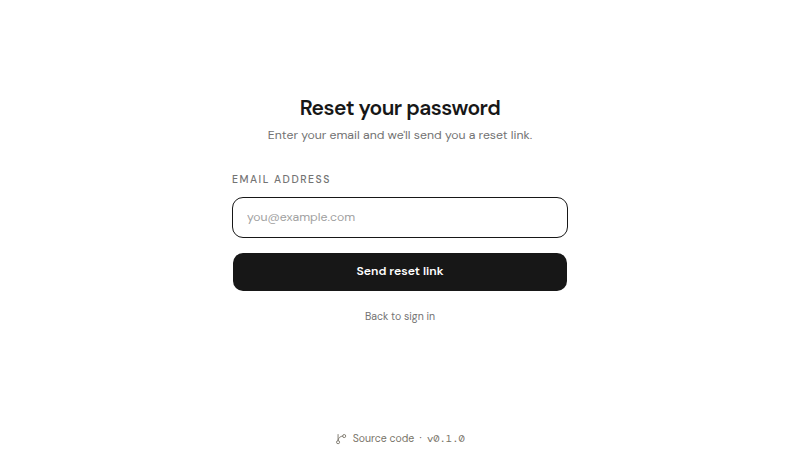
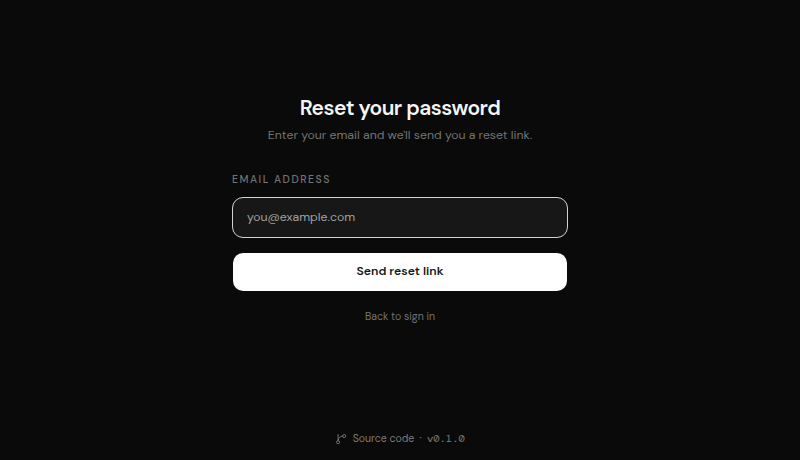
The page Reset your password opens. Enter your Email address and click Send reset link.
-
The page shows Check your email. For your privacy, it looks the same whether or not an account exists for that address.
-
Open the email from Metis Suite and click the reset link. The link is valid for 1 hour.
-
The page Choose a new password opens. Type your password in New password and again in Confirm password.
-
Click Update password.
-
You see Password updated, and Metis Suite takes you back to the sign-in page. Sign in with your new password. You still need your two-factor code.
If you see “This reset link is invalid or has expired.”, the link is too old or no longer valid. Start again from Forgot password? to get a new one.
If you see “Passwords do not match”, the two password fields are different. Type the same password in both.
To go back without resetting, click Back to sign in.