Labels
How messages get their labels, how to change a label, label many messages at once, and create your own labels.
A label tells you what kind of message you are looking at, such as Work or Newsletter. Each message has at most one label. The label shows as a chip on the message row and on the Change label button when the message is open.
Labels belong to the mailbox, not to you. Everyone who can see the mailbox sees the same labels.
Built-in labels
Every mailbox has eight built-in labels:
| Label | Row chip | Tab |
|---|---|---|
| Action Required | Action Required | Action Required |
| Work | Work | Work |
| Personal | Personal | Personal |
| Transactions | Transactions | Transactions |
| Updates | Updates | Updates |
| Newsletter | Newsletter | Newsletter |
| Promotional | Promo | Promos |
| Social | Social | Social |
A message that was sent from the Scheduled folder also gets a Scheduled chip.
How messages get a label
A label can come from three places:
- AI labels. When AI is on for the mailbox, Metis Suite reads new messages in your list and labels them for you. If it is not sure about a message, it leaves the message without a label and does not try again.
- Gmail categories. For Gmail mailboxes, Gmail’s own categories become labels: Promotions becomes Promotional, Updates becomes Updates, Social becomes Social, and Forums becomes Newsletter.
- You. A label you pick replaces the AI label, and the AI never changes it back.
Change the label of one message
- Open the message.
- Click the Change label button in the toolbar. It shows the current label’s name, or Label when there is none.
- Pick a label. Built-in labels are under Built-in, your own labels under Custom.
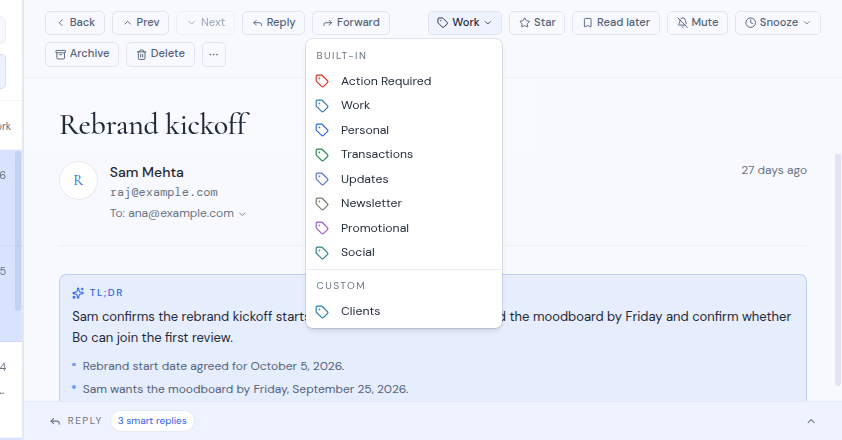
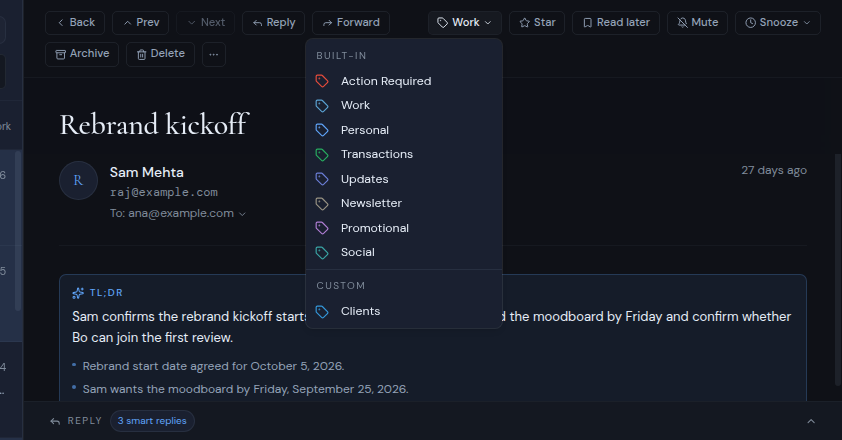
A message confirms the change, for example “Labeled 1 email as Work”, with an Undo button. Click Undo within a few seconds to put the old label back.
Label many messages at once
- Tick the checkbox on each message you want to label. A bar appears with the number selected.
- Click Label in the bar.
- Pick a label from Built-in or Custom.
The confirmation reads, for example, “Labeled 3 emails as Work”, with Undo. If you click Undo, you see “Reverting…” and then “Label change undone”. If the undo fails, you see “Couldn’t undo the label change”.
Create a custom label
Custom labels are your own names, such as a client or a project. They appear in the sidebar under the built-in labels.
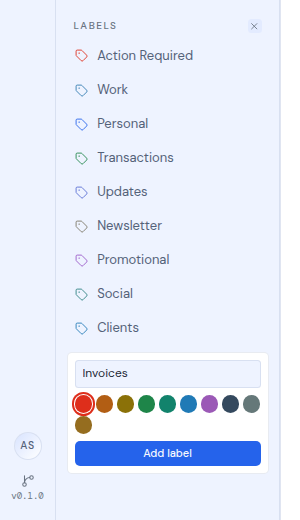
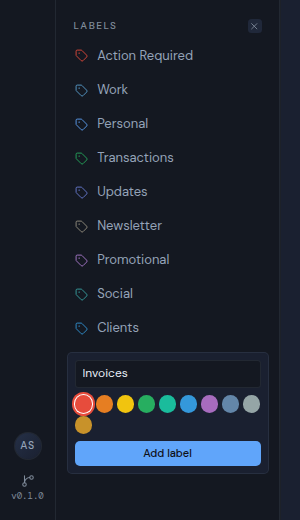
Click + next to Labels
Its tooltip says Add custom label. A small form opens in the sidebar.
Type a name
Type it in the Label name field. Names can be up to 40 characters long.
Pick a color
Choose one of ten colors: red, orange, yellow, green, teal, blue, purple, navy, gray or amber. Red is picked first.
Click Add label
Or press Enter. Press Esc, or click the X that replaced the + (Cancel), to cancel.
Things to know about custom labels:
- Everyone who can see the mailbox sees your custom labels and can use them.
- If you create a label while in All inboxes, it is added to every mailbox.
- If a label with the same name already exists, no new label is added.
- Custom labels appear in the Change label and Label menus under Custom.
Delete a custom label
- Point at the label in the sidebar. On a touch screen, skip this step.
- Click the X next to the label.
- In the Delete this label? dialog, click Delete. The dialog tells you the label will be removed from your sidebar.
The label is removed for everyone who can see the mailbox.
Built-in labels cannot be deleted.