Find your way around
Learn the left rail, switch workspaces, use the user menu, and find your settings.
Every page in Metis Suite has the same frame: a narrow bar of icons down the left side, called the left rail, and your work in the rest of the screen. This page walks you through the rail from top to bottom, then shows you where your settings live.
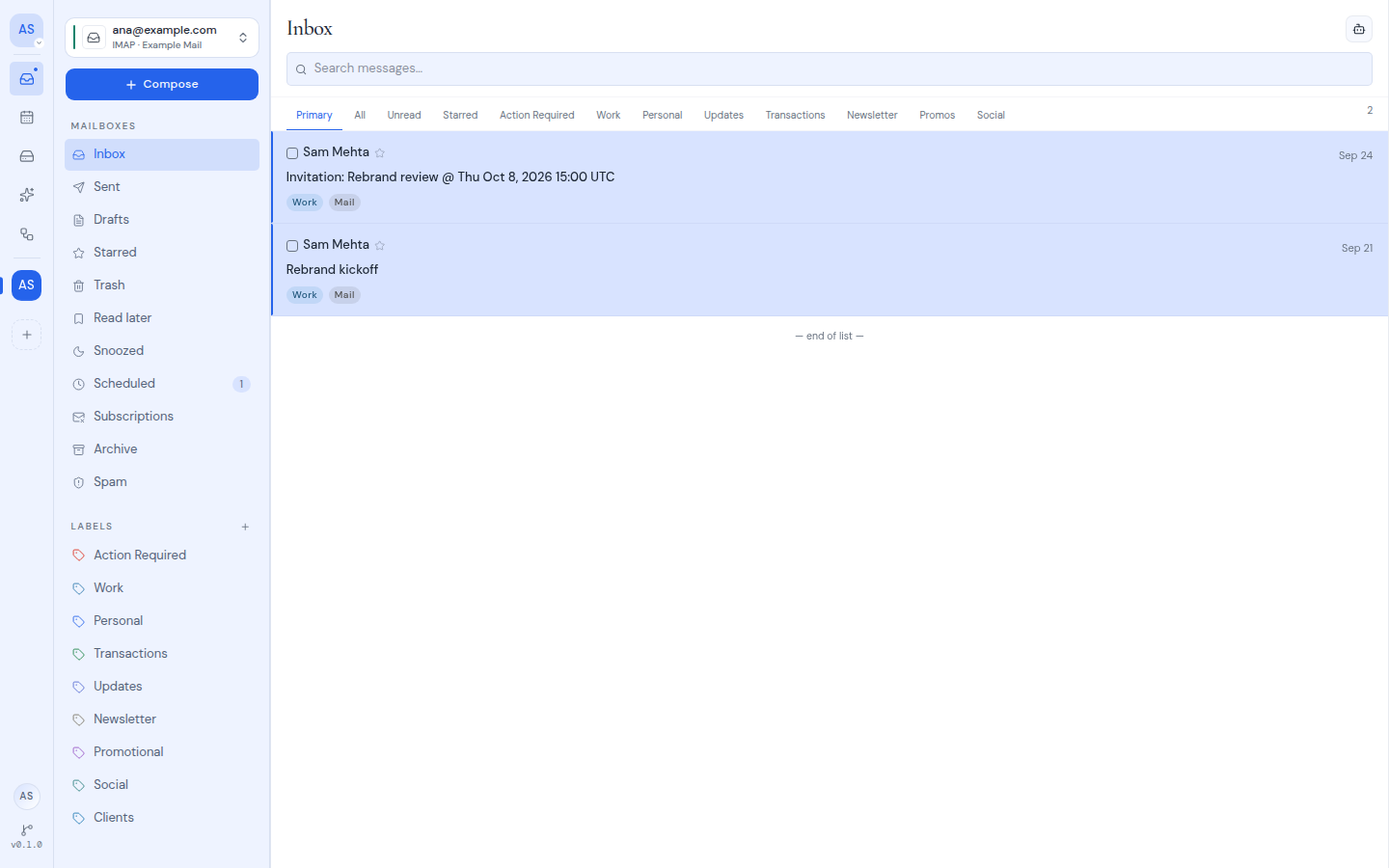
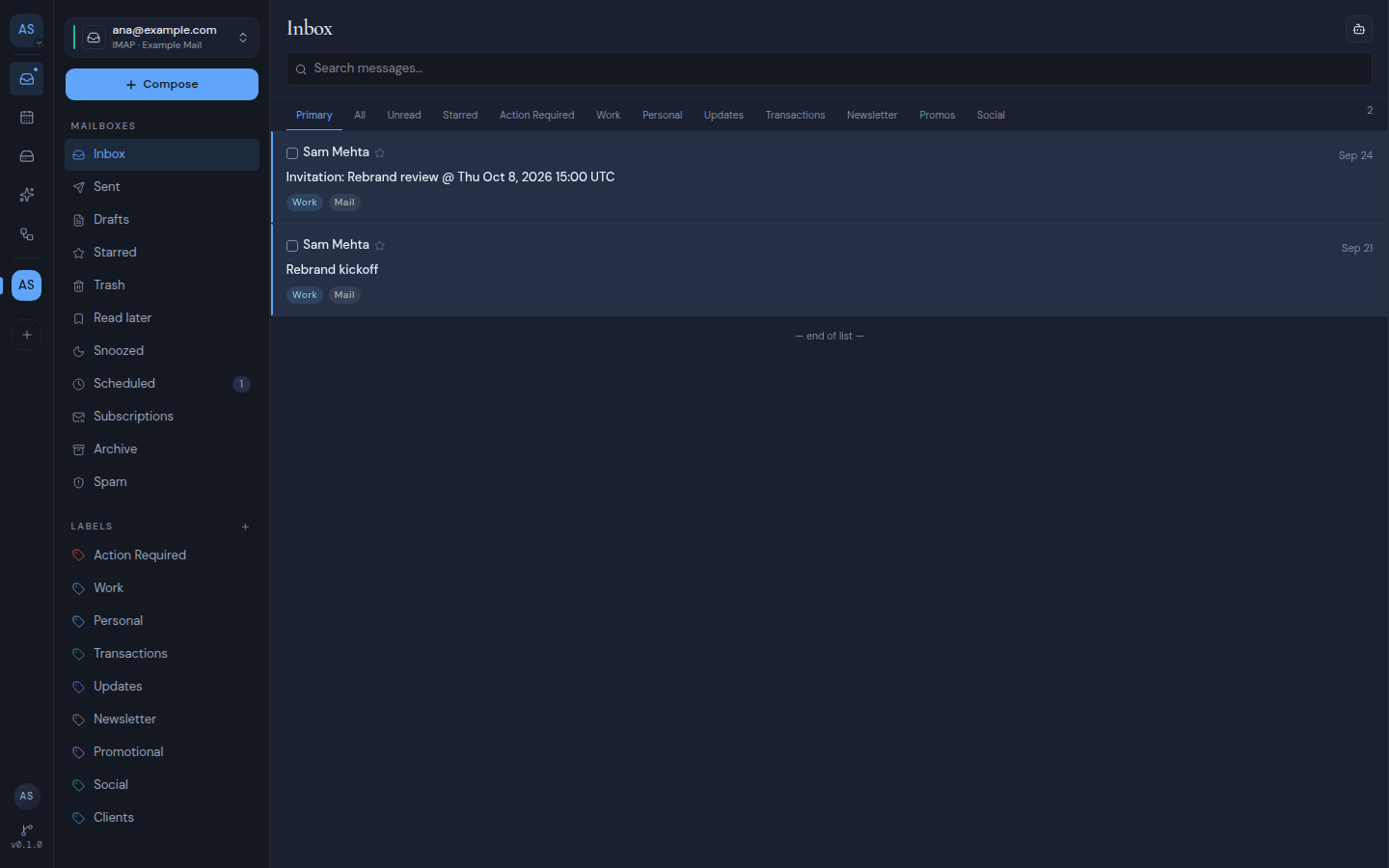
The left rail
Hover over any icon in the rail to see its name.
The workspace tile
The tile at the top shows the workspace you are in. A workspace holds a set of mailboxes, calendars and drives, and can be shared with other people. Click the tile to open its menu. The menu shows the workspace’s name and your role in it. It also has shortcuts to the workspace’s settings: General, Mailboxes, Calendars and Drives. All workspaces opens the list of every workspace you belong to.
To learn more, see Workspaces.
The main sections
Below the workspace tile are the parts of Metis Suite you use every day:
| Icon | What it opens |
|---|---|
| Inbox | Your mail. See Mail. |
| Calendar | Your calendars and events. See Calendar. |
| Drive | Your files. See Drive. |
| Workspace AI | The AI assistant for this workspace. You see it only when your instance has AI turned on. See AI assistant. |
| Workflows | Automations that run for you. See Workflows. |
The workspace switcher
Under the main sections is one tile for each workspace you belong to. Click a tile to switch to that workspace. The tile for the workspace you are in is highlighted.
The last tile, New workspace, creates a new workspace.
Your user menu
Near the bottom of the rail is a round button with your initials. Click it to open your user menu.
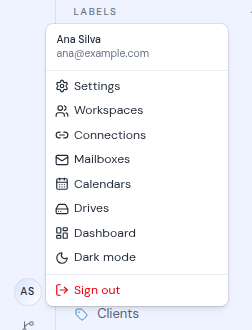
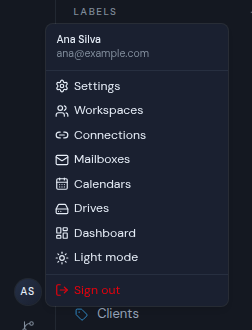
The top of the menu shows your name and email address. Below that:
| Item | What it does |
|---|---|
| Settings | Opens your account settings. |
| App settings | Opens the settings of the desktop or mobile app. You see it only inside those apps. See Desktop and mobile apps. |
| Workspaces | Lists every workspace you belong to. |
| Connections | Lists the accounts you have connected, such as Gmail or Outlook. |
| Mailboxes, Calendars, Drives | List every mailbox, calendar or drive you have connected. |
| Dashboard | Opens the instance dashboard. You see it only if you own the instance. |
| Dark mode or Light mode | Switches the color theme. |
| Sign out | Signs you out of this browser. |
The source code link
At the very bottom of the rail is a small branch icon with a version number. Hover over it to see “Source code” and the version. Click it to open, in a new tab, the source code of the exact version of Metis Suite you are using. Metis Suite is open source, and every page links to its code.
Light and dark mode
Metis Suite starts in dark mode. To change it, open your user menu and click Light mode. Click Dark mode to switch back.
Your choice is remembered in the browser you used. Another browser or device starts in dark mode until you choose there too.
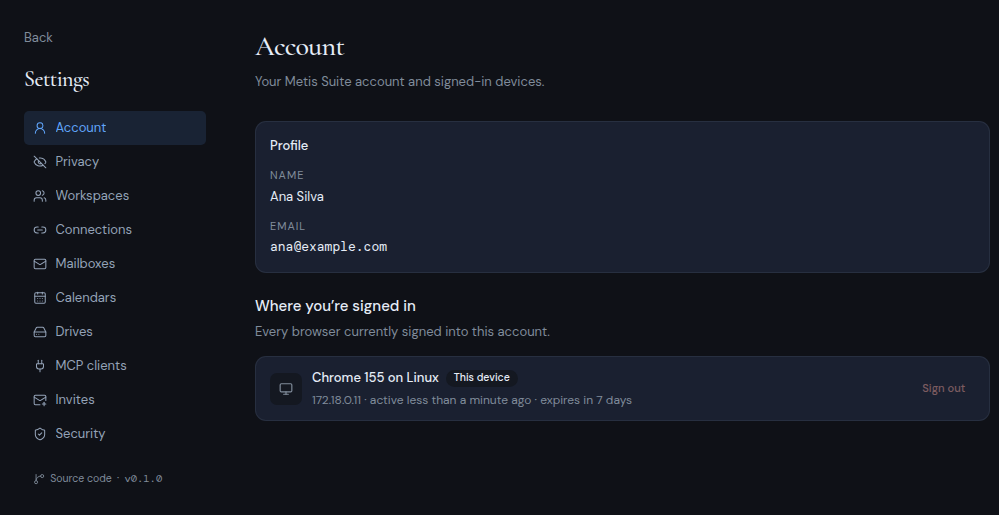
The screenshots in these docs use light mode, so your screen may look darker than the pictures.
The accent color of a workspace is a workspace setting. See Workspaces.
Settings
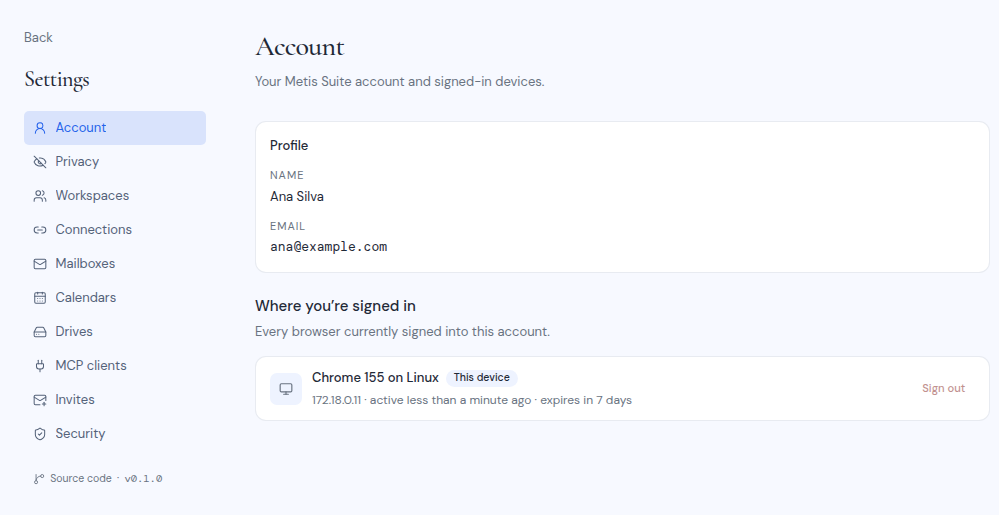
Open your user menu and click Settings. The settings page has a list of sections on the left. On a phone, the list becomes a row you can scroll sideways.
| Section | What it holds |
|---|---|
| Account | Your name, your email and the browsers you are signed in on. See Manage signed-in devices. |
| Privacy | How messages you open treat images and links. See Privacy settings. |
| Workspaces | Every workspace you belong to, and which one is your default. |
| Connections | The accounts you have connected. |
| Mailboxes, Calendars, Drives | Every mailbox, calendar and drive you have connected. |
| MCP clients | AI apps outside Metis Suite that you connect to your mailboxes, calendars and drives. You see it only when your instance has AI turned on. See AI assistant. |
| Invites | Invite people to create an account. See Invite people to Metis Suite. |
| Security | Two-factor authentication, your password and deleting your account. See Two-factor authentication. |
Back, at the top of the list, opens your default workspace. The source code link and version number are at the bottom of the list.
Next steps
Your workspace is still empty. Continue with Connect your first mailbox to bring in your email.