Use the Mail, Calendar and Drive AI panels
Open a quick AI helper beside your mailbox, calendar or drive, and attach emails, events or files for it to look at.
Mail, calendars and drives each have their own AI panel. A panel opens beside the page you are on and works only with what that page shows. It is the quickest way to ask about one email, one week of events or one folder.
Panel conversations are not saved. When you close the panel or leave the page, the next conversation starts fresh. For saved conversations across your whole workspace, use Workspace AI.
All three panels work the same way:
- Type in the box at the bottom and press Enter to send.
- Click a suggestion to send it as your question.
- Click the X (Close assistant) to close the panel.
- Sensitive actions ask for your approval first. See Approve or decline actions.
Mail AI
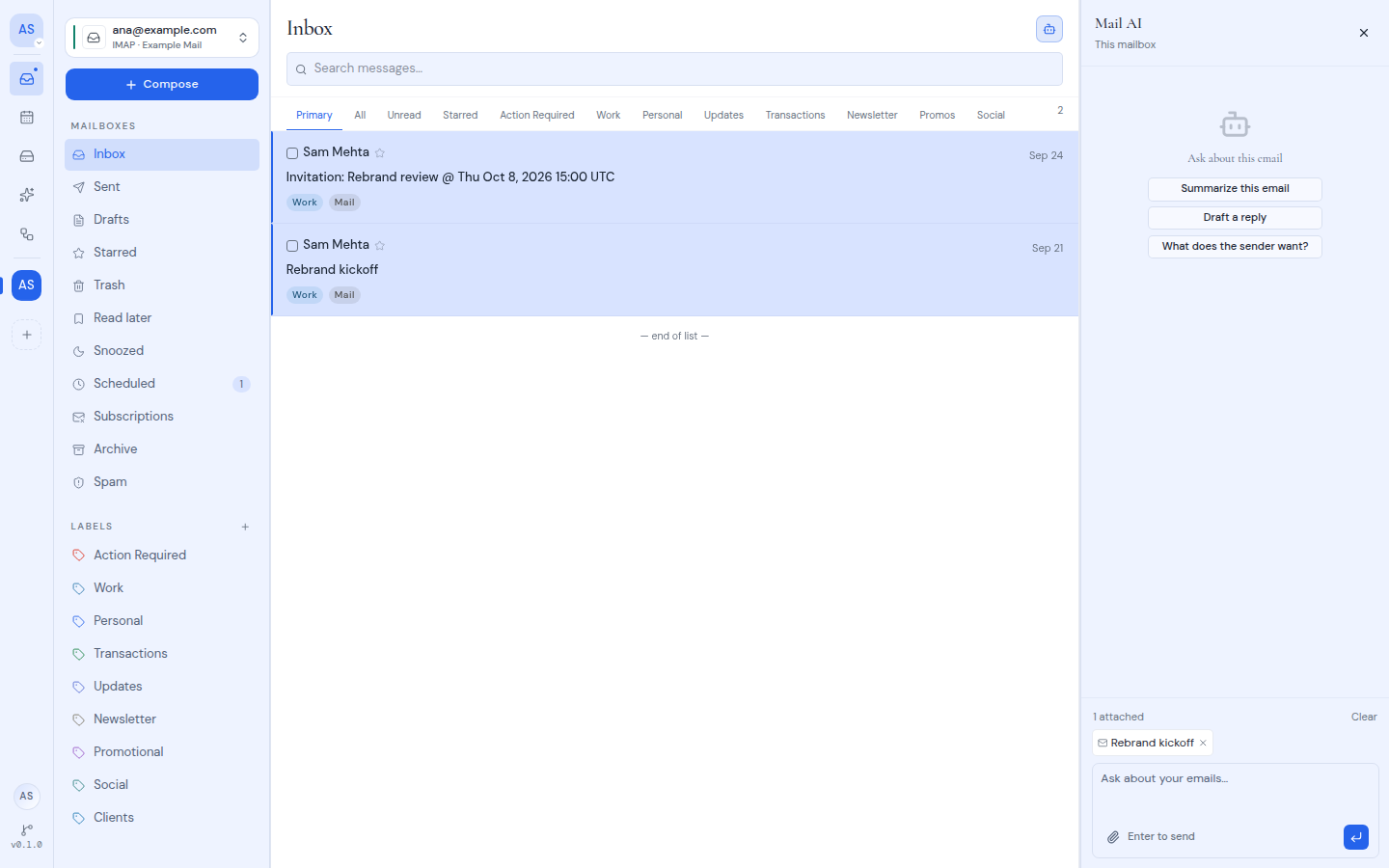
Mail AI works with the mailbox you have open.
- Open a mailbox folder, such as your inbox.
- Click the robot button next to the folder title (Toggle AI agent), or press m and then a.
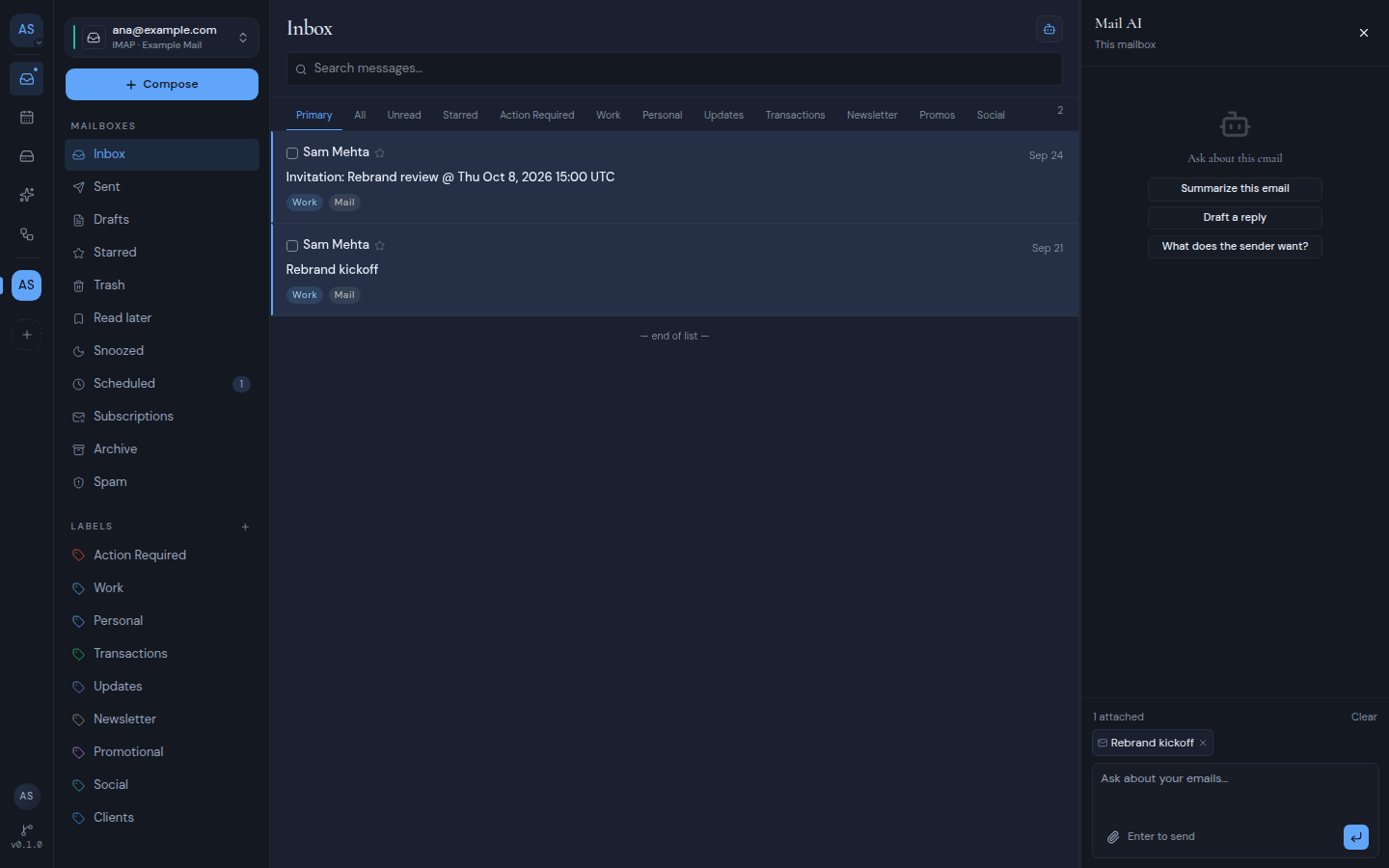
- The panel opens with the heading Mail AI, and “This mailbox” under it.
Once you have sent a message, click the eraser icon (Clear chat) to start over.
Attach emails
Attaching an email tells Mail AI which message you are asking about. There are three ways:
- Open an email. The email you have open is attached on its own, shown with a dashed outline. Click the pin icon (Keep attached while you browse) to keep it attached when you open another email.
- Drag emails from the list onto the panel. The panel shows “Drop to attach”.
- Pick from a list. Click the paperclip (Attach an email), then search and pick an email from the ones already loaded in the list.
Attached emails show as chips above the message box, with a count such as “2 attached”. Click the X on a chip to remove it, or Clear to remove them all. Attachments go with your next message only. After you send, the tray is empty again, but the chips stay visible in the conversation.
What to ask
With an email attached, the suggestions are:
- “Summarize this email”
- “Draft a reply”
- “What does the sender want?”
- “Is this email phishing?” (only when phishing detection is on)
Without an email attached, the suggestions are:
- “Summarize my inbox”
- “Find emails from this week”
- “Delete all promotional emails”
- “Star the latest email”
Mail AI can list and search emails, read them, star or unstar them, and set labels that already exist. It can move emails to the trash after you approve. When phishing detection is on, it can also check an email for phishing.
Calendar AI
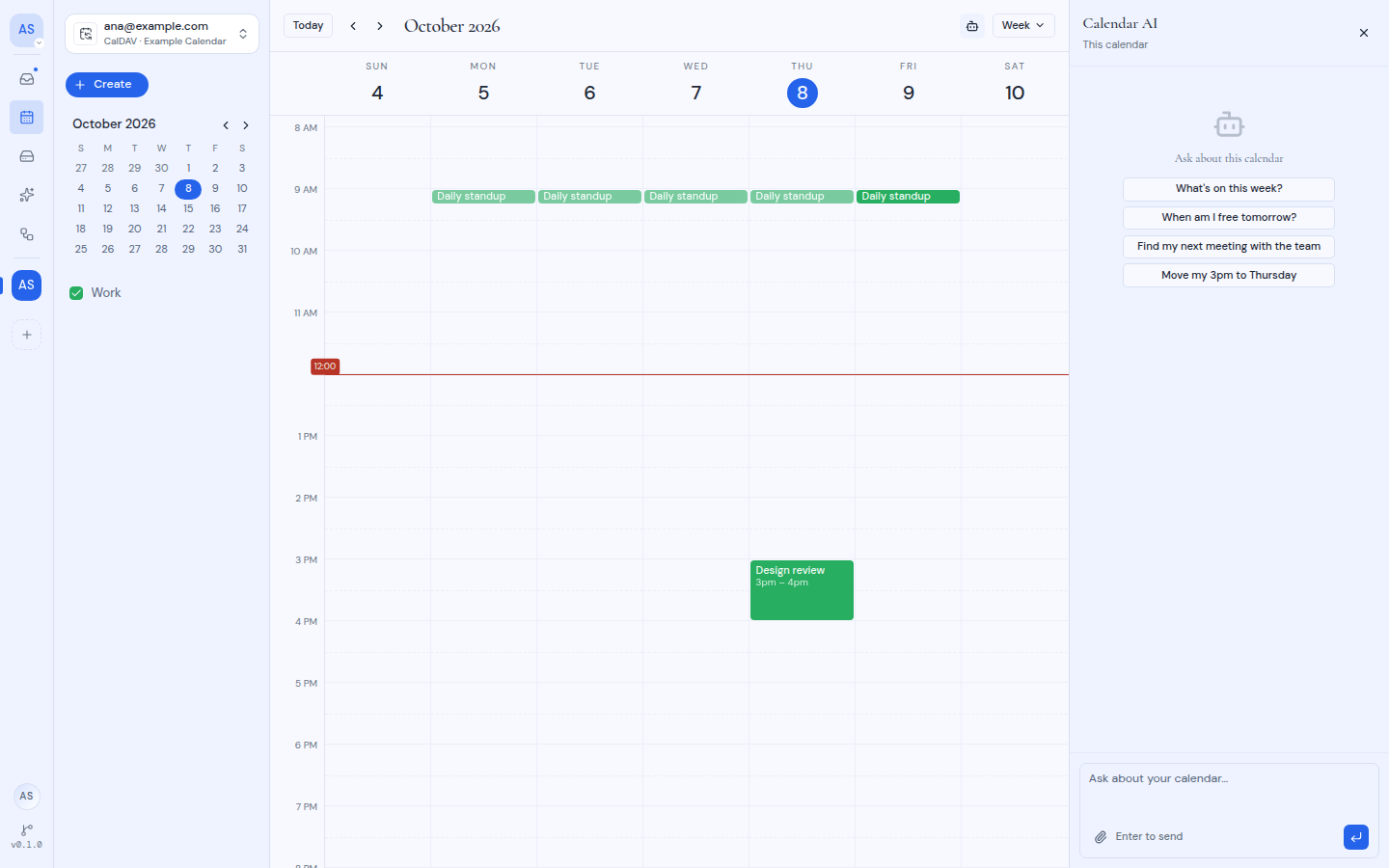
Calendar AI works with the calendar you have open, or with all your calendars on the all-calendars view.
- Open a calendar.
- Click the robot button in the calendar header (Calendar AI), or press c and then a.
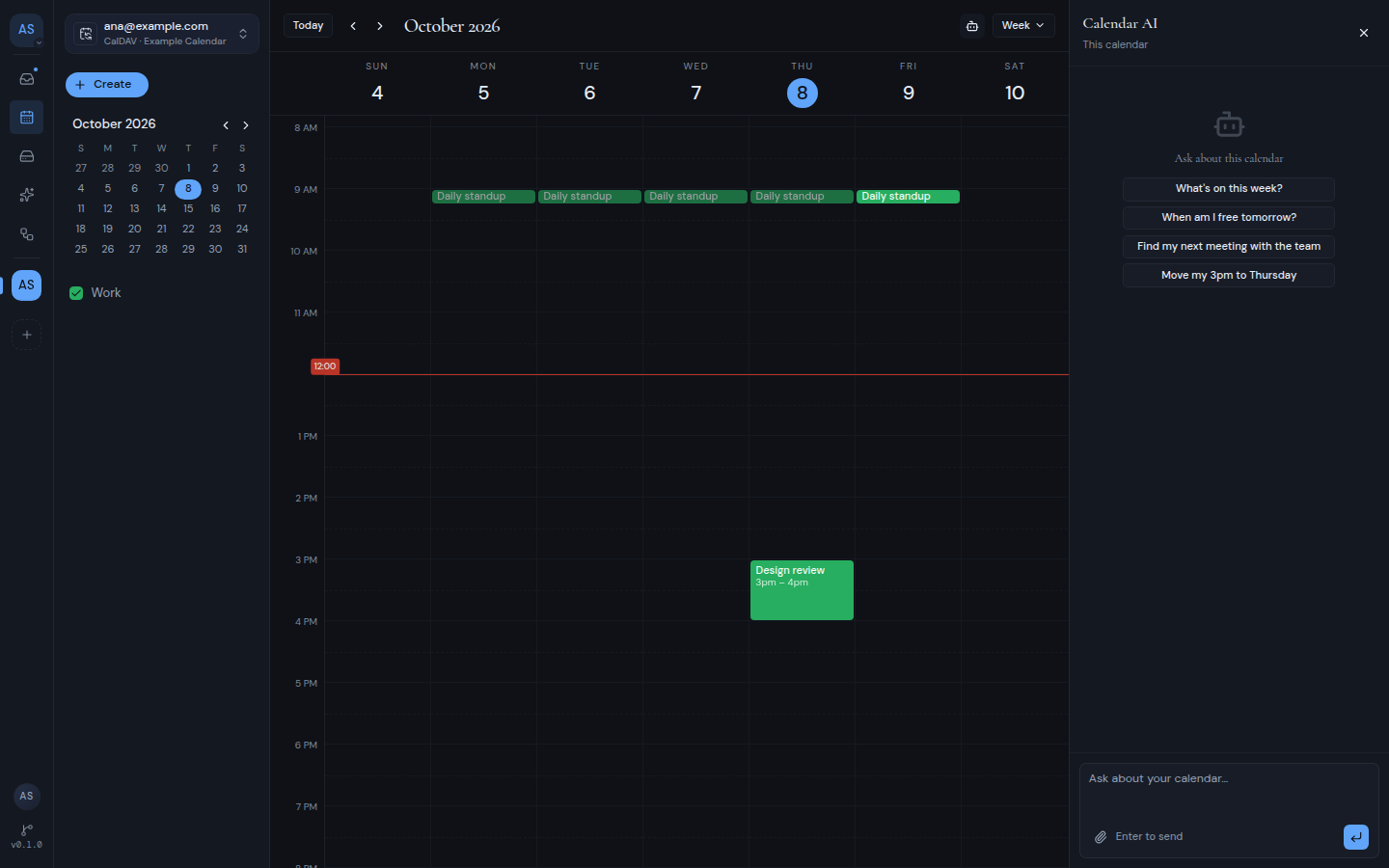
- The panel opens with the heading Calendar AI, and either “This calendar” or “All calendars” under it.
To attach an event:
- Select it. The event you have selected is attached on its own.
- Drag it from the calendar onto the panel.
- Pick from a list. Click the paperclip (Attach an event) and choose from the events in view.
The suggestions are:
- “What’s on this week?”
- “When am I free tomorrow?”
- “Find my next meeting with the team”
- “Move my 3pm to Thursday”
Calendar AI can list your calendars and events and read an event. After you approve, it can add, change or delete events and reply to invitations. The calendar refreshes after each reply, so you see any change straight away.
Drive AI
Drive AI works with the drive you have open, or with all your drives on the All drives view.
- Open a drive.
- Click the robot button in the toolbar (Drive AI), or press d and then a.
- The panel opens with the heading Drive AI, and either “This drive” or “All drives” under it. On a phone, it fills the screen.
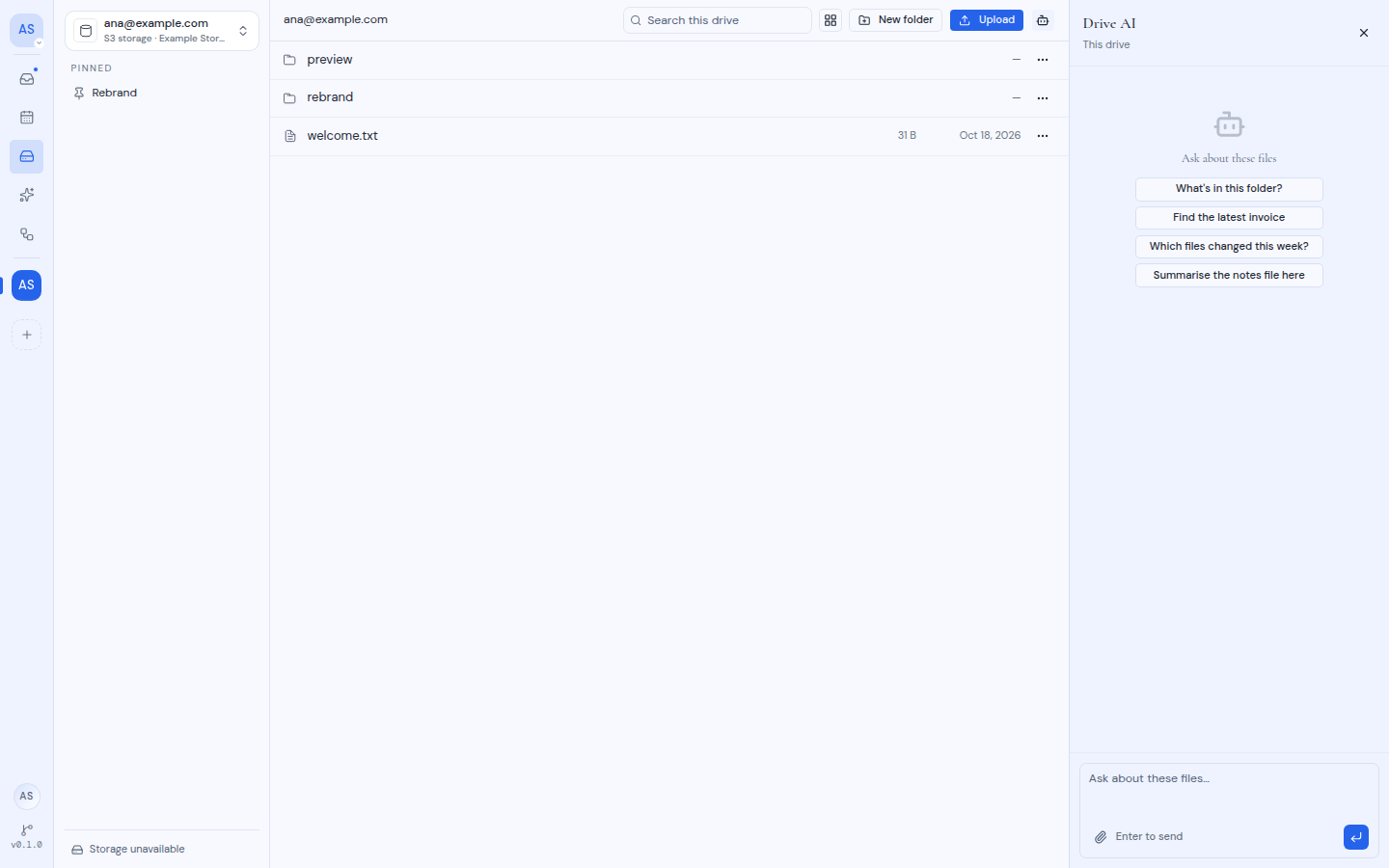
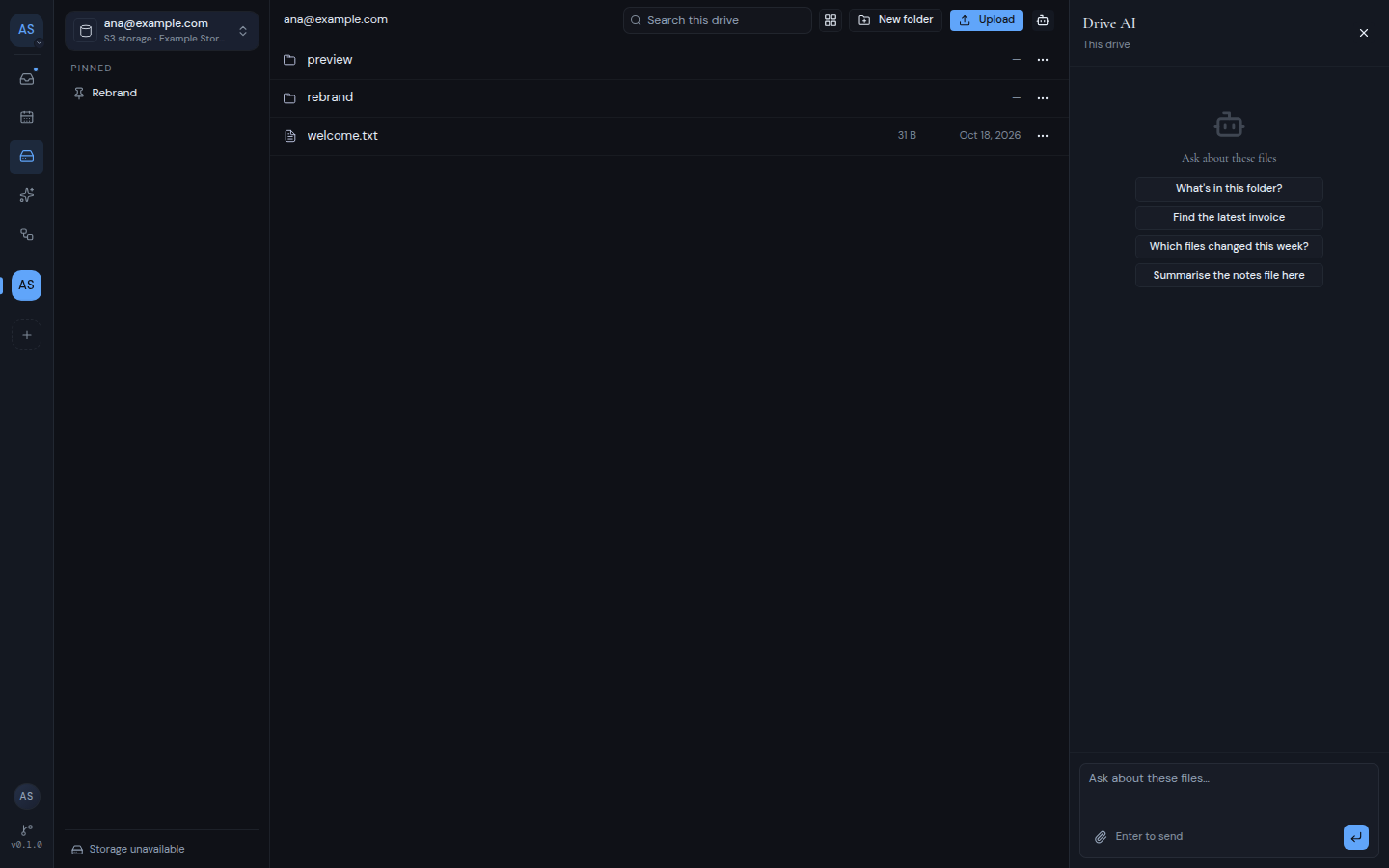
To attach a file, click the paperclip (Attach a file) and pick a file from the current folder. Drive AI does not attach files on its own, and you cannot drag files onto it. Click a file chip to open the file.
The suggestions are:
- “What’s in this folder?”
- “Find the latest invoice”
- “Which files changed this week?”
- “Summarise the notes file here”
Drive AI can list drives, browse folders, search for files, read file details and read plain text files. After you approve, it can create a folder, rename, move (within the same drive) and delete. The folder refreshes after each reply.
When a panel is turned off
If the panel shows Assistant turned off, AI is off for this workspace or for this mailbox, calendar or drive. The panel shows a button that takes you to the right settings. See How AI works in Metis Suite for who can turn it on.