Pinned and recent folders
Pin folders to the drive sidebar and reopen recent folders in one click.
The drive sidebar keeps two short lists of folders so you can get back to them quickly: Pinned and Recent.
Pin a folder
- Click the … button on a folder, or right-click it.
- Choose Pin to sidebar.
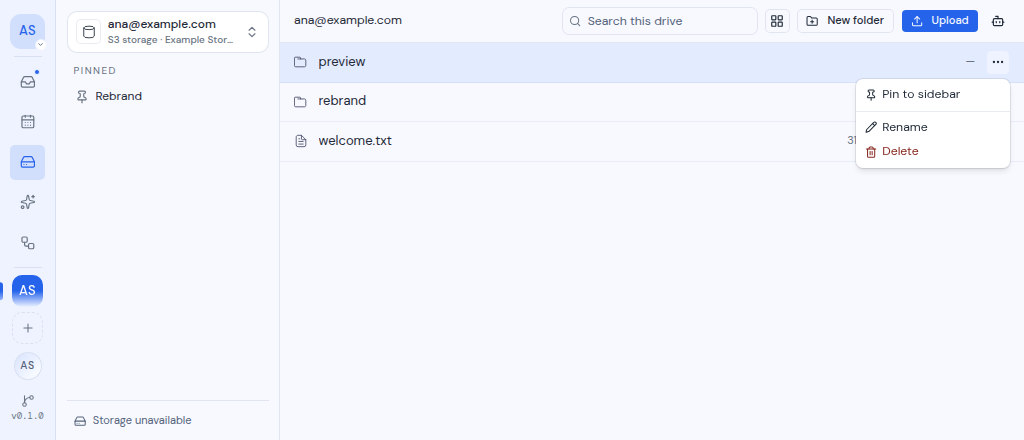
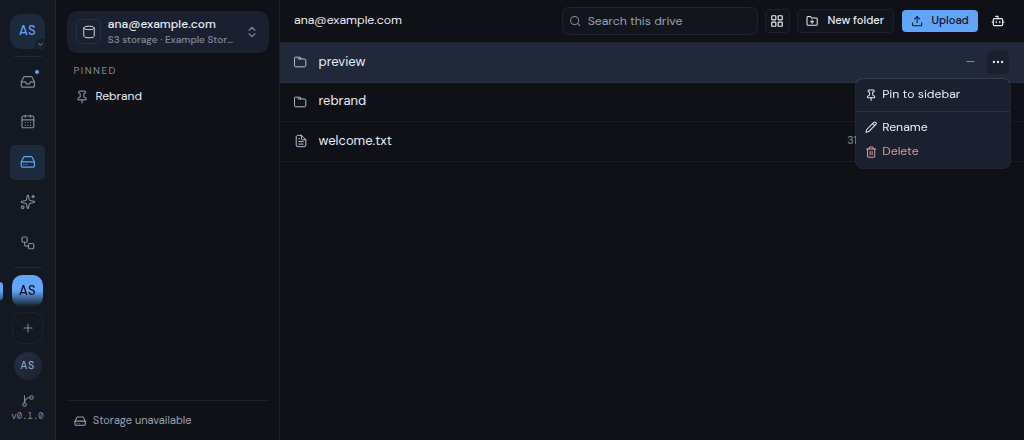
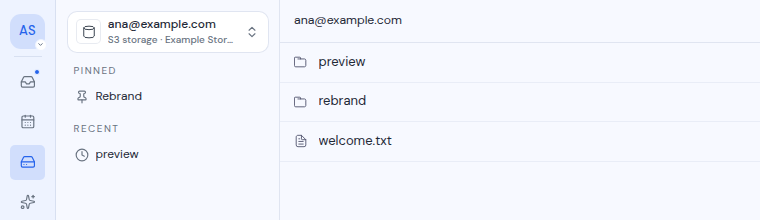
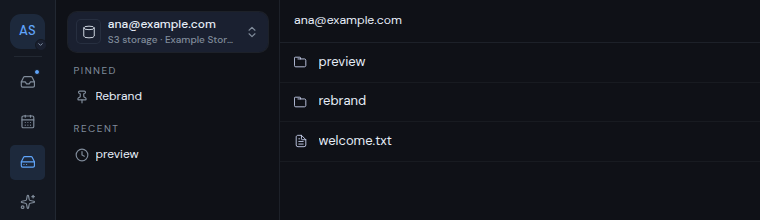
The folder appears under Pinned in the sidebar. Click it to open that folder.
If the pin cannot be saved, you see “Could not pin that folder”.
Your pins are personal. Other people in the workspace do not see them. A pin belongs to the drive, so it also shows when you open the same drive in another workspace.
Remove a pin
- Point at the pinned folder in the sidebar. An X button appears next to it. On a touch screen, the X is always shown.
- Click the X (Unpin followed by the folder name).
Removing a pin does not change the folder itself. If the pin cannot be removed, you see “Could not remove that pin”.
Recent folders
Recent lists the last 8 folders you opened from the file list in this drive, newest first. Click one to open it again.
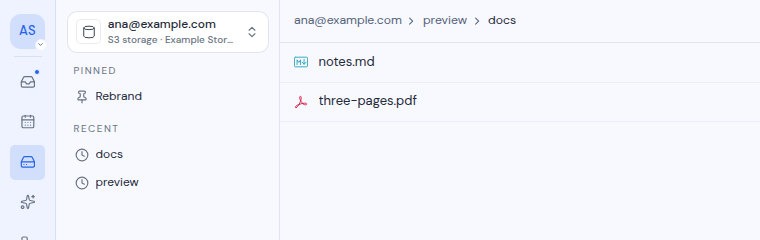
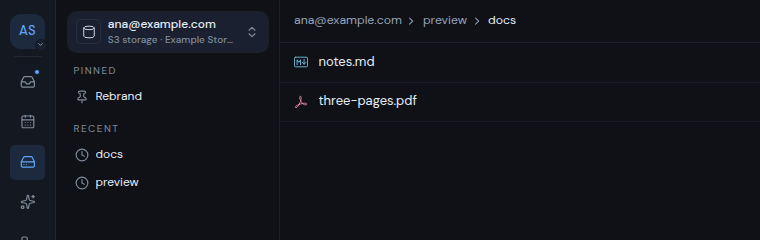
Recent folders are kept only in this browser. They do not follow you to another browser or device.