Browse your files
Open a drive, switch between drives, use list and grid views, move through folders, and select and open items.
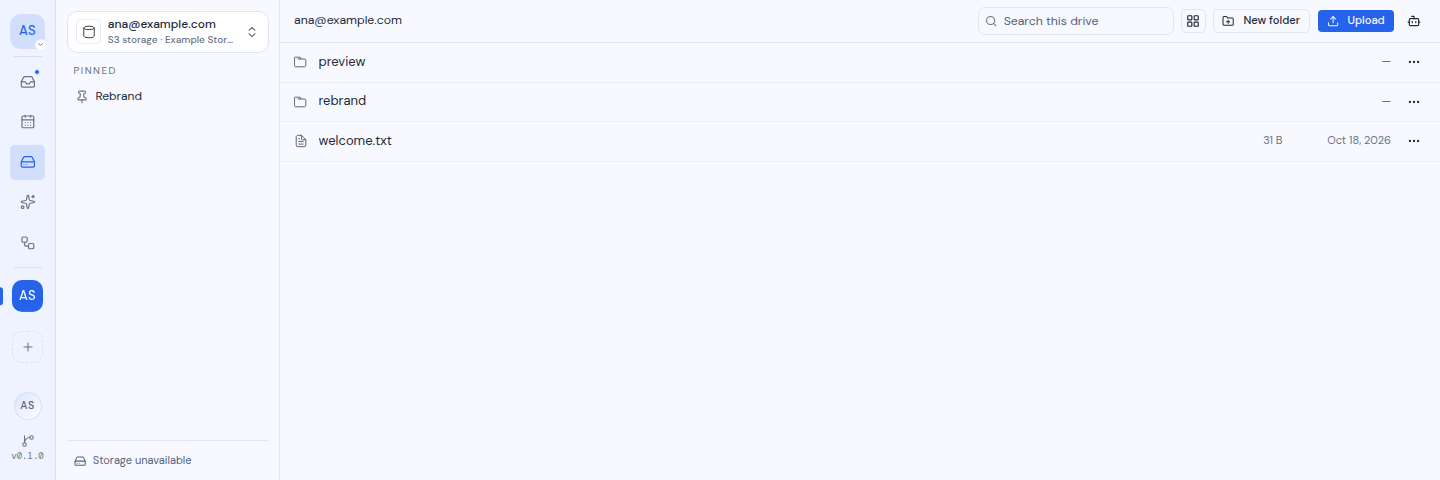
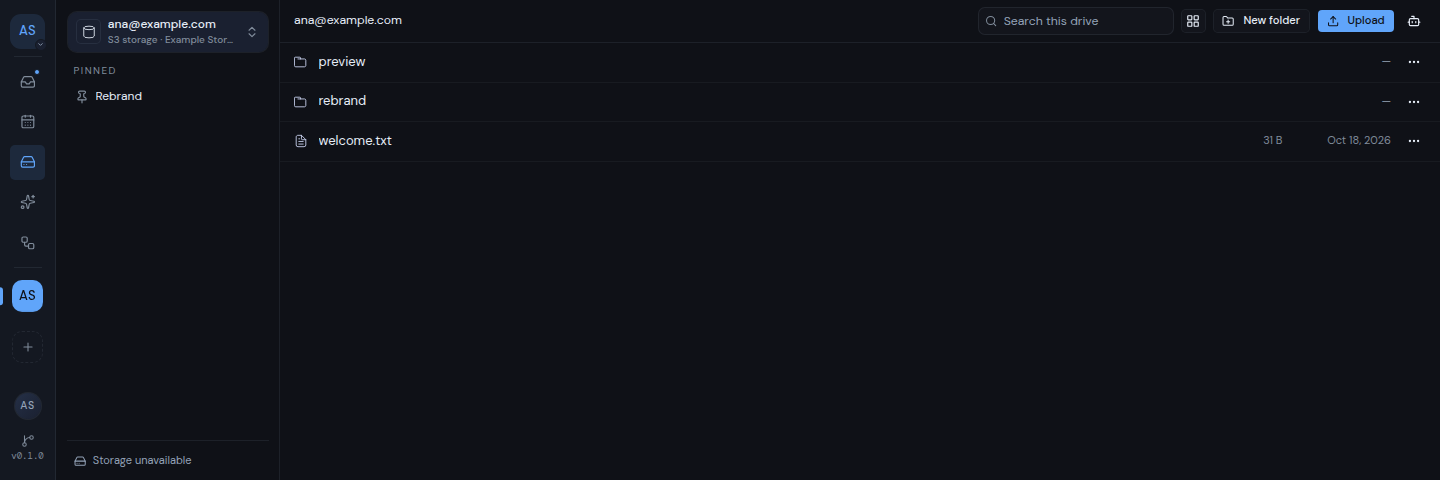
This page shows you how to find your way around a drive: the drive switcher, the two views, folders and breadcrumbs, and the sidebar.
Open a drive
Open the Drive section of your workspace. Metis opens the first drive in the workspace.
If the workspace has no drive yet, you see No drive in this workspace and a Go to drive settings button. See Add a drive to connect one.
Switch to another drive
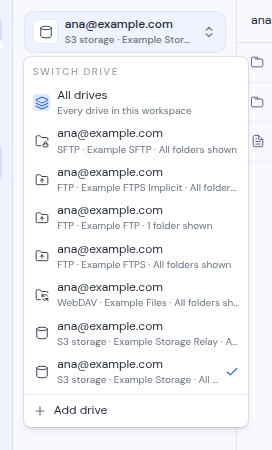
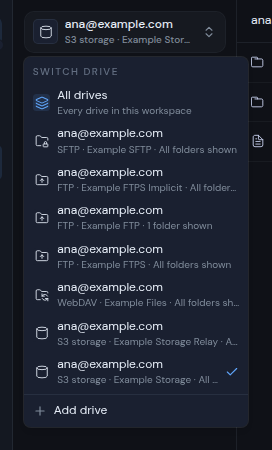
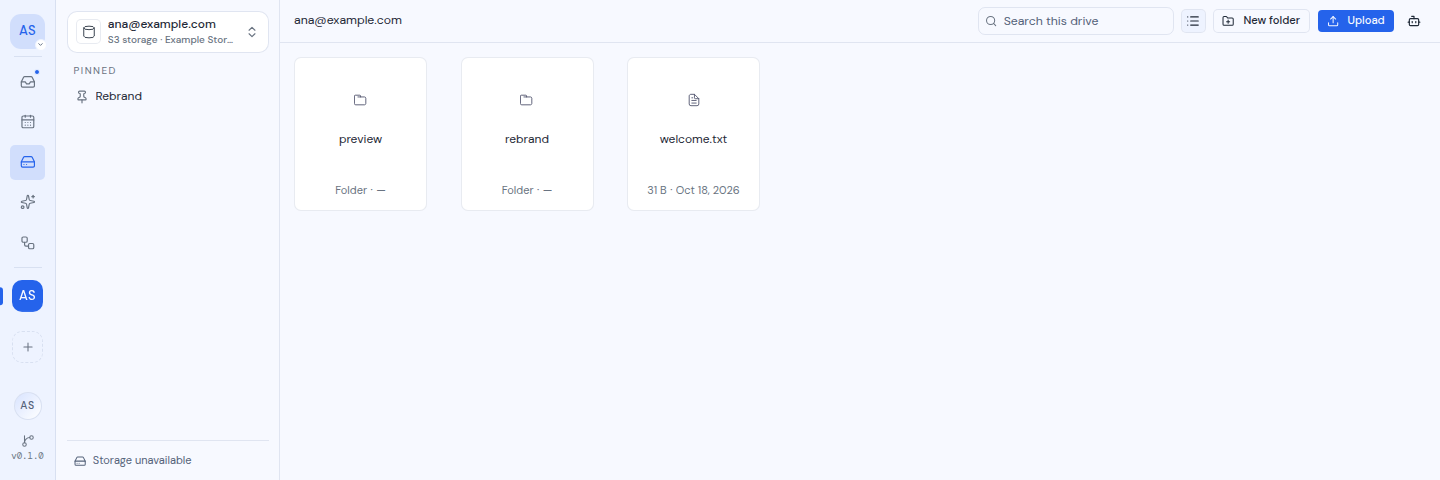
The switcher at the top of the sidebar shows the drive you are in: its type and the email address of its account. Click it to open the Switch drive menu. The menu holds:
- All drives, with “Every drive in this workspace”. It shows only when the workspace has more than one drive. See All drives.
- One row for each drive. The row says “All folders shown”, or how many folders this workspace can see when the drive has a folder restriction.
- Add drive, which opens the workspace’s drive settings.
Choose list or grid view
The toolbar has a button that switches between two views:
- List shows one row per item, with its name, size and the date it last changed. Folders show no size.
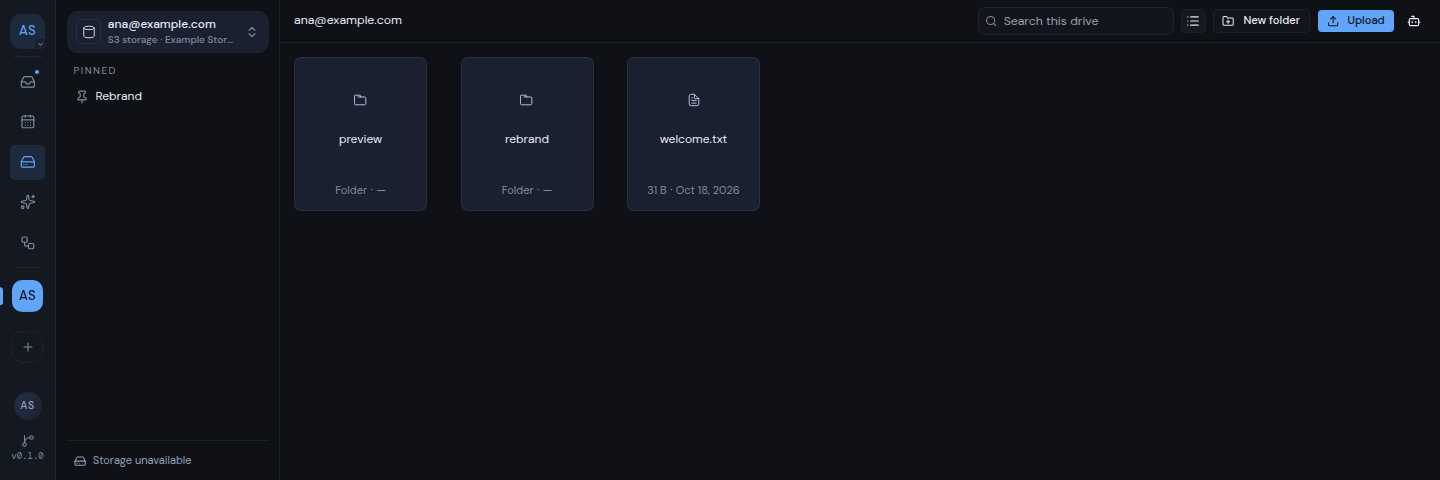
- Grid shows a card per item, with a large file icon, the name, the size (or “Folder”), and the date.
Click Switch to grid or Switch to list to change the view. Metis remembers your choice in this browser, for every drive.
Move through folders
- Open a folder: double-click it, or select it and press Enter.
- Go back up: use the breadcrumbs above the files. The first one is the email address of the drive’s account. Click any breadcrumb to jump back to that folder.
- Return later: each folder has its own web address. You can reload the page or bookmark it, and the same folder opens.
You can also go back and forward through the folders you visited with the keyboard. See Keyboard shortcuts.
Select and open items
- Select: click an item once.
- Open: double-click it, or press Enter when it is selected. A folder opens. A file opens in the preview pane.
- On a touch screen: one tap opens the item.
- Clear the selection: press Esc.
- See the actions: click the … button on an item, or right-click it. Both open the same menu, with actions such as Download, Rename and Delete.
Long folders
A folder with many items shows a first batch. Click Load more at the bottom to see the next batch. If the next batch cannot be loaded, you see “Could not load more files”. Try again in a moment.
If a folder has nothing in it, you see “This folder is empty”. If the drive cannot be read, Metis shows the reason and a Try again button.
The sidebar
Below the switcher, the sidebar can show three more things:
- Pinned: folders you pinned. See Pinned and recent folders.
- Recent: folders you opened lately in this drive.
- Storage: at the bottom, how much space the drive uses, such as “2.1 GB of 15 GB” with a bar, or “2.1 GB used”. Some drive types do not report this, and the line says “Storage unavailable”. See Drive types.
On a phone, the sidebar is hidden. Tap Open sidebar to show it.