Run a workflow and check its history
Start a workflow yourself with Run now, then see what every run did on the Workflow activity page.
Most workflows run on their own, when mail arrives or on a schedule. You can also start one yourself, and you can always look back at what each run did.
Run a workflow now
- Click Workflows in the left rail, then click the workflow in the list.
- Click Run now at the top right of the canvas.
The top right shows Queued run followed by the first characters of the run’s ID. The run starts in the background shortly after. Open Activity to follow it.
Keep in mind:
- Turn the workflow on first. A run of a disabled workflow is cancelled before it does anything.
- Run now runs the saved version. If you changed something on the canvas, click Save first.
- The workflow needs a When run manually or On a schedule trigger. Otherwise you see “Add a manual or scheduled trigger before running this workflow”. A workflow that only reacts to new mail cannot be started by hand.
- A run acts for real. It archives, labels or moves mail just as an automatic run would.
See every run
Click Activity at the bottom of the workflow list. The Workflow activity page lists the last 100 runs in the workspace that you can see, newest first, and refreshes on its own. To see the runs of one workflow, choose it in the list at the top right, which shows All workflows to start with.
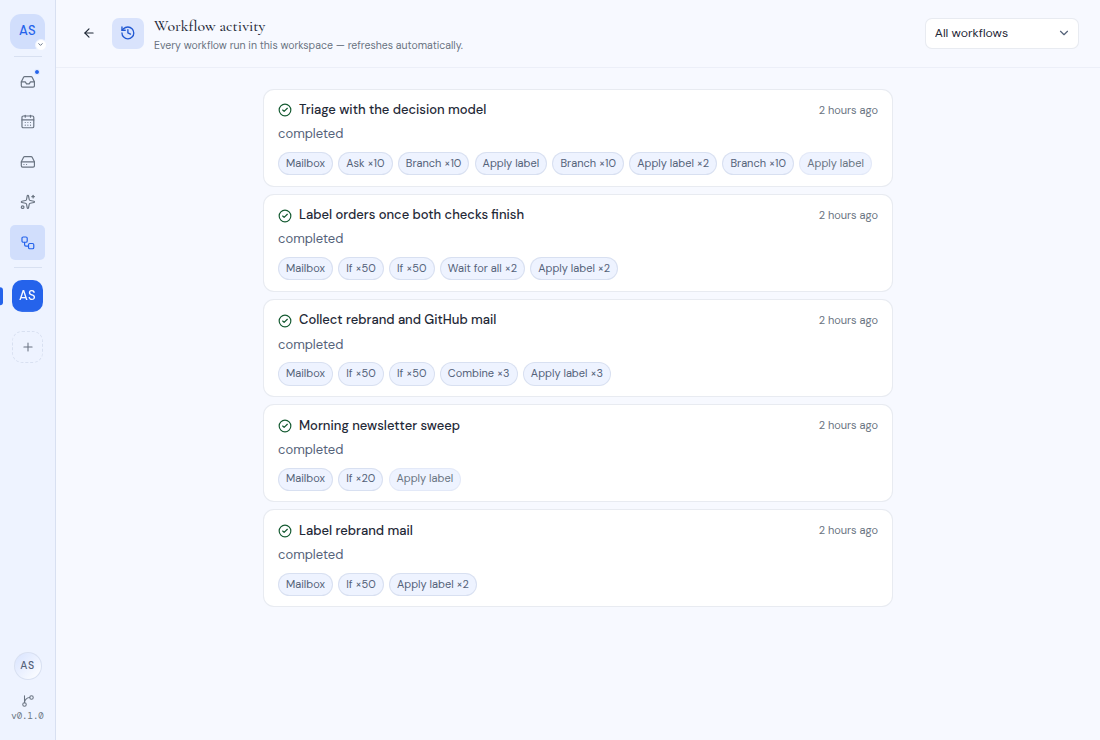
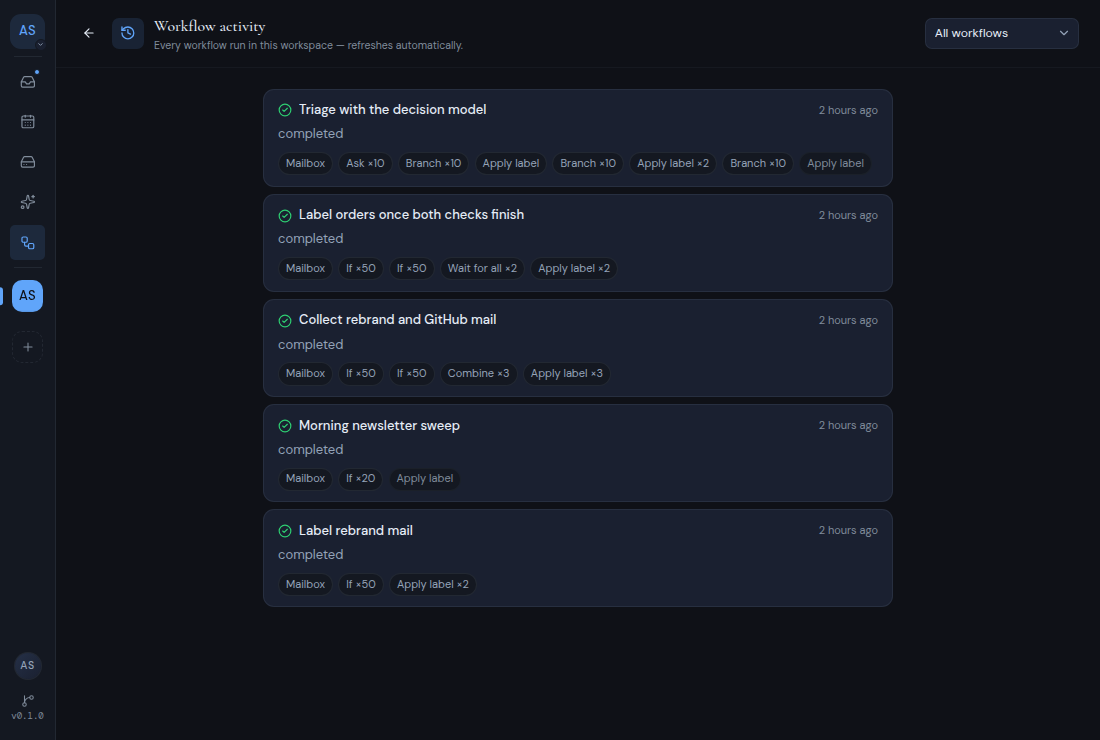
Each run shows:
- An icon for its outcome, the workflow name, and how long ago it ran.
- Its status, plus “attempt” and a number when it was tried more than once.
- The error, if there was one.
- One small tag for each step that ran. “×3” after a step name means it ran for three messages. A question mark means the step needs review. A cross means the step failed.
If nothing has run yet, the page says “No runs recorded yet. Runs appear here once a trigger fires.”
Run statuses
| Status | Meaning |
|---|---|
| pending | Waiting to start. |
| running | Running now. |
| completed | Every step that was reached finished. |
| partial | Some steps finished, and others failed, were blocked or need review. |
| failed | The run failed. |
| blocked | A step could not run until something is fixed, for example AI is turned off for a mailbox. |
| cancelled | Someone cancelled the run. |
| stopping | The run was cancelled while it was running, and it stops before its next step. |
To retry a failed, partial or blocked run, see Cancel and retry runs.
Read one run
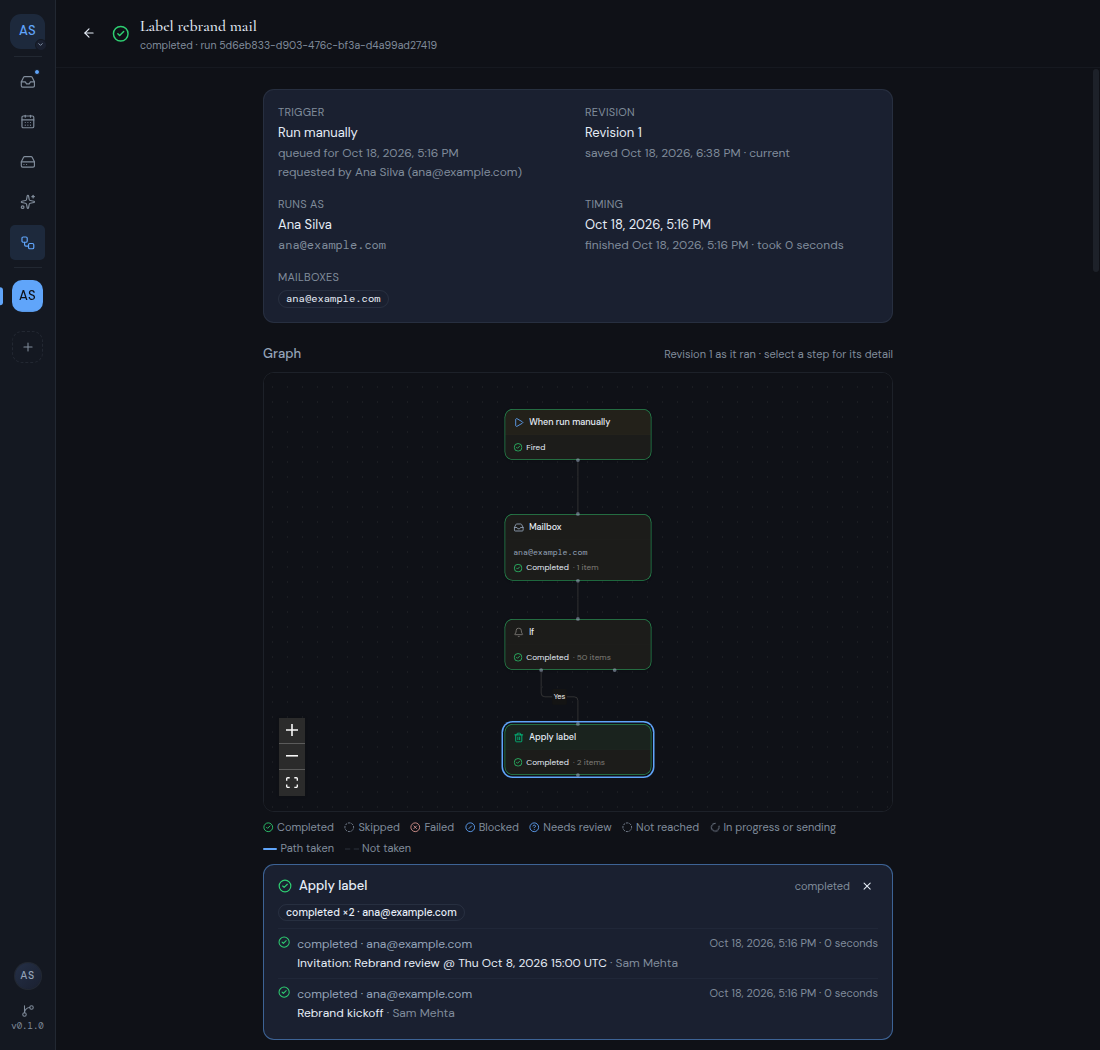
Click a run to open its details. The header shows the workflow name, the status and the run’s ID. The back arrow returns to Workflow activity.
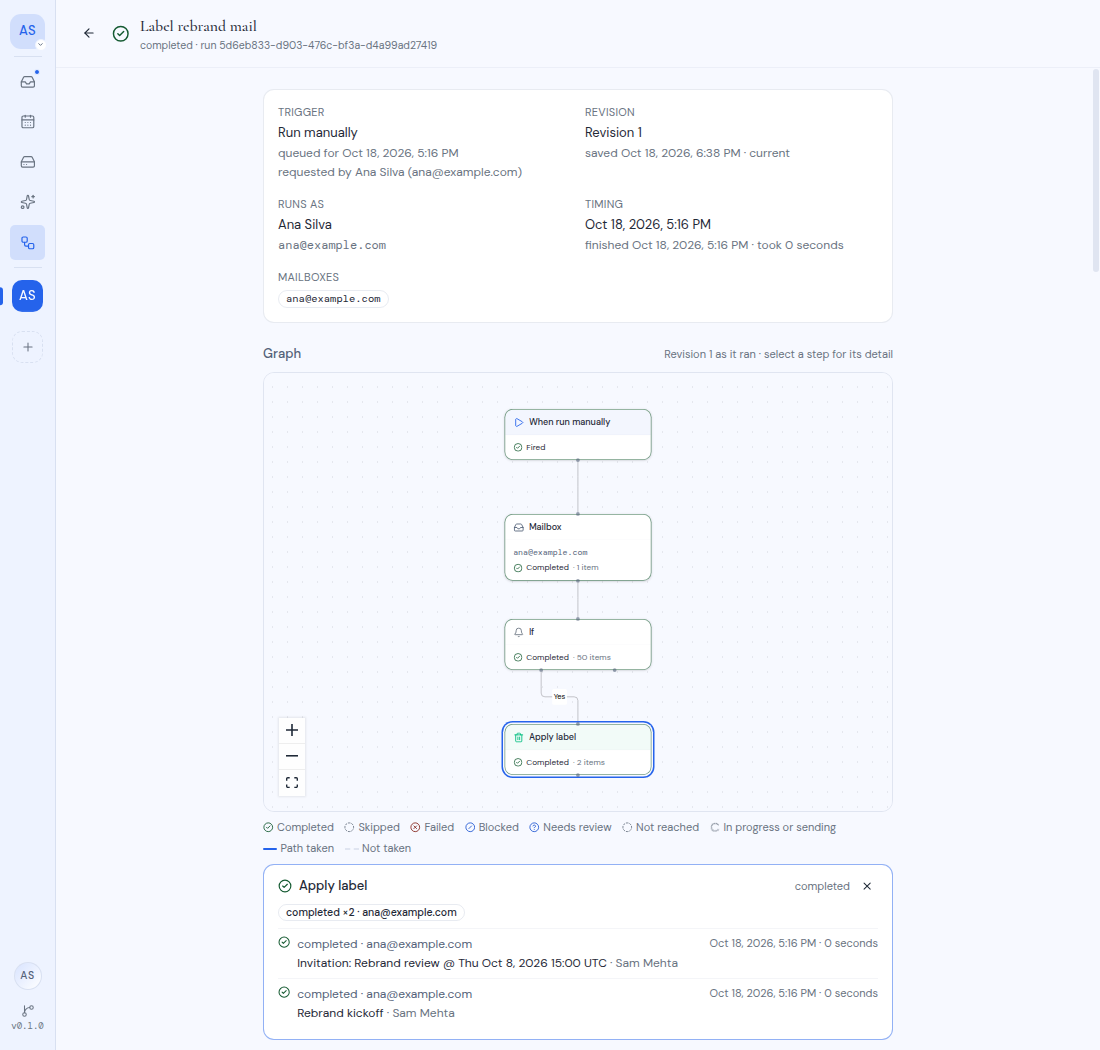
The facts
| Fact | What it shows |
|---|---|
| Trigger | What started the run: “New mail arrived”, “Schedule fired” or “Run manually”. Below that: the time the run was for, the number of messages, how many missed scheduled times were combined, and who pressed Run now, when these apply. |
| Revision | The saved version that ran, and when it was saved. “current” means you have not changed the workflow since. Otherwise it says the workflow was edited or deleted since. |
| Runs as | The person the workflow runs as. “A former member” means that person has left the workspace. |
| Timing | When the run started, when it finished and how long it took. A run that has not started shows when it is due. |
| Mailboxes | The mailboxes the run used. A mailbox you cannot see shows “Unavailable mailbox”. |
| Error | The reason the run failed, if it did. |
The graph
The Graph shows the workflow exactly as it was when it ran. Each step is coloured by what happened to it. The legend below the graph explains the colours: Completed, Skipped, Failed, Blocked, Needs review, Not reached, and In progress or sending. A solid line is a Path taken, and a dashed line is Not taken.
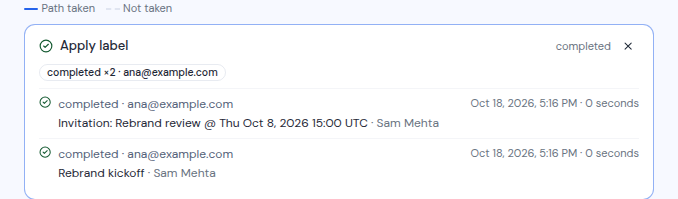
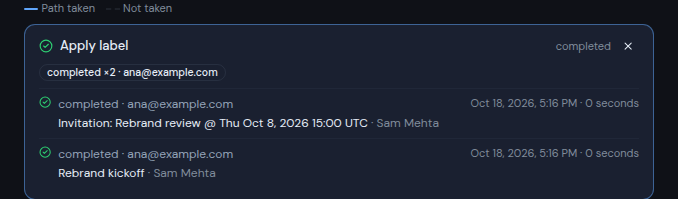
Click a step to open its details in a Selected step card below the graph. Click Close step detail to close it. On a touch screen, tap Move the graph to pan and zoom, and Stop moving the graph when you are done.
The steps
Under Steps, every step has a card with its status, for example “fired” for the trigger, “completed”, “not reached” or “needs review”. Below it is one row for each message the step handled. A row shows:
- The status, the mailbox, and the number of attempts when there was more than one.
- The subject and sender of the message.
- For If and Branch steps, the path the message took. Branch rows also show how sure the AI model was.
- Any error, and when the step ran and how long it took.
A Wait for all step shows a row named “Barrier” with the state of each input.
Details from mailboxes you cannot see are left out, and addresses you cannot see read “[hidden address]”. If a run does not exist or you cannot see it, the page says “This run does not exist or is not visible to you.”
While a run is still going, the page updates on its own.
Automatic retries
When a run fails for a reason that may pass, such as a mail server that does not answer, Metis Suite tries it again on its own a few times, with a growing wait between tries. Each new try shows as “attempt” and a number, for example “attempt 2”. If it still does not succeed, the run ends as failed, partial or blocked, and you can retry it yourself.