Read your mail
Find your way around mail, switch mailboxes, open conversations and save attachments to a drive.
Mail is where you read and answer email from every mailbox in your workspace. This page shows you how the screen is laid out, how to move between folders and mailboxes, and how to open messages and their attachments.
When you open mail in a workspace, Metis Suite starts in the Inbox of the first mailbox. If your workspace has no mailbox yet, you see a card that helps you attach one instead. See Workspaces to add a mailbox.
The mail screen
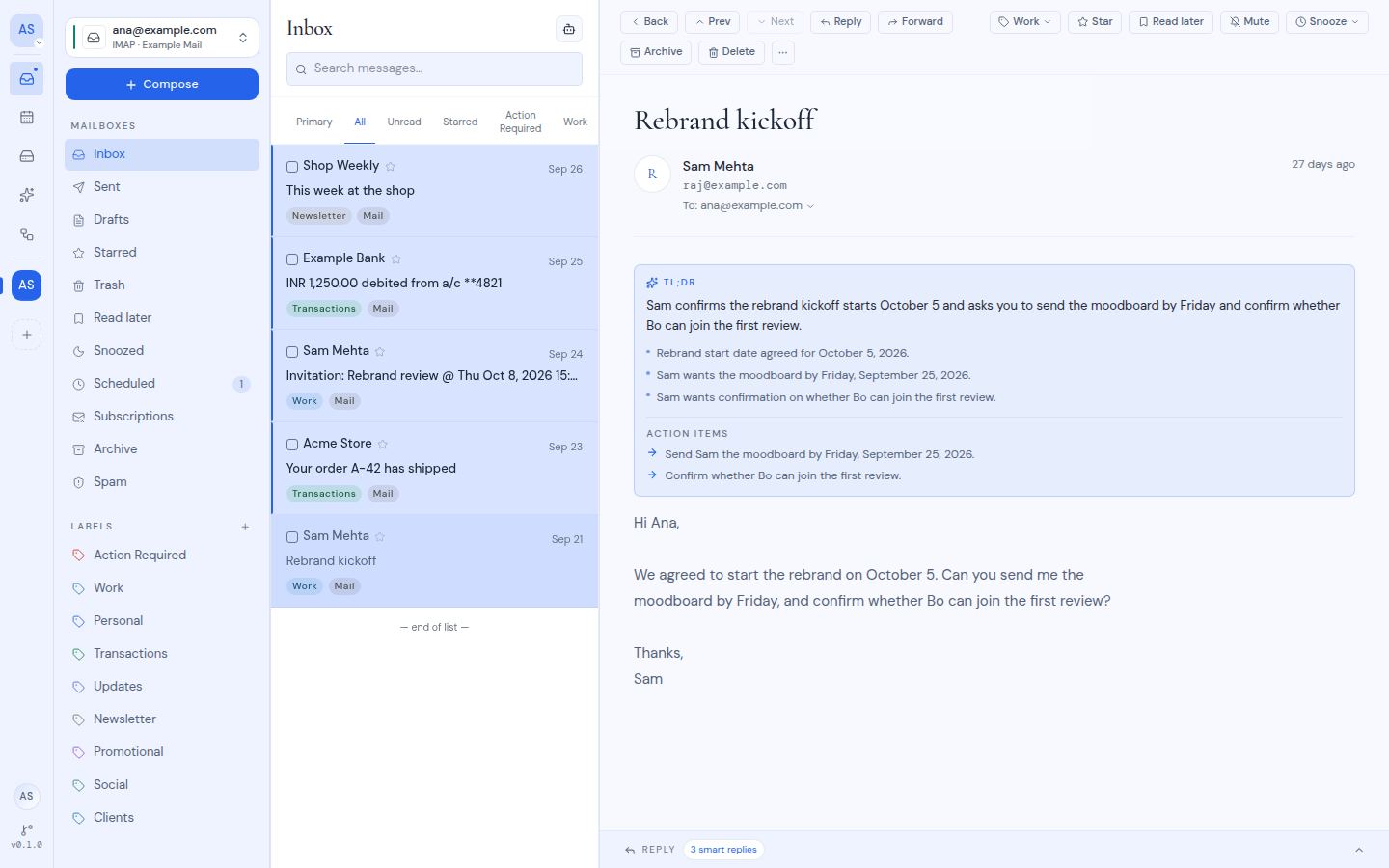
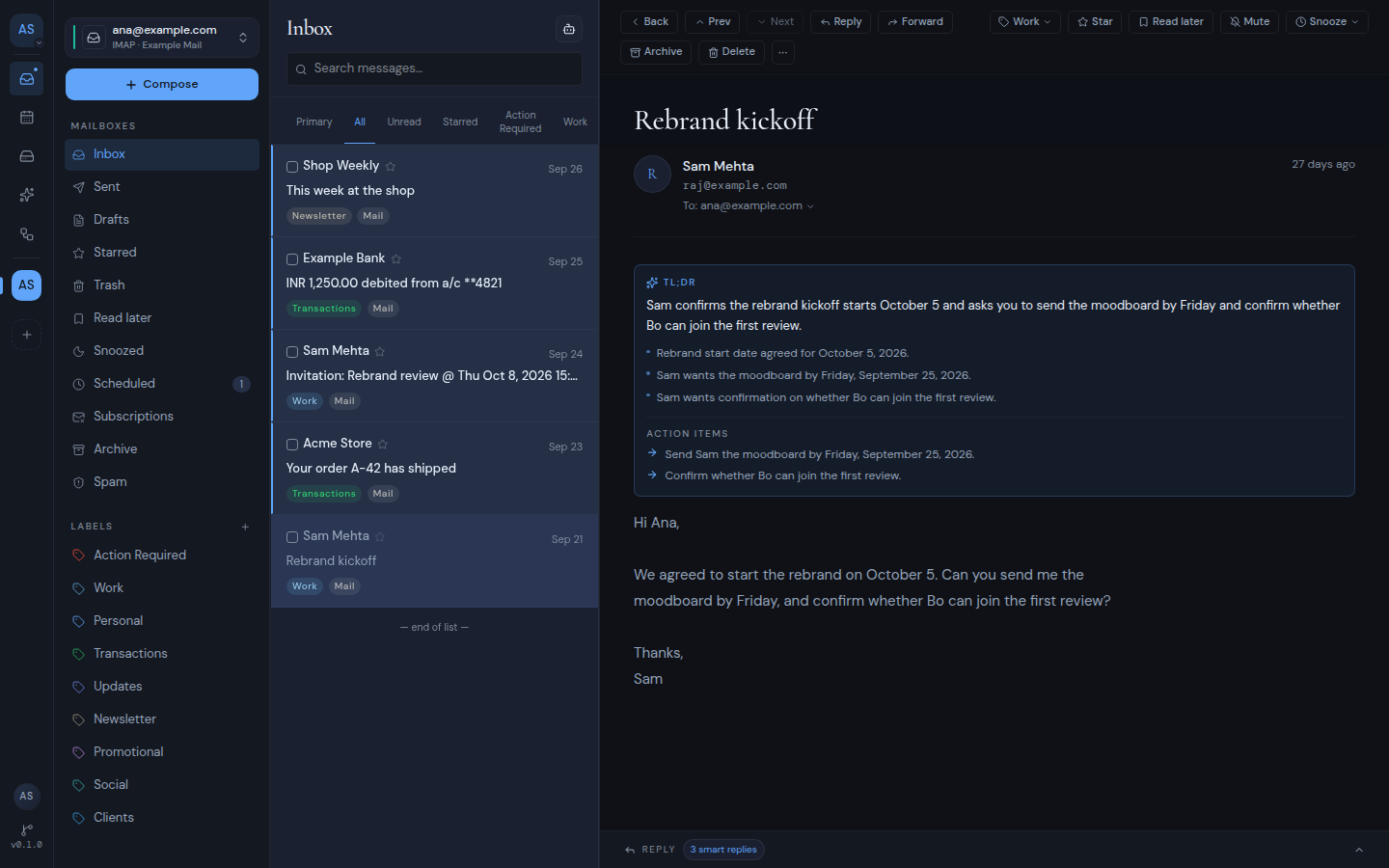
Mail has three columns:
- Folders on the left.
- The message list in the middle.
- The reading pane on the right, which shows the message you open.
When no message is open, the list fills the space. You can drag the edge of each column to make it wider or narrower, and Metis Suite remembers the widths. The Mail AI panel can open as a fourth column on the right (see AI help in mail).
On a phone, the screen works one column at a time:
- Tap Open sidebar to see your folders.
- Opening a message replaces the list. Tap Back to return to it.
- The composer fills the whole screen.
Folders
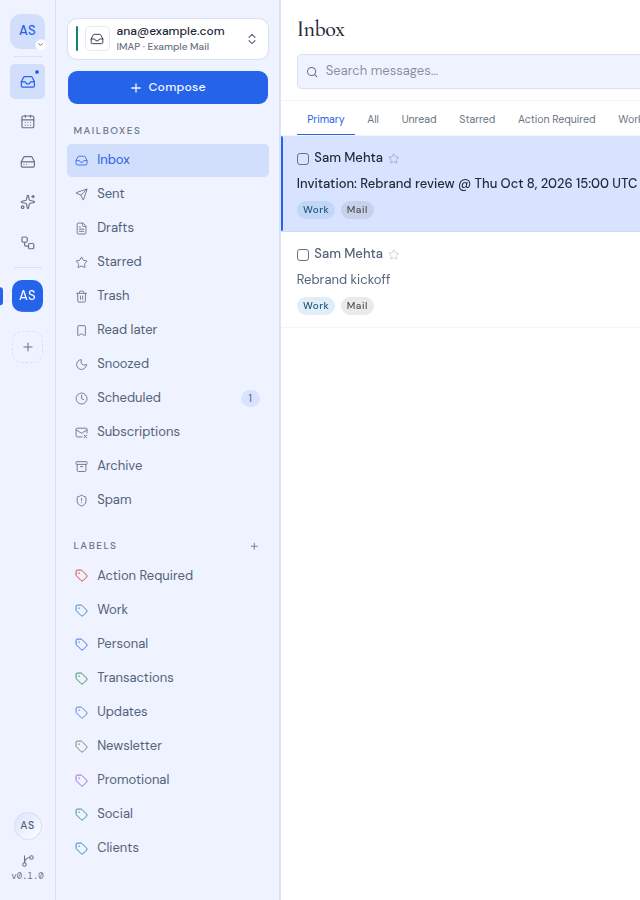
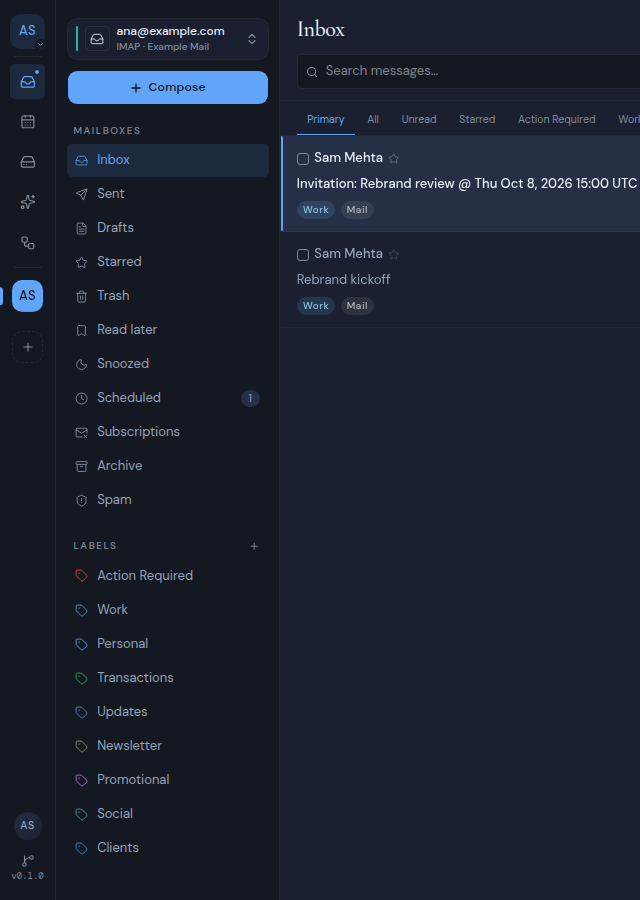
The sidebar lists, from top to bottom:
- The mailbox switcher.
- The Compose button.
- The Mailboxes section: Inbox, Sent, Drafts, Starred, Trash, Read later, Snoozed, Scheduled, Subscriptions, Archive and Spam.
- The Labels section: the eight built-in labels, then any custom labels.
Scheduled shows a badge with the number of messages waiting to be sent.
Some folders have their own pages:
- Read later and Snoozed: see Snooze and read later.
- Scheduled: see Schedule a send.
- Subscriptions: see Unsubscribe from mailing lists.
- Clicking a label filters your Inbox to that label: see Find and filter mail.
Switch mailbox
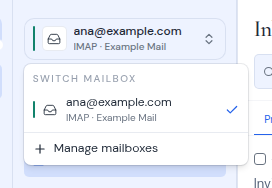
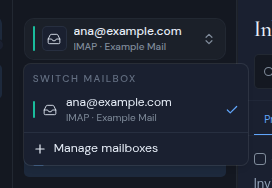
The button at the top of the sidebar shows the mailbox you are in. Click it to open the Switch mailbox menu. Each mailbox shows its color mark, provider and address, with a check next to the active one.
- Pick a mailbox to switch to it. You stay in the same folder.
- Manage mailboxes opens your workspace settings, where you add and remove mailboxes.
All inboxes
When your workspace has more than one mailbox, the first item in the menu is All inboxes (“Every mailbox in this workspace”). It merges every mailbox into one view.
- Every folder, action and shortcut works in All inboxes.
- Each message row shows a chip naming its mailbox, so you can tell them apart.
- If one mailbox fails to load, the others still show, and a banner names the mailbox that could not load.
The message list
The heading shows the folder name. Under it are the search box, a row of tabs and the list of messages.
Each row shows:
- a checkbox to select the message
- the sender
- a star
- a count when the conversation has more than one message
- the date
- the subject and the first words of the message
- chips for the mailbox (in All inboxes only), the label, and the provider (Gmail, Outlook, Zoho or Mail)
Unread messages are tinted and have a colored bar on the left. Messages in the same conversation are grouped into one row that shows the latest message.
The list loads more messages as you scroll down, and shows “end of list” when there are no more. It also checks for new mail on its own about once a minute, and again when you come back to the browser tab. You never need to reload the page.
If a folder has nothing in it, you see No emails and a note such as “Your inbox is empty” on the All tab, or “Nothing in this filter” on any other tab.
Open a message
Click a row, or move to it with the keyboard and press Enter or Space. Opening a message marks it as read.
The reading pane shows:
- the subject, which stays at the top while you scroll
- the sender’s name and address
- a recipients line, such as To: with the first two names. Click it to see the full To and Cc lists.
- the date
- the message itself
A long message is cut short with Show full message. Click it to read the rest, and Show less to fold it again.
Use Prev and Next in the toolbar to move through the list without going back to it. Back closes the message.
When nothing is open, the pane says Select a message to read.
Read a conversation
When a conversation has more than one message, the earlier messages appear as small cards above the open one. Each card shows the sender, the date and the first words. Click a card to expand it and read that message with its own attachments.
Download an attachment
Attachments are listed below the message under a heading such as 2 attachments. Each file shows its name and size. Click a file to download it.
Save an attachment to a drive
You can copy an attachment straight into one of your workspace’s drives without downloading it first. You need at least one drive attached to the workspace.
Click the drive icon on the attachment
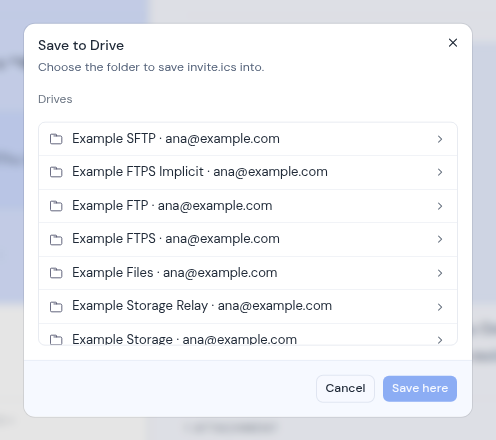
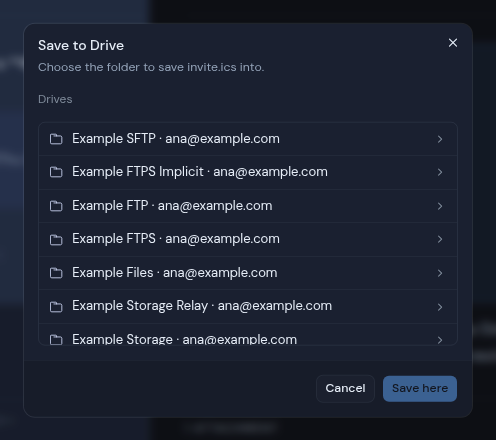
The icon’s tooltip says Save to Drive. A dialog opens: “Choose the folder to save (file name) into.”
Pick a drive and a folder
Start from Drives. Each drive is named after its server or provider and its account email. Click your way into the folder you want.
Click Save here
Save here works once you are inside a folder. A message confirms it in the form “Saved (file) to (folder)”.
If the save fails, you see the reason, or “Could not save that attachment”.