Create a workspace
Start a new workspace and, if you like, invite people to it right away.
Anyone with an account can create a workspace. You become its owner.
Create the workspace
-
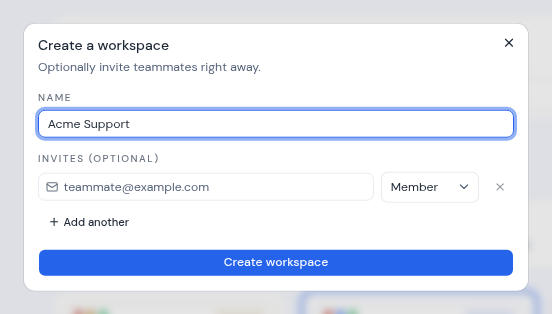
Open the Create a workspace dialog in one of two ways:
- In the left rail, click the dashed + tile below your workspace tiles (New workspace).
- Or open Settings, choose Workspaces and click New workspace.
-
Type a Name, for example “Acme Corp”. It must be 2 to 60 characters long.
-
Optionally, invite people under Invites (optional). See Invite people while you create it.
-
Click Create workspace.
Metis Suite opens the new workspace on a page titled “Nothing in this workspace yet”. From there you can add a mailbox, or a calendar or drive from the settings menu. See Add, share and remove resources.
Invite people while you create it
Each invite row has an email field and a role picker.
- Type an email address and choose Member or Admin. Member is selected unless you change it.
- Click Add another, or press Enter in a row, to add another row. Click the X on a row to remove it (it is unavailable when only one row is left).
- You can paste several addresses at once, separated by commas, semicolons, spaces or new lines. Each address gets its own row.
Each person gets an email with a link to join. To accept, the person needs an account on your Metis Suite instance. They can sign in, or create one, and then open the link within 7 days. For more about invites and roles, see Members and roles.
If something goes wrong
- “Name must be at least 2 characters”: type a longer name.
- “Not a valid email: …” or “Duplicate email: …”: fix or remove the address the message names.
- “Workspace created, but these invites failed: …” means the workspace exists, but some invites were not sent. Click Retry invites to try them again, or close the dialog and invite those people later.
The workspace’s web address
Metis Suite makes the workspace’s web address from its name. For example, “Acme Corp” becomes acme-corp. A long name is cut to 32 characters. If that address is taken, a number is added, such as acme-corp-2.
The name and the web address cannot be changed after you create the workspace, so choose the name with care.