Add, share and remove resources
Put mailboxes, calendars and drives in a workspace, turn AI and phishing detection on or off for them, share them and remove them.
Each workspace has three settings pages for its resources: Mailboxes, Calendars and Drives. Open them from the workspace menu at the top of the left rail.


Each row shows the account’s picture or provider logo and its email address. Under the address, a line shows the provider, the server’s name when there is one, and the resource’s short web address in this workspace. Calendar rows add how many calendars are shown, and drive rows add “whole drive” or how many folders are shown.
Add a mailbox, calendar or drive
- On the Mailboxes, Calendars or Drives page, click Add mailbox, Add calendar or Add drive.
- Click an account you have already connected, or connect a new one.
For the full steps, see Connect an account.
Anyone in the workspace can add their own mailboxes, calendars and drives. A newly added resource starts Private, with AI and phishing detection turned off.
Turn AI on or off for a resource
Each row has an AI control: a robot icon whose label reads, for example, “AI is on for this mailbox here” or “AI is off for this mailbox here”. Click it to turn AI on or off. It controls whether the assistants and connected MCP clients can read this mailbox, calendar or drive in this workspace. Other workspaces are not affected.
- Only the person who connected the resource can click it. Everyone else sees a plain icon that shows whether AI is on or off.
- Turning AI on asks for your authenticator code. The dialog “Turn AI on for this mailbox here?” explains what AI will be able to read. Enter the code and click Turn AI on.
- Turning AI off needs no code. It happens at once.
The AI control appears only when your instance has AI set up. For more about AI, see AI assistant.
Turn phishing detection on or off for a mailbox
When your instance has phishing detection set up, each mailbox row also has a shield icon (its label reads “Phishing detection is on for this mailbox here” or “off”). Click it to turn detection on or off. When it is on, every message in the mailbox is sent to the phishing detection service to be scanned while the mailbox is in this workspace.
It works like the AI control: only the person who connected the mailbox can change it, turning it on asks for your authenticator code (click Turn detection on), and turning it off needs no code.
When the workspace overrides a resource
A workspace’s AI and privacy settings can be stricter than a resource’s own setting. When they win, the row shows a badge:
- Off here: the resource’s own setting is on, but the workspace turns this off.
- Required here: the resource’s own setting is off, but the workspace requires phishing detection.
Share a resource or keep it private
Owners and admins see a Shared or Private button on each row. Click it to switch between the two.
- Private: only the person who connected it and the workspace’s owners and admins can see it. This is how every resource starts.
- Shared: every member of the workspace can see and use it.
Members do not see this button. If you are a member and want to share something you added, ask an owner or admin.
Remove a resource from the workspace
- Click Remove on the row.
- Confirm in the dialog “Remove … from this workspace?” by clicking Remove.
Removing takes the resource out of this workspace only.
- A mailbox: this workspace loses its workflows and sharing for the mailbox.
- A calendar account: this workspace loses the calendar and the choices of which calendars to show.
- A drive: this workspace loses the sharing choices made for it.
The account stays connected, keeps working in your other workspaces, and nothing is disconnected or deleted at the provider. To disconnect it completely, see Manage your connected accounts.
You can remove the resources you connected yourself. Only owners and admins can remove a resource someone else connected. As a member, you may see Remove on a shared resource someone else connected, but only an owner or admin can remove it.
Choose which calendars a workspace shows
A calendar account usually holds several calendars. You choose which of them this workspace shows.
- On the Calendars page, click the arrow at the end of the account’s row (Show calendars).
- Turn on the switch for each calendar to show, such as “Show Work in this workspace”. All calendars turns them all on or off and shows how many are on, such as “2 of 3”.
- Click Save.
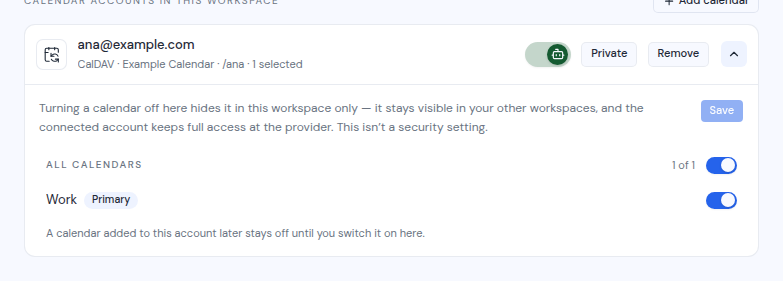
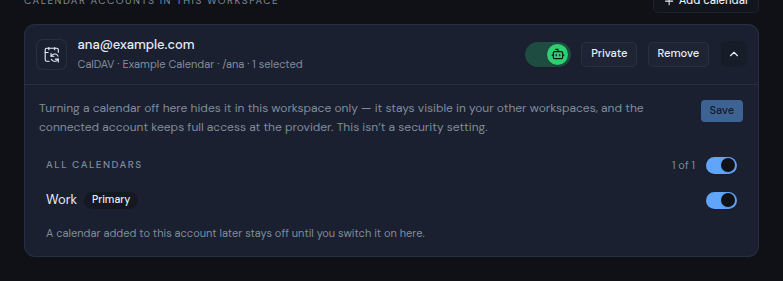
- The list marks your main calendar with Primary, and calendars you can only read with Read-only.
- A calendar added to the account later stays off until you switch it on here.
- Turning a calendar off hides it in this workspace only. It stays visible in your other workspaces, and the connected account keeps full access at the provider. This is not a security setting.
- The person who connected the account and the workspace’s owners and admins can change these choices.
If the calendar sidebar says “None of your calendars are showing in this workspace yet.”, click Choose which calendars to show. It opens this page with the right account highlighted.
Choose which drive folders a workspace shows
A drive starts with the whole drive visible. You can limit a workspace to some of the drive’s top-level folders.
- On the Drives page, click the arrow at the end of the drive’s row (Choose folders).
- Tick the top-level folders this workspace can see. Leave everything unticked to show the whole drive. With nothing ticked, the panel shows “Whole drive is visible”.
- Click Save.
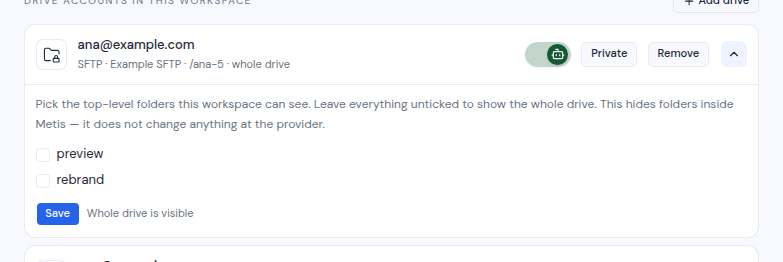
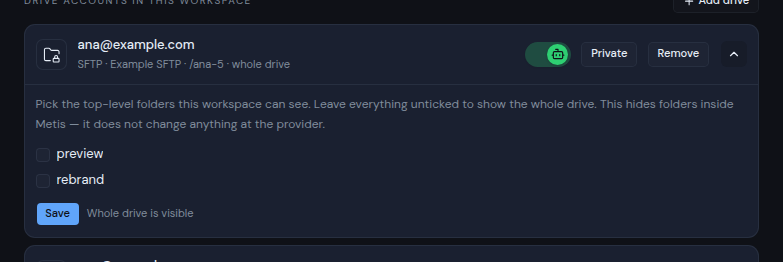
- This hides folders inside Metis Suite only. It changes nothing at the provider.
- Only the person who connected the drive and the workspace’s owners and admins see Choose folders.
- If the folders cannot be read, you see “Could not read the folders on this drive”. A drive with no folders shows “This drive has no top-level folders yet.”