Folder restrictions
Choose which top-level folders of a drive a workspace can see, and what members see when a drive is restricted.
A folder restriction limits a drive to some of its top-level folders in one workspace. Use it when a drive holds more than this workspace needs. For example, a drive can have one folder per client. Each client’s workspace then sees only its own folder.
Who can set it
A workspace owner or admin can set a restriction on any drive in the workspace. The person who connected a drive can set it on that drive. Other members do not see the setting.
Set a restriction
- Open your workspace settings and go to Drives. (See Workspaces for how to open workspace settings.)
- Find the drive and click the arrow at the end of its row (Choose folders). The list of the drive’s top-level folders opens.
- Tick each folder this workspace should see.
- Click Save.
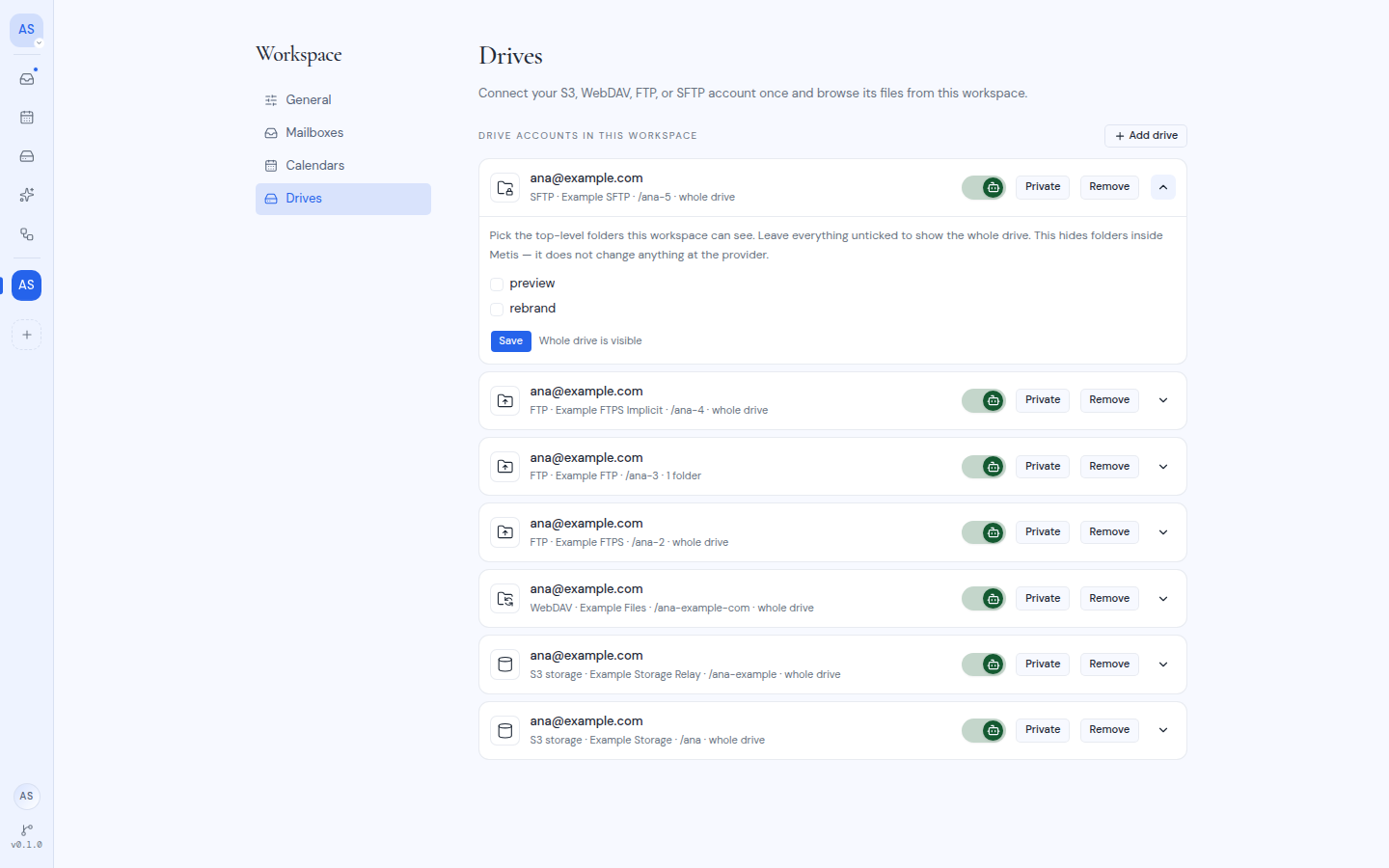
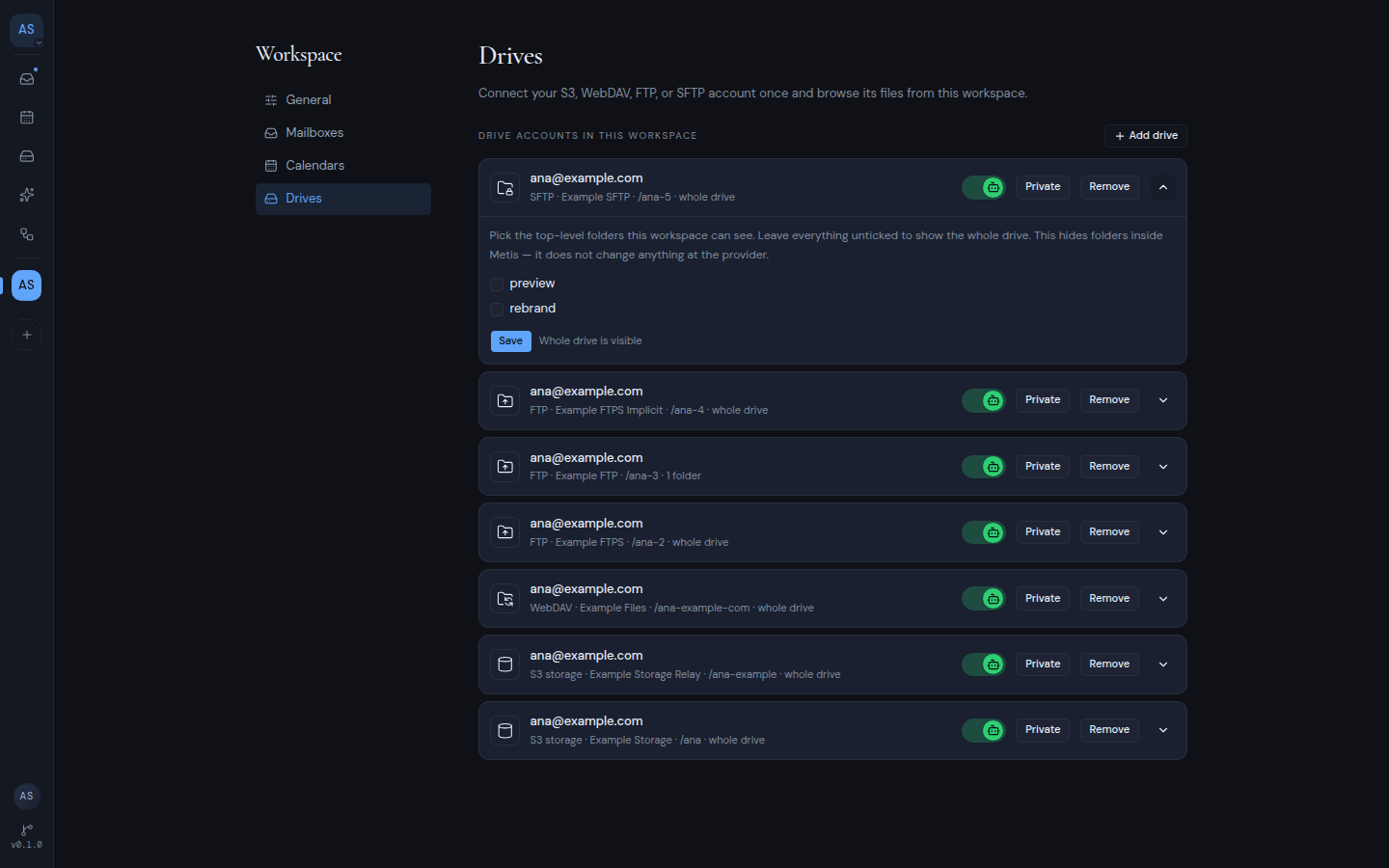
To remove the restriction, untick every folder and click Save. With nothing ticked, the panel says “Whole drive is visible”.
The drive’s row shows its state: “whole drive”, or the number of folders the workspace can see.
If saving fails, Metis shows an error. Try again.
These messages can appear while the folder list loads:
- “This drive has no top-level folders yet.”: there is nothing to choose from.
- “Could not read the folders on this drive”: Metis could not reach the drive. Try again later.
What members see
When a drive has a restriction in this workspace:
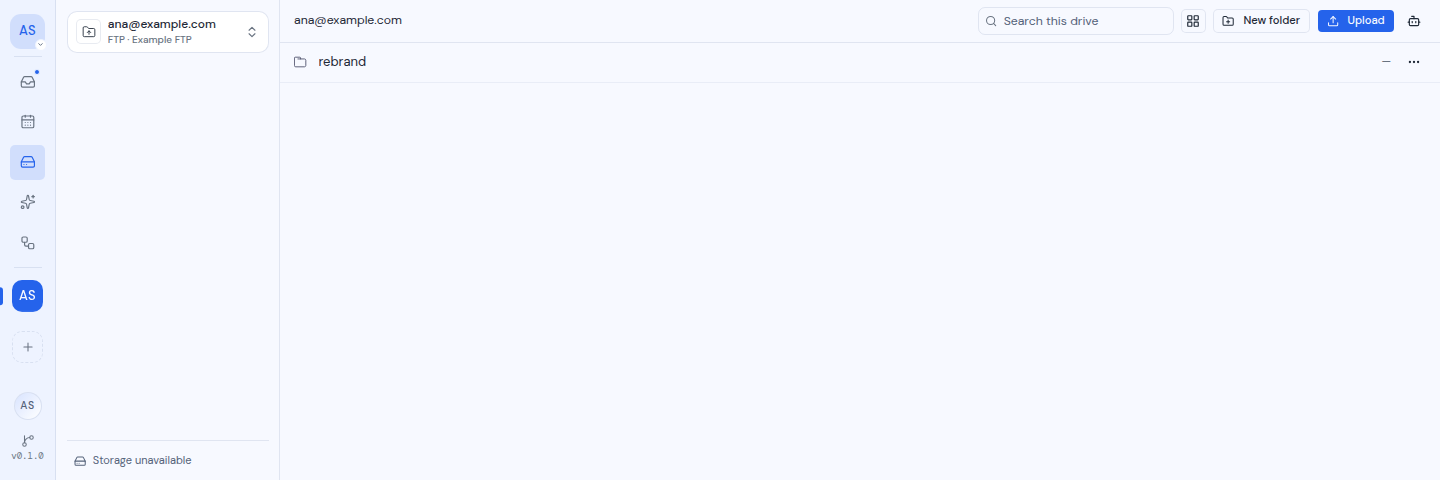
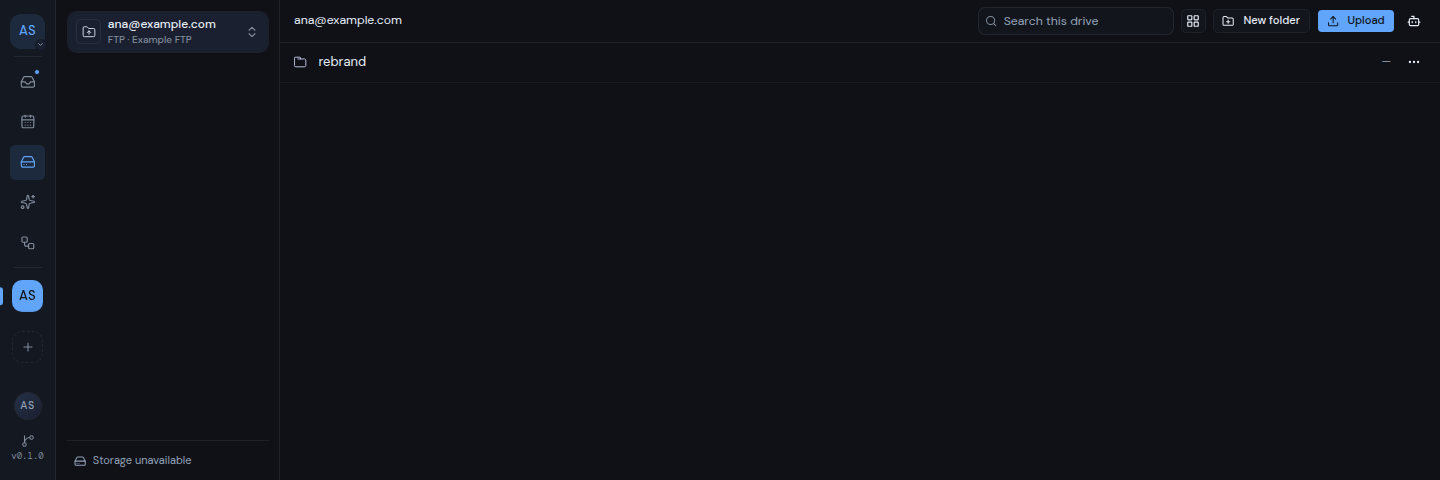
- The top level of the drive shows only the chosen folders. Other folders and files are not listed.
- In the Switch drive menu, the drive shows how many folders are shown, such as “1 folder shown”. An unrestricted drive shows “All folders shown”.
- Search never finds anything in the hidden folders.
- A saved link to a hidden file or folder does not open it.
- You cannot upload files or create folders at the top level of the drive. Open one of the shown folders and work there instead.