Calendar AI
Open the AI assistant beside your calendar and ask it about your events.
Calendar AI is a chat panel that opens beside your calendar. You can ask it about your events, for example when you are free, and ask it to make changes for you. Before it changes anything, it asks for your approval.
This page shows how to open the panel. To learn how to talk to the assistant and approve its changes, see AI assistant.
Open Calendar AI
Click the Calendar AI button (the robot icon) in the calendar header, or press c, then a. Do the same again, or click Close assistant, to close it.
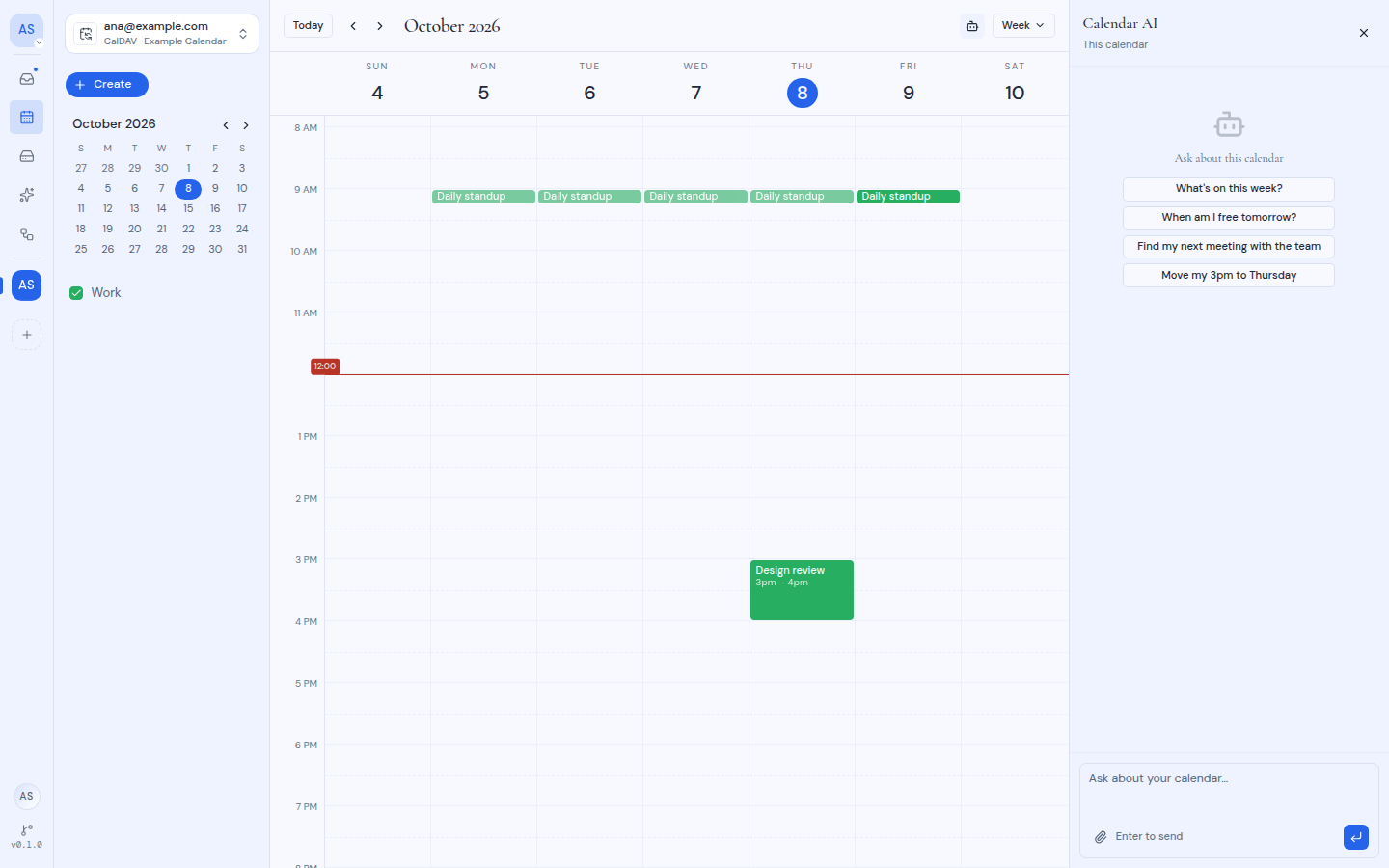
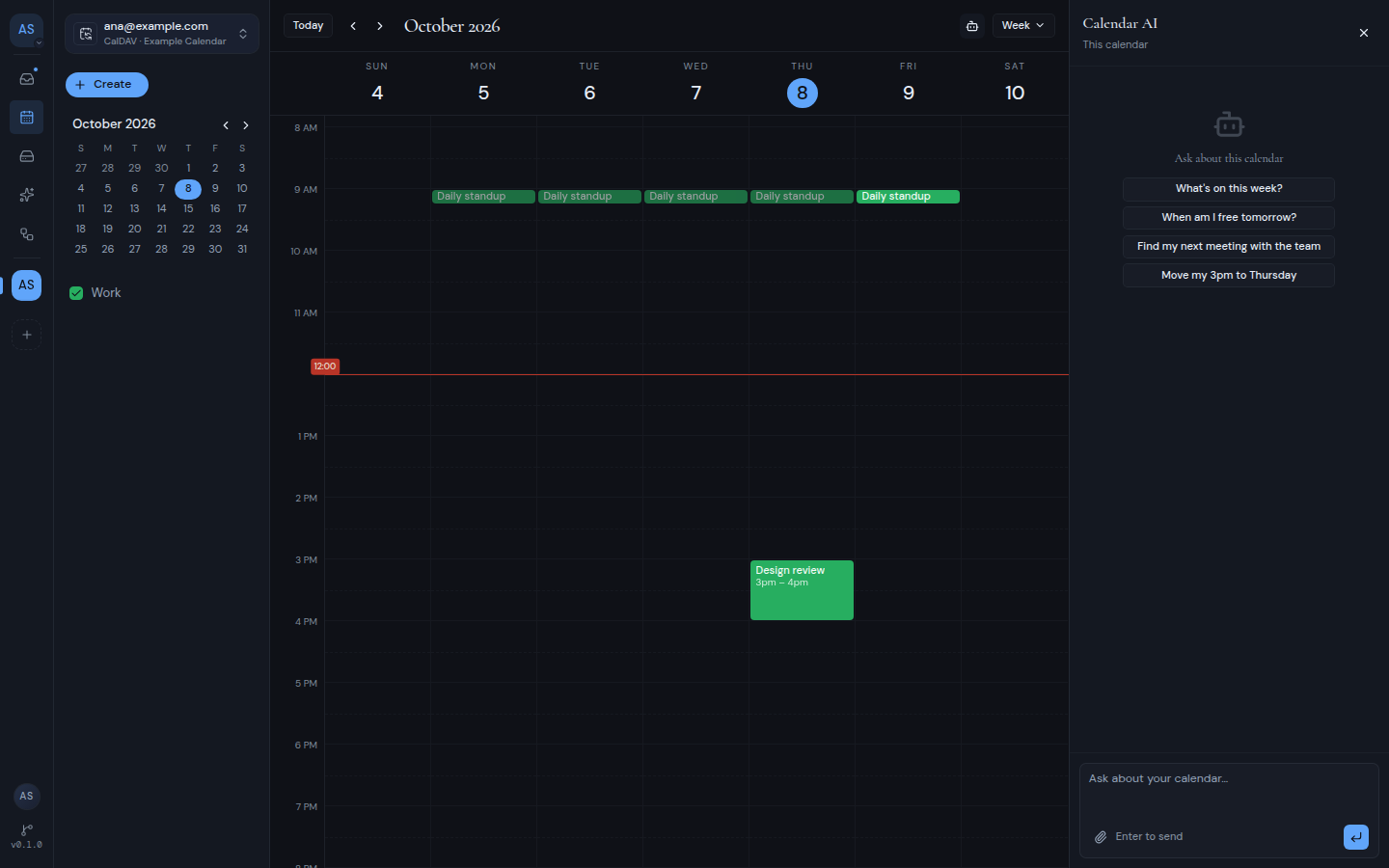
Under the panel title, “All calendars” or “This calendar” tells you which calendars the assistant works with. It matches what you picked in the Switch calendar menu.
You see the Calendar AI button only when AI is available on your Metis Suite instance.
Ask a question
- Type your question in the box that says “Ask about your calendar…”.
- Press Enter to send.
You can also click one of the suggestions, such as “What’s on this week?” or “When am I free tomorrow?”. It is sent right away.
To point the assistant at one event, click Attach an event and pick it from the events in view. You can also drag an event from the calendar onto the panel. The panel shows “Drop to attach” when you are over it.
If something goes wrong, the panel shows “Calendar AI hit a problem” with a Retry button.
When the assistant is turned off
If AI is turned off, the panel shows “Assistant turned off” with one of these messages:
- “This workspace has AI turned off, so the assistant is unavailable here.” AI is off for the whole workspace. The Workspace settings link takes you to the workspace’s settings.
- “AI is turned off for this calendar, so the assistant has nothing it can read.” AI is off for this calendar account in this workspace. The Your calendars link opens your own calendar settings.
To learn how AI is turned on for a workspace or a calendar, see Workspaces.