Show and hide calendars
Hide a calendar's events for yourself, and choose which of an account's calendars a workspace shows.
A calendar account usually holds several calendars, such as Personal, Work and Holidays. There are two separate choices about which of them you see:
- In the sidebar, you can hide a calendar for yourself. This changes only what you see, in this browser.
- In the workspace settings, someone with the right access picks which calendars the workspace shows at all. This applies to everyone in the workspace.
Hide a calendar for yourself
The sidebar lists every calendar the workspace shows, each with a checkbox in the calendar’s color.
- Untick a calendar’s checkbox. Its events disappear from your view.
- Tick it again to bring them back.
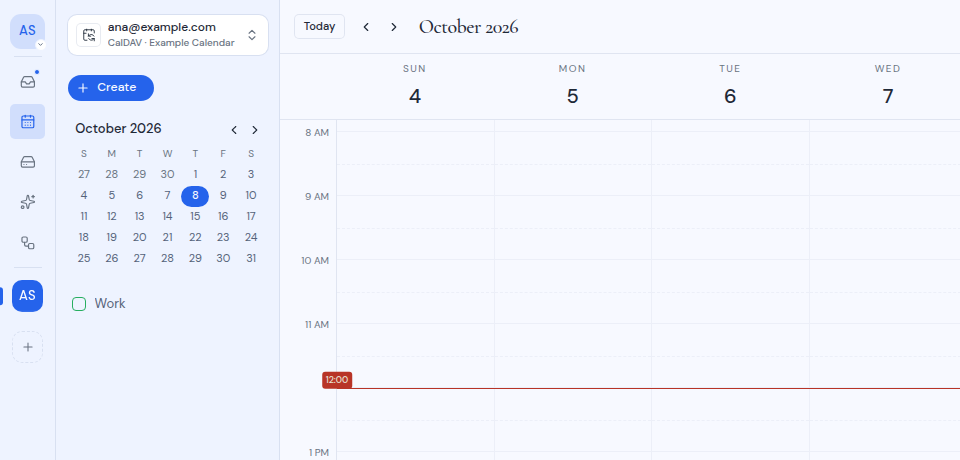
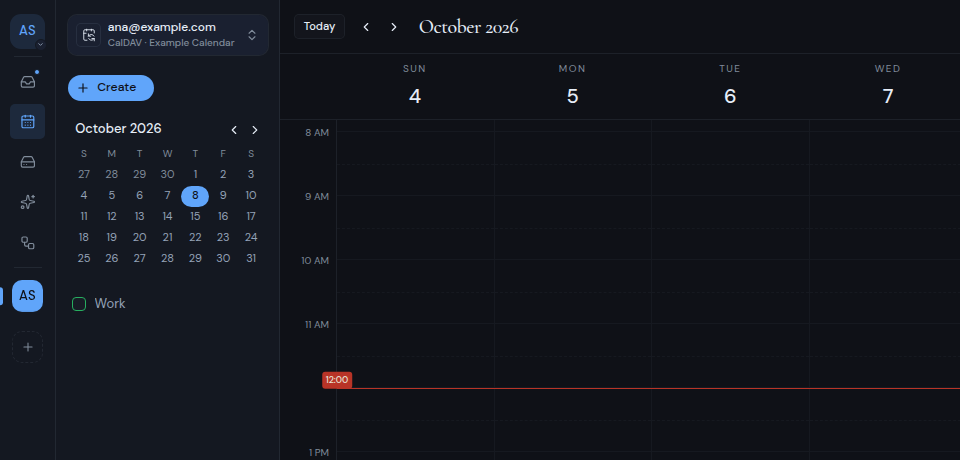
This choice is saved in this browser only, and separately for All calendars and for each account. Your teammates still see the calendar, and so do you in another browser or on another device.
When the workspace has more than one calendar account, the sidebar groups the calendars under each account’s email address. Click an email address to collapse or expand its group.
When the sidebar shows no calendars
- “None of your calendars are showing in this workspace yet.” means you have a calendar account in this workspace, but none of its calendars are switched on. Click Choose which calendars to show to go to the setting below.
- “No calendars are showing in this workspace yet.” means no calendar is switched on for this workspace. Ask someone in the workspace to add one. The Calendar settings link opens the workspace’s calendar settings.
Choose which calendars a workspace shows
For each calendar account in a workspace, you pick which of its calendars the workspace shows.
-
Open the workspace settings: click the workspace tile at the top of the left rail and choose Calendars. You can also choose Add calendar in the Switch calendar menu.
-
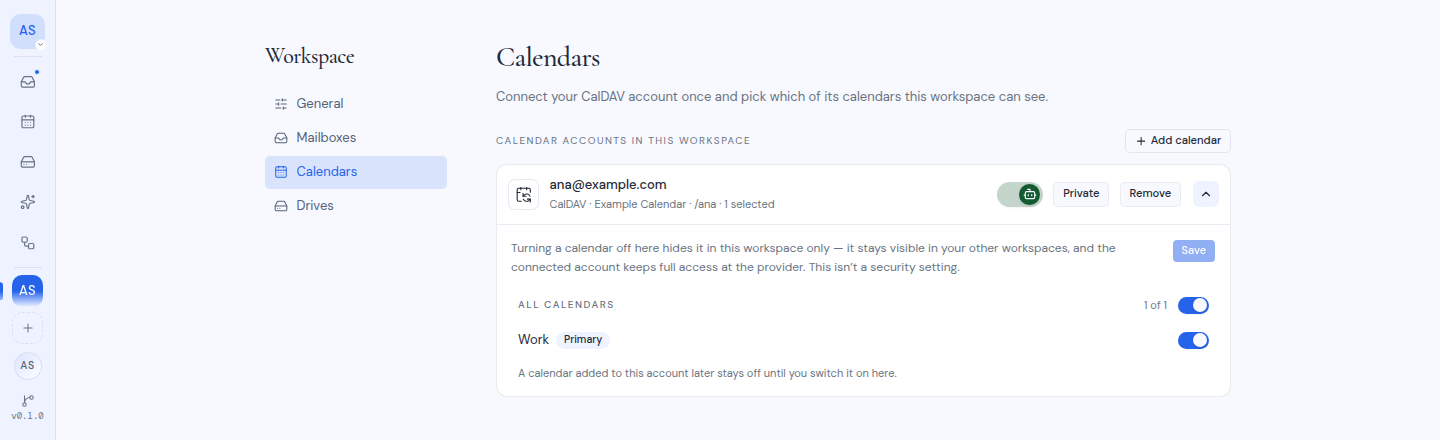
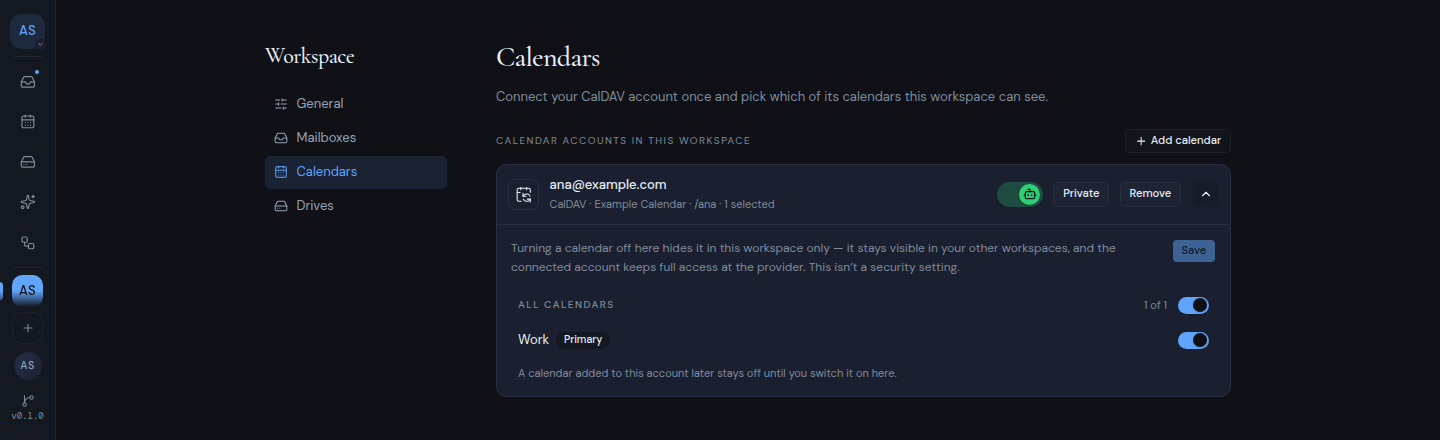
Find the calendar account and click the arrow at the end of its row (Show calendars). The list of its calendars opens.
-
Turn a calendar’s switch on to show it in this workspace, or off to hide it. All calendars turns every calendar on or off at once, and shows how many are on, such as “2 of 3”.
-
Click Save.
The list marks your provider’s main calendar with Primary, and calendars you can only read with Read-only. The account’s row shows how many calendars are on, or “none selected”.
Things to know
- New calendars stay off. If you later add a calendar to the account at your provider, it stays off in this workspace until you switch it on here.
- This is per workspace. Turning a calendar off here hides it in this workspace only. It still shows in your other workspaces.
- This is not a security setting. The connected account still has full access to all its calendars at the provider. Turning a calendar off only hides it inside Metis Suite.
- Who can change it: a workspace owner or admin, or the person who connected the account. Everyone else sees the switches, but cannot change them.
If the list cannot load, you see a message such as “Could not reach the provider”. If your changes cannot be saved, you see a message such as “Could not save”. If the account has no calendars, you see “No calendars came back from this account.”
To add or remove calendar accounts in a workspace, see Workspaces.