Manage workflows
Edit, turn on, turn off and delete workflows, and change them from the Workspace Assistant.
This page covers the everyday changes you make to workflows that already exist.
Edit a workflow
- Click Workflows in the left rail, then click the workflow in the list.
- Change the name or the steps on the canvas.
- Click Save.
Saving checks the workflow first. If something is wrong, a red message at the top right names the first problem, and nothing is saved. Fix it and click Save again. When the save works, the top right shows Saved. See Limits for the messages you may see.
Each save keeps a new version. Runs that already started finish on the version they started with, and later runs use the new one.
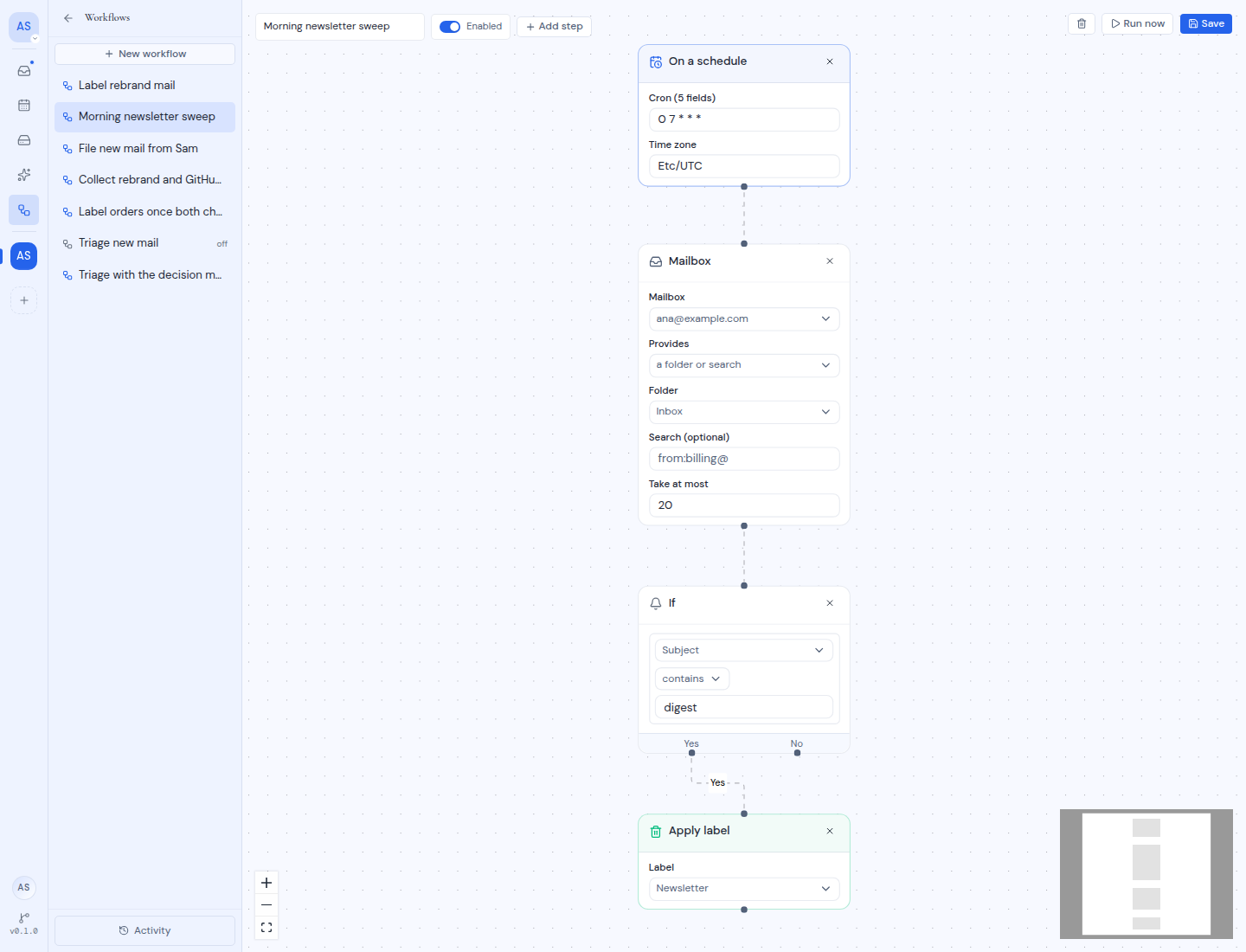
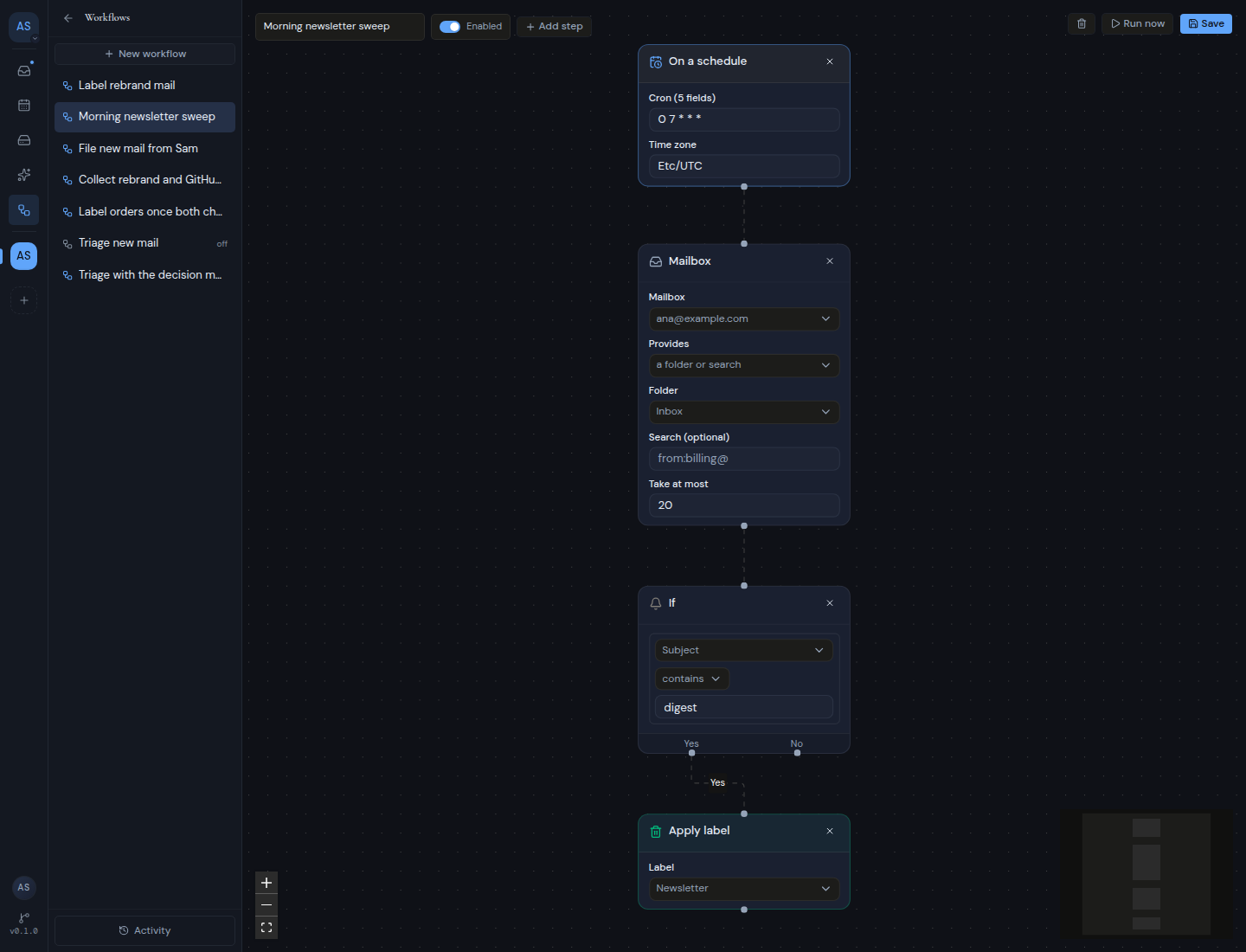
Turn a workflow off or on
- Open the workflow.
- Click the switch next to the name. It changes between Enabled and Disabled.
- Click Save. The switch only takes effect when you save.
A disabled workflow has a grey icon and “off” after its name in the list.
While a workflow is off:
- It does not watch for new mail and does not run on its schedule.
- It does not run when you send mail.
- Runs waiting to start are cancelled, and a run in progress stops before its next step.
- Its run history stays.
When you turn it back on:
- A When mail arrives trigger takes a fresh baseline. Mail that arrived while the workflow was off is skipped.
- A schedule starts again from its next time. Times missed while the workflow was off do not run.
Delete a workflow
Only workspace owners and admins can delete workflows. Other members see the delete button too, but get the message “Only an admin can delete workflows”.
- Open the workflow.
- Click Delete workflow (the trash can) at the top right.
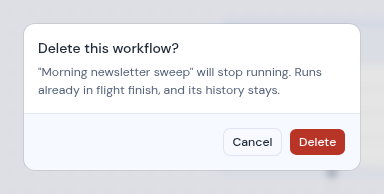
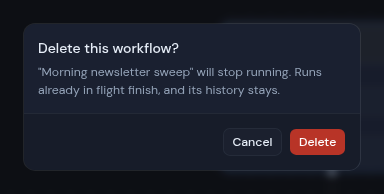
- The dialog Delete this workflow? says the workflow will stop running. Click Delete to confirm, or Cancel to keep it.
After you delete a workflow:
- It leaves the list and stops running.
- Runs waiting to start are cancelled. A run in progress stops before its next step, and a step already in progress may still finish.
- Its run history stays under Activity, but its runs can no longer be retried.
Deleting cannot be undone. To keep a workflow without it running, turn it off instead.
Change workflows from the assistant
The Workspace Assistant can also list your workflows and their runs, and change them for you. Changes do not happen straight away: the assistant first shows an approval card in the chat, and nothing happens until you click Approve. Click Decline to stop it.
| You ask the assistant to | The approval card says |
|---|---|
| Create or change a workflow | “Approve creating the workflow” or “Approve changing the workflow”, with its name |
| Turn a workflow on or off | “Approve turning this workflow on” or “Approve turning this workflow off” |
| Delete a workflow | “Approve deleting this workflow”, noting that it can’t be undone |
| Run a workflow now | A card that asks you to approve running workflows now |
| Cancel a run | “Approve cancelling this workflow run”, noting that a step already in progress can’t be called back |
| Retry a run | “Approve retrying the failed steps of this workflow run”, noting that completed steps won’t run again |
When you approve running a workflow now, the assistant runs the one workflow you asked about.
The assistant can also try an Ask step’s questions on your recent mail without changing anything, and that needs no approval. See AI assistant for how approvals work in the chat.
An outside AI client that you connect to Metis Suite (an MCP client) does not get approval cards. It can make these changes only if you have turned on its sensitive tools. See AI assistant.