Steps
Every step you can add to a workflow, what it does and the fields it has.
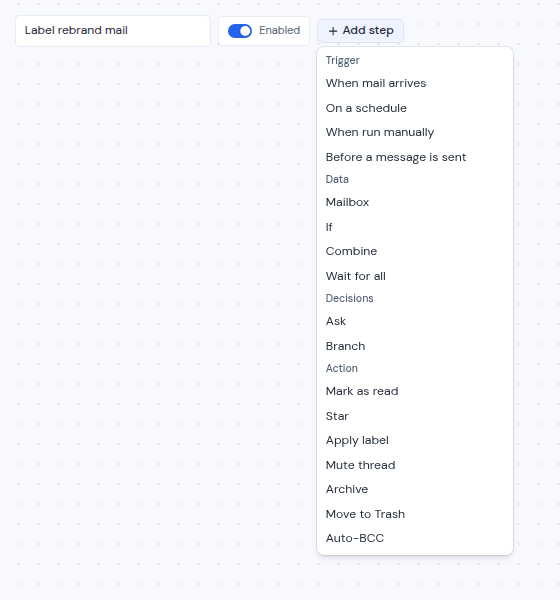
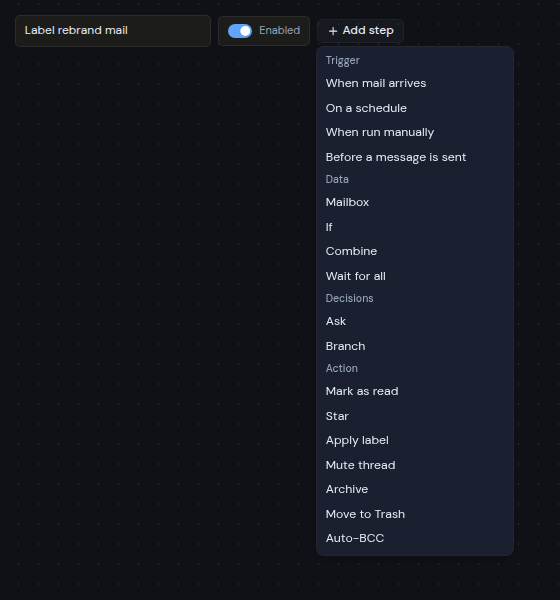
This page lists every step in the Add step menu, grouped the way the menu groups them. For triggers, see Triggers.
Work with steps on the canvas
- Add a step: click Add step and pick one. The new step appears below the others.
- Move a step: drag it by its title bar.
- Connect two steps: drag from the dot at the bottom of one step to the dot at the top of the next. Mail flows in that direction.
- Remove a connection: click the line and press Backspace (Delete on a Mac).
- Remove a step: click the X in its title bar, or click the step and press Backspace (Delete on a Mac).
- Move around: drag the empty canvas to pan. Use the zoom buttons in the bottom left corner, or the small map in the bottom right corner.
Every step except a trigger takes exactly one incoming connection. To bring two branches back together, use a Combine or Wait for all step, which take several. The canvas refuses a connection that can never work, for example a second connection into an ordinary step.
Changes on the canvas are not saved until you click Save (or Create workflow for a new one).
Data steps
Mailbox
Supplies the mail the rest of the workflow works on. It has these fields:
| Field | What it does |
|---|---|
| Mailbox | The mailbox to read. If the workspace has none, it says “Connect a mailbox first”. |
| Provides | newly arrived mail (for the When mail arrives trigger) or a folder or search (for On a schedule and When run manually). |
| Folder | With a folder or search: one of Inbox, Sent, Drafts, Starred, Trash, Archive or Spam. |
| Search (optional) | With a folder or search: a search to narrow the folder, for example from:billing@. Up to 200 characters. |
| Take at most | With a folder or search: how many of the newest messages to take, from 1 to 100. The default is 50. |
An On a schedule or When run manually trigger can feed several Mailbox steps, for example one for each of two mailboxes. Each one runs as its own branch. A When mail arrives trigger feeds exactly one Mailbox step.
If
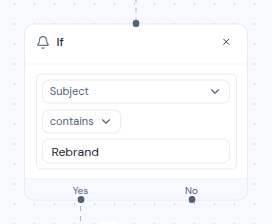
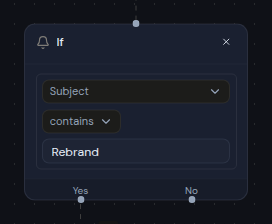
Checks each message against one or more conditions. Matching messages leave through the Yes output, and the rest leave through No. You can connect either output, both or just one.
Each condition has three parts:
- A field: Sender, Recipient, Cc, Subject, Body or Has attachment.
- A test: contains, equals, starts with or ends with. For Has attachment, you pick Yes or No instead.
- A value: the text to look for, up to 200 characters.
Conditions sit in a group that says Match all of or Match any of. Choose all when every condition has to be true, and any when one is enough.
- + Condition adds a condition to the group.
- Group adds a group inside the group, so you can mix all and any. For example, “Subject contains invoice, and the sender ends with @example.com or @example.org”.
- Remove condition and Remove group take one out.
Combine and Wait for all
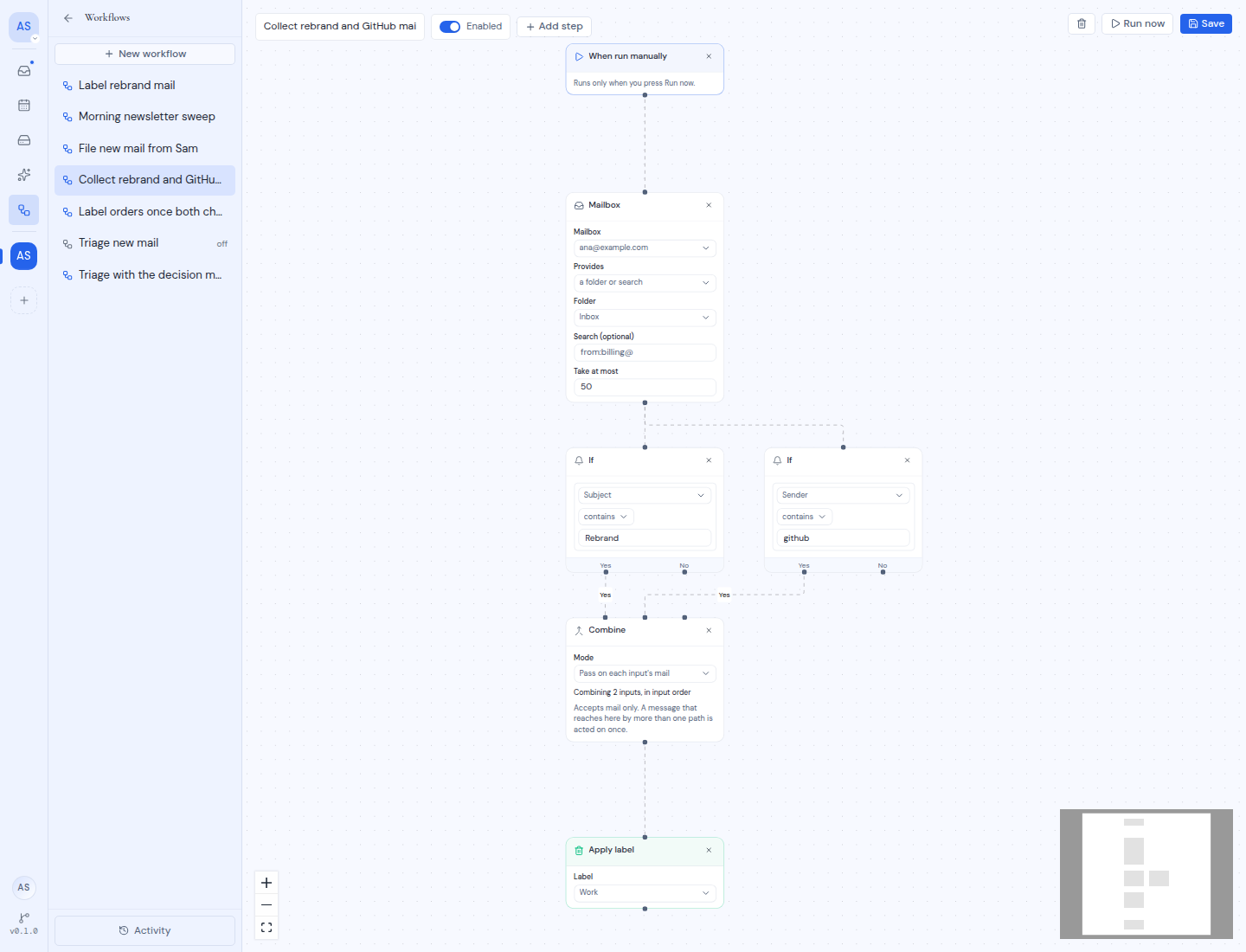
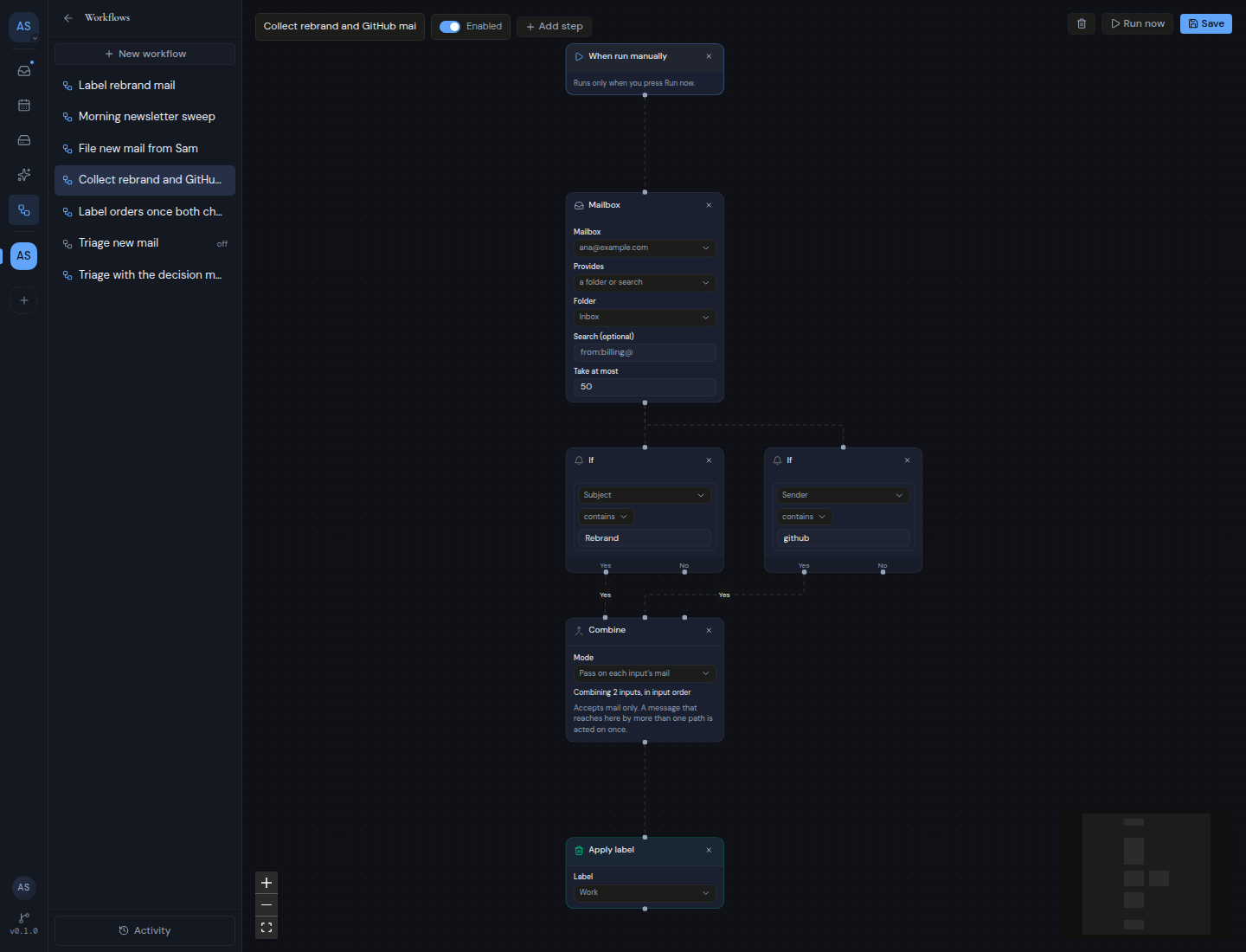
These steps join two or more branches back into one, so a single action can follow them. They are one step with two modes, chosen in the Mode field:
| Mode | Step | What it does |
|---|---|---|
| Pass on each input’s mail | Combine | Passes on mail from every input as soon as it arrives. A message that comes in through more than one input is acted on once. |
| Wait for every input | Wait for all | Holds everything until every input that ran has finished, then passes the mail on. An input that finds no mail counts as finished. If any input fails or is blocked, nothing continues. |
Each input has its own dot on top of the step (point at it to see its number), and a new dot appears as you connect more, up to 16. Each branch needs its own input. These steps accept mail only.
The card shows how many inputs are connected, for example “Combining 2 inputs, in input order”.
Decision steps
Ask and Branch let an AI model answer questions about each message, then send the message down a path for each answer. They appear in the Add step menu only if your instance offers them. See Let AI decide with Ask and Branch.
Action steps
Actions do something to every message that reaches them. An action is usually the last step of a branch.
| Step | What it does | Fields |
|---|---|---|
| Mark as read | Marks the message as read. | None |
| Star | Stars the message. | None |
| Apply label | Gives the message a label. | Label: a built-in label or a custom label from any mailbox in the workspace. The default is Work. |
| Mute thread | Mutes the conversation the message belongs to. | None |
| Archive | Moves the message out of the inbox into the archive. | None |
| Move to Trash | Moves the message to Trash. | None |
| Auto-BCC | Adds an address as BCC to a message you are sending. Works only after a Before a message is sent trigger. | BCC address |
To find out more about labels and muting, see Mail.
Templates
The New workflow menu starts you from a ready-made set of steps:
| Template | Steps |
|---|---|
| One mailbox, on arrival | When mail arrives, a Mailbox set to newly arrived mail, an If, and Archive on Yes. |
| Two mailboxes, on arrival | Two When mail arrives triggers, each with its own mailbox. One goes to Apply label, the other to Star. |
| Two mailboxes, on a schedule | On a schedule feeding two Mailbox steps. One goes to Mark as read, the other to Apply label. |
| Two mailboxes, one shared action | On a schedule, two mailboxes, a Combine step and Apply label. |
| Two mailboxes, act once both are read | On a schedule, two mailboxes, a Wait for all step and Apply label. |
If the workspace has only one mailbox, the two-mailbox templates use it for both branches. Change any step before you save.