Add a drive
Connect a drive account and add it to a workspace, from Google Drive and OneDrive to S3, WebDAV, FTP and SFTP servers.
To browse a drive in a workspace, add it in the workspace’s drive settings. You can add a drive account you already connected, or connect a new one.
Open the drive settings
Open your workspace settings and go to Drives. You can also click Add drive in the Switch drive menu, or Go to drive settings on the Drive page of a workspace with no drive.
The page lists the section Drive accounts in this workspace. If it is empty, it says “No drives here yet. Use Add drive to pick an account you’ve already connected, or connect a new one.”
Add a drive you already connected
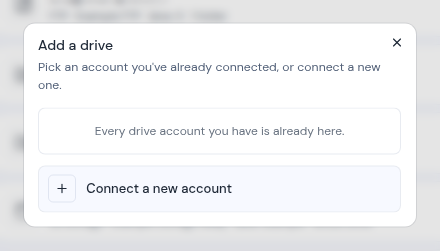
- Click Add drive. The Add a drive dialog opens.
- Click the account you want. It is added to the workspace straight away.
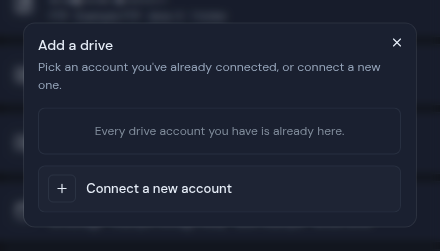
If every drive account you have is already in this workspace, the dialog says “Every drive account you have is already here.”
Connect a new drive account
- In the Add a drive dialog, click Connect a new account.
- Pick the kind of drive. The list shows only what your administrator has set up. Storage servers are listed by the name your administrator gave them.
- Follow the steps for that kind of drive, below.
Google Drive and OneDrive
Click Google Drive or OneDrive. You sign in with Google or Microsoft, then come back to the workspace. If you sign in with a Google or Microsoft account you already use in Metis for mail or calendar, the drive is added to that same account.
S3 storage
Fill in:
- Email address: your email address. Metis lists the drive under this address.
- Bucket: the storage bucket to open.
- Folder prefix: optional. Fill it in to limit this drive to one folder in the bucket.
You do not enter any keys. Your administrator holds them.
WebDAV, FTP, FTPS and SFTP
Fill in:
- Email address: your email address. Metis lists the drive under this address.
- Username: your login on the server. If you leave it empty, your email address is used.
- Password: your password on the server.
- Folder: optional. Fill it in to limit this drive to one folder on the server.
Your administrator sets up the server itself. You only bring your own login.
Finish
Click Connect drive. Metis checks your login before it saves anything. When it works, you see “Drive connected” and the drive is added to this workspace. If not, you see the server’s message or “Could not connect that account”.
After you add a drive
The drive now appears in the workspace’s Switch drive menu. In the drive settings, its row says “whole drive” until someone sets a folder restriction.
To turn on Drive AI for the drive, share it with the workspace, or remove it from the workspace, see Workspaces. Removing a drive from a workspace deletes nothing at the provider, and the drive keeps working in your other workspaces.